Minecraft version
Back to modpacks 
Modrinth · Minecraft modpack
Split Screen Create
A 4 player split-screen multiplayer pack for the Create Mod.
Choose a version Pick your version below, then grab the matching file.
Quick answer
Which Split Screen Create release should I use?
Latest stable file Create: Split Screen 1.2.0
Game version 1.20.1
Loader Fabric 0.16.10
Create: Split Screen 1.2.0 is a complete pack release for 1.20.1 with Fabric 0.16.10. Install it as its own launcher instance. If the creator publishes a separate server file, make sure it names this exact pack release. 95 mods in this pack file.
Pack setup
How should I set up Split Screen Create for players and a server?
Use Create: Split Screen 1.2.0 as the pack version. Install the pack as its own launcher instance. The creator’s listing does not name a separate server file, so check the release notes before setting up a dedicated server. Do not upload the ordinary client folder blindly.
Client instance Install Create: Split Screen 1.2.0
Dedicated server setup Match Create: Split Screen 1.2.0
Pack loader Fabric 0.16.10
A pack is a matched client and server setup, not one mod with an install-side label. Keep its release, loader, manifest and overrides together.
Referenced mods 95
Client only 0
Server only 0
Not labelled 95
These numbers come from the pack file you chose. “Not labelled” means we don’t know which side it belongs on—not that it is safe everywhere. The file count is not a RAM estimate.
What are the server requirements for Split Screen Create?
Create: Split Screen 1.2.0. Change the pack release and its contents or setup may change too.
The selected pack release is Create: Split Screen 1.2.0. That file is for Minecraft 1.20.1 with Fabric 0.16.10. It contains 95 mod projects. The creator’s listing does not name a separate server file. Check their notes before using one, and do not upload an ordinary client folder or rebuild the pack mod by mod. A file count cannot tell us the right RAM, CPU or storage; size the server for the players and world you actually run.
About this project
What kind of pack is Split Screen Create?
Overview
This modpack is designed for easy split-screen multiplayer. It focuses on the Create mod and its add-ons. This pack also includes various structure mods to encourage exploration.
The pack is playable with up to 4 players using controllers on a single (preferably large) screen. Optionally, one player can use the keyboard/mouse. For controller players, the mouse/keyboard can be swapped to focus on another window if a mod requires them.
Performance
Because of the way Minecraft handles running the server (Host World) and client (Other Players), this pack runs much faster (TPS/CPU) than 4 separate instances. It does, however, still take additional power from the GPU (FPS) to render 4 clients. Because of this, it is recommended to lower the resolution of the game since each window is reduced to a quarter of the original size.
How to use
Playing Together
Use the PrisimMC (or MultiMC) launcher to import this pack from Modrinth. PrisimMC allows you to create separate instances (or multiple running copies) of Minecraft. You will need to download this pack for each instance that will be running.
To play on an external server, either the server must disable online mode or each player must use a different Minecraft account. You can also install the E4MC mod, which makes LAN worlds joinable by anyone like a server.
For local play, host a LAN server on the main instance of the pack. All of the other instances will need to join that local server.
If you only have one account to use, you will need to use the AuthMe mod to enable Offline Mode for both online and local multiplayer. Click on the lock icon in the Multiplayer menu to enter Offline mode. If you enter the name of a Minecraft Account, their skin will be used.
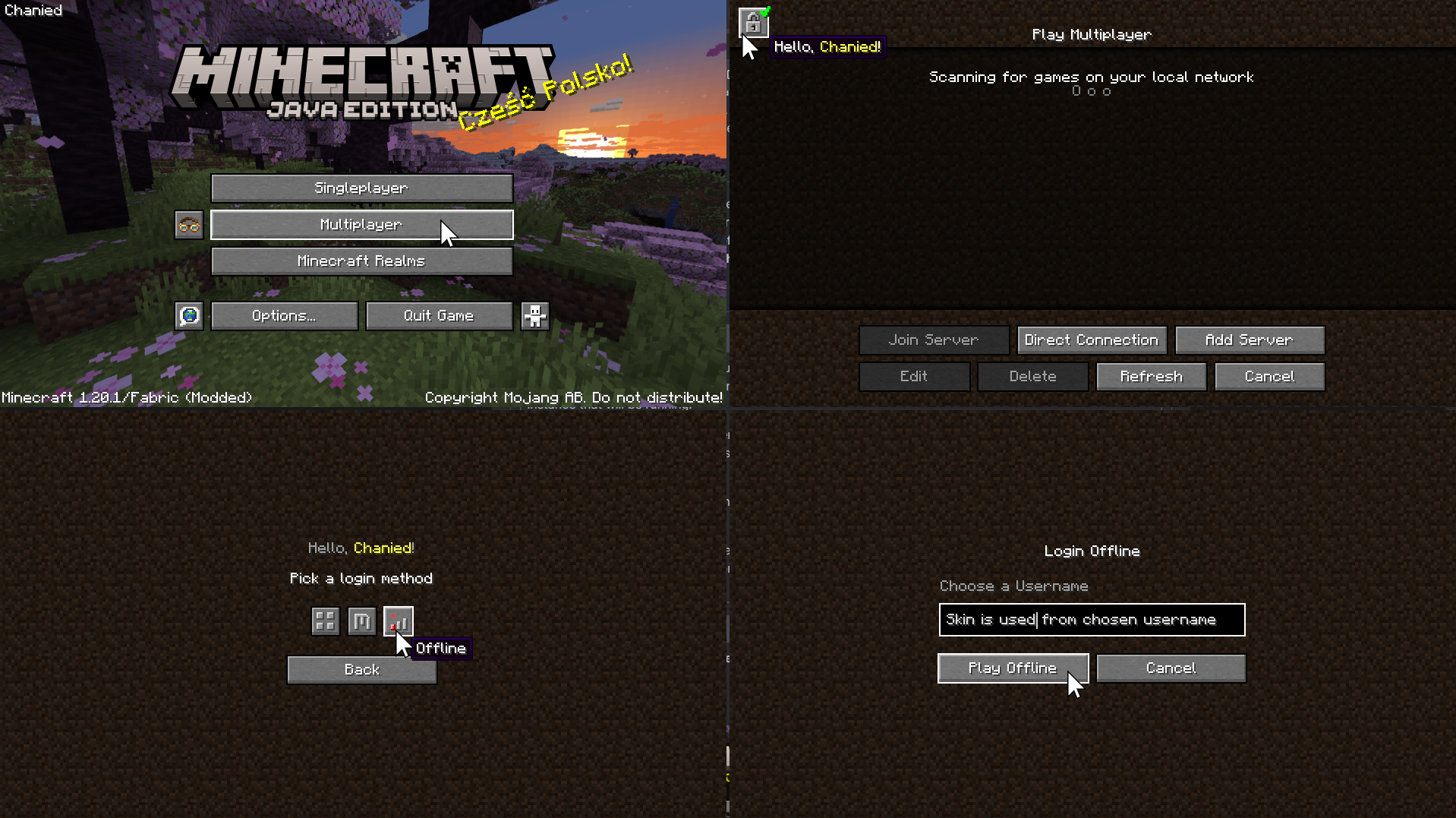
Using Splitscreen
To put the windows into Split Screen, press F11. This cycles between different positions and sizes for each instance.
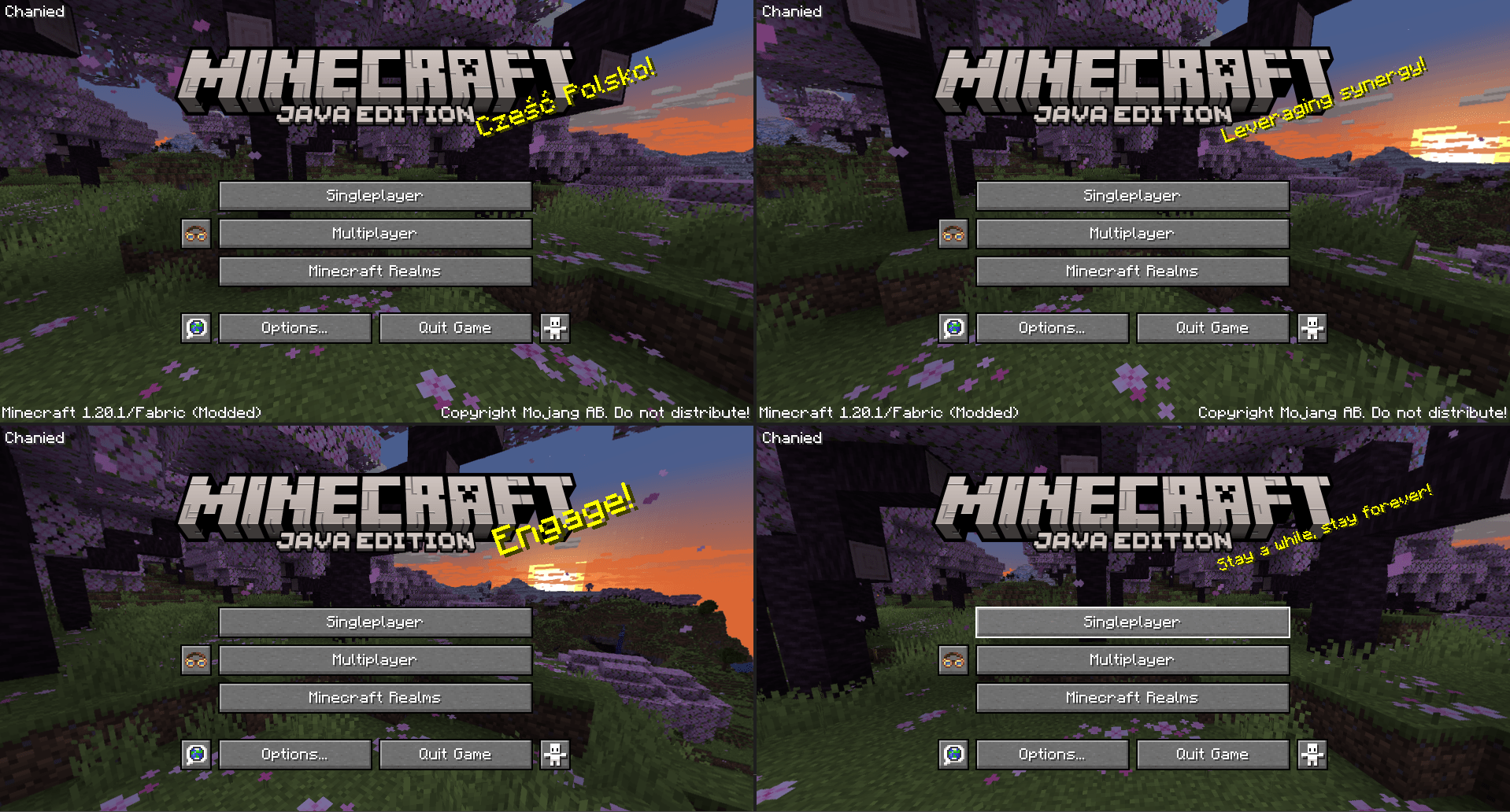
You may need to hide the taskbar to see the bottom of the screen.
To prevent the escape menu from automatically appearing, press F3+P to disable
pauseOnLostFocus.
options.txt
Instead of using the shortcut, you can run each instance once to generate the **options.txt** file. Open the modpack folder and edit **options.txt**. Change the value of **pauseOnLostFocus** from **true** to **false**.
Assigning Controls
On the Minecraft menu, click Options -> Controls -> and the Controller Icon to enter the Midnight Controls menu.
If that instance will be using a keyboard/mouse, turn off Auto Switch Mode.
If that instance will be using a controller, turn on Virtual Mouse. Then, open Controller Options on the sidebar to enable unfocused input.
If you only plan on playing with 1 controller, you can skip this step. We need to assign a controller to each instance of Minecraft. Switch the selected controller at the top of Controller Options to the controller for that instance.
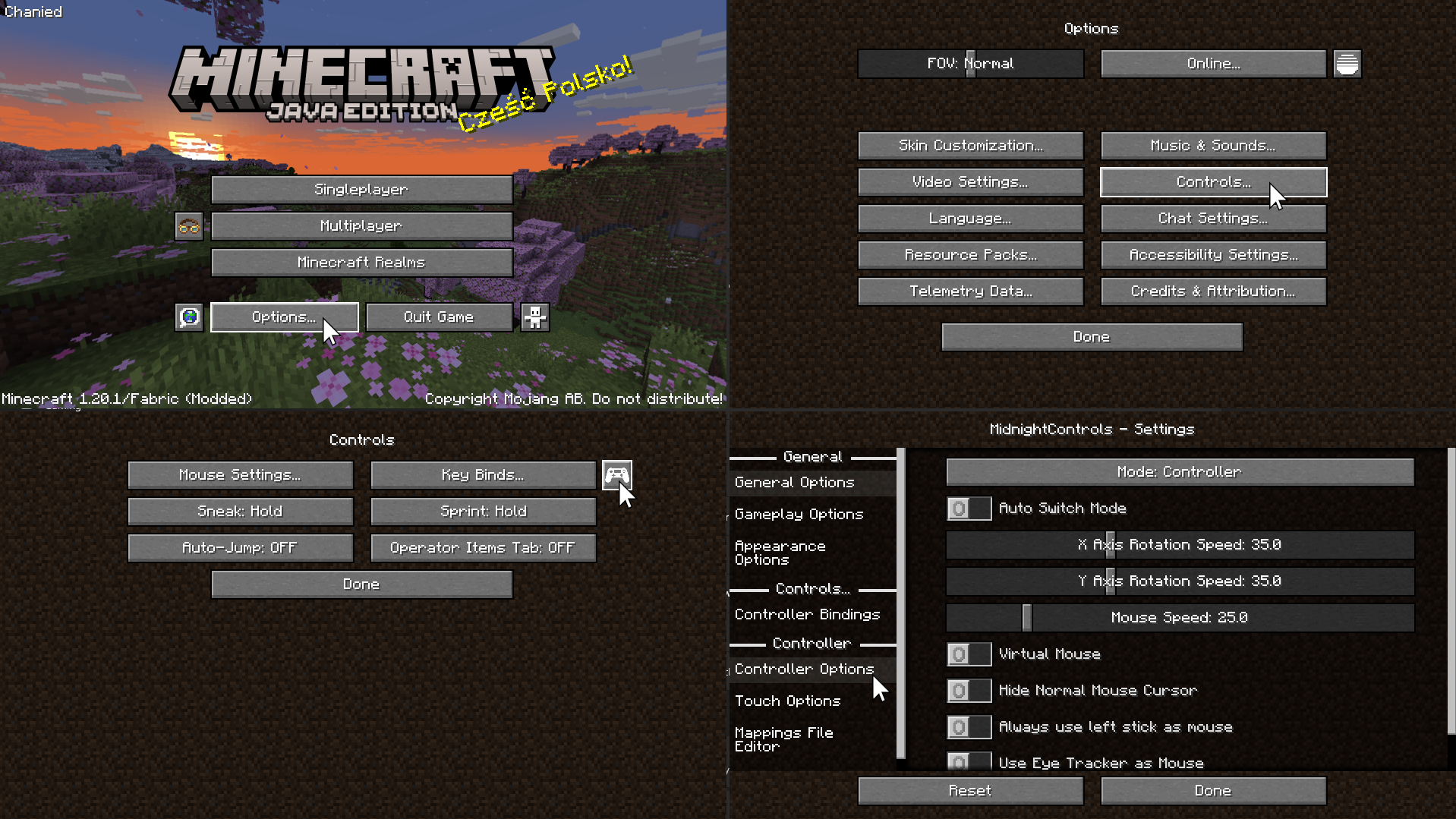
Advanced Controller Options
For more controller options (such as mappings), you will need to download GamepadTool. Copy your mapping code and paste it into the Mappings File Editor inside Moonlight Controls
Other Guides
GamepadTool
Midnight Controls Settings
options.txt
1 controller only
Project description from Modrinth.
Pick your setup
Split Screen Create by Minecraft version and loader
Choose the version and loader you play, then open the matching release.
Made local changes? Try them in a copied instance before touching a world you care about.
Recent files
Split Screen Create versions and loaders
Fabric1.20.1 alpha
Fabric 0.16.101.20.18.0.312+7 release
Fabric1.20.1 beta
Fabric1.20.1 release
Looking for an older file? The official Modrinth project page is in Resources.
 modpack
 CurseForge · Minecraft
Conquest the Kingdom´s Throne – Medieval Kingdom | Realistic Medieval Adventure
Embark on an epic medieval adventure and build your own kingdom! New update with better graphics, more immersion, and new medieval structures and mods.
 modpack
 CurseForge · Minecraft
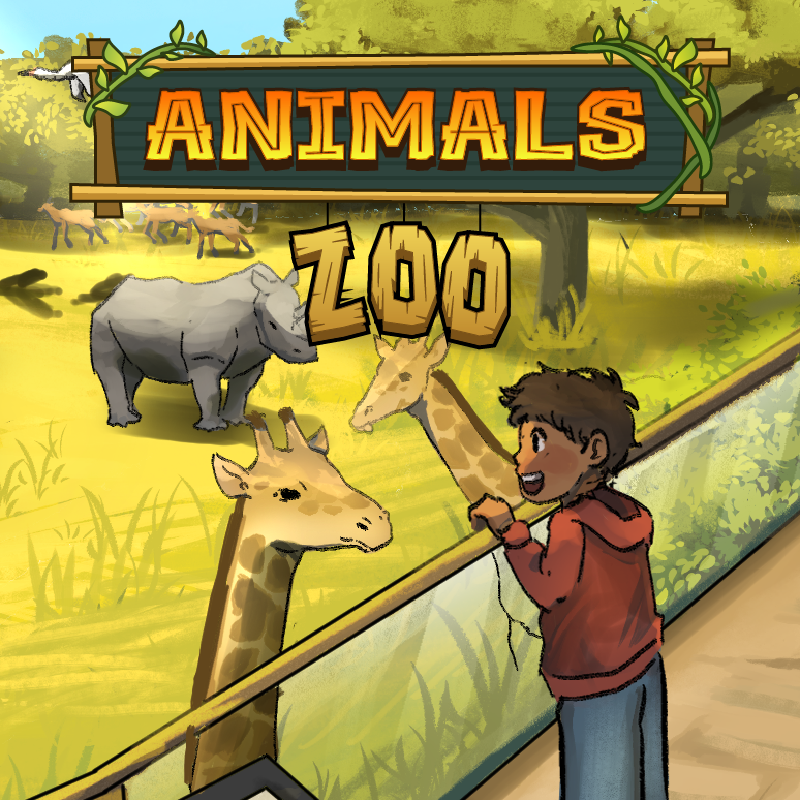
Animals Zoo – Explore Animals & Build the Ultimate Zoo
Quests! Discover, adopt, and collect a huge variety of animals while exploring structures, defeating bosses, and building your own zoo.
 modpack
 CurseForge · Minecraft
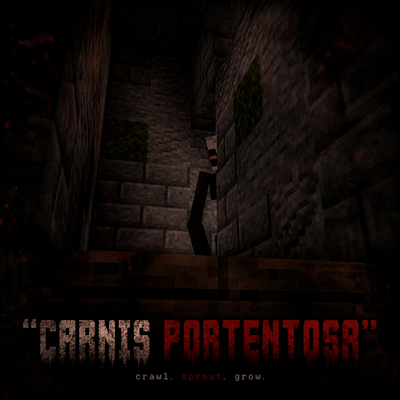
Carnis Portentosa - Vita Carnis (HORROR)
A survival / exploration horror modpack revolving around a lost civilization pestered with unique extraordinary creatures born from another invasive organizm (Vita Carnis) topped with harsh and hardcore survival elements, multiplayer and a deep storyline