Hytale version
Back to mods 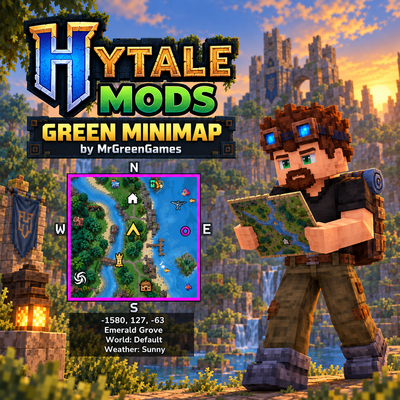
CurseForge · Hytale mod
Green Minimap
Green Minimap adds a customizable minimap to Hytale with multiple sizes, zoom levels, shapes, markers, compass options, rotation modes, info panels, and more. Open the full settings menu anytime with /minimap.
Choose a version Pick your version below, then grab the matching file.
Quick answer
Which Green Minimap release should I use?
Latest stable file MGG-Green-Minimap-1.0.0.jar
Game version 0.6
Mod system Built-in Hytale mod system
Green Minimap MGG-Green-Minimap-1.0.0.jar targets 0.6. Do not install it as a separate client mod. Enable it on the world host—the local server in singleplayer or the dedicated server in multiplayer. No required dependencies listed for this file.
Where it goes
Where should Green Minimap be installed in Hytale?
Do not install it as a separate client mod. Enable it on the world host—the local server in singleplayer or the dedicated server in multiplayer.
Separate client mod Not supported
World host / dedicated server Required
Mod system for this release Built-in Hytale mod system
Required install it here Optional supported, not mandatory Not supported do not install here Source doesn’t say do not assume
Put Hytale mods on the world host or dedicated server. Singleplayer runs a local server too; Hytale does not use separate client mods.
What else does Green Minimap MGG-Green-Minimap-1.0.0.jar need?
MGG-Green-Minimap-1.0.0.jar. Change the file and its required mods may change too.
This file does not list any required mods. Do not add a library just because a different file uses it.
This file does not list any required or optional project dependencies. Check the creator notes before changing an existing world.
Before you install it
Add Green Minimap without breaking your instance.
Built for Green Minimap MGG-Green-Minimap-1.0.0.jar. Pick another file and the loader, install side or required mods may change.
- 01
Stick to this file
Use MGG-Green-Minimap-1.0.0.jar. It targets 0.6; another release may target a different game build or dependency set.
- 02
Bring the mods it needs
This file does not list any required mods. Do not add a library just because a different file uses it.
- 03
Enable it on the world host
Do not install it as a separate client mod. Enable it on the world host—the local server in singleplayer or the dedicated server in multiplayer.
- 04
Pick the file you checked
Use the “Get this file” button beside MGG-Green-Minimap-1.0.0.jar. It opens that exact file at the source.
About this project
What does Green Minimap add?
▶ Click image to see showcase

Commands
/minimap - Opens the Green Minimap settings GUI and allows you to customize your minimap.
Features
- Customizable Minimap
- Multiple Map Sizes
- Multiple Zoom Levels
- Square and Circular Map Shapes
- North-Locked or Rotating Map Modes
- Adjustable Map Position
- Optional Compass Display
- Customizable Block Outline
- Entity Icons and Dot Markers
- Player, Grave, and Vanilla Map Markers
- Adjustable Marker Scaling
- Customizable Info Panel
- Optional Coordinates, Biome, Zone, Weather, Time, Player Stats, and More
- Fit Info Panel Background to Text
- Per-Player Settings
- Multiplayer Friendly
- Designed for Smooth, Lightweight Updating
Why Green Minimap?
Green Minimap adds a compact and highly customizable minimap to Hytale while keeping the interface clean and unobtrusive.
Whether you're exploring unfamiliar areas, navigating back to important locations, tracking nearby markers, or simply keeping an eye on your coordinates and surroundings, Green Minimap gives you the information you want without requiring the full world map.
Nearly every part of the minimap can be adjusted through the /minimap GUI, allowing each player to choose the size, shape, zoom, position, markers, compass, information panel, and overall layout that works best for them.
Minimap Customization
Green Minimap includes several options for adjusting how the map itself is displayed.
- Multiple Minimap Sizes
- Multiple Zoom Levels
- Square or Circular Shape
- Rotating or North-Locked Orientation
- Adjustable Screen Position
- Optional Compass
- Custom Outline Thickness and Color
Changes can be previewed directly from the settings menu.
Map Markers
The Map Markers menu allows you to customize which markers appear on your minimap.
- Entity Icons
- Entity Dot Markers
- Entity Markers Off
- Player Markers
- Grave Markers
- Vanilla Map Markers
- Adjustable Entity Marker Scale
- Adjustable Location Marker Scale
Each player can configure their own preferred marker setup.
Info Panel
Green Minimap includes an optional information panel beneath the map.
Available information includes:
- Coordinates
- Facing Direction
- Chunk Coordinates
- Zone
- Biome
- World
- Weather
- Day / Time
- Health
- Stamina
- Oxygen
- Mana
- Signature Energy
- Game Mode
- Players in World
You can enable only the information you want and optionally use Fit Background to Text for a more compact panel.
Installation
Place the mod in your Hytale mods folder:
AppData\Roaming\Hytale\UserData\Mods
Enable Green Minimap in your world's mod settings and load into the world.
Once in-game, use:
/minimap
to open the settings menu.
Compatibility
Green Minimap is designed for:
Hytale >=0.6.5 <0.7.0
Notes
Green Minimap is designed to remain lightweight while providing useful navigation and information without replacing Hytale's normal world map.
Settings are stored per player, making the mod suitable for both singleplayer and multiplayer servers.
Consider following MrGreenGames if you enjoy this mod! 💚
🟢 Feel free to use this mod in your modpacks and videos!
If you feature the mod in a video or showcase, linking back to the original mod page in your description is greatly appreciated, but not required.
🔴 Please do not redistribute or repurpose the mod.
You may not reupload the mod to other websites, launchers, or platforms, nor reuse its models, textures, data, code, or other assets in separate projects.
Do not place the mod behind ad-based or redirect services such as AdFly, and do not sell the mod or include it in any paid modpack.
💚 This mod is intended to remain free and accessible to everyone.
Project description from CurseForge.
Pick your setup
Green Minimap releases for each Hytale build.
Choose the version and loader you play, then open the matching release.
Check the dependencies, then try the file in a copied instance before changing a world you care about.
Recent files
Green Minimap releases and Hytale builds
MGG-Green-Minimap-1.0.0.jar
18 Sept 2026
Client Not supported Server Required Dependencies No extras listed Listed on Project page
Check the 0.6 setup 0.6 release
Looking for an older file? The official CurseForge project page is in Resources.
 mod
mod CurseForge · Hytale
Alec's Tamework!
Mob taming framework and asset patcher. Breeding, traits, leveling, tame management UI, easier interaction chains, capture/spawn items that store metadata, ownership/tamed status, lots of behavior components and more!
 mod
mod CurseForge · Hytale
Treasure Hunt
Defeat enemies, collect tiered map fragments, rebuild treasure maps and hunt hidden chests with configurable loot, optional guardians and safe terrain restoration.
 mod
mod CurseForge · Hytale
Guns&shotguns_runic
A Hytale mod adding craftable runic guns and shotguns with tiered materials, dedicated ammunition, special abilities, and an admin HUD for gameplay configuration.