Minecraft version
Back to mods 
CurseForge · Minecraft mod
Display Notches
Adds a new alternative to Item Frames that offers higher customisability and functionality.
Choose a version Pick your version below, then grab the matching file.
Quick answer
Which Display Notches release should I use?
Latest stable file DisplayNotches-1.21.1-1.0.3.jar
Game version 1.21.1
Loader NeoForge
Display Notches DisplayNotches-1.21.1-1.0.3.jar targets 1.21.1 with NeoForge. The project page does not say whether this file belongs on the client, dedicated server, or both. No extra mods listed for this file.
Where it goes
Is Display Notches required on the client, server, or both?
The project page does not say whether this file belongs on the client, dedicated server, or both.
Client Source doesn’t say
Dedicated server Source doesn’t say
Loader for this release NeoForge
Required install it here Optional supported, not mandatory Not supported do not install here Source doesn’t say do not assume
The source does not explicitly classify this release as client-only or server-only.
What else does Display Notches DisplayNotches-1.21.1-1.0.3.jar need?
DisplayNotches-1.21.1-1.0.3.jar. Change the file and its required mods may change too.
This file does not list any required mods. Do not add a library just because a different file uses it.
This file does not list any required or optional mods.
Before you install it
Add Display Notches without breaking your instance.
Built for Display Notches DisplayNotches-1.21.1-1.0.3.jar. Pick another file and the loader, install side or required mods may change.
- 01
Stick to this file
Use DisplayNotches-1.21.1-1.0.3.jar. It targets 1.21.1 with NeoForge; another release may have different loader, side or dependency requirements.
- 02
Bring the mods it needs
This file does not list any required mods. Do not add a library just because a different file uses it.
- 03
Put it on the correct side
The project page does not say whether this file belongs on the client, dedicated server, or both.
- 04
Pick the file you checked
Use the “Get this file” button beside DisplayNotches-1.21.1-1.0.3.jar. It opens that exact file at the source.
About this project
What does Display Notches add?
Item Frames in Minecraft are great for what they are, and the game itself would be worse off without them. At the same time, they have quite a few aspects that really hold them back from achieving their potential.
This is where Display Notches come in! They represent a reimagined version of Item Frames, that solve many of their shortcomings, while still leaving a couple niche uses, as to not entirely undermine them.
Below is a detailed description of what Display Notches can do and at the bottom of it, a short summary of Pros and Cons.
How To Obtain
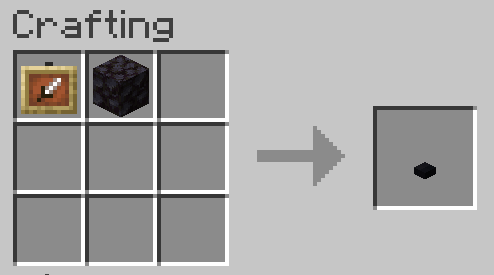
Display Notches can be crafted from one Item Frame (or Glow Item Frame) and one Blackstone, in any orientation.
How To Use
- They can be placed on all six sides of a block and can be right-clicked with an Item to insert it. Right-clicking with an empty hand or another item will then take out its contents. The direction the Display Notch is facing will affect the item's display as well.
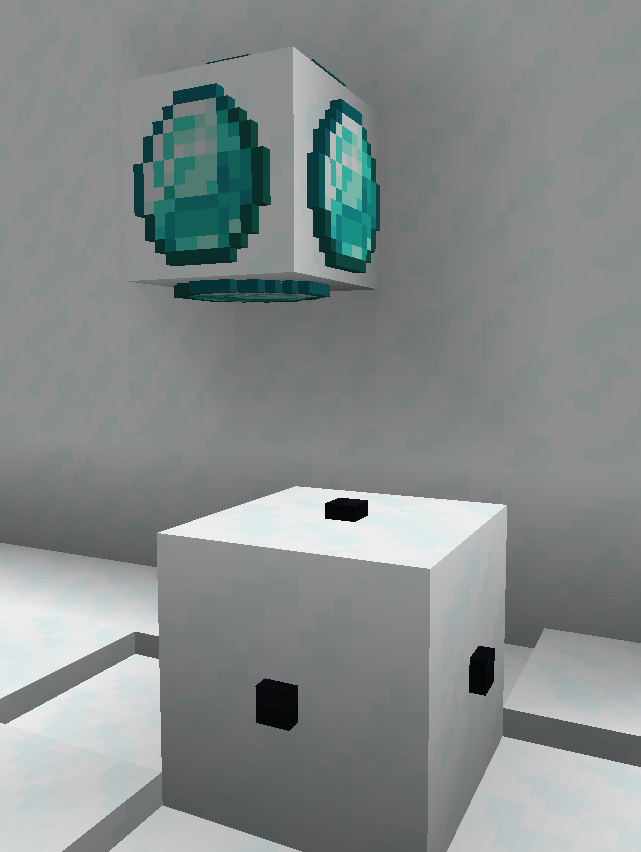
- The size of 2D displayed items are set to match the pixel sizes of a block. That means that any item that is 16x16 pixels will fully cover the face of a block (See Red Glass Pane below as an example).
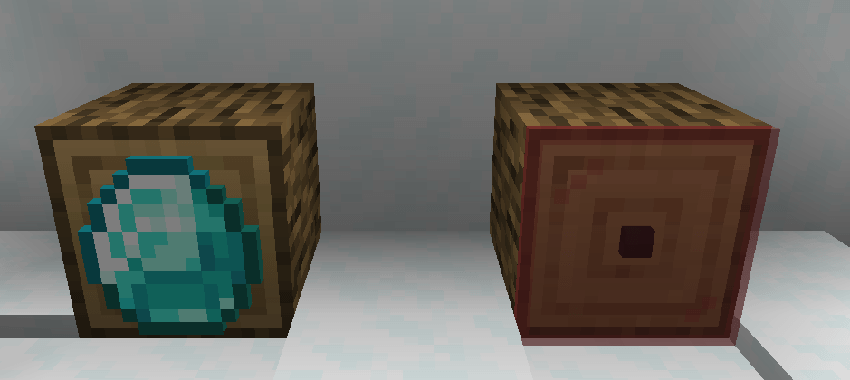
- When it comes to block-items, they are sized at a one-eight (1:8) scale.
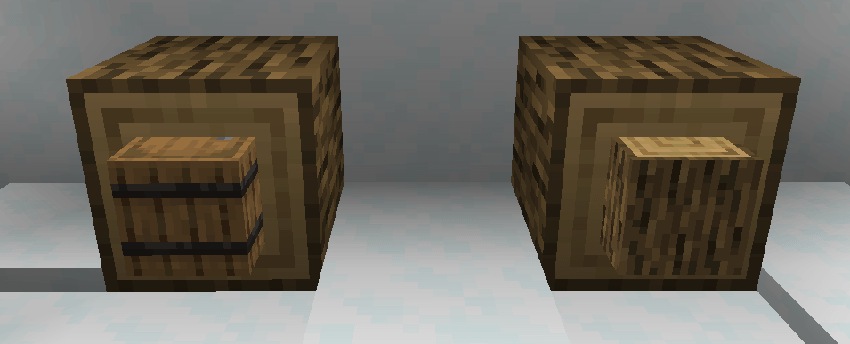
- Display Notches can be waterlogged and even lavalogged.
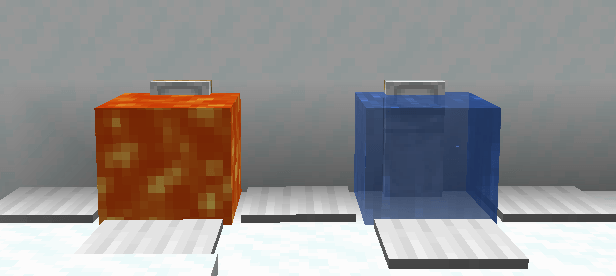
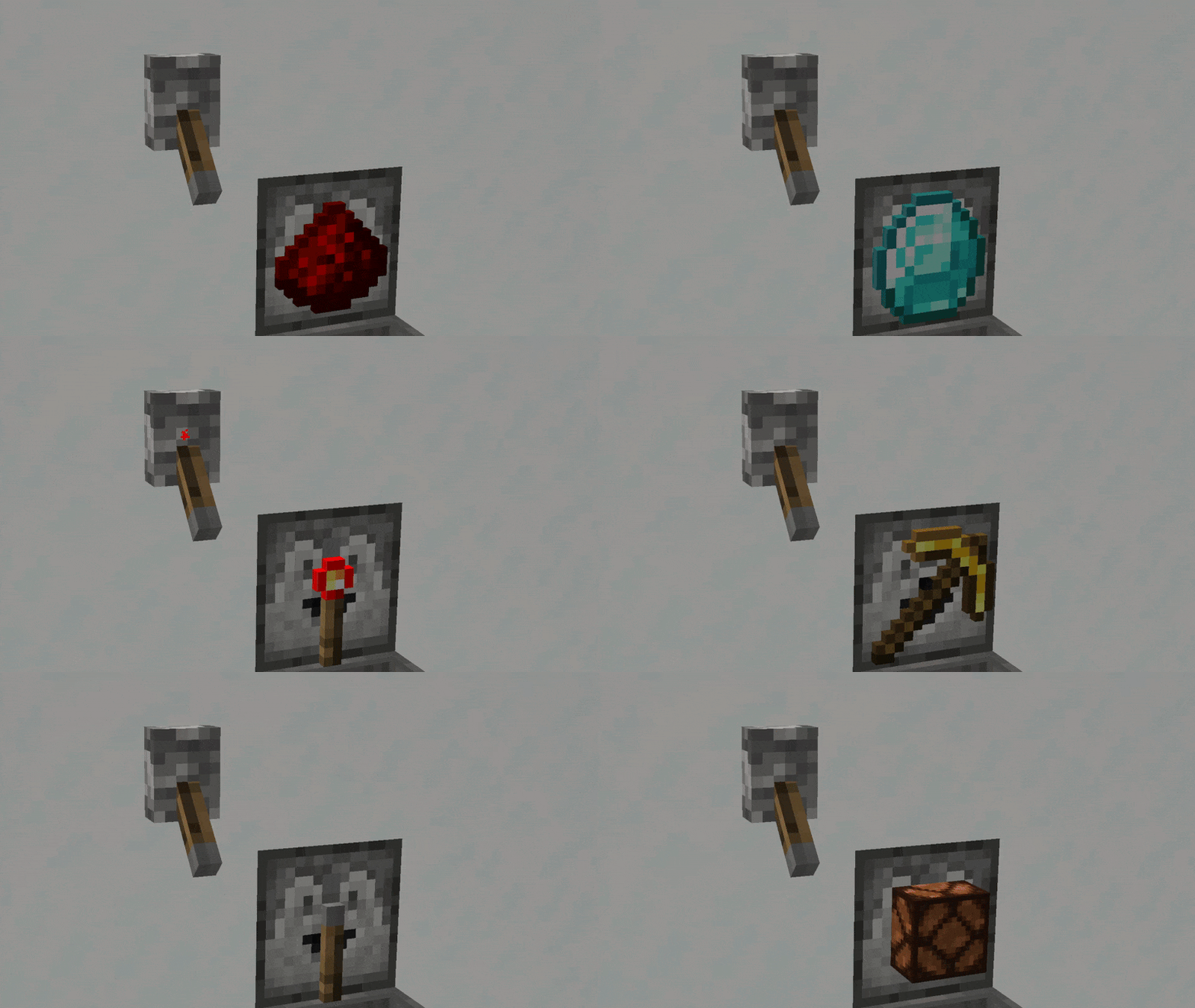
Once an Item has been inserted, then it becomes possible to manipulate how it is displayed (NOTE: An empty Display Notch cannot be manipulated, but also, taking an item out and placing a new one in will not delete any prior changes made). There are 7(+2) ways to do so: Right-Clicking with an Axe, a Shovel, a Pickaxe, a Glow Ink Sac, Dyes, (Phantom Membrane, Tripwire Hook) or some Glass; and using a Redstone Signal. None of these interactions use durability or consume the item.
Right-clicking with an Axe will change between the item laying down flat or standing up.
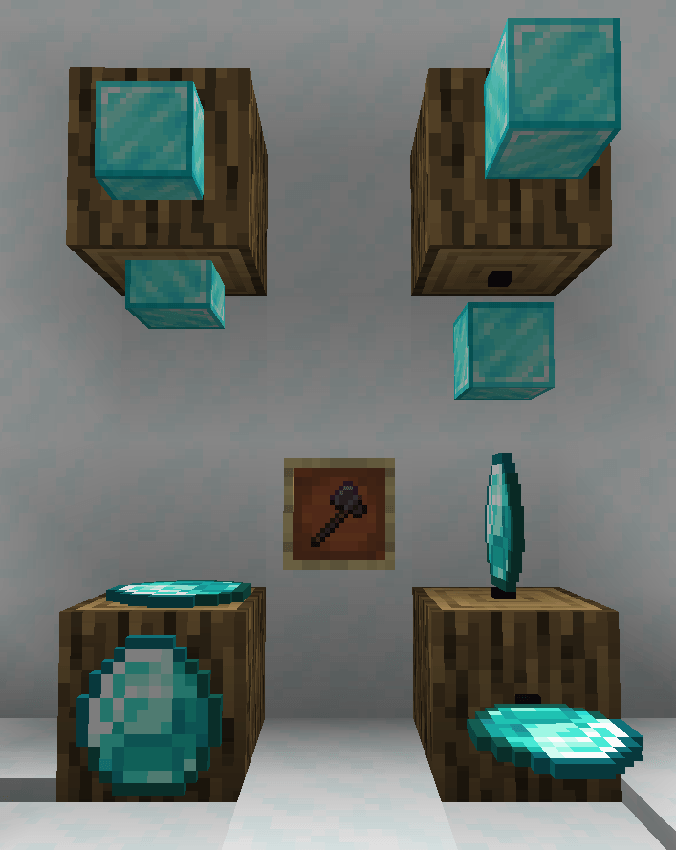
- Right-clicking with a Shovel sinks or elevates the item.
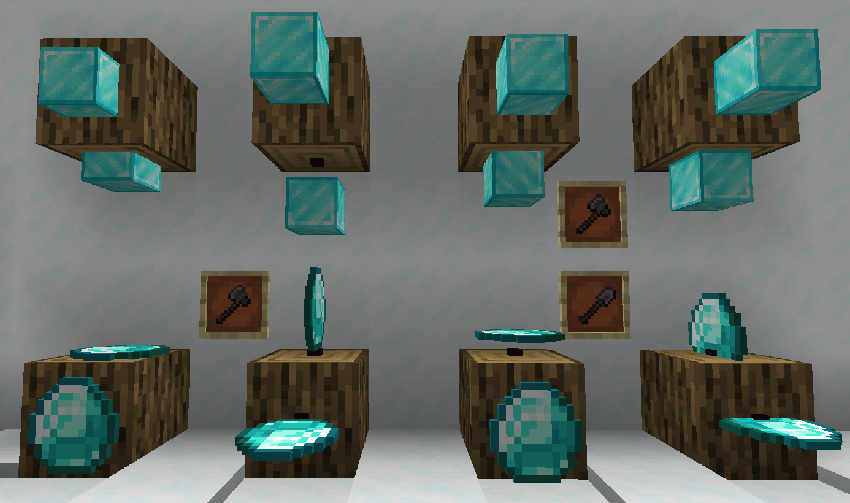
- Right-clicking with a Pickaxe, the rotation of the item can be changed to 16 different options (same as an Item Frame). If the item is standing up, the axis of rotation will also be changed. The rotation can also be read with a Comparator and outputted as a redstone signal.
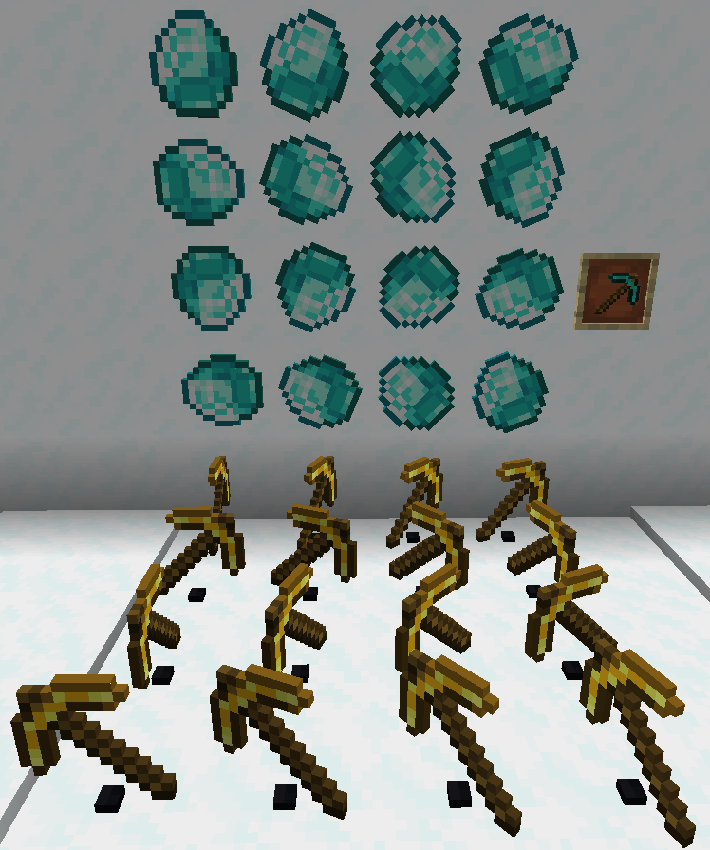
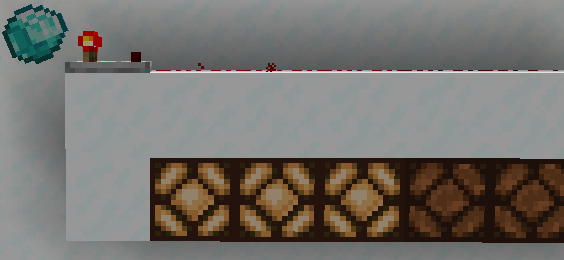
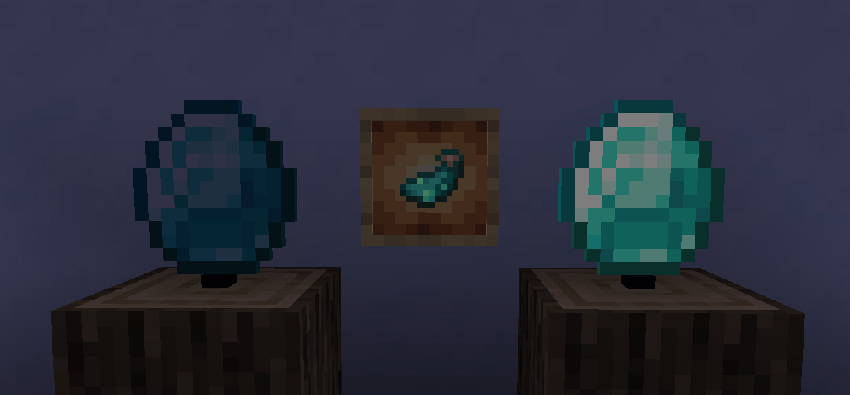
- Right-clicking with a Glow Ink Sac will make the displayed item glow. This is a visual change, the Display Notch will not actually give off light.
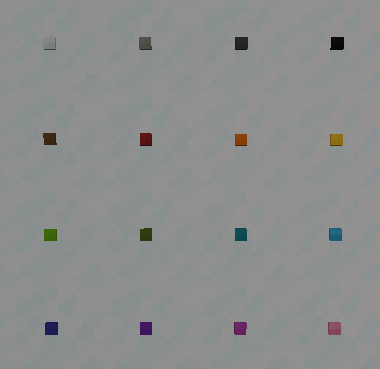
- Right-clicking with a Dye will change the Display Notch itself to the corresponding color. It does not have any effect on the displayed item.
- (As of version 1.0.1) Right-clicking with a Phantom Membrane will make it so the Display Notch no longer has a solid collision.
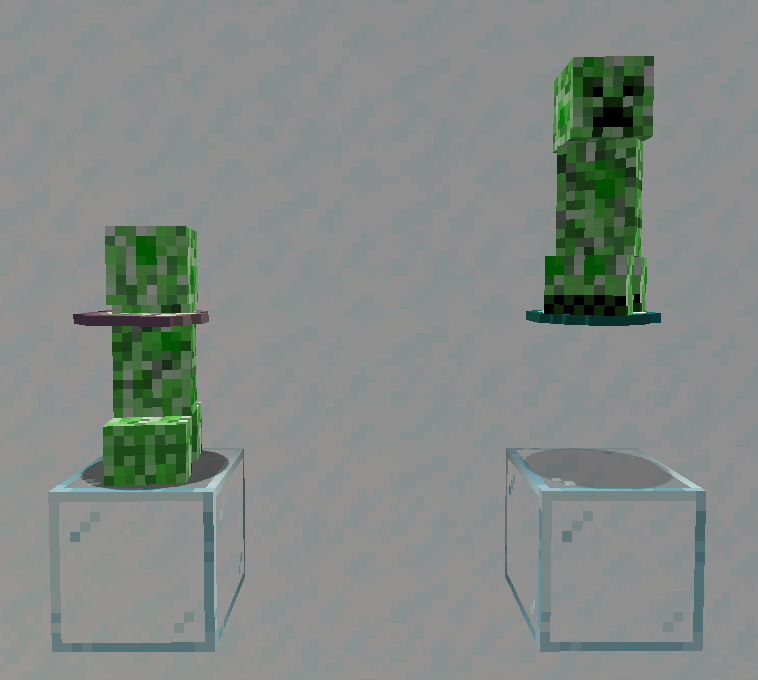
- Right-clicking with a Glass block will turn the Display Notch itself invisible. It does not have any effect on the displayed item.
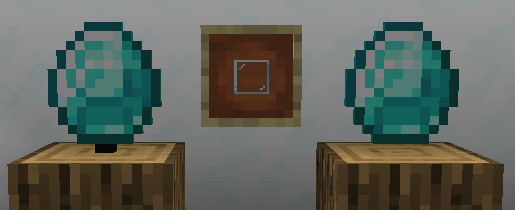
- It might be difficult to find an Invisible Display Notch once the item has been removed. To solve this, you can simply hold a Display Notch in your hand, and that will mark all invisibles ones around you.
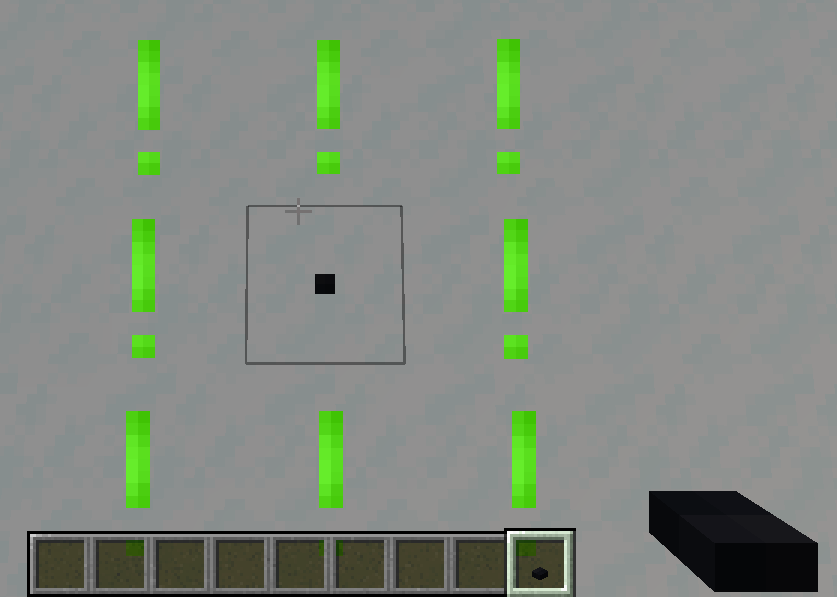
(As of version 1.0.2) Right-clicking with a Tripwire Hook will lock the Display Notch, stopping any changes until broken or unlocked again with the Tripwire Hook. Redstone behaviours are not affected by this.
Display Notches will react to being powered by a Redstone Signal, and will start automatically rotating the displayed item. As of version 1.0.1, using the config, you can change this feature to be activated by a right-click with a Redstone Torch instead.
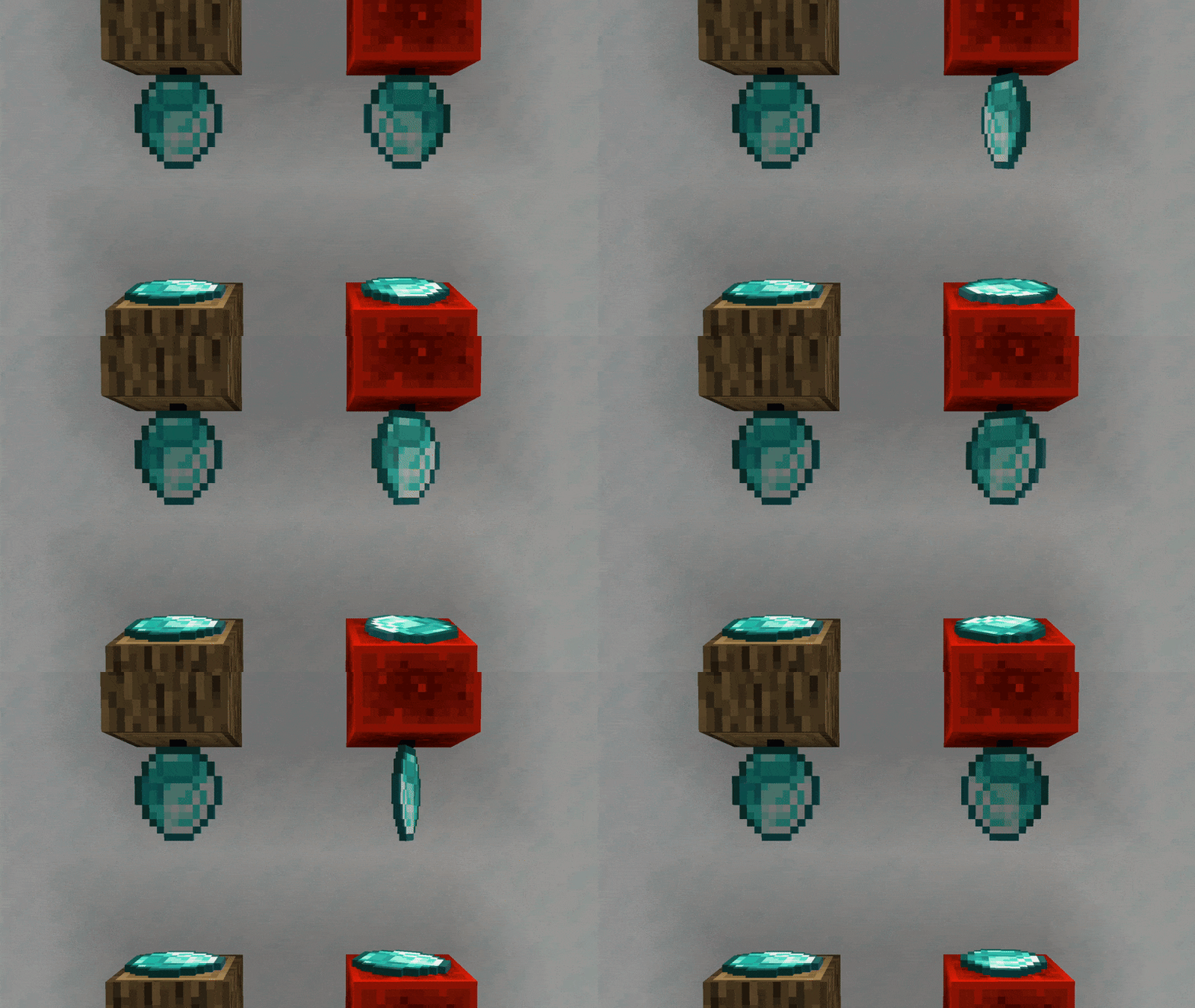
- Lastly, Display Notches can interact with Hoppers and Droppers (though modded pipes and such will not work in most cases).
Pros and Cons Compared To Item Frames
Pros
- More customizability when it comes to how the item is displayed
- More options for how the displaying medium looks
- Items are better scaled to the environment
- Generally better performance (as they are non-ticking block entities)
- Aren't affected by entity damaging factors
- Optional solid hitbox, making custom platforms, stairs etc. possible
- No need for block support (they will not disappear if the block they are attached to is removed)
- Interaction with redstone, hoppers and droppers
Cons
- You can only have one Display Notch within the same block, compared to the possibe 6 with Item Frames
- No interaction with projectiles or entities (displayed item won't pop out)
- Maps will not display their contents
Credits
Thanks to:
- GizmoTheMoonPig for help with the mod. Make sure to check out all of his wonderful projects!
- Toblerone for his continued feedback during the development of the Display Notches.
Project description from CurseForge.
Pick your setup
Display Notches by Minecraft version and loader
Choose the version and loader you play, then open the matching release.
Check the dependencies, then try the file in a copied instance before changing a world you care about.
Recent files
Display Notches versions and loaders
DisplayNotches-1.21.1-1.0.3.jar
13 Aug 2025
Client Source doesn’t say Server Source doesn’t say Dependencies No extras listed Listed on Release listing
Check the 1.21.1 · NeoForge setup NeoForge1.21.1 release
DisplayNotches-1.21.1-1.0.2.jar
28 Jun 2025
Client Source doesn’t say Server Source doesn’t say Dependencies No extras listed Listed on Release listing
Check the 1.21.1 · NeoForge setup NeoForge1.21.1 release
DisplayNotches-1.21.1-1.0.1.jar
13 May 2025
Client Source doesn’t say Server Source doesn’t say Dependencies No extras listed Listed on Release listing
Check the 1.21.1 · NeoForge setup NeoForge1.21.1 release
DisplayNotches-1.21.1-1.0.0.jar
11 May 2025
Client Source doesn’t say Server Source doesn’t say Dependencies No extras listed Listed on Release listing
Check the 1.21.1 · NeoForge setup NeoForge1.21.1 release
Looking for an older file? The official CurseForge project page is in Resources.
 mod
mod CurseForge · Minecraft
Some-Useless-Things
A mod that provides universal tools, super alloy furnaces, and various QOL modifications.
 mod
mod Modrinth · Minecraft
Classic Combined
This mod creates a Classic Minecraft/Modern Minecraft hybrid experience. Recreates modern features in a Classic Minecraft/Alpha Minecraft style. Fully Survival compatible
 mod
mod Modrinth · Minecraft
Knight Lib
A library that serves as a bridge between mods.