Minecraft version
Back to mods 
CurseForge · Minecraft mod
Client Web Displays
Client-side in-world Chromium displays
Choose a version Pick your version below, then grab the matching file.
Quick answer
Which Client Web Displays release should I use?
Latest stable file ClientWebDisplays-1.0-beta-1.jar
Game version 26.1.2
Loader Fabric
Client Web Displays ClientWebDisplays-1.0-beta-1.jar targets 26.1.2 with Fabric. The project page does not say whether this file belongs on the client, dedicated server, or both. No extra mods listed for this file.
Where it goes
Is Client Web Displays required on the client, server, or both?
The project page does not say whether this file belongs on the client, dedicated server, or both.
Client Source doesn’t say
Dedicated server Source doesn’t say
Loader for this release Fabric
Required install it here Optional supported, not mandatory Not supported do not install here Source doesn’t say do not assume
The source does not explicitly classify this release as client-only or server-only.
What else does Client Web Displays ClientWebDisplays-1.0-beta-1.jar need?
ClientWebDisplays-1.0-beta-1.jar. Change the file and its required mods may change too.
This file does not list any required mods. Do not add a library just because a different file uses it.
This file does not list any required or optional mods.
Before you install it
Add Client Web Displays without breaking your instance.
Built for Client Web Displays ClientWebDisplays-1.0-beta-1.jar. Pick another file and the loader, install side or required mods may change.
- 01
Stick to this file
Use ClientWebDisplays-1.0-beta-1.jar. It targets 26.1.2 with Fabric; another release may have different loader, side or dependency requirements.
- 02
Bring the mods it needs
This file does not list any required mods. Do not add a library just because a different file uses it.
- 03
Put it on the correct side
The project page does not say whether this file belongs on the client, dedicated server, or both.
- 04
Pick the file you checked
Use the “Get this file” button beside ClientWebDisplays-1.0-beta-1.jar. It opens that exact file at the source.
About this project
What does Client Web Displays add?
Client Web Displays
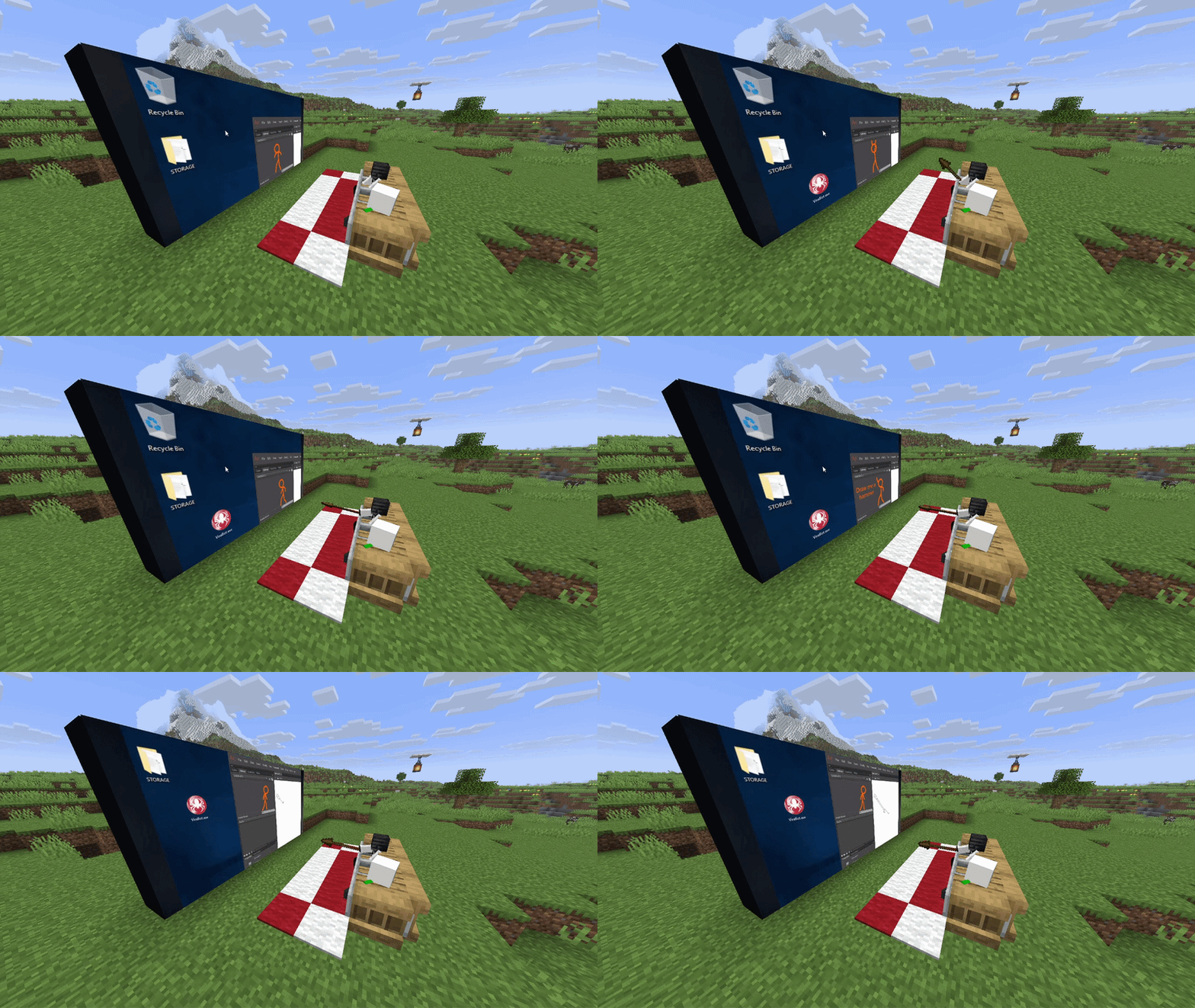
Features:
- Client-side: you can use it on any server!
- Rich window configuration
- Spatial audio
- Browser actions / YouTube media sync (if installed on host/server)
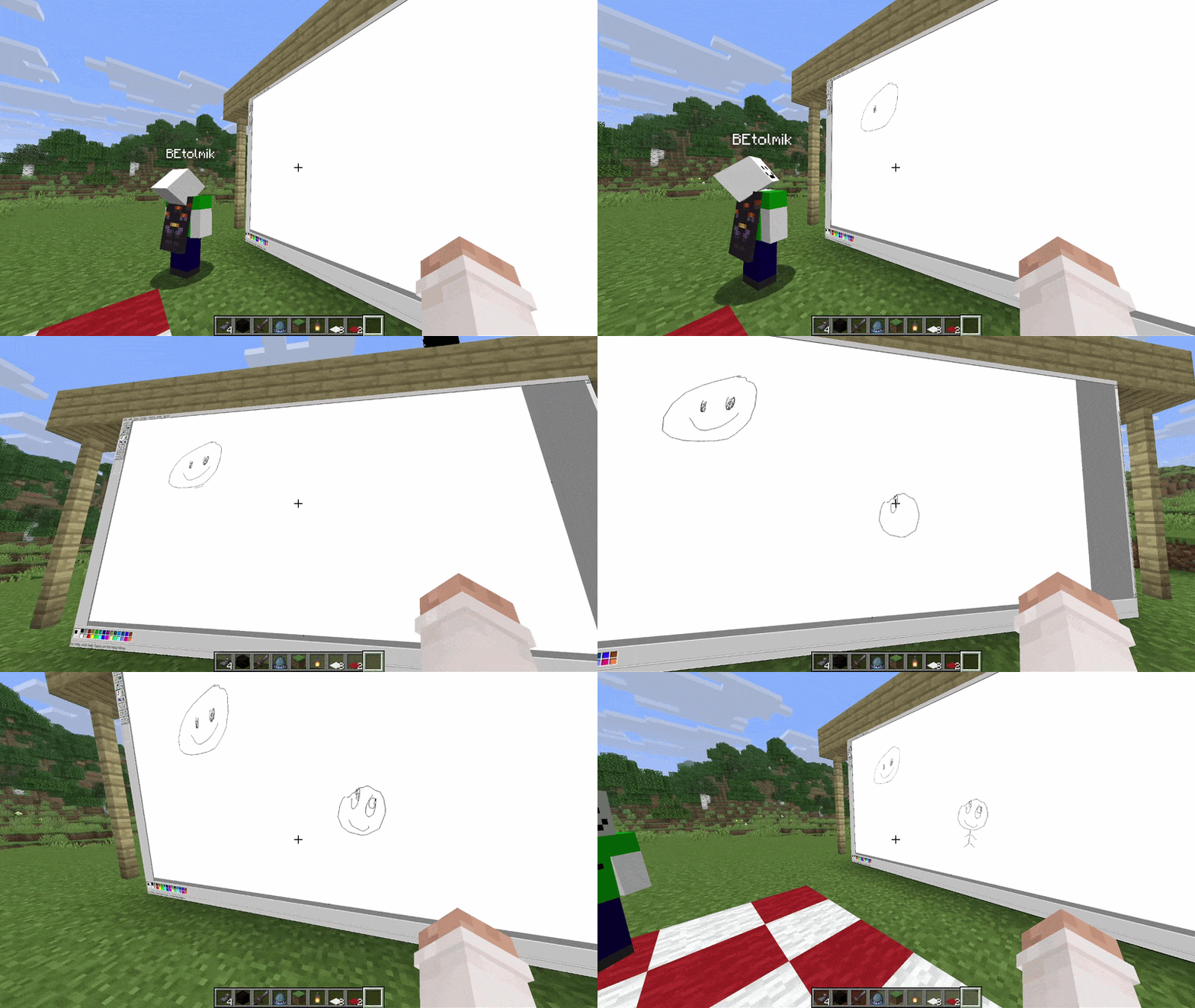
Usage
- to create window type
/cwd create <access>command - aim to window and press ALT (by default) to enter in edit window mode
- or press ENTER (by default) to enter in input mode to type something
Buttons in edit mode:
R- reload pageP- pin window to player positionO- render window on top of world and entitiesL- light window (ignore world's light)S- spatial audio (by default its turn ON)I- lock input mode
Other usefull commands:
/cwd url <url>- change a URL of the display/cwd acces grant/revoke <target> <access-type>- give/take an acces to your display
Compatibility
render on-top of world and ignore light are not works with Iris shaders =(
Project description from CurseForge.
Pick your setup
Client Web Displays by Minecraft version and loader
Choose the version and loader you play, then open the matching release.
Check the dependencies, then try the file in a copied instance before changing a world you care about.
Recent files
Client Web Displays versions and loaders
ClientWebDisplays-1.0-beta-1.jar
3 Jun 2026
Client Source doesn’t say Server Source doesn’t say Dependencies No extras listed Listed on Release listing
Check the 26.1.2 · Fabric setup Fabric26.1.2 release
Looking for an older file? The official CurseForge project page is in Resources.
 mod
mod CurseForge + Modrinth · Minecraft
AntOS Computer | Quests + Guidebook
An immersive and fully functioning computer that provides an anternative to the stale and overused quest book and guide book
 mod
mod CurseForge + Modrinth · Minecraft
Nature's Spirit
A minecraft mod which enhances world generation with new biomes, blocks, and items
 mod
mod CurseForge · Minecraft
Soundscape
A mod that overhauls the Jukebox and adds Ambience Discs to add life and atmosphere to your worlds!