Minecraft version
Back to mods 
CurseForge · Minecraft mod
Customers
Add customers to your world to add fast-paced diner or cozy farm stand gameplay to your world.
Choose a version Pick your version below, then grab the matching file.
Quick answer
Which Customers release should I use?
Latest stable file customers-neoforge-1.21.1-1.5.1.jar
Game version 1.21.1
Loader NeoForge
customers-neoforge-1.21.1-1.5.1.jar targets 1.21.1 with NeoForge. The project page does not say whether this file belongs on the client, dedicated server, or both. No extra mods listed for this file.
Where it goes
Is Customers required on the client, server, or both?
The project page does not say whether this file belongs on the client, dedicated server, or both.
Client Source doesn’t say
Dedicated server Source doesn’t say
Loader for this release NeoForge
Required install it here Optional supported, not mandatory Not supported do not install here Source doesn’t say do not assume
The source does not explicitly classify this release as client-only or server-only.
What else does customers-neoforge-1.21.1-1.5.1.jar need?
customers-neoforge-1.21.1-1.5.1.jar. Change the file and its required mods may change too.
This file does not list any required mods. Do not add a library just because a different file uses it.
This file does not list any required or optional mods.
Before you install it
Add Customers without breaking your instance.
Built for customers-neoforge-1.21.1-1.5.1.jar. Pick another file and the loader, install side or required mods may change.
- 01
Stick to this file
Use customers-neoforge-1.21.1-1.5.1.jar. It targets 1.21.1 with NeoForge; another release may have different loader, side or dependency requirements.
- 02
Bring the mods it needs
This file does not list any required mods. Do not add a library just because a different file uses it.
- 03
Put it on the correct side
The project page does not say whether this file belongs on the client, dedicated server, or both.
- 04
Pick the file you checked
Use the “Get this file” button beside customers-neoforge-1.21.1-1.5.1.jar. It opens that exact file at the source.
About this project
What does Customers add?
Customers Minecraft Mod for NeoForge
Feedback Appreciated
We would love any feedback you have good, bad, or inbetween and any suggestions for improvements. Please drop a comment and we'll be sure to review them. Thank you!
Overview
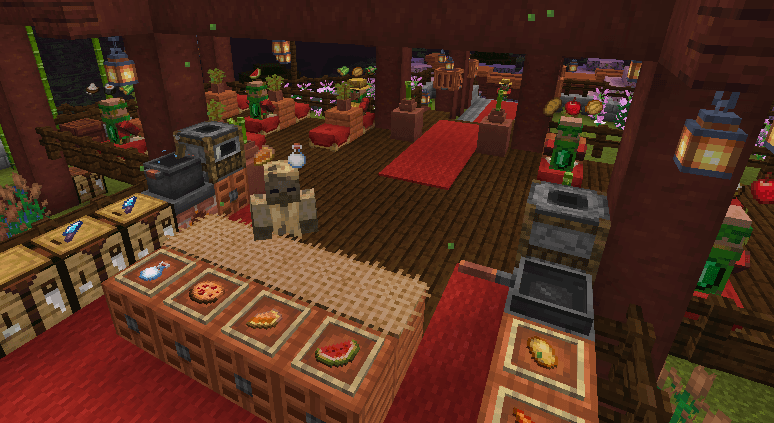
This mod provides Customer Villagers that will spawn, decide they want to buy some items from you, and go to where they think they can buy them from you. Once you sell the items to them they will pay you, say thank you, and go on their merry way. It provides the basic villager AI, spawning blocks, and controls to crafter and customer type gameplay experiences like a fast-paced diner or a cozy rode-side farm stand.
Supported Minecraft Versions
For now we support Minecraft versions:
- 1.21.1
- NEW! - 1.21.11
Mod Loader
For now we are only supporting NeoForge.
Customer Spawner Blocks
A customer spawner block is the starting point for this mod. Where you place it is where your customers will spawn and what you place inside of it determines what your customers will want to buy from you.
Similar to a regular mob spawner block, each customer block will try to keep up to 4 customers spawned at any one time. If you want more customers at the same time, put down more customer spawner blocks.
Crafting Customer Spawner Blocks
You can craft a customer spawner block from a bed surrounded by 8 emeralds.
Spawning Modes
The customer spawning modes are mostly around time or shifts, do you configure the spawning mode with a Clock. Hold a Clock and right-click the customer spawner block to cycle through the spawning modes. Each spawning mode change will show a message with the change and change the block texture.
- Continuous / Default - The default mode will try to continuously keep 4 customers spawned.
- Day Shift - This mode will keep spawning customers, but only when it's daytime from 5am - 7pm.
- Night Shift - This mode will keep spawning customers, but only when it's nighttime from 7pm to 5am.
- Breakfast Shift - This mode will keep spawning customers from 5:30am - 10:30am - A little over 4 minutes.
- Lunch Shift - This mode will keep spawning customers from 11:30am - 3:30pm - Just under 3 1/2 minutes.
- Dinner Shift - This mode will keep spawning customers from 4:30pm - 9:00pm - Just under 4 minutes.
- Manual - This mode only spawns manually with a redstone pulse.
For the time restricted shift modes, the players within 64 blocks of the spawner will get shift messages, progress bars, and scores.
Redstone and Customer Spawner
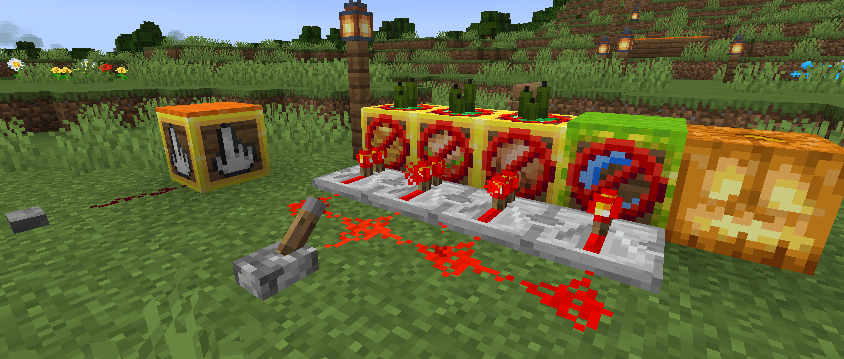
Similar to a hopper, if the Customer Spawner block is is any mode other than Manual and is receiving power, it will turn off spawning. This will allow you to turn off getting new customers when you don't want to deal with them or if you want to use redstone to control when the shifts are on.
If a Customer Spawner is in Manual mode, a redstone pulse like with a button will spawn a customer. This will let you completely customize the spawning with your redstone contraption.
Controlling Items For Purchase
To control the items the customers can purchase the customer spawner block also acts like a container like a chest. The items or stacks of items you put in the spawner are what the customers can randomly decide to purchase.
The size of the stack is the limit to how many of that item a customer can ask to buy. For example if you have put a single apple in the customer spawner the customer will only ask to buy a single apple. However, if you put a stack of 5 apples in the customer spawner, the customer will decide to randomly buy 1 to 5 apples.
The separate 6 rows in the spawner container are used to define how many different items a customer can decide to buy and what each of those items can be. Each of the 6 container rows is a "slot" for a customer to decide to buy from. All 9 items on that row (except for emeralds) can define an item the customer can ask for for that slot. A customer will only ask for one item per slot, and it will randomly decide how many slots to buy from from 1 to the number of rows you have items in.
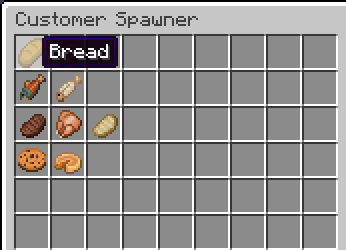
Emeralds are special. Just like regular villager traders, you will be paid in emeralds. By default, you will be paid one emerald for each item you sell to a customer. If a spawner container row contains a stack of emeralds, that will define how many emeralds the items in that row cost. Remember this will be per item not per stack so if the customer buys more than one of the item, you will be paid that number of emeralds multiplied by the number of items in the stack.
Redstone is also special and will not be offered to customers for purchase. The first stack of redstone in the spawner inventory sets the maximum number of customers for that individual spawner to the stack count. Removing all redstone returns the spawner to the maxCustomers configuration value.
Examples:
- Row 1 contains just a single apple - Customer will always ask for a single apple and pay a single emerald
- Row 1 contains a stack of 5 apples - Customer will always ask for from 1 to 5 apples and pay one emerald for each
- Row 1 contains a stack of 5 applies and a stack of 5 carrots - Customer will always decide to buy either apples or carrots and buy from 1 to 5 of them paying one emerald for each.
- Row 1 contains a stack of 3 chocolate chip cookies, a single pumpkin pie, and a stack of 2 emeralds - Customer will always decide to buy chocolate chip cookies or a pumpkin pie. If it decides to buy chocolate chip cookies it will buy from 1 to 3 and pay 2 emeralds for each cookie. If it decides to buy a pumpkin pie it will only buy 1 and pay 2 emeralds for it.
- Row 1 contains a single apple and row 2 contains a single pumpkin pie and a stack of 2 emeralds - Customer will decide to buy from 1 to 2 items. If it decides to only buy 1, it will randomly pick which row to buy from. If it decides to buy 2, it will buy one item from each row.
Counter or Table-Top Blocks
Once a customer spawns, it needs to know where to go to buy the items it picked. This is where the counter or table-top blocks come in. Whatever item you place on top of the spawner will be treated as the counter or table-top block to find. A good approach would be to use colored carpet blocks that you are not using on the floor or other parts of your build and put that same carpet color on the tables or counters where you want the customers to go. You can also use a sign with custom text that you match on the sign next to your counter where you want customers to gather.
- Carpet or wool blocks - Matches the type and color
- Signs - Matches the wood type and text
- Containers or banners named with an anvil - Matches the block type and name
- Lecterns with a named book on them - Matches the book name
- Other items - Exact block match
For all the blocks of this type in a 64 block radius and go to a random one trying to avoid going to one that already has a customer next to it.
Avoid Block
When a Customer looks for a spot to go to next to your counter or table-top blocks it will look at all the spaces around it as options unless that block matches the block directly under the customer spawner block. This can be used to set of builds like a counter where you only want the customers to go to one side of it because the other side if the kitchen. On the other side of the counter use a different block for the kitchen tiles and put that same kitchen floor block under the customer spawner.
Example Build
In this example we have customer spawner blocks setup for breakfast, lunch, dinner, and the night shift. Breakfast, lunch, and dinner have green candles on top for the counter/table-top block, and the night shift has green carpet. All of the spawners are on top of bamboo planks setting it as the block to avoid sending customers to:
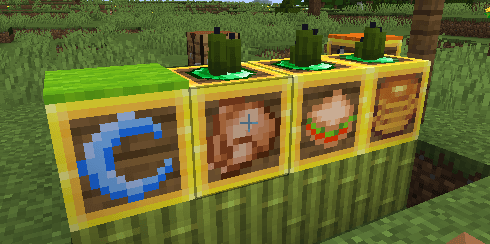
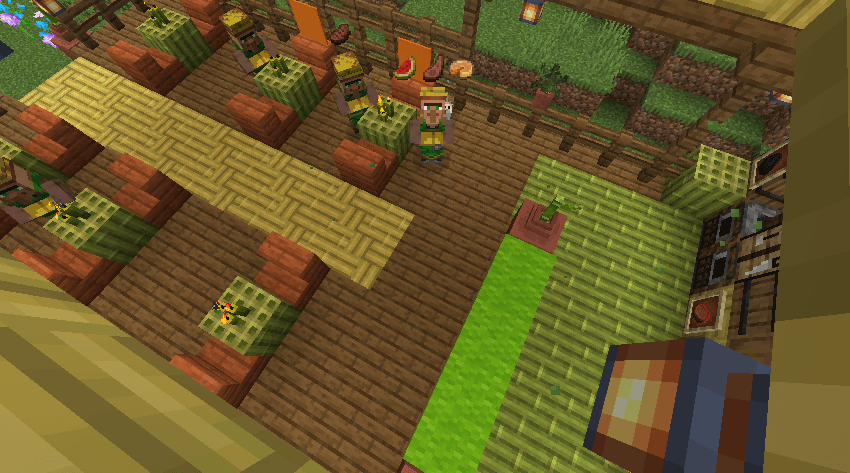
Now in our cafe we have several tables for customers that have green candles on them for the breakfast, lunch, and dinner customers, and for the nigh shift customers we want them to just come to the bar that is covered in green carpet. The kitchen behind the bar is floored with bamboo planks so customers won't go in the kitchen:
Customer Pickup Counter Blocks
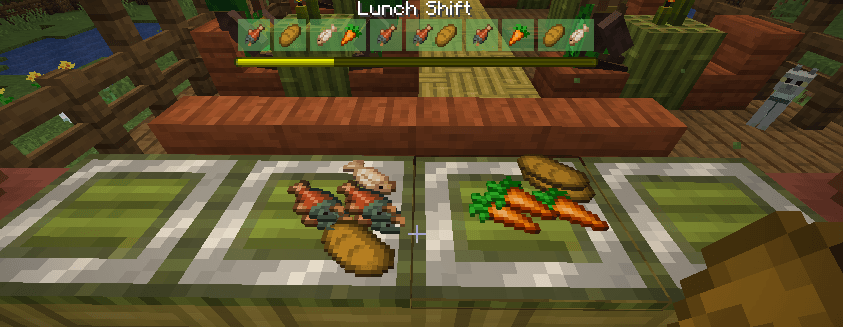
Customer Pickup Counter Blocks let players split up the work of preparing and serving customer orders. One player can prepare food or other requested items and place them on a pickup counter while another player serves the waiting customers, or customers stationed at pickup counters can collect their prepared items directly.
Placing a requested item on a pickup counter gives crafting credit to the player who prepared it when a Customer Spawner is within a 64 by 64 by 64 area. If the full stack is not currently needed, the counter remembers who prepared the remaining items. Those items are checked again when another matching stack is added, and any later crafting credit still goes to the original crafter.
Each pickup counter holds up to 9 item stacks. The stored items are displayed on top of the block, so players can see what is ready without opening an inventory screen. Items are handled in first-in, first-out order: the item that has been waiting the longest is the first one taken from the counter.
Crafting Customer Pickup Counter Blocks
Craft a pickup counter with a horizontal row containing one iron ingot followed by two matching variant ingredients:
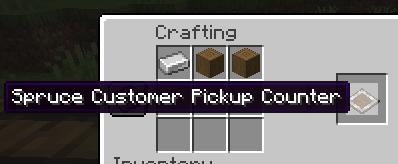
The following variants are available:
- Iron, made with two additional iron ingots
- Copper, made with two copper ingots
- Gold, made with two gold ingots
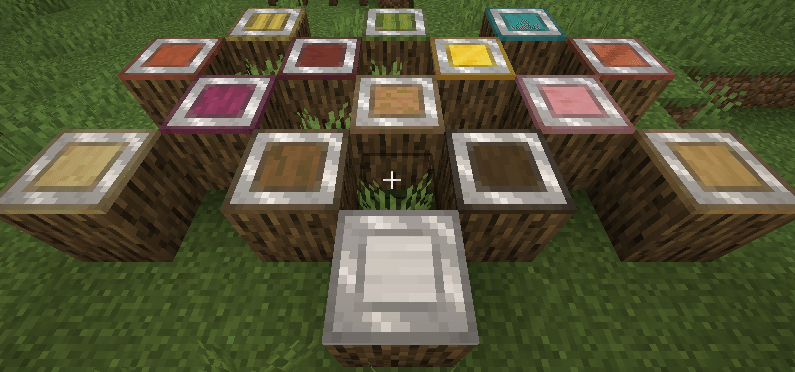
- Oak, spruce, birch, jungle, acacia, dark oak, mangrove, and cherry, made with two matching stripped logs
- Crimson and warped, made with two matching stripped stems
- Bamboo and stripped bamboo, made with two matching full bamboo blocks
Each variant uses the matching block texture, so pickup counters can be coordinated with the materials and decoration used in a kitchen, restaurant, shop, or market stand.
Placing and Taking Items
Right-click a pickup counter while holding an item stack to place the entire held stack onto the counter. Sneak-right-click while holding a stack to place only one item. Right-click with an empty hand to take the entire oldest stack, whether or not you are sneaking. The counter does not open an inventory screen; all item handling happens directly through these interactions.
Pickup counters accept only items currently wanted by active customers. If customers want only part of a held stack, that portion is placed on the counter and the rest remains in the player's hand. Items that no active customer wants remain in the player's hand.
Once each second, a waiting customer at a pickup counter tries to collect one of their remaining requested items. The counter must contain the full requested amount in a single stack. The customer takes only the requested amount when the stored stack contains more, and the player who originally placed that stack receives credit for serving those items. Empty containers such as bottles, buckets, and bowls are returned to that player. If the player is offline, the containers are dropped on top of the pickup counter.
If all 9 spaces are occupied, the item remains in the player's hand and a message explains that the pickup counter is full.
Pickup counters regularly check whether their stored items are still needed. Items that are no longer needed are returned to the player who placed them. If that player's inventory is full, the remaining items are dropped on top of the pickup counter and the player receives a message. The player keeps the crafted-item credit earned when the items were first accepted. Breaking a pickup counter drops all of the items stored on it, so prepared items are not lost when a counter is moved.
Connecting Pickup Counters
Pickup counters that touch on their north, south, east, or west sides work together as one larger pickup area. Diagonally placed counters and counters above or below each other are not connected.
When a player places an item on a full counter, the item is passed to an available connected counter. This continues through an entire connected row or group of counters until a space is found. If every connected counter is full, the item stays in the player's hand.
When a player tries to take an item from an empty counter, it searches its connected neighbors and returns the oldest available item it finds. This lets players add and collect prepared items from a convenient end of a long pickup counter without interacting with each individual block.
Villager Customers
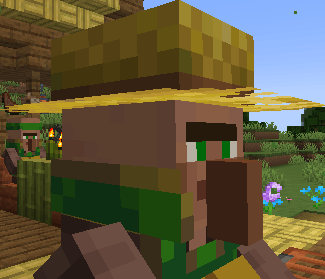
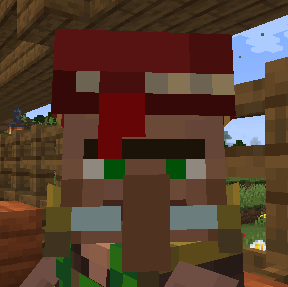
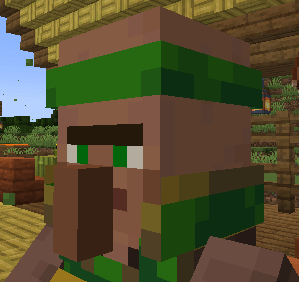
The Customer Spawner will spawn Customer Villagers that are just normal villagers with custom AI and a custom profession. The Customer profession give them a unique skin and hat so you can tell they are customers.
There are 3 types of customers:
- Normal - ~50% of spawned - Will give up at the configured max seconds.
- Impatient - ~ 20% of spawned - Will give up at half of the configured seconds.
- Casual - ~30% of spawned - Will never give up.
| Normal | Impatient | Casual |
|---|---|---|
 |
 |
 |
The customers work like villager traders where you can right-click and sell them what they want. They will also show icons above their heads for what they want to give you a heads up for what to prepare.
If you want your customers to have names, think about using the Villager Names mod. If you want more items to sell like more food items use other mods like Farmer's Delight.
Special Night Shift Customers
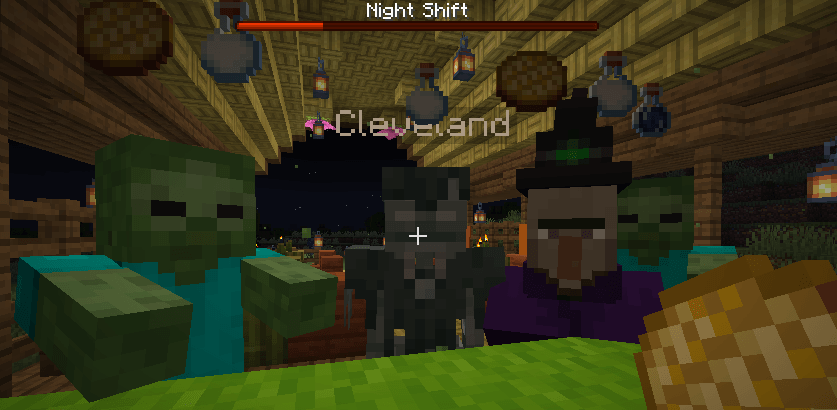
If the Customer Spawner Block has a lit jack-o-lantern block next to it and the spawner mode is on Night Shift, it will also randomly spawn the monster customers which are just like the villager customers but on the client side will show up and sound like friendly zombies, skeletons, witches, husks, etc.
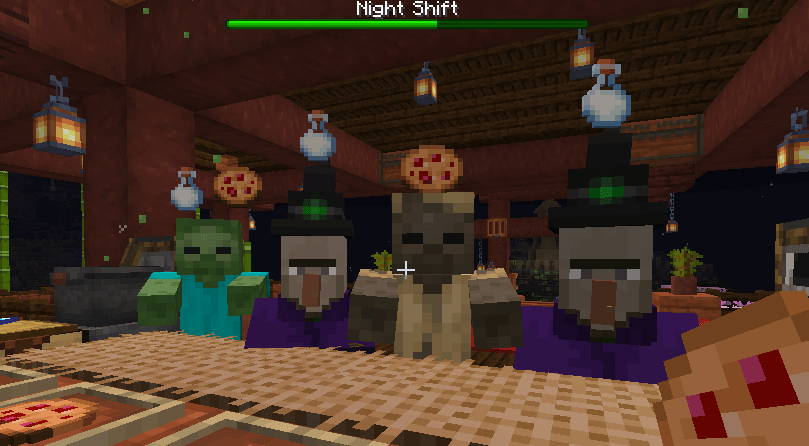
Picking Items to Buy
The first thing a customer will do it look at it's spawner to pick what items it wants to buy. See [Controlling Items For Purchase](#Controlling Items For Purchase).
Going to the Counter or Table
Once it has picked items to buy, it needs to find where to buy them. See [Counter or Table-Top Blocks](#Counter or Table-Top Blocks). Once the customer has found all the matching blocks, it will shuffle the list and then sort it ascending by the number of customers within 2 blocks of it. It will then pick the first one which should be a random block with the fewest number of other customers near it. This should give a nice pattern of filling our a counter or restaurant full of tables. Customers prioritize available stairs and seat-like blocks near counters and will sit while waiting to be served.
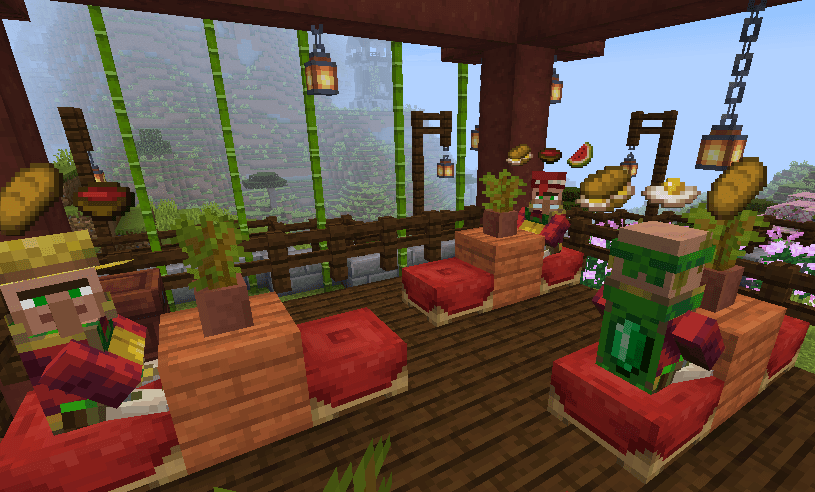
If there are more customers than there are counters, the customers will line up and wait their turn:
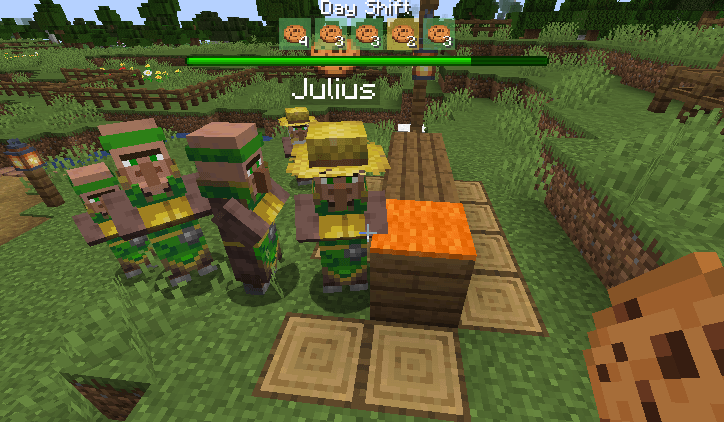
Serving and Selling to the Customer
You will serve the customer what they want or sell them what they want to buy just like any other villager trader. Right click on them to open up the trade and sell them one of the items. After being sold one of the items they want, that item will be removed from the trades.
Thank You and Goodbye
Once the customer's trade list is empty they will say thank you and goodbye to you in chat and walk back to the spawner that created them. Once they reach the spawner they will pick a random block to walk to 32 blocks away that has 2 air blocks above it and that they can actually path to. They will then walk to this block and once they get there despawn.
Progress and Scoreboard
During a shift you will get a progress bar and a heads up display of the items your customers want:

At the end of the shift each player will be shown a fancy, animated scoreboard:
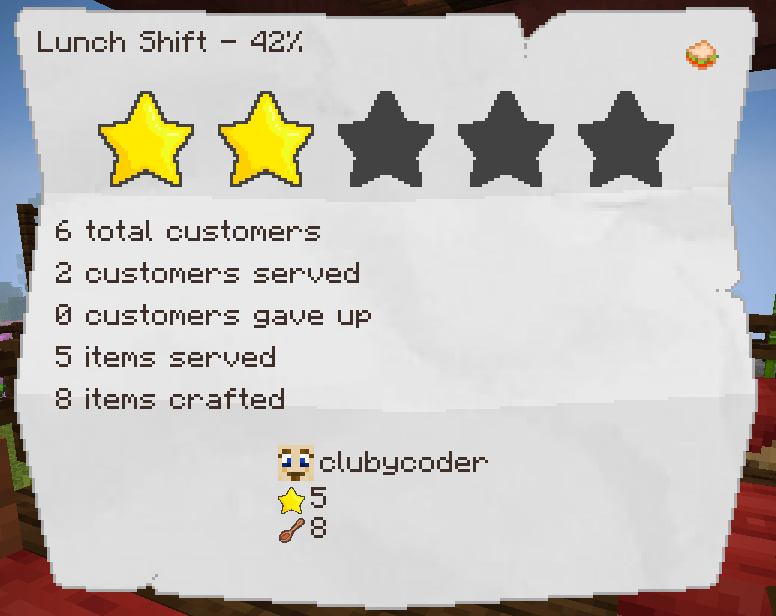
Supplier Spawner Block
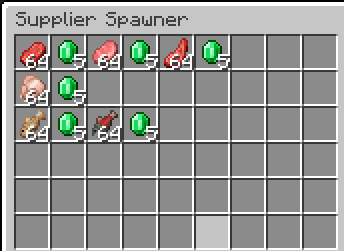
A Supplier Spawner Block can be used to setup a Supplier that will show up at the beginning of the day will new supplies to buy for your restaurant or stand when you can't or don't want to gather them your self. Lets say your Customers want steaks, but you don't want to harvest a bunch of cows. That's where a Supplier can help you out.
Crafting Supplier Spawner Blocks
You can craft a supplier spawner block from a barrel surrounded by 8 emeralds.
Specifying What the Supplier Will Sell
The supplier spawner block acts like a double-chest container and the items you put in it, including the size of the stack, will be what the supplier will sell you. Similar to the customer spawner blocks, the exception is emeralds. Emeralds are used to set the price of the items the supplier will sell. The Supplier will default to 1 emerald per stack of items, but if you put a stack of emeralds after each of the items in the container, that will set the price to the count of emeralds. For example if you put a stack of 32 raw steaks in the container and in the next slot put 5 emeralds, the supplier will sell you 32 raw steaks for 5 emeralds.
Supplier Spawning
The Supplier will spawn each morning up to 32 blocks away from the spawner and walk to the spawner. Once the Supplier is there you can start build items.
Once it is dark the Supplier will walk away and despawn.
Build Commands
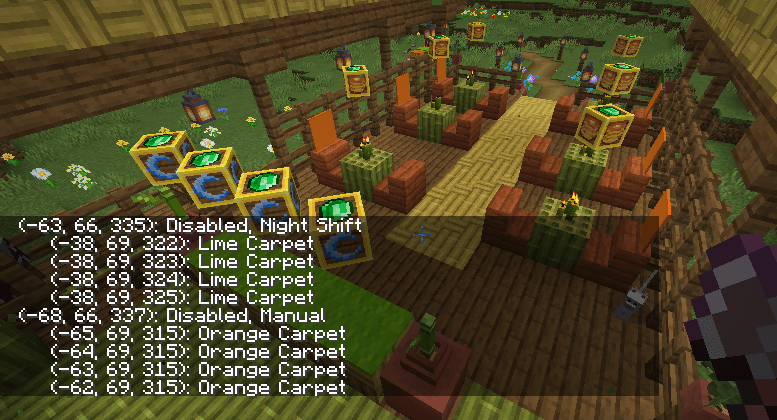
Build commands provide information about customer and supplier spawners near the player. They are disabled by default and can be enabled with the enableBuildCommands configuration option.
/suppliers spawnerslists supplier spawners in a 64×64×64 area centered on the player and shows whether each spawner is enabled./customers spawnerslists customer spawners in a 64×64×64 area centered on the player and shows whether each spawner is enabled and its spawning mode./customers spawners countersalso lists the matching counter blocks found for each customer spawner and displays a rotating mode icon above each counter for 90 seconds.
Configuration
| Name | Config property | Description | Default |
|---|---|---|---|
| Customer Spawner Recipe | enableCustomerSpawnerBlockRecipe |
Enables the crafting recipe for the Customer Spawner Block. | true |
| Supplier Spawner Recipe | enableSupplierSpawnerBlockRecipe |
Enables the crafting recipe for the Supplier Spawner Block. | true |
| Maximum Counter Distance | maxCounterDistance |
Sets the maximum distance in blocks between a Customer Spawner and the counters its customers can find. | 64 |
| Maximum Customers | maxCustomers |
Sets the maximum number of customers that each Customer Spawner tries to keep spawned. | 4 |
| Customer Give Up Seconds | customerGiveUpSeconds |
Sets how many seconds a customer waits without completing a trade before giving up and leaving. | 120 |
| Enable Build Commands | enableBuildCommands |
Enables the customer and supplier build inspection commands. | false |
| Enable Quick Sell | enableQuickSell |
Enables selling directly to a customer by right-clicking while holding enough of a wanted item in the main hand. | false |
Project description from CurseForge.
Pick your setup
Customers by Minecraft version and loader
Choose the version and loader you play, then open the matching release.
Minecraft version
1.21.1
1 loader buildCheck the dependencies, then try the file in a copied instance before changing a world you care about.
Recent files
Customers versions and loaders
customers-neoforge-1.21.1-1.5.1.jar
7 Aug 2026
Client Source doesn’t say Server Source doesn’t say Dependencies No extras listed Listed on Release listing
Check the 1.21.1 · NeoForge setup 1.21.1NeoForge release
customers-neoforge-1.21.11-1.5.0.jar
7 Aug 2026
Client Source doesn’t say Server Source doesn’t say Dependencies No extras listed Listed on Release listing
Check the 1.21.11 · NeoForge setup NeoForge1.21.11 release
customers-neoforge-1.21.1-1.5.0.jar
6 Aug 2026
Client Source doesn’t say Server Source doesn’t say Dependencies No extras listed Listed on Release listing
Check the 1.21.1 · NeoForge setup 1.21.1NeoForge release
customers-neoforge-1.21.1-1.4.2.jar
29 Jul 2026
Client Source doesn’t say Server Source doesn’t say Dependencies No extras listed Listed on Release listing
Check the 1.21.1 · NeoForge setup 1.21.1NeoForge release
customers-neoforge-1.21.1-1.4.1.jar
29 Jul 2026
Client Source doesn’t say Server Source doesn’t say Dependencies No extras listed Listed on Release listing
Check the 1.21.1 · NeoForge setup 1.21.1NeoForge release
customers-neoforge-1.21.1-1.4.0.jar
28 Jul 2026
Client Source doesn’t say Server Source doesn’t say Dependencies No extras listed Listed on Release listing
Check the 1.21.1 · NeoForge setup 1.21.1NeoForge release
customers-neoforge-1.21.1-1.3.1.jar
26 Jul 2026
Client Source doesn’t say Server Source doesn’t say Dependencies No extras listed Listed on Release listing
Check the 1.21.1 · NeoForge setup 1.21.1NeoForge release
customers-neoforge-1.21.1-1.3.0.jar
26 Jul 2026
Client Source doesn’t say Server Source doesn’t say Dependencies No extras listed Listed on Release listing
Check the 1.21.1 · NeoForge setup 1.21.1NeoForge release
customers-neoforge-1.21.1-1.2.2.jar
25 Jul 2026
Client Source doesn’t say Server Source doesn’t say Dependencies No extras listed Listed on Release listing
Check the 1.21.1 · NeoForge setup 1.21.1NeoForge release
customers-neoforge-1.21.1-1.2.1.jar
25 Jul 2026
Client Source doesn’t say Server Source doesn’t say Dependencies No extras listed Listed on Release listing
Check the 1.21.1 · NeoForge setup 1.21.1NeoForge release
customers-neoforge-1.21.1-1.2.0.jar
25 Jul 2026
Client Source doesn’t say Server Source doesn’t say Dependencies No extras listed Listed on Release listing
Check the 1.21.1 · NeoForge setup 1.21.1NeoForge release
customers-neoforge-1.21.1-1.1.0.jar
22 Jul 2026
Client Source doesn’t say Server Source doesn’t say Dependencies No extras listed Listed on Release listing
Check the 1.21.1 · NeoForge setup 1.21.1NeoForge release
Looking for an older file? The official CurseForge project page is in Resources.
 mod
mod CurseForge + Modrinth · Minecraft
TerraCompositio
Big magic mod, that introduses Flow of Creation and his applications
 mod
mod CurseForge · Minecraft
Twilight Spellbooks: Iron's Spells 'n Spellbooks Addon
This mod adds 7 new spellbooks; you can get them by defeating all the bosses in the Twilight Forest mod.
 mod
mod CurseForge · Minecraft
Feral Wolves
Makes wolves become hostile to players in low light levels.