Minecraft version
Back to mods 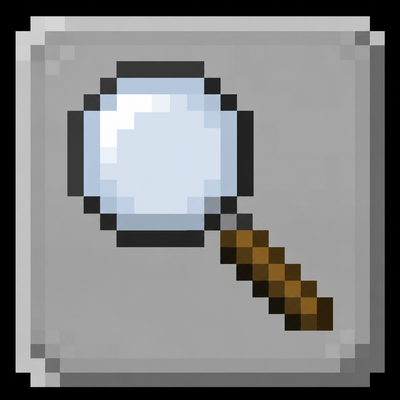
CurseForge · Minecraft mod
Settings Search ( all mods compat )
A magnifier button appears in the top-right corner of every options screen, on every tab, reachable from the main menu and from inside a world alike.
Choose a version Pick your version below, then grab the matching file.
Quick answer
Which Settings Search ( all mods compat ) release should I use?
Latest stable file settingssearch-1.21.1-1.0.0-neof.jar
Game version 1.21.1
Loader NeoForge
Settings Search ( all mods compat ) settingssearch-1.21.1-1.0.0-neof.jar targets 1.21.1 with NeoForge. The project page does not say whether this file belongs on the client, dedicated server, or both. No extra mods listed for this file.
Where it goes
Is Settings Search ( all mods compat ) required on the client, server, or both?
The project page does not say whether this file belongs on the client, dedicated server, or both.
Client Source doesn’t say
Dedicated server Source doesn’t say
Loader for this release NeoForge
Required install it here Optional supported, not mandatory Not supported do not install here Source doesn’t say do not assume
The source does not explicitly classify this release as client-only or server-only.
What else does Settings Search ( all mods compat ) settingssearch-1.21.1-1.0.0-neof.jar need?
settingssearch-1.21.1-1.0.0-neof.jar. Change the file and its required mods may change too.
This file does not list any required mods. Do not add a library just because a different file uses it.
This file does not list any required or optional mods.
Before you install it
Add Settings Search ( all mods compat ) without breaking your instance.
Built for Settings Search ( all mods compat ) settingssearch-1.21.1-1.0.0-neof.jar. Pick another file and the loader, install side or required mods may change.
- 01
Stick to this file
Use settingssearch-1.21.1-1.0.0-neof.jar. It targets 1.21.1 with NeoForge; another release may have different loader, side or dependency requirements.
- 02
Bring the mods it needs
This file does not list any required mods. Do not add a library just because a different file uses it.
- 03
Put it on the correct side
The project page does not say whether this file belongs on the client, dedicated server, or both.
- 04
Pick the file you checked
Use the “Get this file” button beside settingssearch-1.21.1-1.0.0-neof.jar. It opens that exact file at the source.
About this project
What does Settings Search ( all mods compat ) add?
Modern Minecraft means a dozen options screens and a hundred settings in vanilla alone. Add thirty mods, and each brings its own menu, its own toggles, sometimes buried three levels deep. Finding "simulation distance", or "the option that turns off that one mod's particles", turns into a treasure hunt.
Settings Search replaces the hunt with a text field.
Usage
Opening the search
- The magnifier button in the top-right corner of any options screen.
- Ctrl + F from any options screen.
- A dedicated key, unbound by default, which you can set under Controls → Miscellaneous to open the search straight from the game.
Searching
Type, and the list filters live. Each result shows the setting's name and the screen it lives on, prefixed by the mod it belongs to. The ↑ ↓ arrows move the selection, Enter confirms, or just click.
Getting there
Clicking a result opens the matching screen, scrolls the list down to the setting and frames it with a pulsing yellow outline for a few seconds. The "Done" button takes you back to wherever you were before searching.
The search itself
- Case- and accent-insensitive. "luminosite" finds "Luminosité".
- Fuzzy. "rd" finds "Render Distance", "part dens" finds "Particle Density".
- Multi-word, in any order. "mouse sensitivity" works as well as the other way round.
- Bilingual by construction. Translation keys are indexed alongside the displayed labels: searching "gamma" finds "Brightness", and an English query works on a game running in French.
- Extends to descriptions. Tooltip text is searched too, weighted lower so it never drowns out matches on names.
- Key binds included. Bindings are indexed with their current assignment: searching "jump" shows "Jump – Space".
How compatibility with other mods is achieved
This is the heart of the implementation, and nothing in it is hardcoded — not even the vanilla options.
1. Real screen exploration. The first time you open the search, the mod instantiates every options screen off-screen and runs its initialisation. That initialisation is exactly what fires the Forge event other mods hook into to inject their own buttons, so their widgets show up naturally in the explored tree. No button is ever clicked, no value is ever changed.
2. Unknown screens. The mod has no idea how a screen from a mod it has never seen is constructed. So it picks the constructor — or the static factory — based on the arguments it is able to supply. That is what lets it open screens it knows nothing about.
3. Forge config screens. Every mod that registers a config screen (the "Config" button in the mod list) is indexed automatically.
4. Learning. Some mods have entirely bespoke options menus that no generic discovery can guess. So the mod remembers every options screen you open and indexes it from then on. The rule is deliberately strict: a screen is only kept if it holds a reference back to the options screen you came from — which is what tells a genuine submenu apart from a loading screen or the title screen. The list is readable and editable in config/settingssearch-known-screens.txt.
The widget tree is walked generically: scrolling lists, rows, nested controls. Row titles and tooltips are read by type and never by field name, a requirement for the mod to keep working outside a development environment.
Performance
The index is built once, the first time you open the search, then reused. On pure vanilla: 150 settings across 12 screens, in about fifty milliseconds. It rebuilds itself automatically if you change the game's language or if a new options screen is discovered, and a "Rebuild index" button lets you force it.
Configuration
In config/settingssearch-client.toml:
| Option | Default | Effect |
|---|---|---|
showSearchButton |
true |
Show the magnifier button on options screens |
maxResults |
300 |
Maximum number of results displayed |
highlightSeconds |
6 |
How long the highlight lasts after a jump; 0 disables it |
indexModConfigScreens |
true |
Index other mods' Forge config screens |
indexKeyBinds |
true |
Index key bindings |
learnOpenedScreens |
true |
Remember the options screens you open |
searchTooltips |
true |
Search descriptions too, not just names |
If a badly behaved mod causes trouble during indexing, each of the four sources can be turned off independently.
Known limitations
- The language selection screen is not searchable row by row. Its entries hold no controls, only drawn text, so there is nothing to navigate to. The screen itself remains findable.
- Exploration cannot reach an options menu that is reachable neither from an options screen nor through Forge config, until you have opened it at least once.
Project description from CurseForge.
Pick your setup
Settings Search ( all mods compat ) by Minecraft version and loader
Choose the version and loader you play, then open the matching release.
Minecraft version
1.20.1
1 loader buildCheck the dependencies, then try the file in a copied instance before changing a world you care about.
Recent files
Settings Search ( all mods compat ) versions and loaders
settingssearch-1.21.1-1.0.0-neof.jar
settingssearch-1.0.0.jar
28 Aug 2026
Client Source doesn’t say Server Source doesn’t say Dependencies No extras listed Listed on Release listing
Check the 1.21.1 · NeoForge setup 1.21.1NeoForge release
settingssearch-1.20.1.jar
4 Aug 2026
Client Source doesn’t say Server Source doesn’t say Dependencies No extras listed Listed on Release listing
Check the 1.20.1 · Forge setup 1.20.1Forge release
Looking for an older file? The official CurseForge project page is in Resources.
 mod
mod CurseForge + Modrinth · Minecraft
Quick Skin
Sick of wasting time with Minecraft’s slow launcher just to change your skin? Quick Skin lets you swap skins instantly even on “offline” servers and gives you access to every official Minecraft cape.
 mod
mod CurseForge · Minecraft
[: Forged : metal-working :]
Progress through the game with (more) realistic metal-working!
 mod
mod CurseForge · Minecraft
Hematic
Blood splashes, settles on surfaces, stains creatures and dissolves in water.