Minecraft version
Back to mods 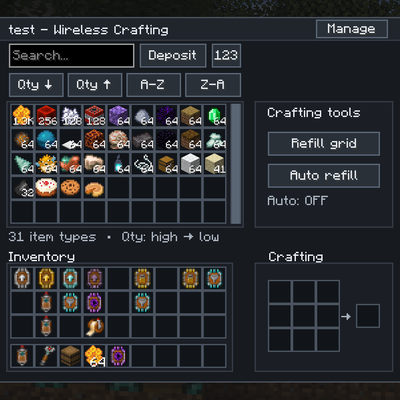
CurseForge · Minecraft mod
Simple Storage Manager
A simple storage management system for modern minecraft
Choose a version Pick your version below, then grab the matching file.
Quick answer
Which Simple Storage Manager release matches 26.2?
Best match for your filters simplestoragemanager
Game version 26.2
Loader NeoForge
Simple Storage Manager simplestoragemanager targets 26.2 with NeoForge. The project page does not say whether this file belongs on the client, dedicated server, or both. No extra mods listed for this file.
Where it goes
Is Simple Storage Manager required on the client, server, or both?
The project page does not say whether this file belongs on the client, dedicated server, or both.
Client Source doesn’t say
Dedicated server Source doesn’t say
Loader for this release NeoForge
Required install it here Optional supported, not mandatory Not supported do not install here Source doesn’t say do not assume
The source does not explicitly classify this release as client-only or server-only.
What else does Simple Storage Manager simplestoragemanager need?
simplestoragemanager on 26.2. Every mod below is checked against that same setup.
This file does not list any required mods. Do not add a library just because a different file uses it.
This file does not list any required or optional mods.
Before you install it
Add Simple Storage Manager without breaking your instance.
Built for Simple Storage Manager simplestoragemanager on 26.2. Pick another file and the loader, install side or required mods may change.
- 01
Stick to this file
Use simplestoragemanager. It targets 26.2 with NeoForge; another release may have different loader, side or dependency requirements.
- 02
Bring the mods it needs
This file does not list any required mods. Do not add a library just because a different file uses it.
- 03
Put it on the correct side
The project page does not say whether this file belongs on the client, dedicated server, or both.
- 04
Pick the file you checked
Use the “Get this file” button beside simplestoragemanager. It opens that exact file at the source.
About this project
What does Simple Storage Manager add?
Simple Storage Manager
Simple Storage Manager is a lightweight storage-network and item-routing mod built around vanilla barrels.
Instead of replacing your storage room with large futuristic machines, Simple Storage Manager lets you connect barrels to a shared network, upgrade them, search through their contents, access everything remotely and automate item movement between storage and machines.
The goal is simple:
Keep the Minecraft storage feeling, remove the storage-room frustration.
✨ Features
📦 Storage Networks
Create your own storage networks and connect barrels using the Storage Linker.
Linked barrels become part of one shared storage system while still behaving like physical storage containers in your world.
Features include:
- Connect multiple barrels to one network
- Access everything from one interface
- Multiple independent storage networks
- Network ownership
- Network members
- Individual member permissions
- Configurable barrel priority
- Searchable combined storage
- Remote access
- Automation support
- Linked barrels have their own visual appearance
Each network remains independent, allowing you to maintain separate personal, team or purpose-specific storage systems.
🔗 Storage Linker
The Storage Linker is the primary tool for quickly configuring physical storage.
Use it to:
- Select a Storage Network
- Link barrels to the selected network
- Unlink barrels
- Configure compatible network devices
- Quickly link a Network Access Point to a network
Only storage belonging to the selected network is affected.
The Storage Linker is especially useful when building or expanding large storage rooms because devices can be configured directly in the world without opening additional management screens.
📡 Wireless Terminal
The Wireless Terminal gives you remote access to your entire storage network.
Instead of opening barrels one by one, all stored items are combined into a single searchable inventory.
Features include:
- Aggregated network inventory
- Search
- Sort by quantity
- Sort alphabetically
- Ascending and descending sorting
- Scrollable storage browser
- Exact stored item counts
- Deposit items directly into the network
- Deposit the main player inventory with one button
- Quick item withdrawal
The hotbar is intentionally excluded from the Deposit function so your tools and actively used items remain untouched.
If the same item exists in several linked barrels, the terminal displays it as a single combined entry.
Quick Withdrawal
Items can quickly be retrieved directly from the storage browser:
- Shift + Left Click → withdraw up to one full stack
- Shift + Right Click → withdraw up to half a stack
The requested items are inserted directly into the player's inventory.
🛠️ Wireless Crafting Terminal
Need to craft something without running back to your storage room?
The Wireless Crafting Terminal combines your complete storage network with a regular crafting grid.
You can:
- Browse your complete storage network
- Search and sort stored items
- Take ingredients directly from storage
- Craft items from the same interface
- Return unused ingredients to the network
- Deposit your main inventory
- Quickly withdraw full or half stacks
The player's hotbar is excluded from the Deposit function.
The Wireless Crafting Terminal is an upgraded version of the standard Wireless Terminal.
📖 JEI Integration
Simple Storage Manager includes integration with Just Enough Items (JEI).
When JEI is installed, supported recipes can be transferred into the Wireless Crafting Terminal, making network crafting significantly faster and more convenient.
This allows you to:
- Browse recipes through JEI
- Transfer crafting recipes to the crafting terminal
- Use ingredients directly from your connected storage network
- Craft without manually searching for every ingredient
🔀 Network Access Point
The Network Access Point, or NAP, is the automation and item-routing controller of Simple Storage Manager.
It can operate in two different modes:
- Local Mode
- Network Mode
New Network Access Points start in Local Mode by default.
A dedicated Manage menu allows you to switch between Local operation and any Storage Network you are permitted to use.
The Storage Linker can still be used as a faster alternative when you simply want to connect the NAP directly to a network.
🔁 Local Mode
In Local Mode, the NAP transfers items directly between connected inventories without using a Storage Network.
Example:
Chest A → Network Access Point → Chest B
A side configured as Import acts as an item source.
A side configured as Export acts as an item destination.
This makes the Network Access Point useful even when you do not need centralized storage.
Examples include:
- Chest-to-chest transportation
- Furnace outputs
- Automated farms
- Machine input/output routing
- Sorting systems
- Local production lines
Items are transferred directly between the connected inventories.
🌐 Network Mode
In Network Mode, the Network Access Point acts as a bridge between external inventories and a Simple Storage Manager network.
Example:
Furnace → Storage Pipe → NAP → Storage Network
or:
Storage Network → NAP → Machine
This makes it possible to automatically import resources into your storage system or export stored materials to machines.
🧭 NAP Side Configuration
Every side of a Network Access Point can be configured independently.
Available side modes:
- Off
- Import
- Export
- Both
Off
The side performs no item transfers.
Import
Items are taken from the inventory connected to that side.
In Network Mode they are inserted into the Storage Network.
In Local Mode they become available for transfer to Export sides.
Export
Items are sent toward the inventory connected to that side.
Both
The side can participate in both import and export operations.
For simple Local routing setups, dedicated Import and Export sides are generally recommended because they provide the clearest item direction.
🔎 NAP Filter Upgrades
Each of the six NAP sides contains its own Filter Upgrade slot.
The same Filter Upgrade used by linked barrels can therefore also be used for automation.
This means NAP filters support:
- Whitelist filtering
- Blacklist filtering
- Exact item filtering
- Item tags
- Multiple filter entries
Because the filter configuration is stored on the upgrade item itself, configured filters can be moved between barrels and Network Access Points without losing their settings.
⚡ NAP Transfer Speed
The Network Access Point contains a dedicated Speed Upgrade slot.
Existing Capacity Upgrades are reused as transfer-speed upgrades when installed inside a NAP.
Unlike continuous per-item ticking, the Network Access Point performs efficient batch transfers every 20 server ticks.
Transfer amounts:
- No upgrade → up to 4 items per transfer
- Iron Capacity Upgrade → up to 8 items
- Gold Capacity Upgrade → up to 16 items
- Diamond Capacity Upgrade → up to 32 items
- Netherite Capacity Upgrade → up to 64 items
The complete batch is transferred at once instead of repeatedly moving individual items every few ticks.
This keeps automation predictable while reducing unnecessary inventory and capability operations.
🔴 NAP Redstone Control
Every Network Access Point also has a global operating mode.
Available states:
- On
- Off
- Requires Redstone
On
The NAP operates normally.
Off
All transfers are disabled.
Requires Redstone
The Network Access Point only transfers items while receiving a redstone signal.
This allows item-routing systems to be controlled with ordinary Minecraft redstone.
🔩 Storage Pipes
Storage Pipes allow inventories and machines to be connected to a Network Access Point over a distance.
Pipes can connect to:
- Other Storage Pipes
- Network Access Points
- Compatible inventories
- Compatible machines
The pipes themselves are intentionally lightweight.
They:
- Have no Block Entity
- Do not independently tick
- Do not perform their own transfer calculations
- Use the Network Access Point as the active controller
- Support cached routing and topology
- Update their connections when neighboring blocks change
This allows larger transport networks without turning every individual pipe block into an active machine.
A connected pipe network can serve multiple inventories, and the Network Access Point distributes work between available endpoints.
🔧 Pipe Wrench
The Pipe Wrench is used to manually control Storage Pipe connections.
Normally pipes automatically connect to compatible neighboring pipes and inventories.
The wrench allows individual connections to be disconnected or reconnected manually.
This is useful when:
- Two pipe lines run beside each other
- An inventory should be ignored
- Several routing systems occupy the same area
- You need precise control over the pipe topology
This makes it possible to build parallel pipe networks without them automatically merging together.
Barrel Upgrades
Each linked barrel contains 4 Upgrade Slots.
Upgrades allow individual barrels to specialize for different jobs.
⬆️ Capacity Upgrades
Capacity upgrades increase how much each logical barrel slot can hold without increasing the number of visible slots.
Available tiers:
- Iron Capacity Upgrade — x16
- Gold Capacity Upgrade — x128
- Diamond Capacity Upgrade — x1024
- Netherite Capacity Upgrade — x8192
For example, a normal stackable item with a stack size of 64 can store:
- x16 → 1,024 items per slot
- x128 → 8,192 items per slot
- x1024 → 65,536 items per slot
- x8192 → 524,288 items per slot
The barrel still contains the familiar 27 storage slots — they simply become much larger internally.
Capacity Upgrades also have a secondary purpose when installed inside a Network Access Point, where they increase its item-transfer batch size.
🔎 Filter Upgrade
The Filter Upgrade lets you control which items are allowed inside a barrel.
Filters support:
- Item whitelist
- Item blacklist
- Exact items
- Item tags
- Multiple filter rules
- Separate searchable item and tag lists
The filter configuration is stored directly on the upgrade item.
That means you can remove the upgrade, move it to another barrel or install it in a Network Access Point while keeping its configuration.
🔒 Lock Upgrade
The Lock Upgrade reserves barrel slots for their current items.
This is useful when you want a barrel to remain dedicated to specific resources without allowing unrelated items to occupy those slots.
Empty reserved slots remain associated with their assigned item type.
🕳️ Void Upgrade
The Void Upgrade can destroy items that exceed the available storage capacity.
This is particularly useful for automated farms where excess resources would otherwise clog the system.
Combine it with filters and priorities to create controlled overflow storage.
Example:
Filtered storage → normal storage → overflow barrel with Void Upgrade
⚙️ Barrel Priority
Every linked barrel has a built-in priority value.
Priority determines which eligible barrel receives items first.
Use:
-10-1+1+10
to adjust the value directly from the Linked Barrel GUI.
Storage routing considers:
- Filter rules
- Locked slots
- Available capacity
- Barrel priority
- Void behavior
before selecting the appropriate destination.
This makes it possible to build storage setups such as:
High-priority filtered barrel → normal storage → overflow/void barrel
📦 Packing Tape
Need to move a heavily upgraded barrel?
Use Storage Packing Tape.
Applying Packing Tape to a linked barrel seals the barrel together with its stored contents and configuration.
The packed barrel preserves:
- Stored items
- Large logical item counts
- Installed upgrades
- Filter configuration
- Lock reservations
- Priority
- Original Storage Network information
The barrel also receives a distinct packed appearance.
Break the sealed barrel and you receive a Packed Linked Barrel item containing the complete storage payload.
🚚 Moving Packed Barrels
When a Packed Linked Barrel is placed again:
- If its original network still exists and you have permission, it automatically reconnects.
- Otherwise it remains sealed.
- A sealed barrel can later be connected to another permitted network using the Storage Linker.
This allows even extremely large storage barrels to be moved safely without spawning thousands of item entities into the world.
👥 Multiplayer & Permissions
Simple Storage Manager is designed with multiplayer servers in mind.
Storage Networks support:
- Ownership
- Members
- Individual permissions
- Controlled linking and unlinking
- Controlled container breaking
- Storage management permissions
- Deposit permissions
- Withdrawal permissions
- Network Access Point configuration permissions
This allows shared team storage without giving every player complete control over the network.
⚡ Automation
Simple Storage Manager supports both ordinary Minecraft automation and its own Network Access Point system.
Linked storage works with compatible automation while still respecting storage rules.
Rules such as:
- Available capacity
- Filters
- Locked slots
- Priority
- Void behavior
are handled by the storage system instead of being bypassed.
For more advanced automation, use:
- Network Access Points
- Storage Pipes
- Filter Upgrades
- Speed Upgrades
- Redstone control
This allows anything from a simple chest-to-chest transfer to larger automated storage and processing systems.
🚀 Example Automation Setups
Automatic Storage Import
Farm → Chest → Storage Pipe → NAP Import → Storage Network
Resources produced by the farm are automatically added to the storage system.
Automatic Machine Export
Storage Network → NAP Export → Storage Pipe → Machine
Selected materials can automatically be supplied to machines.
Local Item Transport
Chest A → NAP Local → Chest B
No Storage Network is required.
Filtered Processing Line
Input Chest → Filtered NAP Import → Pipes → Filtered Export → Machine
Individual Filter Upgrades can determine which resources are allowed through each side.
🎨 Vanilla-Friendly Design
Simple Storage Manager intentionally avoids the appearance of a highly futuristic digital storage mod.
The mod is designed around:
- Vanilla Barrels
- Physical storage rooms
- Simple tools
- Upgrade items
- Wireless access
- Compact automation blocks
- Minecraft-style textures
- Passive item pipes
You can build a warehouse full of barrels and still gain many of the conveniences normally associated with digital storage systems.
The physical storage remains visible and meaningful instead of being replaced by a single giant digital storage block.
🚀 Quick Start
- Create or select a Storage Network.
- Obtain a Storage Linker.
- Link some vanilla barrels.
- Place items inside the linked barrels.
- Use a Wireless Terminal to access the combined inventory.
- Add upgrades to specialize individual barrels.
- Upgrade to a Wireless Crafting Terminal when you want remote crafting.
- Use Packing Tape when you need to move an important linked barrel.
- Craft a Network Access Point when you want automation.
- Configure its sides as Import, Export, Both or Off.
- Add Storage Pipes when inventories are farther away.
- Use a Pipe Wrench to manually control pipe connections.
- Use the NAP's Manage menu to choose between Local routing and Storage Network integration.
📋 Current Storage Support
Storage Network Containers
Currently supported as primary SSM storage:
- ✅ Vanilla Barrels
The initial focus is making barrel-based storage stable, intuitive and powerful before potentially expanding primary network storage to additional container types.
Automation Endpoints
Network Access Points and Storage Pipes can interact with compatible item inventories and machines through Minecraft/NeoForge item-transfer capabilities.
This means external inventories can be used as automation sources or destinations without becoming permanent storage nodes themselves.
⚙️ Performance Philosophy
Simple Storage Manager is designed to avoid unnecessary background processing.
Examples include:
- Storage Pipes do not tick individually.
- Storage Pipes do not contain Block Entities.
- Pipe topology is cached by the Network Access Point.
- NAP transfers use batch operations instead of continuously moving single items.
- Large barrel counts are stored logically rather than represented by thousands of physical item stacks.
- Packed barrels keep their contents internally instead of dropping enormous numbers of item entities.
The aim is to support useful automation without turning large storage rooms into unnecessarily expensive server systems.
🧪 Development Status
Simple Storage Manager is actively being developed.
New systems are tested incrementally, but development versions may still contain bugs or undergo balancing and interface changes.
If you find a problem, please include as much information as possible:
- Minecraft version
- NeoForge version
- Simple Storage Manager version
- Singleplayer or multiplayer
- Steps to reproduce the issue
- Relevant logs or crash reports
- Screenshots when the problem is visual
💬 Feedback
Feedback, bug reports and suggestions are welcome.
If you have an idea that fits the philosophy of simple, powerful and Minecraft-friendly storage, feel free to share it.
❤️ Simple Storage Manager
Connect your barrels. Upgrade your storage. Automate your items. Access everything from one place.
Project description from CurseForge.
Pick your setup
Simple Storage Manager by Minecraft version and loader
Choose the version and loader you play, then open the matching release.
Check the dependencies, then try the file in a copied instance before changing a world you care about.
Recent files
Simple Storage Manager versions and loaders
simplestoragemanager
simplestoragemanager-1.2.1.jar
29 Aug 2026
Client Source doesn’t say Server Source doesn’t say Dependencies No extras listed Listed on Release listing
Check the 26.2 · NeoForge setup NeoForge26.2 release
simplestoragemanager
simplestoragemanager-1.2.0.jar
28 Aug 2026
Client Source doesn’t say Server Source doesn’t say Dependencies No extras listed Listed on Release listing
Check the 26.2 · NeoForge setup NeoForge26.2 release
simplestoragemanager
simplestoragemanager-1.1.0.jar
27 Aug 2026
Client Source doesn’t say Server Source doesn’t say Dependencies No extras listed Listed on Release listing
Check the 26.2 · NeoForge setup NeoForge26.2 release
simplestoragemanager
simplestoragemanager-1.0.2.jar
14 Aug 2026
Client Source doesn’t say Server Source doesn’t say Dependencies No extras listed Listed on Release listing
Check the 26.2 · NeoForge setup NeoForge26.2 release
simplestoragemanager
simplestoragemanager-1.0.1.jar
14 Aug 2026
Client Source doesn’t say Server Source doesn’t say Dependencies No extras listed Listed on Release listing
Check the 26.2 · NeoForge setup NeoForge26.2 release
Looking for an older file? The official CurseForge project page is in Resources.
 mod
mod CurseForge + Modrinth · Minecraft
Chef's Workbench
Build a functional Minecraft kitchen to cook, fry, bake, steam, and boil food with specialized cooking stations.
 mod
mod CurseForge · Minecraft
EnchantStats: Enchantment Descriptions +Tooltip + Monster HP+Damage Indicator+Tool Info Hub
EnchantStats is the combat & magic sequel to AppleStats — enchanting your HUD with exact enchantment values, advanced tooltips, and monster combat stats.
 mod
mod CurseForge · Minecraft
Craftle
The daily crafting-recipe guessing game, in Minecraft. Ten guesses to crack a secret recipe, with green / orange / grey feedback on every ingredient you place. Everyone gets the same puzzle each day.