Minecraft version
Back to mods 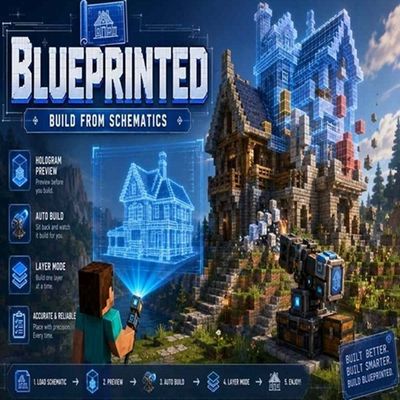
CurseForge · Minecraft mod
Blueprinted
Blueprinted is a Minecraft building mod that lets you save structures as blueprints, preview them as transparent ghosts, track required materials, and build them manually or with an upgradeable Build Cannon that pulls resources from nearby storage.
Choose a version Pick your version below, then grab the matching file.
Quick answer
Which Blueprinted release should I use?
Latest stable file Blueprinted 1.0.1 for NeoForge 26.1.jar
Game version 26.1
Loader NeoForge
Blueprinted 1.0.1 for NeoForge 26.1.jar targets 26.1 with NeoForge. The project page does not say whether this file belongs on the client, dedicated server, or both. No extra mods listed for this file.
Where it goes
Is Blueprinted required on the client, server, or both?
The project page does not say whether this file belongs on the client, dedicated server, or both.
Client Source doesn’t say
Dedicated server Source doesn’t say
Loader for this release NeoForge
Required install it here Optional supported, not mandatory Not supported do not install here Source doesn’t say do not assume
The source does not explicitly classify this release as client-only or server-only.
What else does Blueprinted 1.0.1 for NeoForge 26.1.jar need?
Blueprinted 1.0.1 for NeoForge 26.1.jar. Change the file and its required mods may change too.
This file does not list any required mods. Do not add a library just because a different file uses it.
This file does not list any required or optional mods.
Before you install it
Add Blueprinted without breaking your instance.
Built for Blueprinted 1.0.1 for NeoForge 26.1.jar. Pick another file and the loader, install side or required mods may change.
- 01
Stick to this file
Use Blueprinted 1.0.1 for NeoForge 26.1.jar. It targets 26.1 with NeoForge; another release may have different loader, side or dependency requirements.
- 02
Bring the mods it needs
This file does not list any required mods. Do not add a library just because a different file uses it.
- 03
Put it on the correct side
The project page does not say whether this file belongs on the client, dedicated server, or both.
- 04
Pick the file you checked
Use the “Get this file” button beside Blueprinted 1.0.1 for NeoForge 26.1.jar. It opens that exact file at the source.
About this project
What does Blueprinted add?
Blueprinted
Blueprinted is a Minecraft building and schematic mod designed to make large-scale construction faster, easier, and more organized without taking away the feeling of actually building.
Create schematics directly from your world, preview them as holograms, build them manually layer by layer, automatically place the correct blocks from your inventory with the Schematic Wand, or let the Build Cannon construct the entire structure for you.
Whether you're copying a small house, rebuilding a massive base, or working through a huge schematic one layer at a time, Blueprinted gives you several ways to build depending on how much automation you want.
Schematic Wand
The Schematic Wand is the main tool used to create and build schematics.
Use it to select two positions in the world and save the selected structure as a reusable schematic.
Once a schematic is loaded, Blueprinted displays a holographic preview of the structure in the world.
The Wand supports both Select Mode and Build Mode, allowing you to switch between creating schematics and constructing them.
Holographic Building Preview
Loaded schematics appear as a hologram directly in the world.
Blueprinted automatically shows the state of each position:
- Normal ghost blocks show blocks that still need to be placed.
- Red blocks show blocks that are incorrect or have the wrong block state.
- Yellow blocks show extra blocks that should not exist according to the schematic.
This makes it easy to immediately see what is missing, what is incorrect, and what needs to be removed.
Whole Build & Layer Mode
Blueprinted supports two different ways of viewing your schematic.
Whole Mode displays the entire structure at once.
Layer Mode displays only a single horizontal layer, making large or complicated builds much easier to construct manually.
While holding the Schematic Wand, use Page Up and Page Down to move through the schematic layers without needing to reopen the interface.
Layer Mode works especially well with Auto Place.
Auto Place
Auto Place allows you to build directly from the hologram without constantly searching through your inventory.
When Auto Place is enabled:
Hold the Schematic Wand in Build Mode and right-click a missing ghost block.
Blueprinted will automatically:
- Determine which block belongs at that position.
- Find the required block in your inventory.
- Temporarily select it.
- Place the block.
- Return you to the Wand afterward.
You can also ignore automatic placement and simply hold the required block yourself. Manual placement uses Minecraft's normal placement mechanics, allowing you to control things such as stair direction, slab position, log orientation, trapdoors, and other directional blocks.
You can still build normally outside of your schematic.
Material List
Blueprinted can calculate the materials required to complete your loaded schematic.
The Material HUD compares the schematic with what has already been built and shows what is still needed.
It can count materials from:
- Your normal inventory
- Shulker Boxes stored in your inventory
Shulker contents are counted for the material display, but the Schematic Wand will not automatically remove blocks from inside Shulker Boxes.
Lock Schematic
Once your hologram is positioned correctly, Lock Schematic prevents accidental movement, rotation, or mirroring.
This is especially useful when working on large builds where accidentally moving the schematic could cause major alignment problems.
Schematic Management
Blueprinted includes a dedicated interface for managing your schematics.
From the Schematics menu you can:
Load • Save • Delete • Info • Unload
Deleting a schematic requires confirmation to prevent accidental removal.
Schematics are stored locally inside your Minecraft instance rather than in a shared server library.
This means your schematic collection belongs to you.
If you want to share a schematic with another player, simply send them the .blueprinted file and they can place it into their own Blueprinted schematic folder.
Schematic Table
The Schematic Table lets you turn your saved schematics into Blueprint items.
Blueprints can then be used with other Blueprinted systems, including the Build Cannon.
Each Blueprint keeps information identifying the schematic it represents, helping prevent similarly named schematics from being confused with one another.
Build Cannon
For players who want full construction automation, Blueprinted includes the Build Cannon.
Load a Blueprint into the Cannon, provide the required materials through nearby storage, and the Cannon can automatically construct the schematic.
The Cannon recognizes storage blocks placed in the eight blocks directly surrounding its base on the same level.
It features an animated turret that aims toward the position currently being constructed and displays floating status information such as:
IDLE
WORKING
COMPLETE
Missing: Stone Bricks
Clearing: x, y, z
Missing material messages are highlighted so problems are easy to identify.
Build Cannon Upgrades
Speed Upgrade
Speed Upgrades reduce the delay between construction cycles.
| Upgrades | Build Delay | Approx. Cycles/sec |
|---|---|---|
| 0 | 20 ticks | 1.00 |
| 1 | 17 ticks | 1.18 |
| 2 | 14 ticks | 1.43 |
| 3 | 11 ticks | 1.82 |
| 4 | 8 ticks | 2.50 |
Maximum: 4 Speed Upgrades
Construction Upgrade
Construction Upgrades increase how many blocks the Cannon can place during each cycle.
| Upgrades | Blocks per Cycle |
|---|---|
| 0 | 1 |
| 1 | 2 |
| 2 | 3 |
| 3 | 4 |
| 4 | 5 |
Maximum: 4 Construction Upgrades
Demolition Upgrade
The Demolition Upgrade allows the Build Cannon to automatically clean up mistakes before construction begins.
It can remove:
- Incorrect blocks shown in red
- Extra blocks shown in yellow
Once the area matches the schematic requirements, normal construction begins.
The Cannon protects itself, its surrounding storage, and unbreakable blocks from demolition.
Maximum: 1 Demolition Upgrade
Detailed Schematic Support
Blueprinted is designed to preserve much more than simple block IDs.
Schematics can retain data for things such as:
- Block states
- Block orientation
- Stairs and slabs
- Signs and sign text
- Banners
- Decorated Pots
- Furnaces
- Many serializable Block Entities
- Armor Stands
- Item Frames
- Glow Item Frames
- Flower Pots
- Rotation
- Mirroring
Container inventories such as chest contents are intentionally not copied.
Different Ways to Build
Blueprinted isn't designed around only one building style.
You can choose how much assistance you want:
Traditional Building
Use the hologram purely as a guide and place everything yourself.
Layer Building
Work through the structure one layer at a time.
Auto Place
Right-click ghosts with the Wand and automatically use the correct materials from your inventory.
Build Cannon
Supply the materials and let the Cannon construct the schematic automatically.
You can switch between these approaches depending on the build.
Project description from CurseForge.
Pick your setup
Blueprinted by Minecraft version and loader
Choose the version and loader you play, then open the matching release.
Minecraft version
26.1
1 loader buildMinecraft version
1.21.10
1 loader buildMinecraft version
1.21.4
1 loader buildMinecraft version
1.21.1
1 loader buildMinecraft version
1.21
1 loader buildMinecraft version
1.20.6
1 loader buildMinecraft version
1.20.4
1 loader buildMinecraft version
1.20.1
1 loader buildCheck the dependencies, then try the file in a copied instance before changing a world you care about.
Recent files
Blueprinted versions and loaders
Blueprinted 1.0.1 for NeoForge 26.1.jar
27 Aug 2026
Client Source doesn’t say Server Source doesn’t say Dependencies No extras listed Listed on Release listing
Check the 26.1 · NeoForge setup NeoForge26.1 release
Blueprinted 1.0.1 for NeoForge 26.2.jar
27 Aug 2026
Client Source doesn’t say Server Source doesn’t say Dependencies No extras listed Listed on Release listing
Check the 26.2 · NeoForge setup NeoForge26.2 release
Blueprinted 1.0.1 for NeoForge 1.21.10.jar
27 Aug 2026
Client Source doesn’t say Server Source doesn’t say Dependencies No extras listed Listed on Release listing
Check the 1.21.10 · NeoForge setup NeoForge1.21.10 release
Blueprinted 1.0.1 for NeoForge 1.21.4.jar
27 Aug 2026
Client Source doesn’t say Server Source doesn’t say Dependencies No extras listed Listed on Release listing
Check the 1.21.4 · NeoForge setup 1.21.4NeoForge release
Blueprinted 1.0.1 for NeoForge 1.21.jar
27 Aug 2026
Client Source doesn’t say Server Source doesn’t say Dependencies No extras listed Listed on Release listing
Check the 1.21 · NeoForge setup 1.21NeoForge release
Blueprinted 1.0.0 for Forge 1.20.6.jar
26 Aug 2026
Client Source doesn’t say Server Source doesn’t say Dependencies No extras listed Listed on Release listing
Check the 1.20.6 · Forge setup Forge1.20.6 release
Blueprinted 1.0.0 for Forge 1.20.4.jar
26 Aug 2026
Client Source doesn’t say Server Source doesn’t say Dependencies No extras listed Listed on Release listing
Check the 1.20.4 · Forge setup Forge1.20.4 release
Blueprinted 1.0.0 for Forge 1.20.1.jar
26 Aug 2026
Client Source doesn’t say Server Source doesn’t say Dependencies No extras listed Listed on Release listing
Check the 1.20.1 · Forge setup 1.20.1Forge release
Blueprinted-1.0.0 for NeoForge 1.21.1.jar
blueprinted-1.0.0 for NeoForge 1.21.1.jar
25 Aug 2026
Client Source doesn’t say Server Source doesn’t say Dependencies No extras listed Listed on Release listing
Check the 1.21.1 · NeoForge setup 1.21.1NeoForge release
Looking for an older file? The official CurseForge project page is in Resources.
 mod
mod CurseForge · Minecraft
Peterwolf’s Railroad One
Peterwolf’s Railroad One improves vanilla rail building by adding smoother track geometry while keeping the simplicity of the original rail system.
 mod
mod CurseForge + Modrinth · Minecraft
RPG Systems
RPG Systems but in Minecraft! Parties, Health bars, Damage numbers, etc...
 mod
mod CurseForge · Minecraft
bittcraft
a mod that adds basic pixel manipulation to your world