Minecraft version
Back to mods 
CurseForge · Minecraft mod
ModRig
Export your Minecraft world (terrain, mobs, players, camera and lighting) as a live-recorded animated scene, ready to import into Blender.
Choose a version Pick your version below, then grab the matching file.
Quick answer
Which ModRig release should I use?
Latest stable file MobRig 1.1.0 neoforge 1.21.1
Game version 1.21.1
Loader NeoForge
ModRig MobRig 1.1.0 neoforge 1.21.1 targets 1.21.1 with NeoForge. The project page does not say whether this file belongs on the client, dedicated server, or both. No extra mods listed for this file.
Where it goes
Is ModRig required on the client, server, or both?
The project page does not say whether this file belongs on the client, dedicated server, or both.
Client Source doesn’t say
Dedicated server Source doesn’t say
Loader for this release NeoForge
Required install it here Optional supported, not mandatory Not supported do not install here Source doesn’t say do not assume
The source does not explicitly classify this release as client-only or server-only.
What else does ModRig MobRig 1.1.0 neoforge 1.21.1 need?
MobRig 1.1.0 neoforge 1.21.1. Change the file and its required mods may change too.
This file does not list any required mods. Do not add a library just because a different file uses it.
This file does not list any required or optional mods.
Before you install it
Add ModRig without breaking your instance.
Built for ModRig MobRig 1.1.0 neoforge 1.21.1. Pick another file and the loader, install side or required mods may change.
- 01
Stick to this file
Use MobRig 1.1.0 neoforge 1.21.1. It targets 1.21.1 with NeoForge; another release may have different loader, side or dependency requirements.
- 02
Bring the mods it needs
This file does not list any required mods. Do not add a library just because a different file uses it.
- 03
Put it on the correct side
The project page does not say whether this file belongs on the client, dedicated server, or both.
- 04
Pick the file you checked
Use the “Get this file” button beside MobRig 1.1.0 neoforge 1.21.1. It opens that exact file at the source.
About this project
What does ModRig add?
MobRig
Export your Minecraft world (terrain, mobs, players, camera and lighting) as a live-recorded animated scene, ready to import into Blender.
⚠️ You also need the free Blender add-on (io_mcscene). It is not included in this download. 👉 Download the Blender add-on (free) on Ko-fi 📺 Tutorials and updates: youtube.com/@satorun-12
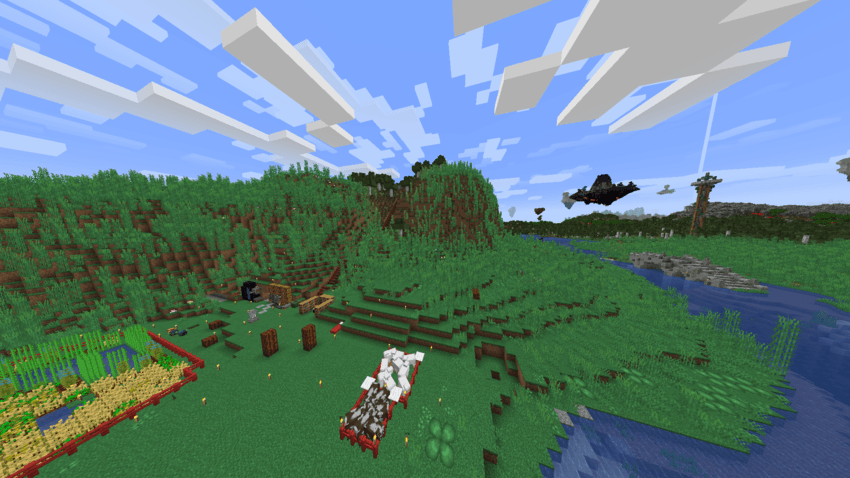
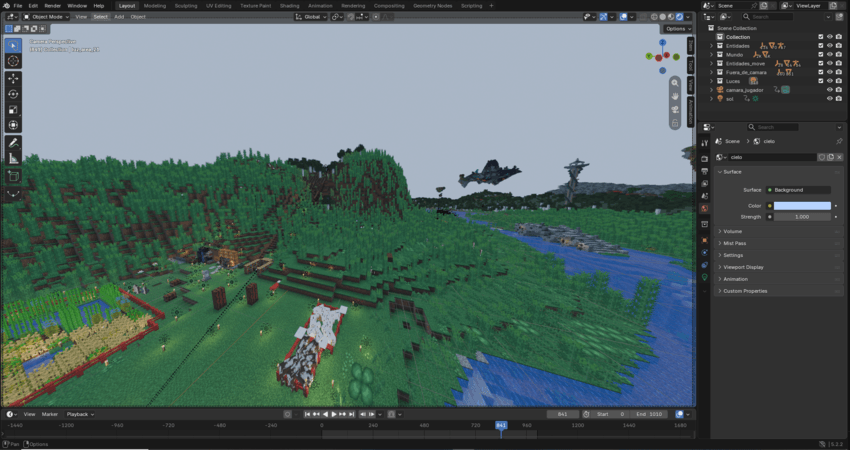
MobRig is a client-side mod for NeoForge 1.21.1. Press a key, play normally, press it again, and you get a full animated scene: the blocks around you, every mob and player with a real skeleton (rig) and their animations, your camera path, and the light sources. A companion Blender extension imports it all with one click.
It works with modded mobs too: MobRig captures whatever the game actually draws, so mobs from other mods (including GeckoLib ones) come out rigged and animated without any per-mod support.
✨ Features
- Record the world live: terrain, mobs, players, camera and block lights, sampled 30 times per second.
- No time limit: record for as long as you want, or set your own limit in seconds in the map (O).
- Pause and resume (U): the paused part is cut out, so the scene continues seamlessly in Blender.
- Rigged mobs: every mob and player is exported with bones and animation, not as a frozen mesh.
- Modded mob support: vanilla, GeckoLib and other modded mobs, plus player armor.
- Create support: shafts, cogwheels, gearboxes, presses and other moving parts rotate in the export, and belts move.
- Choose what to export: when a recording ends, a checklist shows every recorded mob, grouped by type. Untick the ones you don't want.
- Cancel anytime: changed your mind? Cancel the export and nothing is saved.
- Area picker map (O key): pick exactly which area to export, how much detail to keep, and how far the terrain goes. The map remembers everywhere you have been, even after hours of recording.
- Distant Horizons support (optional): include far-away DH terrain in your scene, with a separate color for each detail level on the map.
- Replay Mod support: record automatically while Replay Mod plays back a camera path.
- Game pauses while exporting in singleplayer, so nothing moves while your scene is being saved.
- Single-mob export: export just the mob you are looking at, static or with 5 seconds of animation.
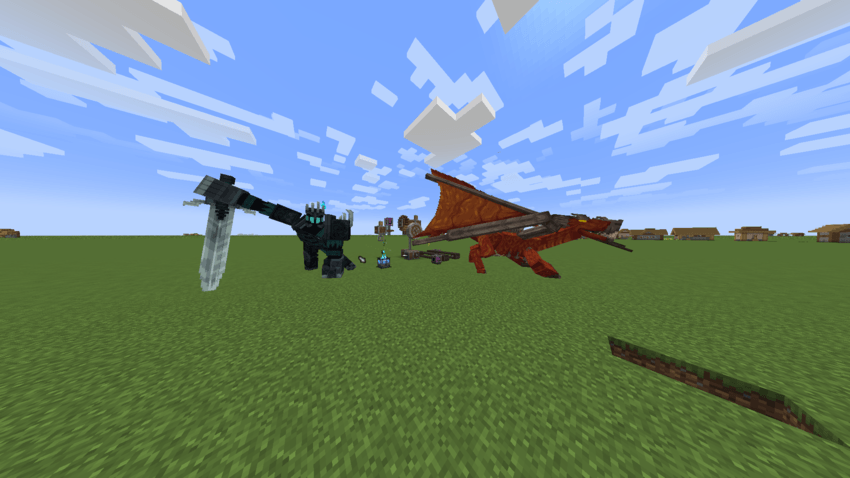
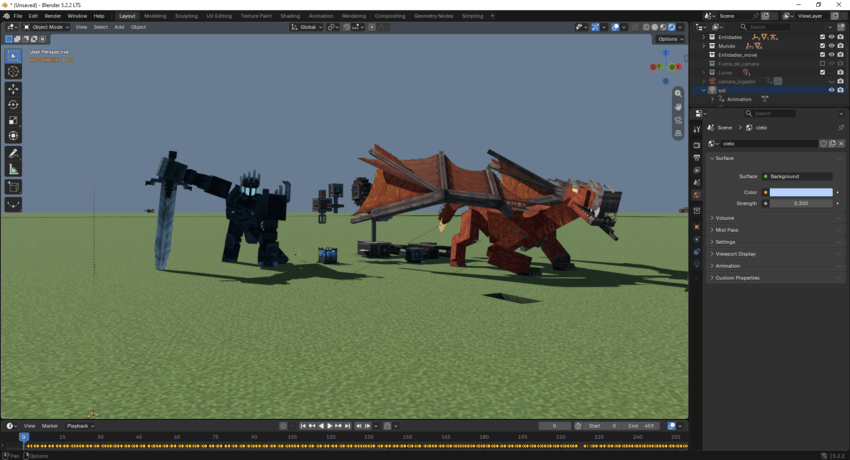
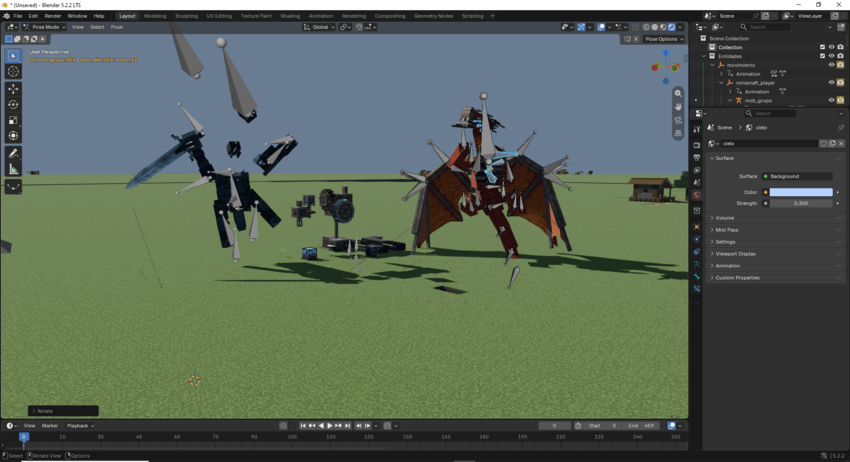
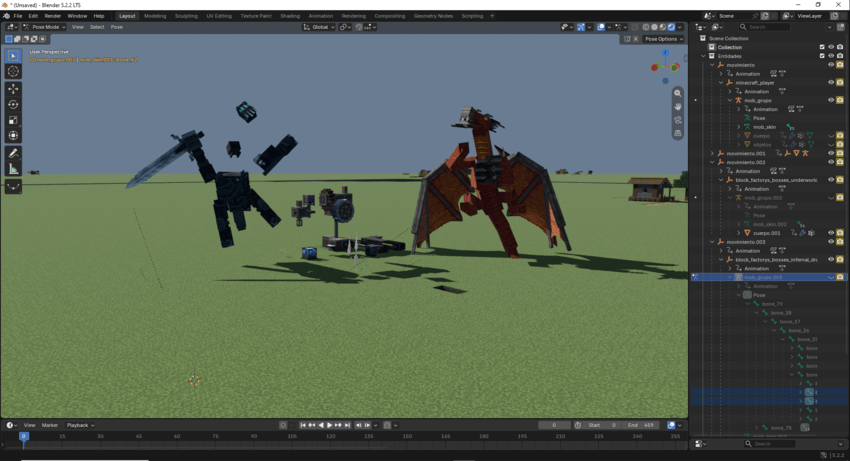
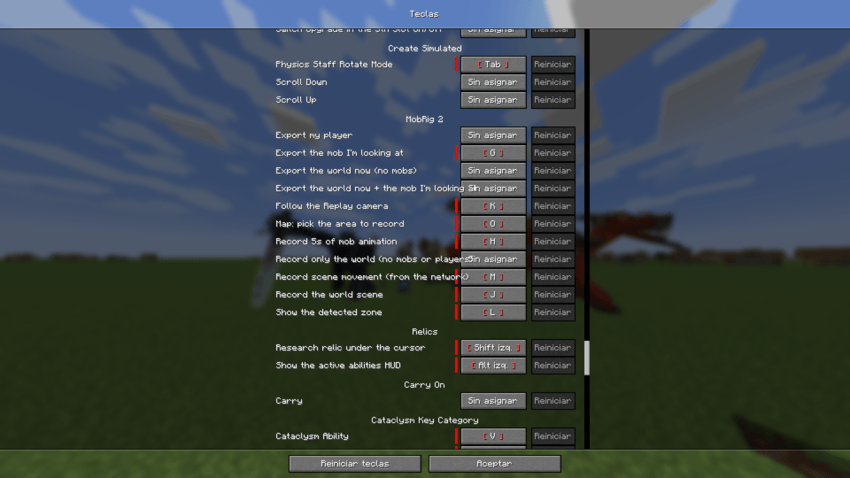
🎮 Controls
All keys can be changed in Options → Controls → MobRig.
Keys with a default binding
| Key | What it does |
|---|---|
| J | Record the world scene. Press to start, press again to stop. No time limit unless you set one in the map (O). This is the main feature. |
| U | Pause / resume the current recording without ending it. The paused part is cut from the scene. |
| O | Open the map: pick the area to record, detail, height/depth, time limit, Distant Horizons levels and other options. |
| G | Export the mob you are looking at, in its rest pose. |
| H | Record 5 seconds of the mob you are looking at and export it animated. |
| M | Record the movement of the whole scene from network data (.move file). Can run together with J. |
| K | Turn on/off automatic recording when Replay Mod plays a camera path. |
| L | Show/hide the detected-zone HUD. |
Extra actions (no key by default, bind them yourself)
| Action | What it does |
|---|---|
| Record only the world | Like J, but without mobs or players. Great for recording builds and structures. Create machines, item frames, paintings and minecarts are kept. |
| Export the world now (no mobs) | Instant snapshot of the world around you, no recording needed. |
| Export the world now + the mob I'm looking at | Instant snapshot of the world with only the mob you are looking at. |
| Export my player | Exports your own player (you can't look at yourself with G). |
🗺️ The map (O key)
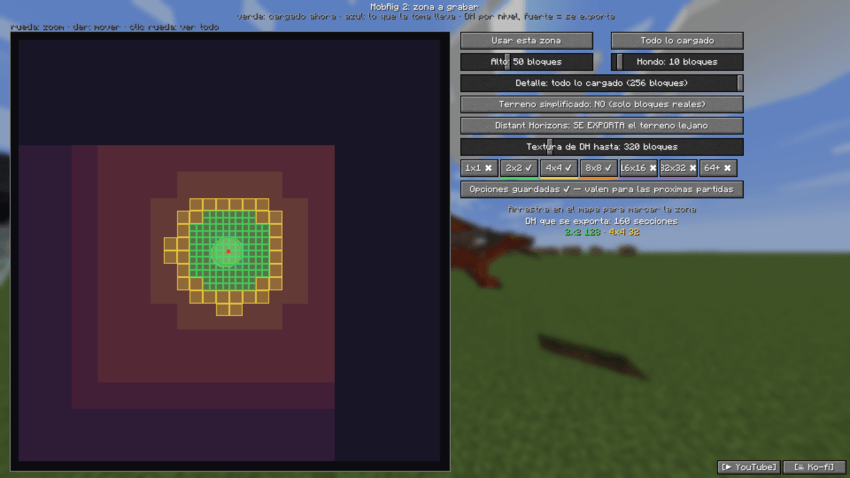
- Mouse wheel over the map: zoom · Right-drag: pan · Middle click: show everything
- Mouse wheel over the options: scroll to see every option on small windows.
- Select the area you want to export. Everything outside it is left out.
- Detail: how far from you real blocks are exported (up to "everything loaded").
- Simplified terrain beyond detail: ON adds lightweight terrain past the detail radius; OFF exports real blocks only.
- Distant Horizons: each detail level has its own color and can be turned on or off. Areas shown in a strong color will be exported.
- Time limit: turn "Limitar tiempo" ON and type the seconds, and the recording stops by itself.
- Press Save to keep your options for next time (✔ = saved, ✖ = only for this session).
✅ Choosing which mobs to export
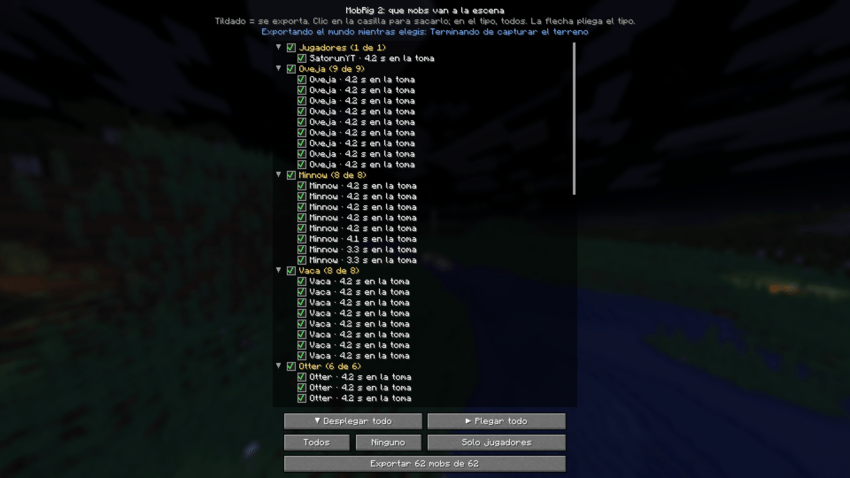
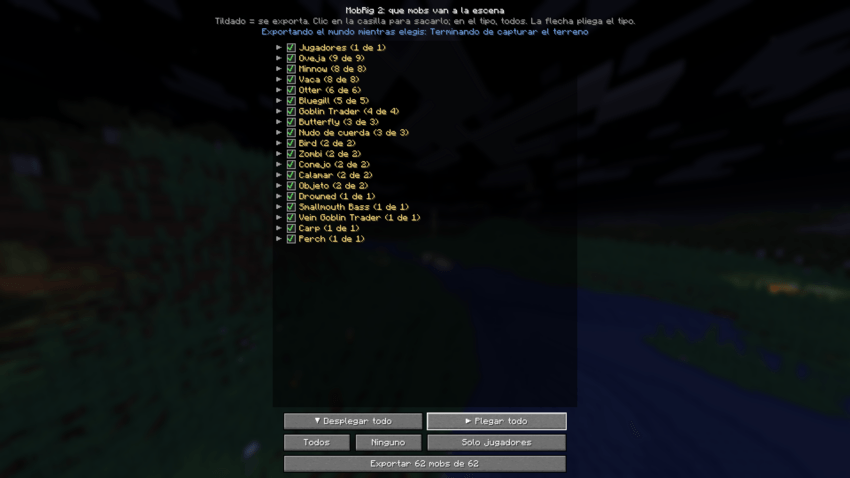
When a recording ends, a list shows every mob and player that was recorded, grouped by type:
- The list starts collapsed, one row per type ("Cow (5 of 5)"). Use the arrow to expand a type.
- Everything starts ticked. Click a box to leave that mob out, or click a type row to toggle all mobs of that type.
- Quick buttons: All, None, Only players, Expand all, Collapse all.
- If you leave out more than half of the mobs, MobRig asks you to confirm.
- Cancel discards the whole recording (click twice to confirm).
The terrain keeps exporting in the background while you choose.
📁 Where your files go
Everything is saved inside your Minecraft instance folder:
<instance>/mobrig-exports/
├── escenas/escena-YYYYMMDD-HHMMSS.mcscene   ← open this in Blender (recording from J)
├── escenas/escena-YYYYMMDD-HHMMSS/          ← the same scene, unpacked
│   ├── mundo.glb        (terrain, animated blocks)
│   ├── entidades/*.glb  (one rigged, animated file per mob/player)
│   ├── escena.json      (camera, lights, timing)
│   └── movimiento.move
├── move/                                    ← recordings from M
└── <mod>/<mob>/                             ← single-mob exports from G and H

<instance>/mobrig-mapa/                      ← the map picture of everywhere you have explored
<instance>/config/mobrig2-grabacion.json     ← your saved map/recording options
Single-mob exports (G / H) are standard .glb files and open with Blender's built-in glTF importer.
🧊 Importing into Blender
- Get the free io_mcscene extension on Ko-fi (Blender 4.2 or newer; tested on 5.2).
- Install it: Edit → Preferences → Get Extensions → ⌄ → Install from Disk… and pick the .zip file.
- File → Import → Minecraft scene (.mcscene) and choose your recording.
The extension sets the frame rate and length, builds the terrain, places every mob with its animation, recreates your camera, and adds the lights:
- Everything is organized in folders in the Outliner: entities by type and mob, world by chunk, Distant Horizons terrain, and off-camera objects.
- Lava lakes and big light surfaces become a few area lights instead of thousands of point lights.
- Create belts get an animated texture so they keep moving.
- Terrain outside the camera view is hidden to keep the scene light.
💡 Always update the mod and the Blender add-on together.
📋 Requirements & compatibility
- Minecraft 1.21.1 with NeoForge
- Client-side only: works in singleplayer and on servers (the server does not need it)
- Blender 4.2+ with the free io_mcscene add-on, for importing scenes
- Optional: Distant Horizons, Replay Mod, Create, GeckoLib mobs
💡 Tips
- Long recordings over a big area produce big files. Use the map (O) to limit the area and the detail.
- Need a break mid-shot? Press U to pause instead of starting a new recording.
- Use Record only the world (bind it first) when you only care about your builds.
- In singleplayer, the game pauses while exporting. Wait for the progress screen, or press Cancel export if you don't need it.
❤️ Support MobRig
MobRig is free and made by one person in their free time, and it will stay free. If it helped you, you can support its development:
Found a bug or have an idea? Leave a comment or open an issue. Screenshots of what you made in Blender are very welcome!
Project description from CurseForge.
Pick your setup
ModRig by Minecraft version and loader
Choose the version and loader you play, then open the matching release.
Check the dependencies, then try the file in a copied instance before changing a world you care about.
Recent files
ModRig versions and loaders
MobRig 1.1.0 neoforge 1.21.1
mobrig-1.1.0-neoforge-1.21.1.jar
25 Sept 2026
Client Source doesn’t say Server Source doesn’t say Dependencies No extras listed Listed on Release listing
Check the 1.21.1 · NeoForge setup 1.21.1NeoForge release
MobRig 1.0.0 neoforge 1.21.1
mobrig2-2.0.0-neoforge-1.21.1.jar
24 Sept 2026
Client Source doesn’t say Server Source doesn’t say Dependencies No extras listed Listed on Release listing
Check the 1.21.1 · NeoForge setup 1.21.1NeoForge release
Looking for an older file? The official CurseForge project page is in Resources.
 mod
mod CurseForge + Modrinth · Minecraft
Forgiving Void
Makes the void hate you a little less (and vice-versa). Fall down and come back out on top.
 mod
mod CurseForge + Modrinth · Minecraft
Fertilization
Adds additional variants of bone meal for all your fertilization needs.
 mod
mod CurseForge + Modrinth · Minecraft
Inventory Essentials
The most essential inventory tweaks. Now with sorting!