Minecraft version
Back to mods 
CurseForge · Minecraft mod
BlockCompanion
See schematics in your world and build them block by block. Simple controls, a list of the materials you need, one layer at a time if you like, and AutoBuild to place it for you. Works on Fabric, NeoForge and Paper, and links live to BlockDesigner.
Choose a version Pick your version below, then grab the matching file.
Quick answer
Which BlockCompanion release should I use?
Latest stable file blockcompanion-neoforge-26.3-0.4.6.jar
Game version 26.3
Loader NeoForge
blockcompanion-neoforge-26.3-0.4.6.jar targets 26.3 with NeoForge. The project page does not say whether this file belongs on the client, dedicated server, or both. No extra mods listed for this file.
Where it goes
Is BlockCompanion required on the client, server, or both?
The project page does not say whether this file belongs on the client, dedicated server, or both.
Client Source doesn’t say
Dedicated server Source doesn’t say
Loader for this release NeoForge
Required install it here Optional supported, not mandatory Not supported do not install here Source doesn’t say do not assume
The source does not explicitly classify this release as client-only or server-only.
What else does blockcompanion-neoforge-26.3-0.4.6.jar need?
blockcompanion-neoforge-26.3-0.4.6.jar. Change the file and its required mods may change too.
This file does not list any required mods. Do not add a library just because a different file uses it.
This file does not list any required or optional mods.
Before you install it
Add BlockCompanion without breaking your instance.
Built for blockcompanion-neoforge-26.3-0.4.6.jar. Pick another file and the loader, install side or required mods may change.
- 01
Stick to this file
Use blockcompanion-neoforge-26.3-0.4.6.jar. It targets 26.3 with NeoForge; another release may have different loader, side or dependency requirements.
- 02
Bring the mods it needs
This file does not list any required mods. Do not add a library just because a different file uses it.
- 03
Put it on the correct side
The project page does not say whether this file belongs on the client, dedicated server, or both.
- 04
Pick the file you checked
Use the “Get this file” button beside blockcompanion-neoforge-26.3-0.4.6.jar. It opens that exact file at the source.
About this project
What does BlockCompanion add?
BlockCompanion
BlockCompanion shows a schematic in your world as see-through "ghost" blocks. You build over them, block by block. It does the same job as Litematica, but with less on screen and simpler controls.
It also works with BlockDesigner, a Windows app for designing Minecraft builds. You can open BlockDesigner's files in the game, save builds back to it, and link the game and the app live.
BlockCompanion is still in early development. Please report bugs and ideas on the issue tracker.
What you need
| Loader | Minecraft | Java | Also needs |
|---|---|---|---|
| Fabric | 1.21.1 | 21 | Fabric API |
| Fabric | 26.2 | 25 | Fabric API |
| Fabric | 26.3 | 25 | Fabric API |
| NeoForge | 1.21.1 | 21 | nothing else |
| NeoForge | 26.2 | 25 | nothing else |
| NeoForge | 26.3 | 25 | nothing else |
Mod Menu is optional on Fabric. It lets you open the settings from the mod list.
BlockCompanion is a client mod and works on normal servers. If the server has it too (or the BlockCompanion plugin on Paper or Spigot), you also get shared schematics, AutoBuild and blocks fetched from your chests.
Getting started
- Install the jar for your loader and Minecraft version (and Fabric API on Fabric).
- Start the game once. This makes the folder
<game folder>/blockcompanion/schematics. - Put your schematics in that folder. The schematic screen has an Open folder button.
- Press B, pick a schematic and click Load. It appears in front of you.
- Hold a stick and look at the schematic to move, turn and mirror it. Then start building.
New to it? Click BlockCompanion tutorial on the title screen. It opens a practice world that teaches you one step at a time. A short guide also opens the first time you join a world, and you can open it again from the Guide button.
Features
Schematics
- Opens BlockDesigner projects (
.bdproj) and Sponge schematics (.schem). Litematica (.litematic) and vanilla structure (.nbt) files work too. - A BlockDesigner project loads as one schematic, with all its visible layers.
- Load several schematics at once. Each one remembers where you put it, per world and server.
- Lock a schematic so you can't move it by mistake. A locked one has a blue outline.
- Save from the world: mark two corners with the stick, press O and give it a name. It saves as a
.schemfile, with chest contents, signs and mobs, ready for BlockDesigner.
A clean view
- Only what is wrong or missing is shown:
- a ghost where a block is missing
- red over a wrong block
- orange where something is in the way (grass, flowers, water and snow don't count)
- Ghosts look like the real blocks and follow your resource packs.
- When you place the right block, its ghost disappears straight away.
- The schematic's outline only shows while you hold the stick, unless you choose otherwise.
- It only redraws the parts that change, so it stays fast.
Building
- Easy place (on by default, H): right-click a ghost to place exactly that block, facing the right way, even in mid-air. It takes the block from your inventory. It works in survival, on normal servers too.
- Auto place (off by default): missing blocks near you place themselves from your inventory. 4 blocks a second by default, up to 20.
- AutoBuild: if your linked chests hold everything, the server builds it for you, like Create's Schematicannon. You choose the speed, the order and what it may replace. It needs BlockCompanion on the server (singleplayer always has it).
- Middle click a ghost to pick its block.
- Info panel: shows the schematic, a progress bar, the layer, and how many of the block in your hand are left.
- HUD editor: move, resize or hide the panels.
- Material helper: holding a block shows the nearest ghosts that need it.
- Small celebrations: sparkles, a message when a layer is done, and fireworks when the build is finished. You can switch each one off.
Layers
- PgUp / PgDn move up and down through the levels of a build.
- Insert switches between "everything up to this level" and "this level only".
- V changes what you see: everything, up to this layer, this layer only, or hidden.
Undo and redo
- Ctrl+Z undoes and Ctrl+Y redoes moves, turns, locks and layer changes.
Resources and chests
- N opens the resource list. It shows what the build needs, what is placed, what you carry and what is in your chests.
- Link chests: hold the stick and Ctrl+right-click a chest, barrel or shulker box. Its items then count towards your materials.
- On a BlockCompanion server, easy place can take blocks straight from your linked chests.
Live link to BlockDesigner
Run BlockDesigner with its BlockCompanion Plugin (1.2.0 or later) on the same computer, and the game and the app connect.
- Send the project you are working on into the game.
- See the game update as you edit in BlockDesigner.
- Open a placed schematic in BlockDesigner to edit it.
- See your build progress and chest contents in the app.
- The plugin can also install the latest BlockCompanion into your game for you.
Servers
- Share, upload and lock schematics on one server, on Fabric and NeoForge (with the mod) or Paper (with the plugin).
- Server owners can switch off easy place, auto place and AutoBuild, and limit who uses AutoBuild.
Settings
- One settings screen for ghosts, building, the HUD, effects, colours, keys and BlockDesigner. Changes apply straight away.
- Change every colour, including a colour-blind safe preset.
- Rebind every key.
Privacy
- BlockCompanion never downloads anything and never sends your data over the internet. Update it from this page.
- The link to BlockDesigner only works on your own computer, and only with a secret code.
- It writes a few small files to
~/.blockcompanionso BlockDesigner can find the game. Your schematics stay in<game folder>/blockcompanion/schematics.
Controls
You can change every key in Options > Controls > BlockCompanion or on the settings screen.
| Key | Action |
|---|---|
| B | Schematic screen |
| N | Resource list |
| V | Change the view |
| PgUp / PgDn | Layer up / down |
| Insert | One layer / build up |
| M | Mirror (stick in hand) |
| Y | Lock / unlock |
| H | Easy place on / off |
| K | Mark a corner |
| O | Save the selection as .schem |
| Ctrl+Z | Undo |
| Ctrl+Y or Ctrl+Shift+Z | Redo |
| Middle click on a ghost | Pick its block |
With the stick in hand, looking at a schematic:
| Input | Action |
|---|---|
| Shift+scroll | Move it one block |
| Ctrl+scroll | Turn it 90 degrees |
| Ctrl+Shift+scroll | Switch between Move and Mirror |
| Alt+left-click / Alt+right-click | Selection corner 1 / 2 |
| Shift+right-click | Clear the selection |
| Ctrl+right-click a chest | Link / unlink it |
Normal scrolling still changes your hotbar, and the stick never breaks the block you click.
Links
- Source code: github.com/doolecg/BlockCompanion
- Report a problem: github.com/doolecg/BlockCompanion/issues
- BlockDesigner: github.com/doolecg/BlockDesigner
BlockCompanion is open source under the MIT license.
Project description from CurseForge.
Pick your setup
BlockCompanion by Minecraft version and loader
Choose the version and loader you play, then open the matching release.
Minecraft version
26.2
2 loader buildsMinecraft version
1.21.1
2 loader buildsCheck the dependencies, then try the file in a copied instance before changing a world you care about.
Recent files
BlockCompanion versions and loaders
blockcompanion-neoforge-26.3-0.4.6.jar
2 Oct 2026
Client Source doesn’t say Server Source doesn’t say Dependencies No extras listed Listed on Release listing
Check the 26.3 · NeoForge setup NeoForge26.3 release
blockcompanion-fabric-26.3-0.4.6.jar
2 Oct 2026
Client Source doesn’t say Server Source doesn’t say Dependencies No extras listed Listed on Release listing
Check the 26.3 · Fabric setup Fabric26.3 release
blockcompanion-neoforge-26.2-0.4.6.jar
2 Oct 2026
Client Source doesn’t say Server Source doesn’t say Dependencies No extras listed Listed on Release listing
Check the 26.2 · NeoForge setup NeoForge26.2 release
blockcompanion-fabric-26.2-0.4.6.jar
2 Oct 2026
Client Source doesn’t say Server Source doesn’t say Dependencies No extras listed Listed on Release listing
Check the 26.2 · Fabric setup Fabric26.2 release
blockcompanion-neoforge-1.21.1-0.4.6.jar
2 Oct 2026
Client Source doesn’t say Server Source doesn’t say Dependencies No extras listed Listed on Release listing
Check the 1.21.1 · NeoForge setup 1.21.1NeoForge release
blockcompanion-fabric-1.21.1-0.4.6.jar
2 Oct 2026
Client Source doesn’t say Server Source doesn’t say Dependencies No extras listed Listed on Release listing
Check the 1.21.1 · Fabric setup Fabric1.21.1 release
Looking for an older file? The official CurseForge project page is in Resources.
 mod
mod CurseForge · Minecraft
Genesis Utils
Server utilities for CNMC Genesis
 mod
mod CurseForge · Minecraft
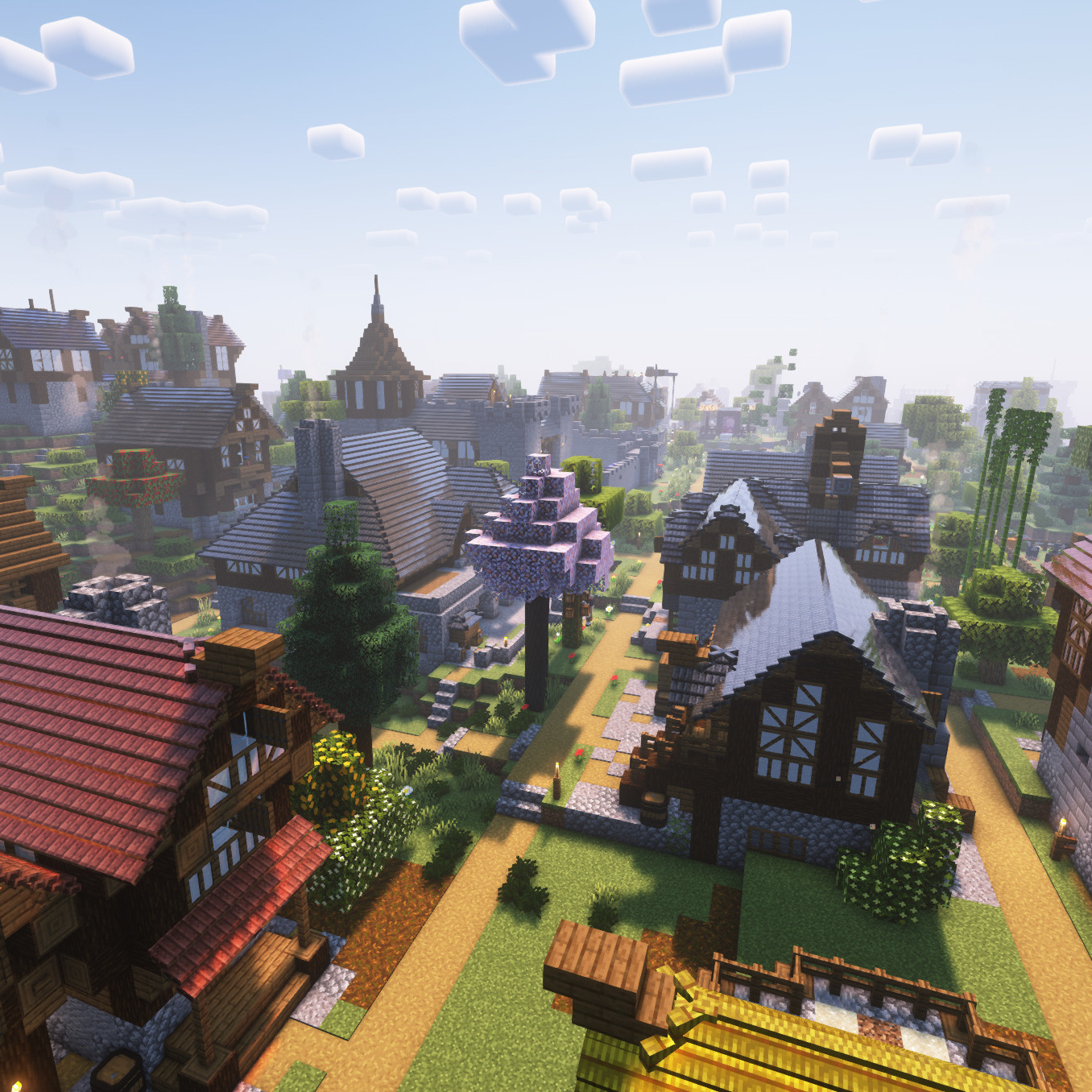
Stylecolonies
A set of blueprint sets for the Minecolonies Mod
 mod
mod CurseForge · Minecraft
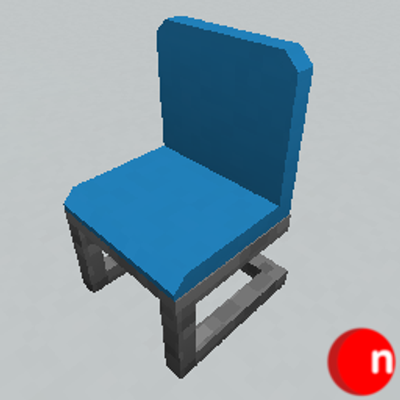
MrCrayFish's Furniture Mod (Legacy Continued) + Nosiphus Furniture Mod
The greatest furniture mod ever made, updated and extended for modern versions of Minecraft.