Sound Physics Remastered Optional for Image Block 1.0.0 - NeoForge - Minecraft 26.1.2
optionalMatching file found Matched file: [NEOFORGE][26.1.2] Sound Physics Remastered 1.5.2+26.1.2
CurseForge · Minecraft mod
Adds persistent multiplayer image and video displays with a visual editor and spatial audio.
Quick answer
Image Block 1.0.0 - NeoForge - Minecraft 26.1.2 targets 26.1.2 with NeoForge. The project page does not say whether this file belongs on the client, dedicated server, or both. No extra mods listed for this file.
Where it goes
The project page does not say whether this file belongs on the client, dedicated server, or both.
The source does not explicitly classify this release as client-only or server-only.
Image Block 1.0.0 - NeoForge - Minecraft 26.1.2 on 26.1.2 NeoForge. Every mod below is checked against that same setup.
This file does not list any required mods. Do not add a library just because a different file uses it.
2 extra mods were pulled in by other dependencies. Indented rows show who needs each one. We only count dependency files that match this setup. A file for another loader does not fill the gap.
Before you install it
Built for Image Block 1.0.0 - NeoForge - Minecraft 26.1.2 on 26.1.2 NeoForge. Pick another file and the loader, install side or required mods may change.
Use Image Block 1.0.0 - NeoForge - Minecraft 26.1.2. It targets 26.1.2 with NeoForge; another release may have different loader, side or dependency requirements.
This file does not list any required mods. Do not add a library just because a different file uses it.
The project page does not say whether this file belongs on the client, dedicated server, or both.
Use the “Get this file” button beside Image Block 1.0.0 - NeoForge - Minecraft 26.1.2. It opens that exact file at the source.
About this project
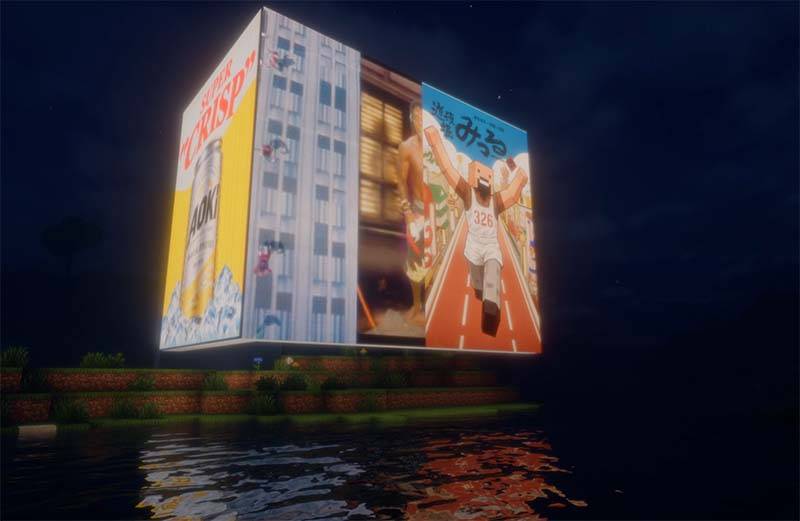
Image Block
Image Block lets you build persistent image and video displays directly inside your Minecraft world.
Create anything from a single-block picture to large multi-block screens using dedicated display blocks, then use the Image Wand to define exactly which blocks should act as one display. Displays can be placed on walls, floors, ceilings, and other supported orientations.
Creating a Display
Place Image Block display blocks where you want your screen.
Hold the Image Wand and sneak-right-click two corners to define a rectangular display area. The selection is shown in-world so you can see the display boundary before saving it.
Right-click the display with the Image Wand to open the visual editor.
Images and Videos
Images can be imported directly into the editor by dragging and dropping a local file.
Image Block also supports importing media from web URLs.
Videos can be displayed and automatically loop on the screen. Video playback is synchronized with the display instead of behaving like a temporary client-side overlay, and imported media is stored with the world so displays continue working after restarting the server.
Visual Editor
The editor includes a live preview so you can configure the media before applying it to the display.
Images can be fitted using stretch, contain, or crop-style modes, with adjustable crop positioning and zoom.
Displays can also use emissive rendering for bright screens and an optional RGB subpixel mode for a more physical display-like appearance.
A separate client setting controls emissive display brightness.
Video Audio
Videos with audio can play sound directly from their display.
Sound can be enabled or disabled per display, and audio settings allow you to adjust both volume and audible range.
Audio is spatial, so the sound comes from the position of the screen in the world and changes as you move around it.
Multiplayer and Persistence
Image Block is designed for multiplayer worlds. Display media, dimensions, visual settings, ownership data, video audio settings, and multi-block display boundaries are stored persistently.
Media is distributed to clients as needed, so players joining or reconnecting can see existing displays without manually importing the original file themselves.
Large adjacent screens can be separated into independent displays, and existing display areas can be reselected with the Image Wand when you want to change their boundaries.
Controls
Sneak + Right-click with the Image Wand selects the first and second corners of a display.
Right-click with the Image Wand opens the selected display in the visual editor.
Drag and drop a media file onto the editor to import it.
Project description from CurseForge.
Pick your setup
Choose the version and loader you play, then open the matching release.
Showing the newest 12 of 17 game versions. Older files are in the list below.
Check the dependencies, then try the file in a copied instance before changing a world you care about.
Recent files
imageblock-26.1.2-neoforge-1.0.0.jar
9 Oct 2026
Looking for an older file? The official CurseForge project page is in Resources.
 mod
modBuild Super Factory Manager programs on a visual node canvas instead of writing SFML by hand. Drag nodes, wire them together, search items and fluids by name, and import/export programs you have already written.
 mod
modQOL utilities mod to help you on your playthrough on Hypixel minigame, Ravengard
 mod
modA quality-of-life addon mod for Thaumaturge.