Minecraft version
Back to mods 
CurseForge · Minecraft mod
OBS Layer Cast
A Minecraft client mod w/ OBS plugin allows to split multiple HUDs of Minecraft game screen.
Choose a version Pick your version below, then grab the matching file.
Quick answer
Which OBS Layer Cast release matches 26.1?
Best match for your filters layercast+neoforge+1.0.0+26.1.x.jar
Game version 26.1, 26.1.1, 26.1.2
Loader NeoForge
OBS Layer Cast layercast+neoforge+1.0.0+26.1.x.jar targets 26.1, 26.1.1, 26.1.2 with NeoForge. The project page does not say whether this file belongs on the client, dedicated server, or both. No extra mods listed for this file.
Where it goes
Is OBS Layer Cast required on the client, server, or both?
The project page does not say whether this file belongs on the client, dedicated server, or both.
Client Source doesn’t say
Dedicated server Source doesn’t say
Loader for this release NeoForge
Required install it here Optional supported, not mandatory Not supported do not install here Source doesn’t say do not assume
The source does not explicitly classify this release as client-only or server-only.
What else does OBS Layer Cast layercast+neoforge+1.0.0+26.1.x.jar need?
layercast+neoforge+1.0.0+26.1.x.jar on 26.1. Every mod below is checked against that same setup.
This file does not list any required mods. Do not add a library just because a different file uses it.
This file does not list any required or optional mods.
Before you install it
Add OBS Layer Cast without breaking your instance.
Built for OBS Layer Cast layercast+neoforge+1.0.0+26.1.x.jar on 26.1. Pick another file and the loader, install side or required mods may change.
- 01
Stick to this file
Use layercast+neoforge+1.0.0+26.1.x.jar. It targets 26.1, 26.1.1, 26.1.2 with NeoForge; another release may have different loader, side or dependency requirements.
- 02
Bring the mods it needs
This file does not list any required mods. Do not add a library just because a different file uses it.
- 03
Put it on the correct side
The project page does not say whether this file belongs on the client, dedicated server, or both.
- 04
Pick the file you checked
Use the “Get this file” button beside layercast+neoforge+1.0.0+26.1.x.jar. It opens that exact file at the source.
About this project
What does OBS Layer Cast add?
OBS Layer Cast
OBS Layer Cast hooks into the Minecraft client's rendering pipeline to split F3, the scoreboard, boss bars, the TAB list, name tags, other HUD elements and HUDs drawn by other mods into independent transparent layers, then hands them to OBS through GPU texture sharing. In OBS each layer is a separate source, so streamers can freely control its visibility, position, scale and filters, while the player's own game view stays unchanged.
The project has two parts: a Minecraft mod in mod/ (Fabric / NeoForge) and an OBS plugin in obs-plugin/.
Layers
Layers are subtractive. By default there is a single layer, game: the complete picture the player sees (world + all HUD and screens). In the mod's Split layers settings you choose which parts to split out. Each split part becomes its own transparent layer and is removed from game. Stacked in OBS, game plus the split layers add up exactly to the game image, with nothing drawn twice.
| id | Content |
|---|---|
game |
Game image minus the split parts |
hotbar |
Hotbar and status bars |
crosshair |
Crosshair |
effects |
Status effects |
bossbar |
Boss bars |
scoreboard |
Scoreboard |
actionbar |
Action bar messages |
title |
Titles and subtitles |
chat |
Chat |
tablist |
Player list (TAB) |
subtitles |
Sound subtitles |
debug |
Debug screen (F3) |
screen |
Open screens / menus |
toasts |
Toasts |
camera |
Camera overlays |
nametags |
Name tags |
mod.<mod id> |
One mod's HUD |
All layers have the window's size and a transparent background, so they line up pixel-perfectly when stacked in OBS, and each can be cropped, scaled, moved and filtered on its own.
Other mods' HUDs are detected automatically the first time they draw, then appear in Split layers (they stay in game until you split them). Tested: MiniHUD, Xaero's Minimap, JourneyMap, Jade, Inventory HUD+, Armor HUD, Immersive Overlays, AppleSkin, Status Effect Timer. A mod that only adds to a vanilla part (for example a timer on the status effect icons) follows that part.
Usage
Install
Mod — put layercast+<loader>+<version>+<mc version>.jar into mods/ together with its dependencies (Java 25 is required, as for Minecraft 26.x itself):
- Fabric: Fabric Loader ≥ 0.19, Fabric API, MaLiLib (Mod Menu optional)
- NeoForge: MaFgLib and its dependency FoxifiedClassTweaker
| Minecraft | Fabric | NeoForge |
|---|---|---|
| 26.1 – 26.1.2 | ✅ | ✅ |
| 26.2 | ✅ | ✅ |
| 26.3 | ✅ | ⏳ waiting for MaFgLib |
OBS plugin (OBS 32.x) — download it from Releases:
Windows: extract
obs-layercast-windows.zipintoC:\ProgramData\obs-studio\plugins\. The folder should look like:C:\ProgramData\obs-studio\plugins\obs-layercast\ ├── bin\ │ └── 64bit\ │ └── obs-layercast.dll └── data\macOS (13+, Apple silicon): extract
obs-layercast-macos.zipinto~/Library/Application Support/obs-studio/plugins/. The folder should look like:~/Library/Application Support/obs-studio/plugins/obs-layercast.plugin/ └── Contents/ ├── MacOS/ │ └── obs-layercast └── Resources/Linux: extract
obs-layercast-linux-x86_64.ziporobs-layercast-linux-arm64.zipinto~/.config/obs-studio/plugins/. The folder should look like:~/.config/obs-studio/plugins/obs-layercast/ ├── bin/ │ └── 64bit/ │ └── obs-layercast.so └── data/
The plugin needs its data/ folder (the shader that draws the layers, and the UI text); without it OBS does not load the plugin. On Windows and Linux data/ sits next to the plugin binary, as obs-layercast/data/, which is why both are shipped as a zip. On macOS it is inside the .plugin bundle (Contents/Resources/); the bundle is itself a folder, so it is zipped too.
Stream with layers
- Start Minecraft and OBS, in any order. Either side reconnects automatically after a restart.
- In game, press
J+Cto open the settings and turn on the parts you want to split in Split layers. - In OBS, add a Minecraft Layer (LayerCast) source. A new source shows
gameby default. Add one more source per split layer, place them abovegame, then move, scale or filter each one. - After splitting or merging in game, click Refresh layer list in the source properties. A merged layer goes straight back into
game; its source turns blank but keeps its settings, and comes back when you split it again.
For example, with only chat and mod.xaerominimap split, game shows everything except chat and the minimap, and those two sources can be placed, enlarged or hidden freely.
A layer is only rendered while an OBS source is showing it, so unused layers cost nothing. Enable the source option Keep rendering while hidden to avoid a blank frame when a hidden source reappears.
Hotkeys and settings
| Default hotkey | Action |
|---|---|
J + C |
Open settings (also available from Mod Menu / the NeoForge mod list) |
J + S |
Show sharing status in game |
| Unbound | Master switch, one toggle per split layer (split or merge live while streaming), export layers as PNG |
Settings are stored in config/layercast.json. Besides Split layers, you can set the channel, the layer frame rate cap (default 60, never above OBS's frame rate) and the transport (auto / GPU only / CPU).
Several Minecraft instances: if the configured channel is already used by another running game, the next one automatically switches to <channel>-2, -3, … and tells you in game. The source's Channel dropdown in OBS lists every game that is sharing. To keep an OBS source tied to one game across restarts, give each instance its own channel.
Project description from CurseForge.
Pick your setup
OBS Layer Cast by Minecraft version and loader
Choose the version and loader you play, then open the matching release.
Minecraft version
26.2
2 loader buildsMinecraft version
26.1.2
2 loader buildsMinecraft version
26.1.1
2 loader buildsMinecraft version
26.1
2 loader buildsCheck the dependencies, then try the file in a copied instance before changing a world you care about.
Recent files
OBS Layer Cast versions and loaders
layercast+neoforge+1.0.0+26.1.x.jar
10 Oct 2026
Client Source doesn’t say Server Source doesn’t say Dependencies No extras listed Listed on Release listing
Check the 26.1 · NeoForge setup NeoForge26.126.1.126.1.2 release
layercast+fabric+1.0.0+26.1.x.jar
10 Oct 2026
Client Source doesn’t say Server Source doesn’t say Dependencies No extras listed Listed on Release listing
Check the 26.1 · Fabric setup Fabric26.126.1.126.1.2 release
Looking for an older file? The official CurseForge project page is in Resources.
 mod
CurseForge + Modrinth · Minecraft
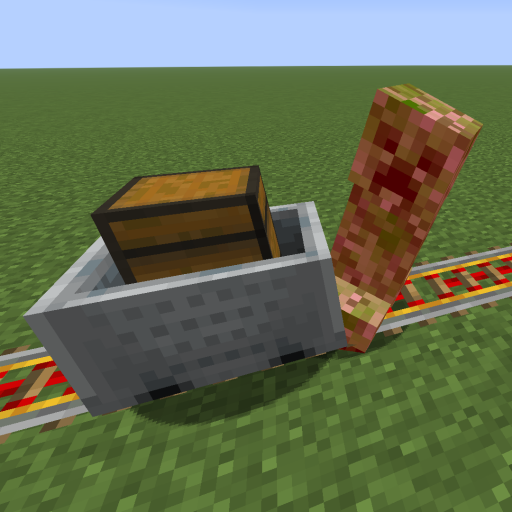
Kinetic Minecart
This mod increases damage to moving minecarts; the faster they move, the higher the damage, with virtually no damage limit!
 mod
CurseForge + Modrinth · Minecraft
Field Guide
Discover Plants, Animals and Monsters with a Spyglass. Collect them all and take notes in your personal Field Guide!
 mod
CurseForge + Modrinth · Minecraft
Quick Skin
Sick of wasting time with Minecraft’s slow launcher just to change your skin? Quick Skin lets you swap skins instantly even on “offline” servers and gives you access to every official Minecraft cape.