Fabric API Needed by Screencraft 1.0.7 (Fabric 26.2)
requiredMatching file found Matched file: [26.2] Fabric API 0.161.0+26.2

CurseForge · Minecraft mod
Watch videos and browse the web on screens you place in your world, or in a mini player while you play. Client-side, works on any server.
Quick answer
Screencraft 1.0.7 (Fabric 26.2) targets 26.2 with Fabric. The project page does not say whether this file belongs on the client, dedicated server, or both. All 1 required mods have matching files.
Where it goes
The project page does not say whether this file belongs on the client, dedicated server, or both.
The source does not explicitly classify this release as client-only or server-only.
Screencraft 1.0.7 (Fabric 26.2) on 26.2 Fabric. Every mod below is checked against that same setup.
Install Fabric API first. We found matching files for this game-version and loader setup.
We only count dependency files that match this setup. A file for another loader does not fill the gap.
Before you install it
Built for Screencraft 1.0.7 (Fabric 26.2) on 26.2 Fabric. Pick another file and the loader, install side or required mods may change.
Use Screencraft 1.0.7 (Fabric 26.2). It targets 26.2 with Fabric; another release may have different loader, side or dependency requirements.
Install Fabric API first. We found matching files for this game-version and loader setup.
The project page does not say whether this file belongs on the client, dedicated server, or both.
Use the “Get this file” button beside Screencraft 1.0.7 (Fabric 26.2). It opens that exact file at the source.
About this project
Watch videos and browse the web inside Minecraft, on screens you place in the world or in a mini player that follows you while you play.
Client-side only. Works on any server, including Paper and Spigot, and nobody else needs to install anything. Only you can see your screens.
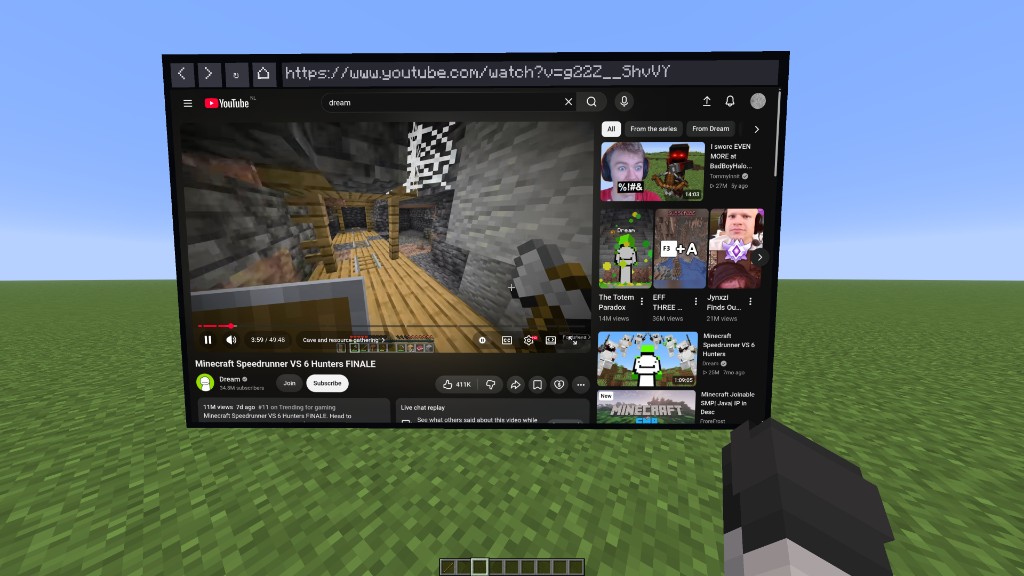
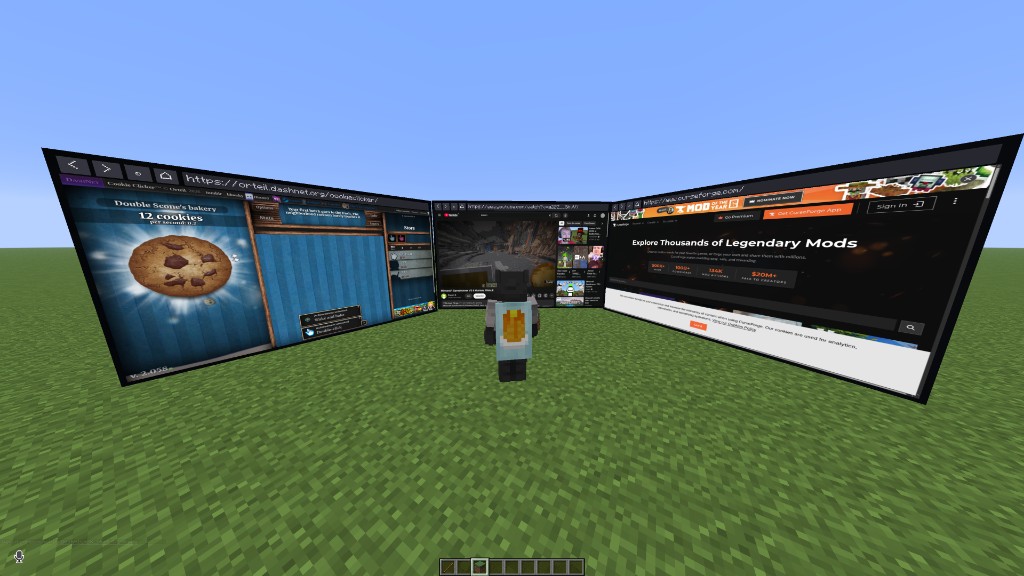
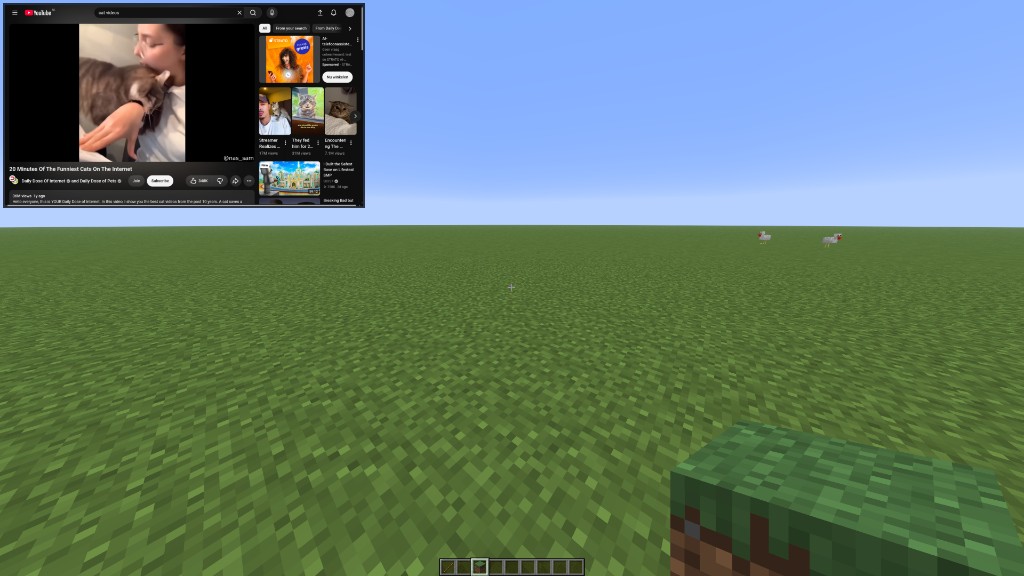
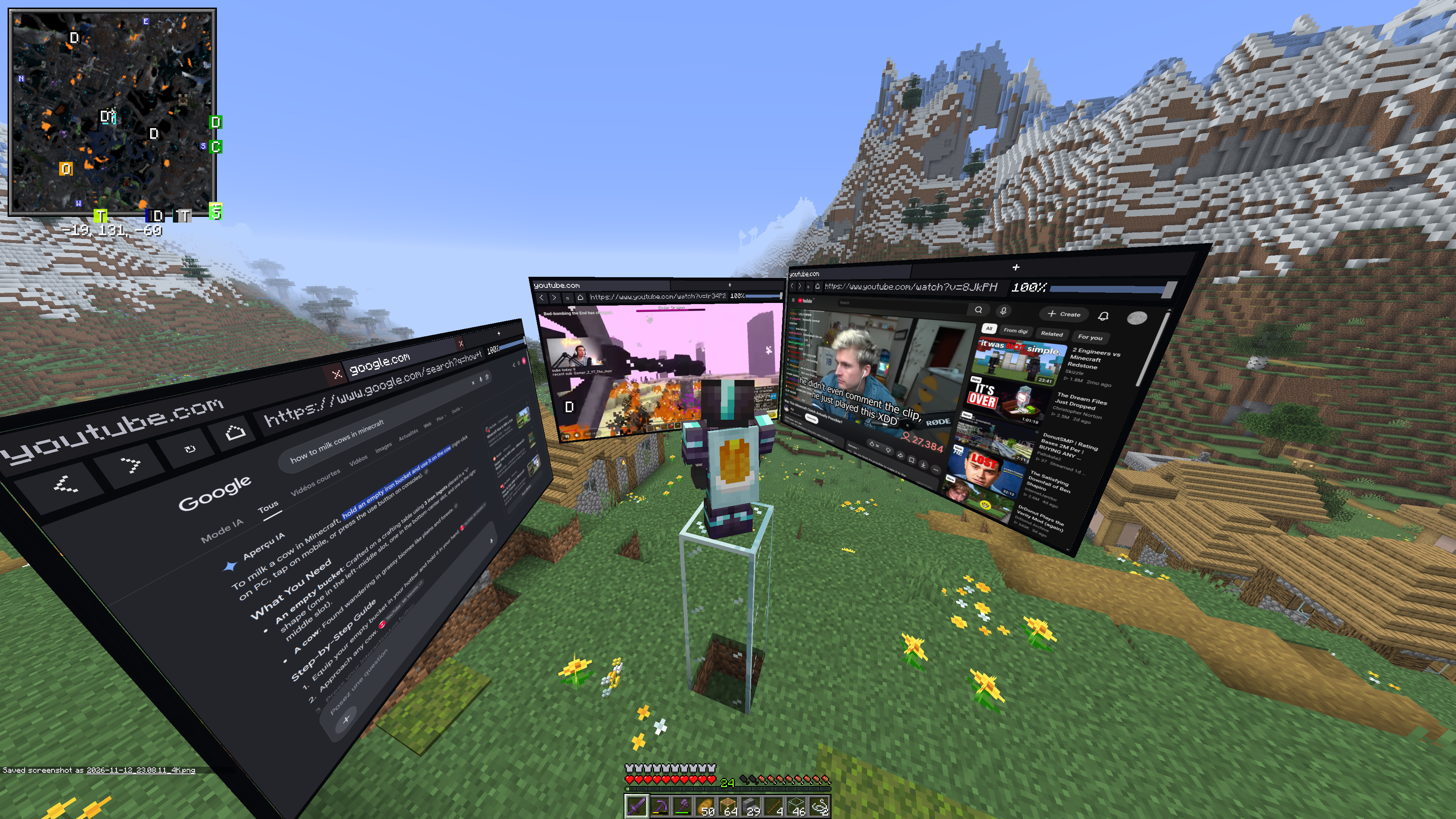
Screencraft needs MCEF Modern 0.3.3 or newer, which provides the Chromium browser. It is not on CurseForge, so the CurseForge app cannot offer it as an automatic dependency. Download it here and put it in your mods folder next to Screencraft. If it is missing, Screencraft starts anyway and shows a screen with this link instead of a loader error:
On first launch it downloads Chromium (about 150 MB). The older "MCEF" mod on CurseForge is a different mod and does not work with Screencraft.
You also need Fabric API.
/screencraft opens a browser with an address bar: type a website or anything you want to search.| Action | How |
|---|---|
| Move a screen | Aim at it with the stick and right-click |
| Remove a screen | Aim at it with the stick, sneak + right-click |
| Use the mouse and keyboard on a screen | Right-click it (without the stick), ESC to stop |
| Open a tab on a screen | Click + on the screen, or Ctrl+T in control mode |
| Close a tab | Click the x on that tab, or Ctrl+W in control mode |
| Change a screen's volume | Drag the volume slider on the screen, or the one in the control panel |
| Let a site use your camera | Camera in Screen Settings, or Camera in the control panel |
| Let a site use your microphone | Microphone in Screen Settings, or Mic in the control panel |
| Pick the speaker or microphone | Speaker and Mic input in Screen Settings |
| Bring a screen to you | Bring here in the control panel, or Here in the settings list |
| Change the placement item | "Placement item" in the settings menu: search any item, modded ones included |
| Place screens without an item | Set "Placement item" to None and use the "Place / move screen" key |
| Change a screen's shape | Shape on that screen's row in Screen Settings, or `/screencraft aspect |
| <16:9|4:3|1:1|9:16|21:9|W:H>` | |
| Settings | /screencraft settings, or the Settings button in the browser window |
| Open a page or search | /screencraft <url or words> |
| Remove all screens | /screencraft remove |
| Click/type on the mini player | Left Alt (you can still walk), Left Alt or ESC to go back |
All keys can be changed with the "Keybinds…" button in the settings menu, or in Options > Controls > Screencraft.
More than 5 screens: open config/screencraft/settings.json, set "screenHardLimit" to the number you want (up to 64), restart the game, then raise "Max screens" in the settings menu. Each screen is a full browser, so many screens need a strong PC.
A server can hang images in the world for every player with the mod. They are inert: players cannot move, remove or click them, and they are never saved to anyone's config. No server mod or plugin is needed — the pictures travel in the server's resource pack.
screencraft-pack/
├── pack.mcmeta
└── assets/
    └── screencraft/
        ├── server_screens.json
        └── textures/
            └── server/
                └── spawn.png
pack.mcmeta (the format range covers 1.21.10 through 26.3):{
"pack": {
"description": "Server screens",
"min_format": 64,
"max_format": 97
}
}
Put your picture at assets/screencraft/textures/server/spawn.png. Up to 8 MB and 8192×8192 pixels per image.
Describe the screens in assets/screencraft/server_screens.json:
{
  "screens": [
    {
      "image": "server/spawn",
      "dimension": "minecraft:overworld",
      "x": 0.5,
      "y": 66.0,
      "z": 0.5,
      "yaw": 0.0,
      "width": 6.0,
      "aspect": "16:9"
    }
  ]
}
image is the file name under textures/server/. dimension defaults to the overworld. x, y, z are block coordinates. yaw is the facing in degrees (0 = south, 90 = west, 180 = north, 270 = east). width is in blocks. aspect can be 16:9, 4:3, 1:1, 9:16, 21:9, or a custom ratio like 3:2.
To get the position without guessing: place a normal screen where you want the picture, aim at it, and run /screencraft serverjson. The command copies an entry with the position, facing, size and shape to your clipboard. Paste it into screens, change image, and drop the matching PNG in textures/server/.
Zip the pack, host it, and point the server at it in server.properties:
resource-pack=https://example.com/screencraft-pack.zip
resource-pack-sha1=<sha1 of the zip>
resource-pack-prompt={"text":"Server screens","color":"gold"}
/screencraft server off, or the Server screens toggle in Screen Settings.Up to 64 screens per pack. Images only (no web pages), for obvious reasons. A complete ready-to-edit pack, plus the full guide, is here: Example pack and guide.
Each screen is a real browser. Screens you are not looking at slow down automatically, and the Balanced profile (default) keeps several screens smooth. Pick High in the settings for full 60 fps everywhere and the best video quality on a strong PC, or Low on a weaker one.
Project description from CurseForge.
Pick your setup
Choose the version and loader you play, then open the matching release.
Check the dependencies, then try the file in a copied instance before changing a world you care about.
Recent files
screencraft-fabric-mc26.2-1.0.7.jar
12 Nov 2026
screencraft-fabric-mc26.2-1.0.6.jar
12 Nov 2026
screencraft-fabric-mc26.2-1.0.5.jar
4 Nov 2026
screencraft-fabric-mc26.2-1.0.4.jar
30 Oct 2026
screencraft-fabric-mc26.2-1.0.3.jar
29 Oct 2026
screencraft-fabric-mc26.2-1.0.2.jar
29 Oct 2026
screencraft-fabric-mc26.2-1.0.1.jar
28 Oct 2026
Looking for an older file? The official CurseForge project page is in Resources.
 mod
Scan nearby chests and barrels and view their contents in screen
 mod
Fork of Cosmetic Armor Reworked for Minecraft 1.21.6 and above
 mod
Eliminates attack cooldown for rapid attacks