Minecraft version
Back to mods 
CurseForge · Minecraft mod
Copper Golem Refined
Smarter copper golems with item filters, stock replenishment, shared chest access and chest-minecart unloading.
Choose a version Pick your version below, then grab the matching file.
Quick answer
Which Copper Golem Refined release matches 26.3?
Best match for your filters Copper Golem Refined 1.1.1 — Fabric 26.3
Game version 26.3
Loader Fabric
Copper Golem Refined 1.1.1 — Fabric 26.3 targets 26.3 with Fabric. The project page does not say whether this file belongs on the client, dedicated server, or both. No extra mods listed for this file.
Where it goes
Is Copper Golem Refined required on the client, server, or both?
The project page does not say whether this file belongs on the client, dedicated server, or both.
Client Source doesn’t say
Dedicated server Source doesn’t say
Loader for this release Fabric
Required install it here Optional supported, not mandatory Not supported do not install here Source doesn’t say do not assume
The source does not explicitly classify this release as client-only or server-only.
What else does Copper Golem Refined 1.1.1 — Fabric 26.3 need?
Copper Golem Refined 1.1.1 — Fabric 26.3 on 26.3. Every mod below is checked against that same setup.
This file does not list any required mods. Do not add a library just because a different file uses it.
This file does not list any required or optional mods.
Before you install it
Add Copper Golem Refined without breaking your instance.
Built for Copper Golem Refined 1.1.1 — Fabric 26.3 on 26.3. Pick another file and the loader, install side or required mods may change.
- 01
Stick to this file
Use Copper Golem Refined 1.1.1 — Fabric 26.3. It targets 26.3 with Fabric; another release may have different loader, side or dependency requirements.
- 02
Bring the mods it needs
This file does not list any required mods. Do not add a library just because a different file uses it.
- 03
Put it on the correct side
The project page does not say whether this file belongs on the client, dedicated server, or both.
- 04
Pick the file you checked
Use the “Get this file” button beside Copper Golem Refined 1.1.1 — Fabric 26.3. It opens that exact file at the source.
About this project
What does Copper Golem Refined add?
Copper Golem Refined
A busy storage room. A helpful copper crew. Everything in its place.
Turn your copper golems into practical helpers for your base. They carry supplies to matching storage, collect loose items in their work area and keep selected stocks topped up. Build a small corner for mining loot or a whole warehouse with labelled rows of ordinary double chests: the golems do the walking and sorting.
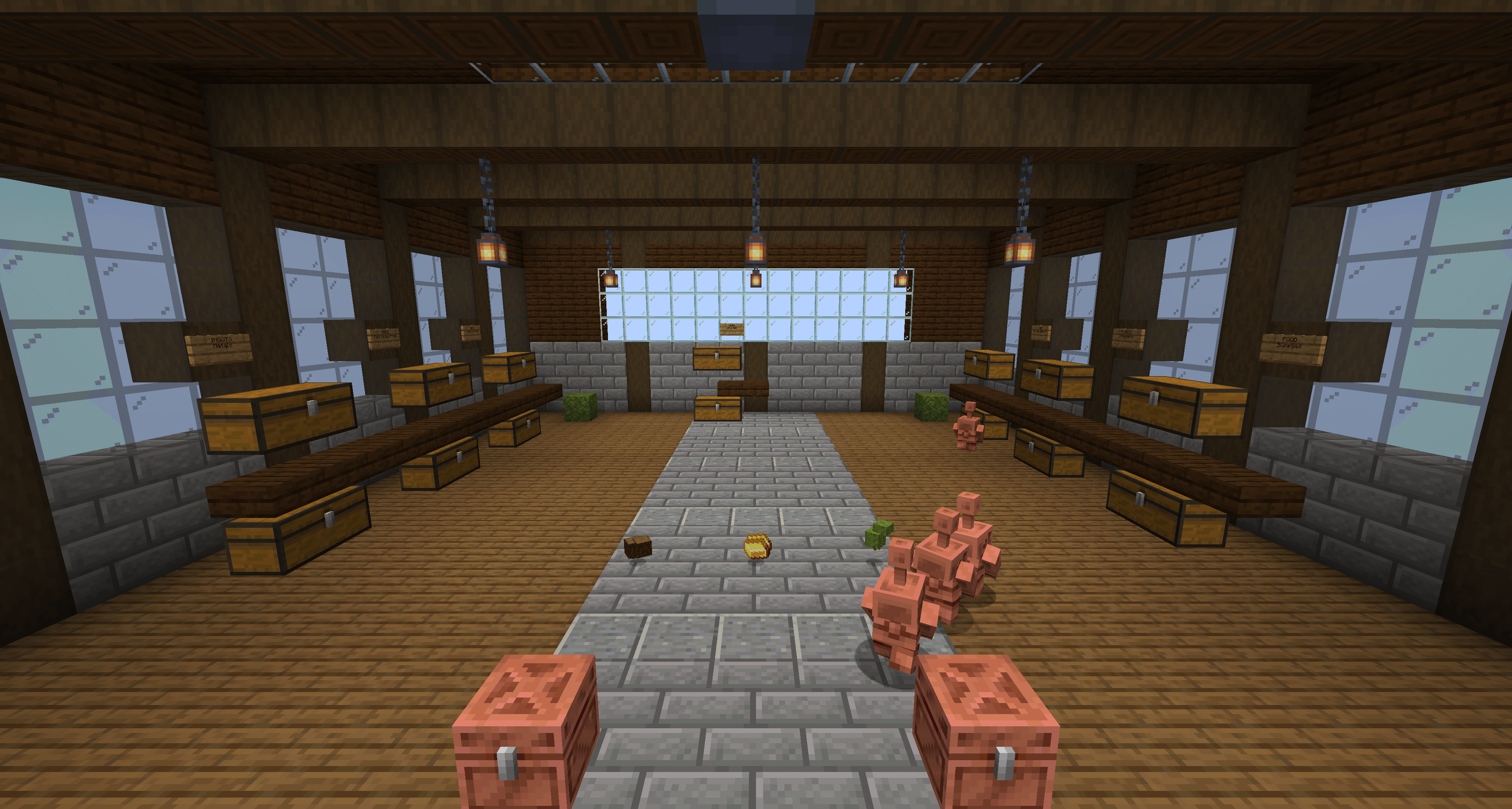
Built and photographed in Minecraft: normal chest storage, seven category groups and four working copper golems. Forge 1.20.1 with Vanilla Backport; no extra storage mod is needed for this warehouse.
New in 1.1.1: your in-game Copper Golem Handbook
A readable guide, right inside Minecraft. The new handbook explains your golem’s main jobs in 16 short chapters, with copper-colored headings and colored item pictures. Text follows your game language in English or German.
- Get started quickly: learn how copper input chests and ordinary destination chests work together.
- Set up your storage: find chest settings with Sneak + right-click using an empty hand, then learn about filters, automatic categories, item frames and stock targets.
- Explore the other jobs: work areas, floor cleanup, shulker unloading and optional furnace or brewing assistance.
- Solve common problems: check full chests, filters, walking routes and the new waiting behaviour.
- Receive or craft it: get one handbook on your first join after updating, or combine one book + one copper ingot anywhere in your crafting grid. If your inventory is full, the welcome copy remains available for your next join.
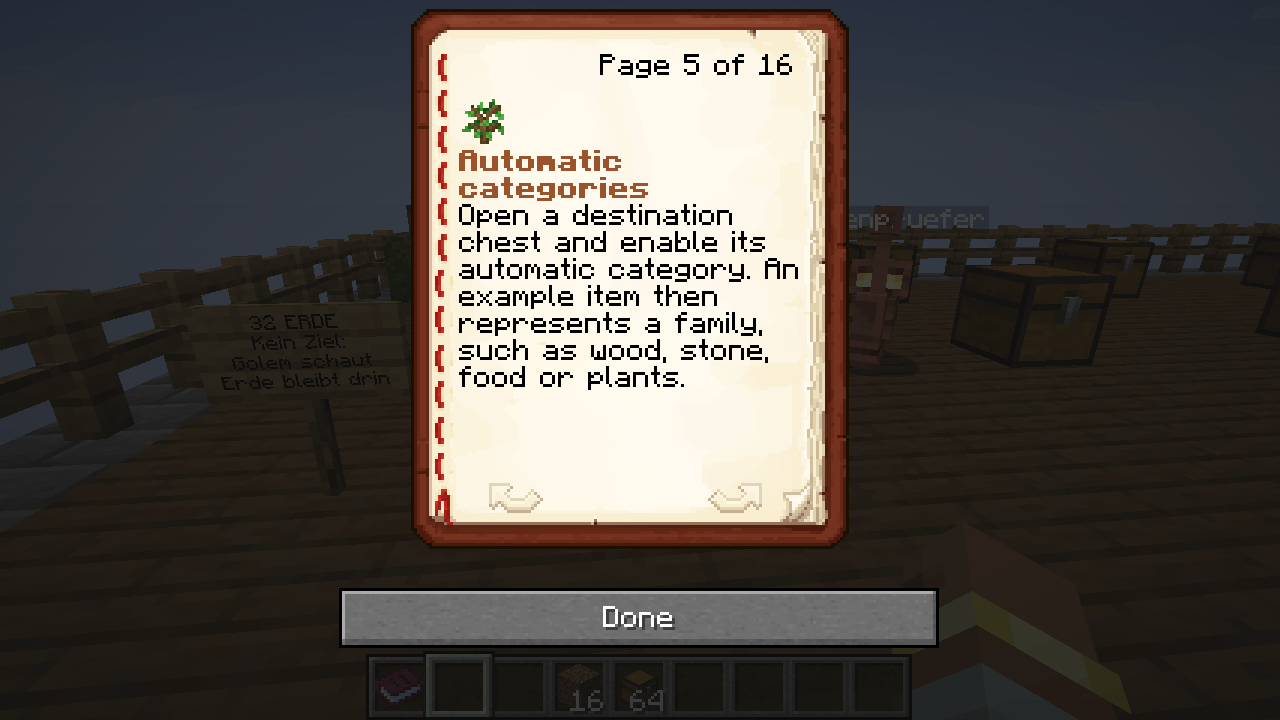
Real in-game handbook page, shown in English. German text is included too.
New in 1.1.1: check the input, then wait sensibly
A filled copper chest can now be inspected even when no destination accepts its items. For example, if the input contains dirt while all nearby destination chests contain stone, the golem walks over and briefly checks the input. The dirt stays safely inside.
- Three inspections: one when the golem can reach the chest, then up to two more, with 60 seconds of game time between checks.
- No endless opening: after the third unsuccessful inspection, golems wait while that input remains unchanged.
- New contents restart the attempts: changing the item type, amount or item data lets the golems check again.
- Useful deliveries stay first: if a suitable destination becomes available, sorting can resume without waiting for another inspection. Deliverable items are prioritised over unsuccessful checks.
- Shared between golems: golems working from the same input share its inspection budget instead of each repeating the same checks. This inspection memory is kept during the running session and may restart after unloading or restarting.
Automatic categories: one switch, one example
Open a normal chest and click Category: ON beside its title. Put an example item inside. The chest learns a group from its contents, so you do not need to select a category from a separate list or create a filter for every matching item.
For example, put an oak log into a wood chest. Other recognised logs, planks and wooden building items can then join it. A stone chest can collect different recognised stone materials; a food chest can gather edible supplies. Give each group its own chest and let the golems turn a mixed delivery into an organised store.
| Group | Example to start with | What it is useful for |
|---|---|---|
| Wood | Oak log | Recognised wood types, logs, planks and wooden building items. |
| Ores and raw materials | Iron ore | Mining deliveries such as recognised ores and raw metal materials. |
| Ingots | Iron ingot | Recognised metal ingots, including gold and copper. |
| Stone | Cobblestone | Recognised stone and building materials, including deepslate materials. |
| Plants | Oak sapling | Recognised plants, leaves and other greenery. |
| Food | Apple | Edible items such as bread and carrots. |
| Gems and crystals | Diamond | Recognised gems and crystals such as emeralds and amethyst shards. |
An empty chest can learn too: enable Category and let the first delivered item establish its group. Once learned, the group remains when the chest is emptied. If the chest contains a different recognised group instead of its current one, it can learn from those contents. Keep your examples deliberate when setting up a new row.
Items outside the recognised broad groups use an exact-item fallback. Modded items depend on their tags and item recognition; enabling Category does not make every item from every mod interchangeable. Turn Category off whenever you want to return to your exact stock plan.
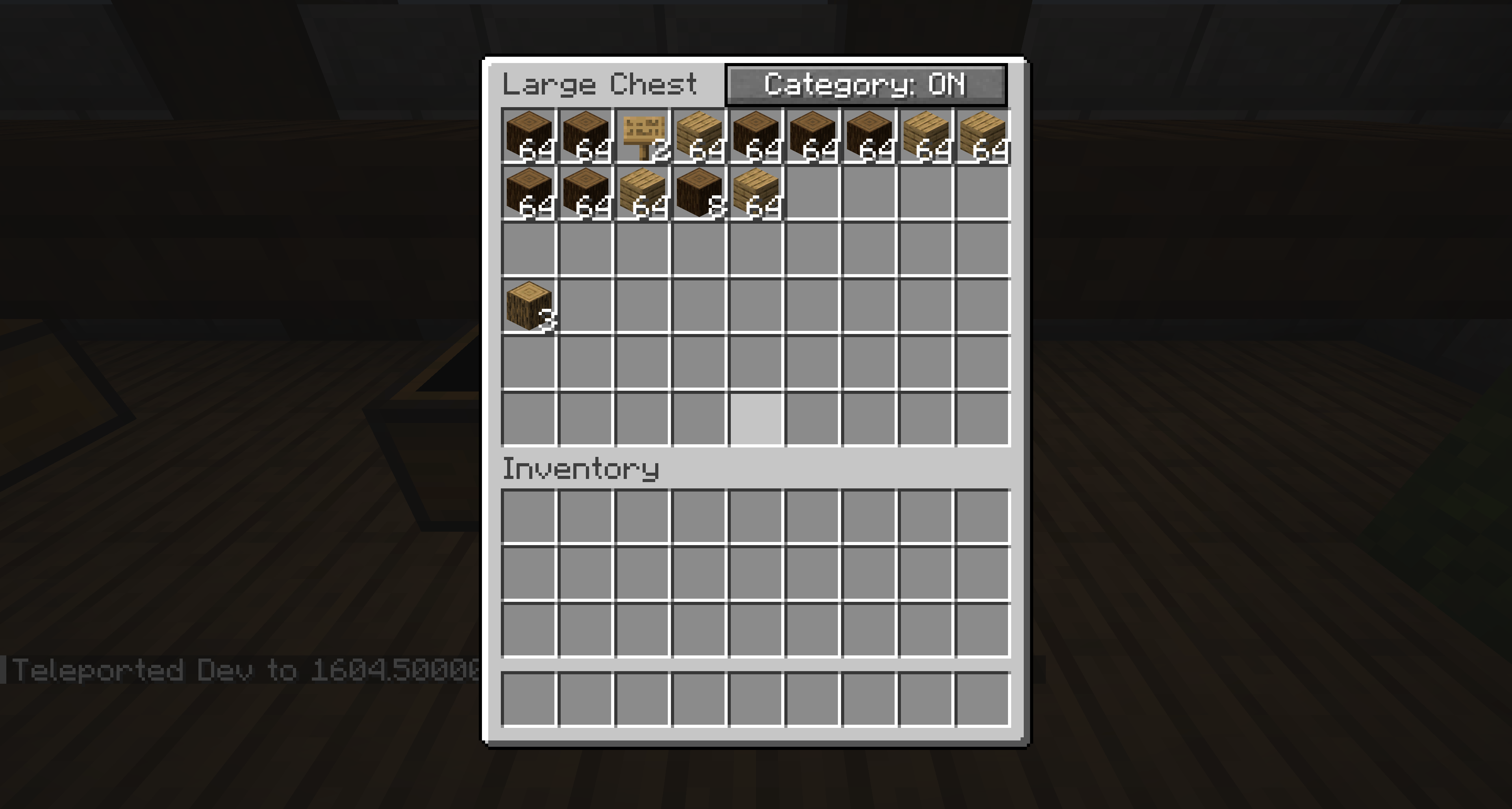
A normal double chest becomes a category destination. The same category state is available in the stock-settings screen.
Your storage, sorted by copper golems
Drop your mixed loot into a copper chest and let your golems put it away. With automatic categories enabled, logs and planks go to your wood storage, food goes to your pantry, and mining supplies find their matching chests.
Start with a few ordinary chests and expand as your base grows. Add more golems to help with deliveries, and keep clear paths between their copper chests and your storage.
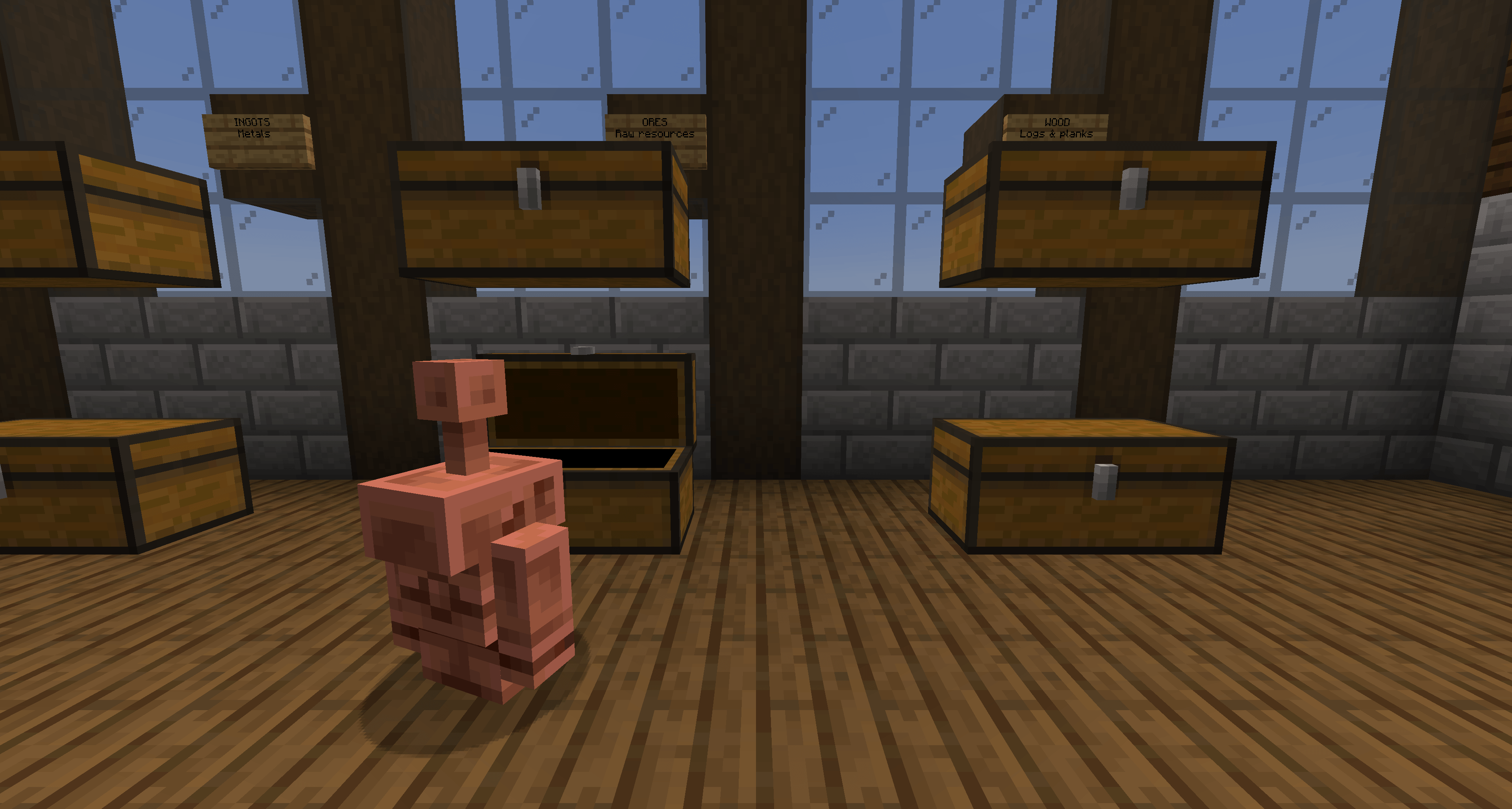
A copper golem at work: mixed supplies find their place in ordinary chest storage.
Exact filters, target stocks and refill thresholds
Categories are convenient for broad storage. Exact filters are useful when you want a particular item in a particular amount. Sneak and right-click with an empty main hand to open the supported container settings. Assign the item, choose its target stock and set the threshold that starts a refill.
For example: set iron ingots to a target of 128 and a refill threshold of 32. At 32, the chest waits. When the count drops below 32, the golem starts supplying it toward 128, as long as the input stock and storage space are available. This avoids a separate trip for every single item you take.
Use Fill chest when you want to use the available room instead of maintaining a fixed target. Switch Category off to use your exact filters again. Double chests share their settings across both halves.
Choose what your copper chest does
The copper chest is the centre of its golem's workplace. Its menu offers three modes: Sort into storage, Supply workstations only, and Supply workstations + sort storage. Choose a dedicated sorting helper for your warehouse, or let one workplace also support your production area.
Choose a Small, Medium or Large work area at the copper chest. This keeps a compact store focused on nearby containers, or lets a larger workplace include more of your base. These are search boundaries around the home chest; clear paths and loaded, accessible areas still matter.
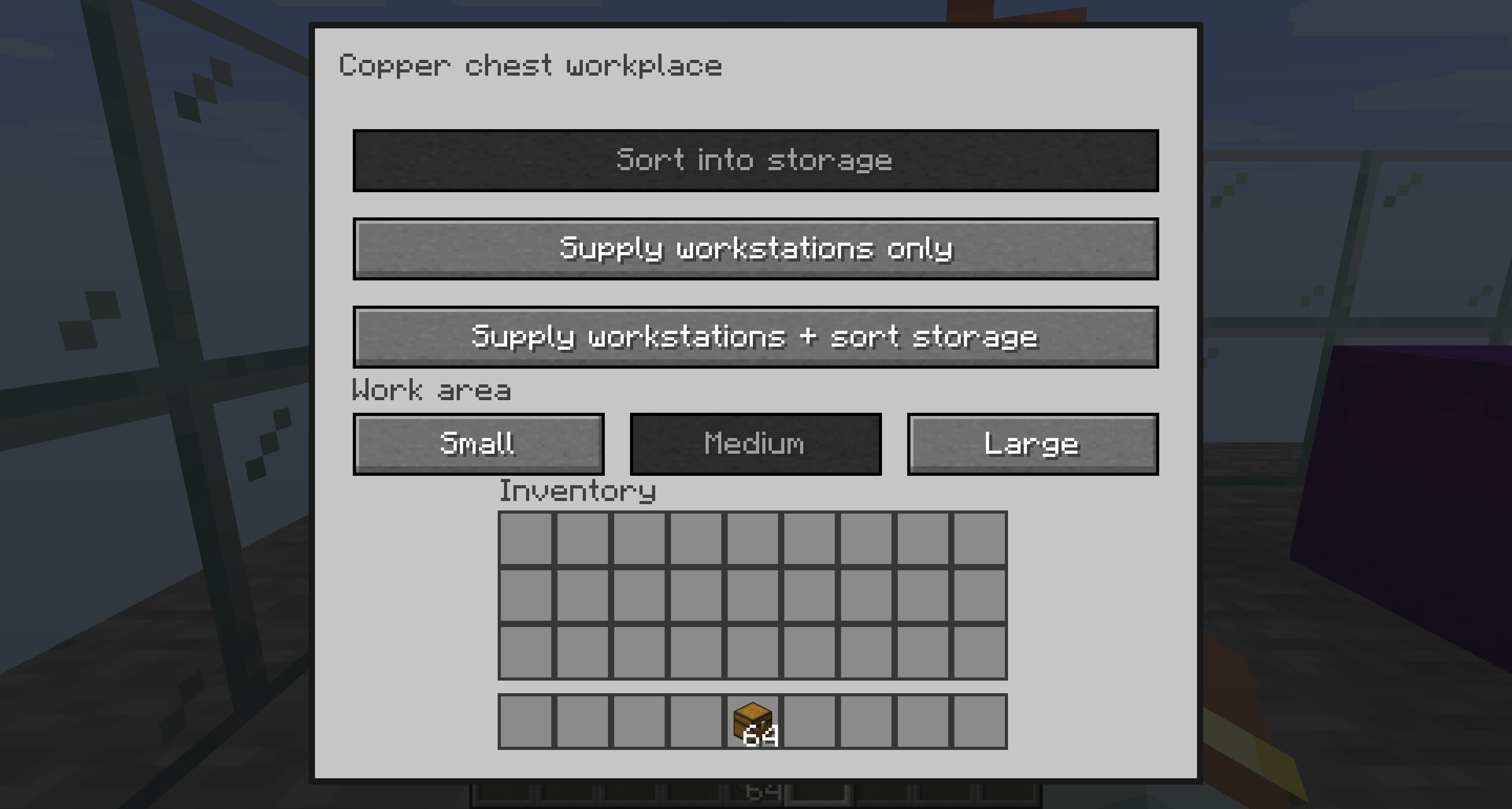
Workplace mode and area are saved with the copper chest. Screenshot from the Forge 1.20.1 Vanilla Backport client test.
Collect loose items after a busy day
Golems can collect dropped items inside their selected work area and take them to matching storage. It is useful for a quick mining-loot drop-off or for tidying loose materials near the warehouse. Matching storage is preferred; the home copper chest can serve as a fallback when the item has no matching destination.
Pickup is coordinated between workers so the same loose stack is not assigned to several golems at once. Deliveries respect the room left in the destination. If a whole stack cannot be stored, the remainder is preserved instead of silently disappearing.
Unload placed shulker boxes
Bring a loaded shulker box into the work area and place it down. Sneak + empty-hand right-click opens its unloading controls. Switch Golem unloading on to let the golems move its contents into storage. The shulker box stays in place; the golems transport the contents.
The menu shows the remaining item count and keeps the switch state when reopened. Items that cannot be delivered stay available rather than being discarded. Switch unloading off whenever that box should keep its contents.
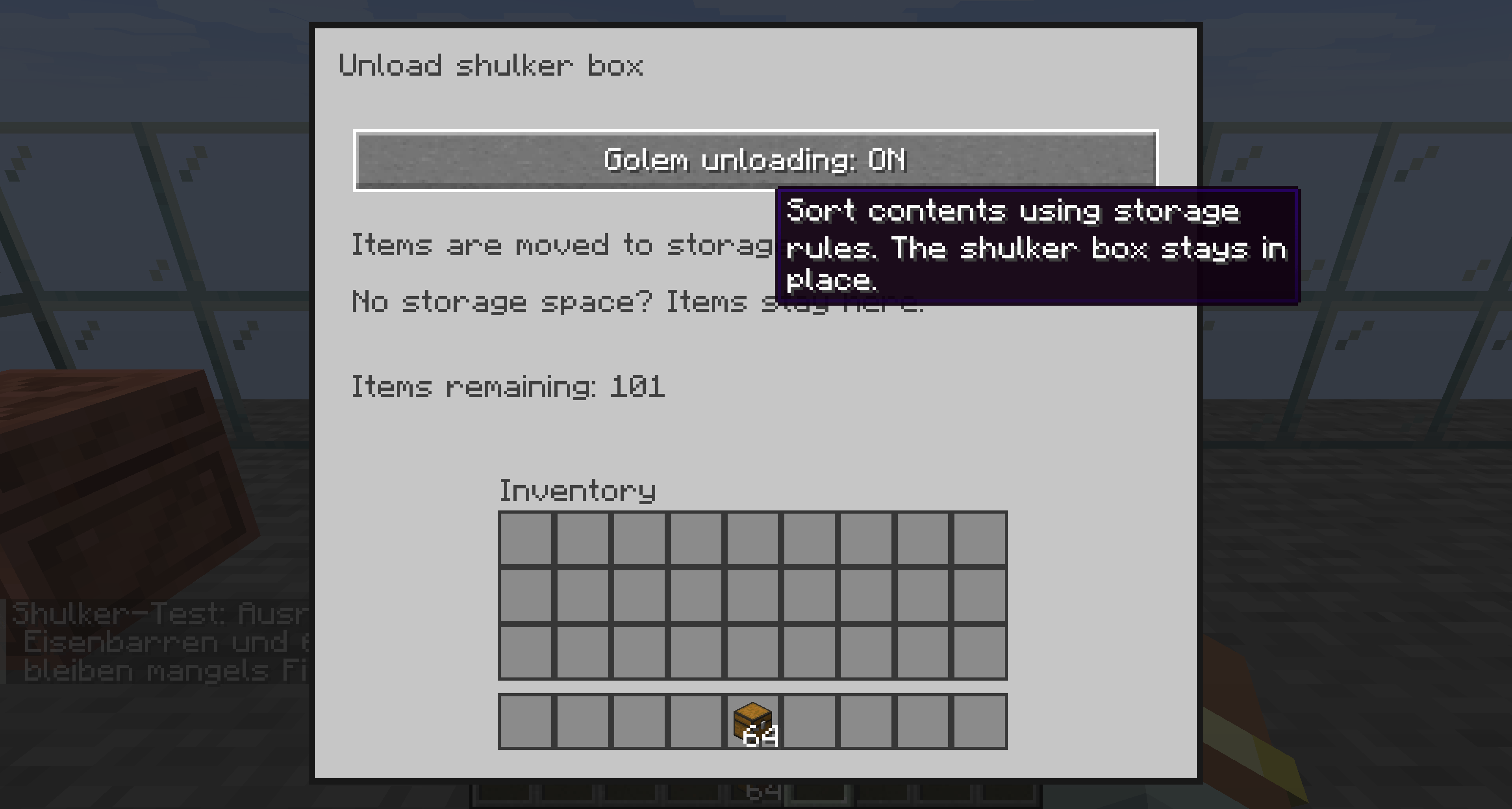
The switch and remaining count in the real client. In the test, 64 diamonds, 32 iron ingots and 64 cobblestone reached storage; five unmatched redstone stayed in the box.
Help around furnaces and brewing stands
Supported workstation jobs extend the same supply network beyond chest sorting. Use the workstation controls to configure furnace input and fuel and move finished items into storage. Choose a copper-chest mode that includes workstation supplies if you want the warehouse crew to support these jobs too.
Brewing orders let you choose a potion and an amount, then confirm the order before work begins. The optional Brewing Refined integration on Forge adds the discovered-recipe interface. Other editions use their built-in vanilla brewing orders; the menus and available integrations differ by edition.
Parked chest-minecart unloading, shared chest access and furnace XP collection remain part of the feature set. You can start with categories and add workstation jobs later.
Extra storage mods are optional
Normal Minecraft chests work without an extra storage mod. The illustrated warehouse is built around that simple setup. If your pack already uses larger storage, the supported Forge and NeoForge editions also offer these optional adapters:
- Forge 1.20.1: Iron Chests, Storage Drawers and Sophisticated Storage.
- NeoForge 1.21.1: Storage Drawers and Sophisticated Storage.
- Fabric 26.3: native Minecraft storage; these extra storage adapters are not included.
The integrations work with their supported inventory behaviour, including relevant native filters, locks and available capacity. Install the versions matching your Minecraft edition. None of these optional storage mods is required just to use the basic sorting features.
Build your first sorting corner
- Set up a copper golem and its home copper chest. Keep the surrounding route open.
- Place destination chests nearby. Start with a wood chest, a stone chest and a food chest.
- Enable Category and add one example to each destination. Use exact filters instead for items that need a fixed stock target.
- Pick the workplace mode and area. A small room does not need the largest search area.
- Add a mixed delivery to the copper chest. Watch the golems carry it to the matching destinations, then expand your shelves as needed.
Choose the matching edition
- Fabric · Minecraft 26.3: native copper golems, Fabric Loader 0.19.5+, Java 25. Fabric API is not required.
- Forge · Minecraft 1.20.1, Copper Age Backport edition: Forge 47.4.10+, Java 17 and Copper Age Backport 0.1.4.
- Forge · Minecraft 1.20.1, Vanilla Backport edition: Forge 47.4.10+, Java 17, Vanilla Backport 1.2.2 and Platform 1.4.2. Use the separate 1.1.1-vb build.
- NeoForge · Minecraft 1.21.1: NeoForge 21.1.219, Java 21, Vanilla Backport 1.2.2 and Platform 1.4.2.
Install one matching Copper Golem Refined edition on both client and server. The backport listed for that edition is required; the extra storage and brewing integrations are optional. The two Forge backport variants are alternative builds, so do not install both Copper Golem Refined JARs together.
Warehouse images are real Forge 1.20.1 gameplay with Vanilla Backport; handbook images show Forge 1.20.1 with Copper Age Backport. Thanks to Smallinger and BlackGear for the underlying backports. If something goes wrong, include your Minecraft version, loader, backport, mod version and a short reproduction in the project comments.
Project description from CurseForge.
Pick your setup
Copper Golem Refined by Minecraft version and loader
Choose the version and loader you play, then open the matching release.
Minecraft version
1.21.1
1 loader buildMinecraft version
1.20.1
1 loader buildCheck the dependencies, then try the file in a copied instance before changing a world you care about.
Recent files
Copper Golem Refined versions and loaders
Copper Golem Refined 1.1.1 — Fabric 26.3
copper-golem-refined-26.3-1.1.1.jar
12 Nov 2026
Client Source doesn’t say Server Source doesn’t say Dependencies No extras listed Listed on Release listing
Check the 26.3 · Fabric setup Fabric26.3 release
Copper Golem Refined 1.1.0 — Fabric 26.3
copper-golem-refined-26.3-1.1.0.jar
10 Nov 2026
Client Source doesn’t say Server Source doesn’t say Dependencies No extras listed Listed on Release listing
Check the 26.3 · Fabric setup Fabric26.3 release
Copper Golem Refined 1.0.0 — Fabric 26.3
copper-golem-refined-26.3-1.0.0.jar
31 Oct 2026
Client Source doesn’t say Server Source doesn’t say Dependencies No extras listed Listed on Release listing
Check the 26.3 · Fabric setup Fabric26.3 release
Copper Golem Refined 0.1.0 Alpha 1 — Fabric 26.3
copper-golem-refined-26.3-0.1.0-alpha.1.jar
30 Oct 2026
Client Source doesn’t say Server Source doesn’t say Dependencies No extras listed Listed on Release listing
Check the 26.3 · Fabric setup Fabric26.3 alpha
Looking for an older file? The official CurseForge project page is in Resources.
 mod
CurseForge + Modrinth · Minecraft
PPE Essentials
A lightweight mod that adds useful commands (like /tpa /repeat) and tweaks
 mod
CurseForge + Modrinth · Minecraft
Sophisticated Storage
Storage mod with multiple tiers and functional upgrades
 mod
CurseForge + Modrinth · Minecraft
Sophisticated Core
Library mod for Sophisticated mods