Minecraft version
Back to mods 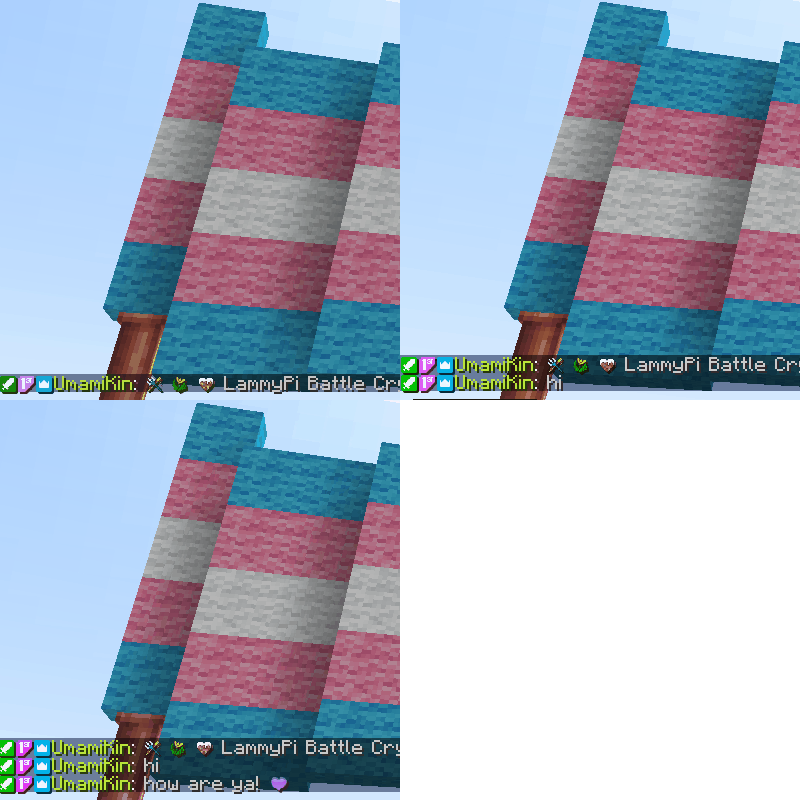
CurseForge · Minecraft mod
Twitch Chat in Game Chat
This mod adds a twitch bot integration to minecraft that allows you to see Twitch Chat in the in game chat window with user badges, name text colour matching Twitch, and twitch emotes.
Choose a version Pick your version below, then grab the matching file.
Quick answer
Which Twitch Chat in Game Chat release should I use?
Latest stable file twitchintegration-1.20.1-1.0.5-pkg.jar
Game version 1.20.1
Loader Forge
Twitch Chat in Game Chat twitchintegration-1.20.1-1.0.5-pkg.jar targets 1.20.1 with Forge. The project page does not say whether this file belongs on the client, dedicated server, or both. No extra mods listed for this file.
Where it goes
Is Twitch Chat in Game Chat required on the client, server, or both?
The project page does not say whether this file belongs on the client, dedicated server, or both.
Client Source doesn’t say
Dedicated server Source doesn’t say
Loader for this release Forge
Required install it here Optional supported, not mandatory Not supported do not install here Source doesn’t say do not assume
The source does not explicitly classify this release as client-only or server-only.
What else does Twitch Chat in Game Chat twitchintegration-1.20.1-1.0.5-pkg.jar need?
twitchintegration-1.20.1-1.0.5-pkg.jar. Change the file and its required mods may change too.
This file does not list any required mods. Do not add a library just because a different file uses it.
This file does not list any required or optional mods.
Before you install it
Add Twitch Chat in Game Chat without breaking your instance.
Built for Twitch Chat in Game Chat twitchintegration-1.20.1-1.0.5-pkg.jar. Pick another file and the loader, install side or required mods may change.
- 01
Stick to this file
Use twitchintegration-1.20.1-1.0.5-pkg.jar. It targets 1.20.1 with Forge; another release may have different loader, side or dependency requirements.
- 02
Bring the mods it needs
This file does not list any required mods. Do not add a library just because a different file uses it.
- 03
Put it on the correct side
The project page does not say whether this file belongs on the client, dedicated server, or both.
- 04
Pick the file you checked
Use the “Get this file” button beside twitchintegration-1.20.1-1.0.5-pkg.jar. It opens that exact file at the source.
About this project
What does Twitch Chat in Game Chat add?
Supported versions: |1.21+|1.20+|1.19+|1.18.2|1.16.5|
This mod gets Twitch chat (along with any badges and emotes) to show up directly in Minecraft Chat.
You can now keep up with twitch chat without having to look away from the game! Especially great for more difficult modpacks like RLCraft or Vault Hunters. Or if you’re an extremely focused builder.
The 1.16.5 version is not working. Project is totally locked up for version 1.16.5, so I will not be supporting it.
The mod works fully client side and you do not need to add it to the server you are playing on. However, in Minecraft 1.16 and 1.18 you need to have the mod installed on the server to see the commands for the mod. Commands are client side in 1.19+ with the forge update.

Important!
For this mod to work, you need to have a twitch application setup. This makes everything work inside of Minecraft. Instructions on setting one up can be found here.
Make the OAuth Redirect URLs "http://localhost:3000/redirect".
Take note of the Client ID and Client Secret. You will need those for the "config/twitchintegration.toml" configuration file.
Resource Packs
To allow badges and emotes to work, you need to add the emotePack resource pack as well.
New emotes will continually be added to your resource pack as you encounter them in chat.
Resource pack is a free download, pick the pack for the version of Minecraft that you are playing on.
Features
- twitch bot in Minecraft that displays twitch chat with emotes and badges
- reloading chat will fetch new emotes that you do not have live
- after connecting your twitch account, your channel badges will be added and show up in chat
Setup
- Download the resource pack zip for the version of Minecraft you are playing. Add the zip to your "resourcepacks" folder for your Minecraft instance, then unzip it there.
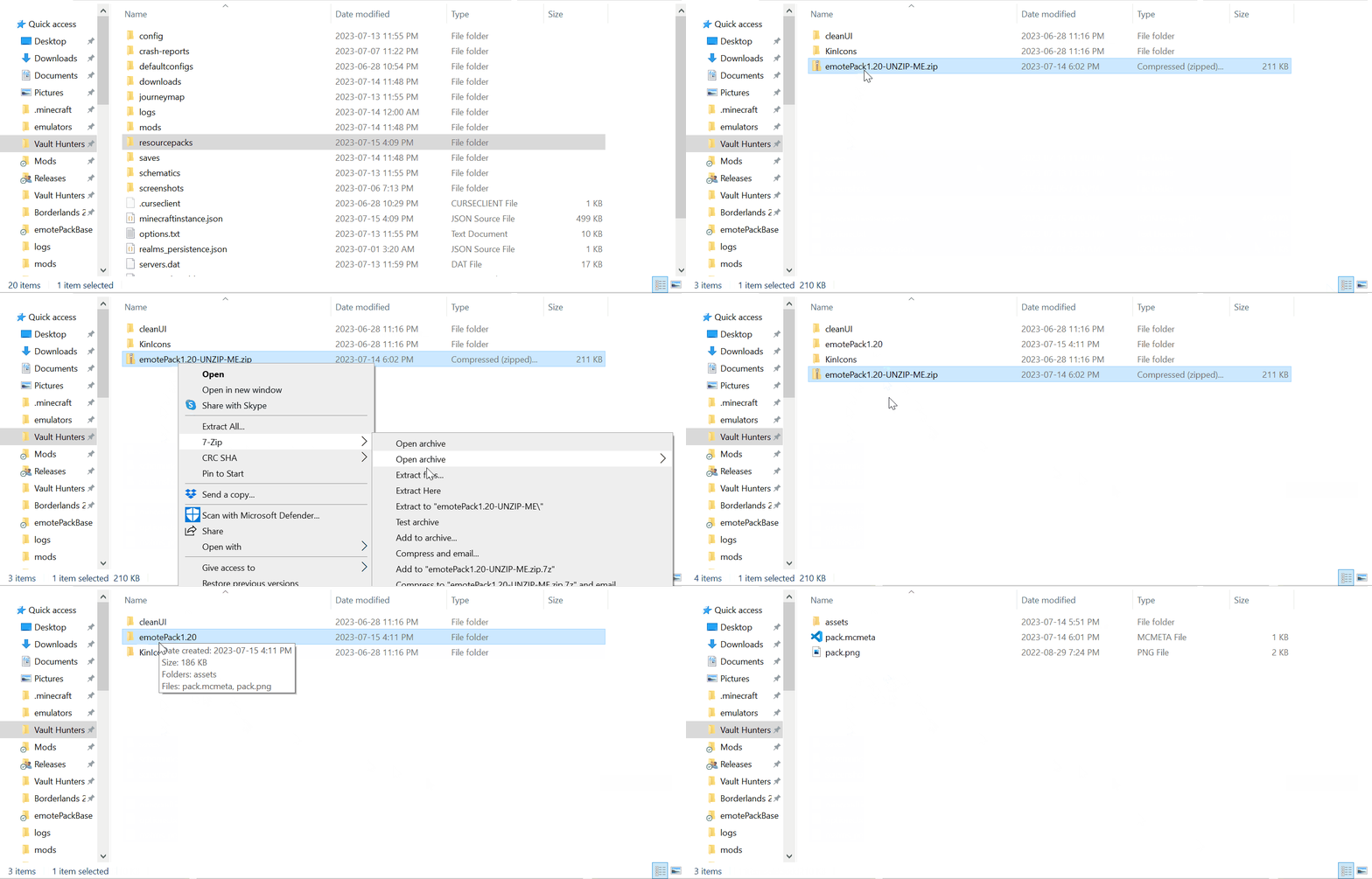
- Once Minecraft is started, enable the resource pack.

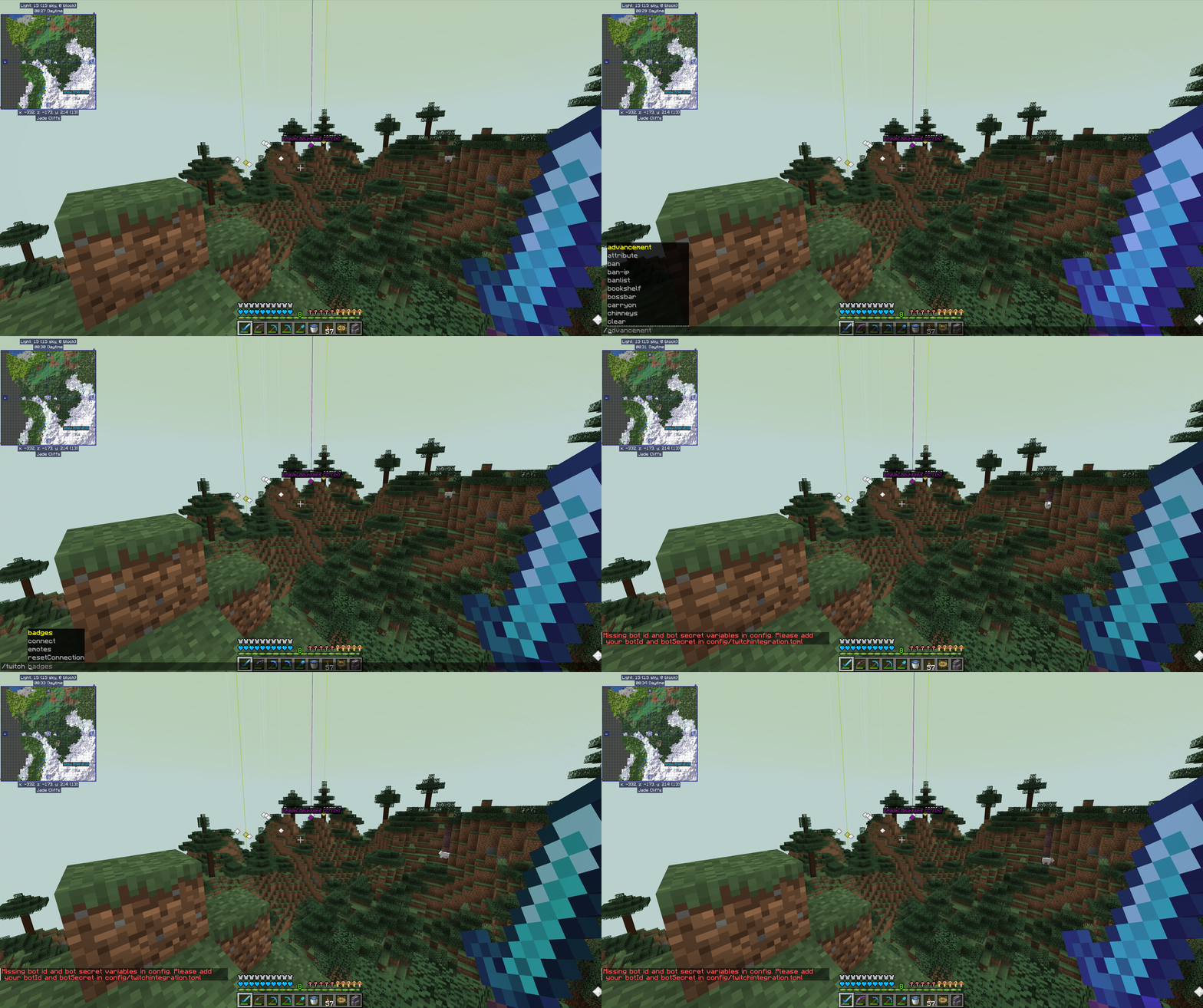
- In Minecraft, run "/twitch connect" to authorize with your twitch account. If the Bot Id and Bot Secret fields of the config are not set, the command output will tell you where to update these values. After doing so you can run the command again, you do not need to restart Minecraft.
FAQ
Q: Do I need to create a twitch application for the mod to work if my friend has already done this?
A: No, you do not have to if your friend is willing to share their ClientID and ClientSecret values with you to put in your "config/twitchintegration.toml".
Q: Why doesn't UmamiKin share their ClientID and ClientSecret values to make this easier for anyone interested in this mod?
A: I have shared my tokens with close friends that I trust, but the internet is a scary place and I do not want to make them public.
Q: New emotes are white boxes in chat, why can I not see them?
A: You need to reload your resource packs to be able to see new emotes. You can do this in game by pressing F3+t. Client restarts will also make new emotes available, so if you get new emotes during your stream and do not want to refresh your resource packs, those emotes will show up properly the next time you play.

Q: I'm not seeing emotes at all OR I'm seeing the wrong emotes in Minecraft OR I am only seeing white boxes where the emotes should be. What should I do?
A: Make sure that you have downloaded the emotePack resourcepack and have enabled it (see instructions above).
Q: I have been using this mod for quite awhile and want to bring my emotes over to a different version of Minecraft, can I do that?
A: Yes! You do not need to redownload the emotePack resource pack for the new version of minecraft. You can copy your existing resource pack and add it to the "resourcepack" folder of the new Minecraft Instance, rename the resource pack to match the major version of Minecraft you are playing [emotePack1.16, emotePack1.18, emotePack1.19, or emotePack1.20], and update the pack.mcmeta version number to match the version here.
Q: Twitch chat was working before, but is not showing up in Minecraft now, what should I do?
A: The mod works using sockets and sometimes it just doesn't connect properly with Twitch. This can be fixed by running "/twitch resetConnection"
Q: Someone said something inappropriate in Twitch chat and I do not want it displayed in Minecraft, how can I remove it?
A: There is a Vanilla Minecraft feature to wipe all chat from your view. Just exit chat and pressing F3+d.
Project description from CurseForge.
Pick your setup
Twitch Chat in Game Chat by Minecraft version and loader
Choose the version and loader you play, then open the matching release.
Minecraft version
1.21
1 loader buildMinecraft version
1.20.1
1 loader buildMinecraft version
1.20-Snapshot
1 loader buildMinecraft version
1.20
1 loader buildMinecraft version
1.19.4-Snapshot
1 loader buildMinecraft version
1.19.4
1 loader buildMinecraft version
1.19.3-Snapshot
1 loader buildMinecraft version
1.19.3
1 loader buildMinecraft version
1.19.2
1 loader buildMinecraft version
1.18.2
1 loader buildMinecraft version
1.16.5
1 loader buildCheck the dependencies, then try the file in a copied instance before changing a world you care about.
Recent files
Twitch Chat in Game Chat versions and loaders
twitchintegration-1.20.1-1.0.5-pkg.jar
28 Aug 2024
Client Source doesn’t say Server Source doesn’t say Dependencies No extras listed Listed on Release listing
Check the 1.20.1 · Forge setup 1.20.1Forge release
twitchintegration-1.20-1.0.5-pkg.jar
28 Aug 2024
Client Source doesn’t say Server Source doesn’t say Dependencies No extras listed Listed on Release listing
Check the 1.20 · Forge setup Forge1.20 release
twitchintegration-1.21.1-0.1.0-pkg.jar
28 Aug 2024
Client Source doesn’t say Server Source doesn’t say Dependencies No extras listed Listed on Release listing
Check the 1.21.1 · NeoForge setup NeoForge1.21.1 release
twitchintegration-1.21-0.1.0-pkg.jar
26 Aug 2024
Client Source doesn’t say Server Source doesn’t say Dependencies No extras listed Listed on Release listing
Check the 1.21 · NeoForge setup 1.21NeoForge release
twitchintegration-1.20.1-1.0.4-pkg.jar
22 Aug 2023
Client Source doesn’t say Server Source doesn’t say Dependencies No extras listed Listed on Release listing
Check the 1.20.1 · Forge setup 1.20.1Forge release
twitchintegration-1.20-1.0.4-pkg.jar
22 Aug 2023
Client Source doesn’t say Server Source doesn’t say Dependencies No extras listed Listed on Release listing
Check the 1.20 · Forge setup Forge1.20 release
twitchintegration-1.20.1-1.0.3-pkg.jar
24 Jul 2023
Client Source doesn’t say Server Source doesn’t say Dependencies No extras listed Listed on Release listing
Check the 1.20.1 · Forge setup 1.20.1Forge release
twitchintegration-1.20-1.0.3-pkg.jar
24 Jul 2023
Client Source doesn’t say Server Source doesn’t say Dependencies No extras listed Listed on Release listing
Check the 1.20 · Forge setup Forge1.20 release
twitchintegration-1.19.3-1.0.2-pkg.jar
24 Jul 2023
Client Source doesn’t say Server Source doesn’t say Dependencies No extras listed Listed on Release listing
Check the 1.19.4-Snapshot · Forge setup 1.19.31.19.4-Snapshot1.19.4Forge release
twitchintegration-1.19.2-1.2.10-pkg.jar
24 Jul 2023
Client Source doesn’t say Server Source doesn’t say Dependencies No extras listed Listed on Release listing
Check the 1.19.2 · Forge setup 1.19.2Forge release
twitchintegration-1.18.2-1.2.10-pkg.jar
24 Jul 2023
Client Source doesn’t say Server Source doesn’t say Dependencies No extras listed Listed on Release listing
Check the 1.18.2 · Forge setup 1.18.2Forge release
twitchintegration-1.19.3-1.0.1-pkg.jar
24 Jul 2023
Client Source doesn’t say Server Source doesn’t say Dependencies No extras listed Listed on Release listing
Check the 1.19.4-Snapshot · Forge setup 1.19.31.19.4-Snapshot1.19.4Forge release
Looking for an older file? The official CurseForge project page is in Resources.
 mod
mod CurseForge + Modrinth · Minecraft
Elytra Cancel
Allows canceling elytra flight mid-air by sneaking
 mod
mod CurseForge · Minecraft
sbw x generic damage combat
fixes sbw vehicles not taking generic damage from tnt and other explosives.
 mod
mod CurseForge · Minecraft
Sarkaz's Furnace Side Fables
Sarkaz's Furnace Side Fables is a content and combat expansion mod for Minecraft 1.20.1 Forge, bringing Arknights' Sarkaz-themed world of souls, thoughts, and finality into an explorable and challenging gameplay experience.