Minecraft version
Back to mods 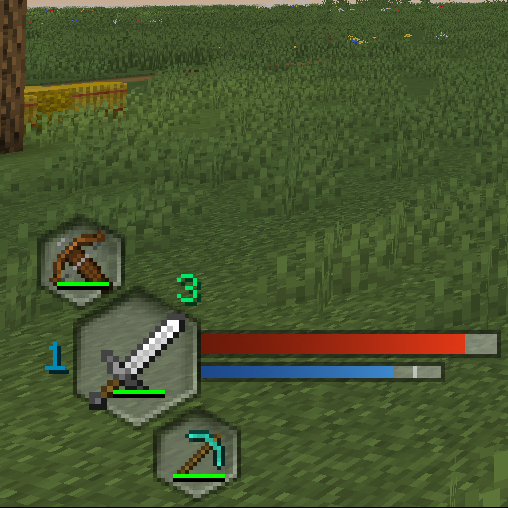
CurseForge · Minecraft mod
Minimal Modern HUD
Replaces the standard HUD UI with a new experience.
Choose a version Pick your version below, then grab the matching file.
Quick answer
Which Minimal Modern HUD release should I use?
Latest stable file Minimal Modern HUD 21.1.0
Game version 1.21.1
Loader NeoForge
Minimal Modern HUD 21.1.0 targets 1.21.1 with NeoForge. The project page does not say whether this file belongs on the client, dedicated server, or both. No extra mods listed for this file.
Where it goes
Is Minimal Modern HUD required on the client, server, or both?
The project page does not say whether this file belongs on the client, dedicated server, or both.
Client Source doesn’t say
Dedicated server Source doesn’t say
Loader for this release NeoForge
Required install it here Optional supported, not mandatory Not supported do not install here Source doesn’t say do not assume
The source does not explicitly classify this release as client-only or server-only.
What else does Minimal Modern HUD 21.1.0 need?
Minimal Modern HUD 21.1.0. Change the file and its required mods may change too.
This file does not list any required mods. Do not add a library just because a different file uses it.
This file does not list any required or optional mods.
Before you install it
Add Minimal Modern HUD without breaking your instance.
Built for Minimal Modern HUD 21.1.0. Pick another file and the loader, install side or required mods may change.
- 01
Stick to this file
Use Minimal Modern HUD 21.1.0. It targets 1.21.1 with NeoForge; another release may have different loader, side or dependency requirements.
- 02
Bring the mods it needs
This file does not list any required mods. Do not add a library just because a different file uses it.
- 03
Put it on the correct side
The project page does not say whether this file belongs on the client, dedicated server, or both.
- 04
Pick the file you checked
Use the “Get this file” button beside Minimal Modern HUD 21.1.0. It opens that exact file at the source.
About this project
What does Minimal Modern HUD add?
Summary
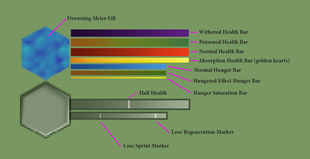
Replaces the standard HUD UI with a new experience. Collapses all of the main UI elements into a modern set of elements. Below are labled images of the various HUD elements. Other sections detail settings for the mod, configured using the config/minimalmodern.toml or config/minimalmodern-client.toml files.
Forge & NeoForge
Previously Minimal Modern HUD was a Forge loader mod. As of Minecraft version 1.21.X, I have converted the mod to be a NeoForge loader mod. I do NOT have any plans to create any further versions using Forge, nor do I have any current plans to port to other mod loaders.
- Forge versions - I have recommended the use of another mod called AutoHUD (details listed below).
- NeoForge versions - I have recreated most of the recomened features that AutoHUD provided directly into Minimal Modern HUD. I now recommend NOT using it in conjuction with this mod, at this time. In future development, I plan to make my mod play nice with AutoHUD again, but not all 1.21.x versions exists.
- Other versions: I will be releasing the other NeoForge versions for Minecraft versions 1.21.X soon. I will start with 1.21.1 and move up to 1.21.8 or beyond.
Key Binds
Additionally adds 3 new key binds to make navigating the smaller hotbar easier. Each set the player's active slot if the conditions are met.
- Find Melee Weapon: Finds the first melee weapon (sword, axe, trident) in the hotbar if none is equipped, or finds the next weapon if another is present.
- Find Ranged Weapon: Finds the first ranged weapon in the hotbar (bow, crossbow) in the hotbar if none is equipped, or finds the next weapon if another is present.
- Find Tool: Based on the block the player is looking at, finds the correct tool for mining that block, if one is present in the hotbar.
Forge - AutoHud: The forge versions of this mod require Auto HUD for the full recommended experience.
This allows for hiding and toggling the hotbar and other UI elements.
Change that mod's setting: hotbar.onChange to false, and hotbar onSlotChange to false.
NeoForge - AutoHud : The NeoForge versions are NOT compatible with AutoHud, and should NOT be used in conjuction at this time. I have recreated most of the recomened features that AutoHUD provided directly into Minimal Modern HUD.
AutoHud configuration: the other UI elements need to have their "policy" values set to "Disabled. The following values need updated: health, hunger, air, armor, mountHealth. Below is my Auto HUD config file (autohud.json5). This is found in your instance's "/config" folder. Within the game you can optionally bind a key for toggling the hotbar.
autohud.json5 - expand spoiler
{
"dynamicOnLoad": true,
"ticksRevealed": 40,
"animationMove": true,
"animationFade": true,
"animationSpeed": 2.0,
"animationSpeeds": {
"moveIn": 0.0,
"moveOut": 0.0,
"fadeIn": 0.0,
"fadeOut": 0.0
},
"revealType": "Stacked",
"events": {
"onScreenOpen": "Nothing",
"onMoving": "Nothing",
"onStandingStill": "Nothing",
"onPauseScreen": "Nothing",
"onSneaking": "Nothing",
"onFlying": "Nothing",
"onUsingItem": false,
"onMining": false,
"onSwinging": false,
"onAttacking": false
},
"statusEffectTimer": true,
"defaultValues": {
"speedMultiplier": 1.0,
"distance": 60,
"maximumFade": 0.0
},
"health": {
"policy": "Disabled"
},
"hunger": {
"policy": "Disabled"
},
"revealHungerWhenHoldingFoodItem": false,
"air": {
"policy": "Disabled"
},
"armor": {
"policy": "Disabled"
},
"experience": {
"active": true,
"onChange": true
},
"experienceBar": {
"active": true,
"onChange": true
},
"revealExperienceTextOnTargetingEnchantingBlock": true,
"mountJumpBar": {
"active": true,
"onChange": true
},
"mountHealth": {
"policy": "Disabled"
},
"statusEffects": {
"active": true,
"onChange": true
},
"hidePersistentStatusEffects": true,
"showHiddenStatusEffects": false,
"hotbar": {
"hotbar": {
"active": true,
"onChange": true
},
"onSlotChange": true,
"onLowDurability": true,
"durabilityPercentage": 10,
"durabilityTotal": 20,
"maximumFadeHotbarItems": 0.0,
"revealExperienceTextWithHotbar": true,
"hideTooltip": false
},
"scoreboard": {
"scoreboard": {
"active": true,
"onChange": true
},
"onScoreChange": true,
"onTeamChange": true
},
"crosshair": {
"active": true,
"onChange": true
},
"chat": {
"chat": {
"active": false
},
"displayIndicator": true
},
"actionBar": {
"active": false
},
"bossBar": {
"active": false
},
"advanced": {
"hotbar": {
"direction": "Down",
"speedMultiplier": -1.0,
"distance": -1,
"maximumFade": -1.0
},
"health": {
"direction": "Down",
"speedMultiplier": -1.0,
"distance": -1,
"maximumFade": -1.0
},
"armor": {
"direction": "Down",
"speedMultiplier": -1.0,
"distance": -1,
"maximumFade": -1.0
},
"hunger": {
"direction": "Down",
"speedMultiplier": -1.0,
"distance": -1,
"maximumFade": -1.0
},
"air": {
"direction": "Down",
"speedMultiplier": -1.0,
"distance": -1,
"maximumFade": -1.0
},
"experience": {
"direction": "Down",
"speedMultiplier": -1.0,
"distance": -1,
"maximumFade": -1.0
},
"mountJumpBar": {
"direction": "Down",
"speedMultiplier": -1.0,
"distance": -1,
"maximumFade": -1.0
},
"mountHealth": {
"direction": "Down",
"speedMultiplier": -1.0,
"distance": -1,
"maximumFade": -1.0
},
"statusEffects": {
"direction": "Up",
"speedMultiplier": -1.0,
"distance": -1,
"maximumFade": -1.0
},
"scoreboard": {
"direction": "Right",
"speedMultiplier": -1.0,
"distance": 100,
"maximumFade": -1.0
},
"crosshair": {
"speedMultiplier": 2.5,
"maximumFade": 0.1
},
"chat": {
"direction": "Left",
"speedMultiplier": -1.0,
"distance": 100,
"maximumFade": -1.0
},
"actionBar": {
"direction": "Down",
"speedMultiplier": -1.0,
"distance": -1,
"maximumFade": -1.0
},
"bossBar": {
"direction": "Up",
"speedMultiplier": -1.0,
"distance": -1,
"maximumFade": -1.0
}
}
}
HUD Elements
Check out the images tab for clearer images.
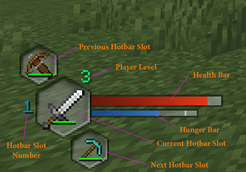
HUD Colors and extras
Settings
By updating the mod's config, this will allow a player the following customization.
- Change the corner the HUD is display in
- Adding horizontal and vertical padding to the HUD
- separate the health and hunger bars (value bars) from the main HUD elements
- choose new location and padding for value bars
["Configs for Minimal Modern"] #Which corner to display main GUI? 0 = TopLeft, 1 = TopRight, 2 = BottomLeft, 3 = BottomRight #Range: 0 ~ 3 MainGuiCorner = 2 #Horizontal Padding for main GUI. #Range: 0 ~ 50 MainGuiHorizontalPadding = 2 #Vertical Padding for main GUI. #Range: 0 ~ 50 MainGuiVerticalPadding = 0 #Separate the main GUI from the Value Bars. #The following settings will only take effect if set to true #The corner values must also be different. SeparateValueBars = false #Which corner to display Value Bars? 0 = TopLeft, 1 = TopRight, 2 = BottomLeft, 3 = BottomRight #Range: 0 ~ 3 ValueBarsCorner = 1 #Horizontal Padding for Value Bars. #Range: 0 ~ 50 ValueBarsHorizontalPadding = 0 #Vertical Padding for Value Bars. #Range: 0 ~ 50 ValueBarsVerticalPadding = 0
Project description from CurseForge.
Pick your setup
Minimal Modern HUD by Minecraft version and loader
Choose the version and loader you play, then open the matching release.
Minecraft version
1.20.1
1 loader buildMinecraft version
1.19.2
1 loader buildCheck the dependencies, then try the file in a copied instance before changing a world you care about.
Recent files
Minimal Modern HUD versions and loaders
Minimal Modern HUD 21.1.0
com.dudenduke.hudalternatives.minimalmodern-2.0.0-mc1.21.1.jar
25 Sept 2025
Client Source doesn’t say Server Source doesn’t say Dependencies No extras listed Listed on Release listing
Check the 1.21.1 · NeoForge setup NeoForge1.21.1 release
Minimal Modern HUD
minimalmodern-1.2.1-mc1.20.1.jar
31 Dec 2024
Client Source doesn’t say Server Source doesn’t say Dependencies No extras listed Listed on Release listing
Check the 1.20.1 · Forge setup 1.20.1Forge release
Minimal Modern HUD
hud-alternatives-minimalmodern-1.2.0-mc1.19.2.jar
1 Nov 2023
Client Source doesn’t say Server Source doesn’t say Dependencies No extras listed Listed on Release listing
Check the 1.19.2 · Forge setup 1.19.2Forge release
Minimal Modern HUD
minimalmodern-1.2.0-mc1.20.1.jar
27 Oct 2023
Client Source doesn’t say Server Source doesn’t say Dependencies No extras listed Listed on Release listing
Check the 1.20.1 · Forge setup 1.20.1Forge release
Minimal Modern HUD
minimalmodern-1.1.0-mc1.20.1.jar
24 Oct 2023
Client Source doesn’t say Server Source doesn’t say Dependencies No extras listed Listed on Release listing
Check the 1.20.1 · Forge setup 1.20.1Forge release
minimalmodern-1.0.0-mc1.20.1.jar
16 Oct 2023
Client Source doesn’t say Server Source doesn’t say Dependencies No extras listed Listed on Release listing
Check the 1.20.1 · Forge setup 1.20.1Forge beta
Looking for an older file? The official CurseForge project page is in Resources.
 mod
CurseForge + Modrinth · Minecraft
ColoredWater
Colored water to decorate colorfully. And cauldrons!
 mod
CurseForge · Minecraft
TLM Formation Tactics
Squad management, formation follow, tactical HUD and Black Hawk airdrop for Touhou Little Maid.
 mod
CurseForge · Minecraft
Aki's Radio
In game radios! You can create your own!