Fabric API Needed by ImageToWorld 1.0.0-1.21
requiredMatching file found Matched file: [1.21] Fabric API 0.102.0+1.21
CurseForge · Minecraft mod
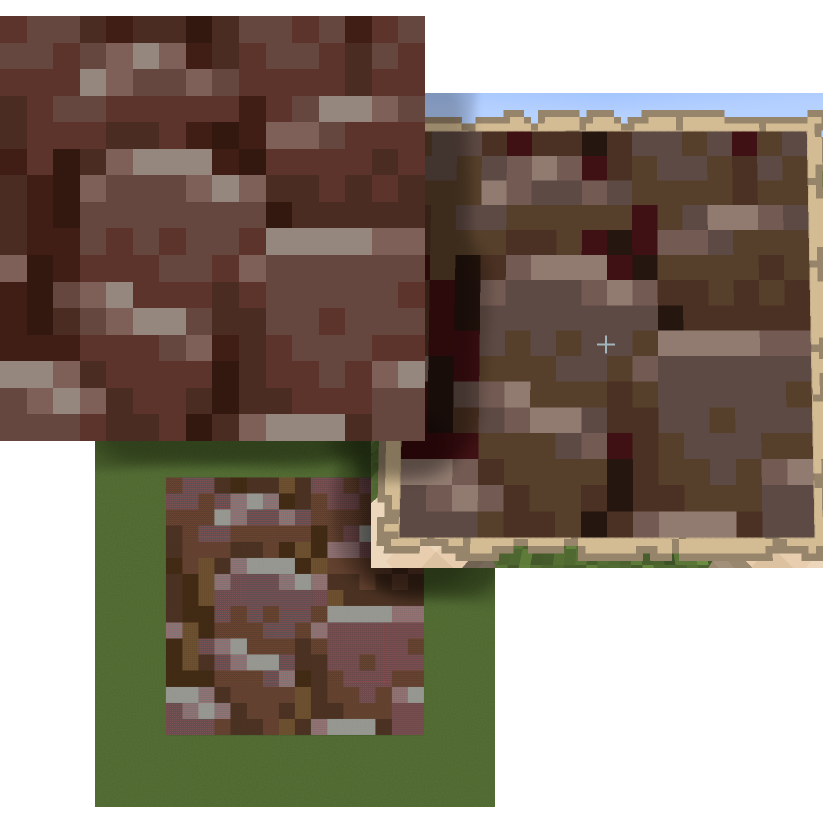
A mod for loading images into your world.
Quick answer
ImageToWorld 1.0.0-1.21 targets 1.21 with Fabric. The project page does not say whether this file belongs on the client, dedicated server, or both. All 1 required mods have matching files.
Where it goes
The project page does not say whether this file belongs on the client, dedicated server, or both.
The source does not explicitly classify this release as client-only or server-only.
ImageToWorld 1.0.0-1.21. Change the file and its required mods may change too.
Install Fabric API first. We found matching files for this game-version and loader setup.
We only count dependency files that match this setup. A file for another loader does not fill the gap.
Before you install it
Built for ImageToWorld 1.0.0-1.21. Pick another file and the loader, install side or required mods may change.
Use ImageToWorld 1.0.0-1.21. It targets 1.21 with Fabric; another release may have different loader, side or dependency requirements.
Install Fabric API first. We found matching files for this game-version and loader setup.
The project page does not say whether this file belongs on the client, dedicated server, or both.
Use the “Get this file” button beside ImageToWorld 1.0.0-1.21. It opens that exact file at the source.
About this project
Image To World is a utility mod for pasting images into your Minecraft world.
Mod must be installed on both the client and the server.
This mod gives a variety of ways you can add images to your world:
Images you want to load into your world should be put in the new images folder in the .minecraft directory so that this mod can access them.
When pasting your images keep in mind that the max size the image can be at full resolution is 1024x1024. Any larger and you will have to scale it down to an appropriate size.
When pasting images into your world, you are given a few options to configure how your image will generate, such as scale, facing direction, and patterns.
This will paste your image into the world based on which block textures best match the colors in your image.
/image paste imagePath position [scaleX] scaleZ [vertical|direction;]
imagePath: The name of your image. (Stored in a new images folder in your .minecraft directory)
position: The center position where the image will be generated.
scaleX: The scale of your image on the X axis, written as a ratio: 1:8.
scaleZ: The scale of your image on the Z axis, written as a ratio: 1:8.
vertical: Boolean determining whether to paste the image vertically.
direction: The horizontal direction your image will face.
This will paste your image into the world using blocks with map colors that best match the colors in the image.
/image pasteToMap imagePath position [scale;] scaleZ [direction|useStaircaseHeightmap]
imagePath: The name of your image. (Stored in a new images folder in your .minecraft directory).
position: The center position where the image will be generated.
scaleX: The scale of your image on the X axis, written as a ratio: 1:8.
scaleZ: The scale of your image on the Z axis, written as a ratio: 1:8.
direction: The horizontal direction your image will face.
useStaircaseHeightmap: Boolean determining whether to generate map art using the Staircasing method.
This will paste your image directly to a map without placing blocks in the world. Unlike the other commands, if your image is too large, it will simply auto-scale it down to a resolution that fits the map
/image give imagePath [scaleX] scaleZ
imagePath: The name of your image. (Stored in a new images folder in your .minecraft directory).
scaleX: The scale of your image on the X axis, written as a ratio: 1:8.
scaleZ: The scale of your image on the Z axis, written as a ratio: 1:8.
This will paste your image as a heightmap, this is intended to work with heightmap images for terrain building
/image heightmap imagePath block position [scaleX] scaleZ [scaleY] [direction]
imagePath: The name of your image. (Stored in a new images folder in your .minecraft directory).
block: The block to build the heightmap out of.
position: The center position where the image will be generated.
scaleX: The scale of your image on the X axis, written as a ratio: 1:8.
scaleZ: The scale of your image on the Z axis, written as a ratio: 1:8.
scaleY: The scale of your image on the Y axis, written as a ratio: 1:8.
direction: The horizontal direction your image will face.
Project description from CurseForge.
Pick your setup
Choose the version and loader you play, then open the matching release.
Showing the newest 12 of 13 game versions. Older files are in the list below.
Check the dependencies, then try the file in a copied instance before changing a world you care about.
Recent files
imagetoworld-1.0.0-1.21.jar
25 Jul 2024
imagetoworld-1.0.0-1.20.6.jar
2 May 2024
imagetoworld-1.0.0-1.20.4.jar
14 Jan 2024
imagetoworld-1.0.0-1.19.4.jar
14 Jan 2024
imagetoworld-1.0.0-1.19.2.jar
14 Jan 2024
Looking for an older file? The official CurseForge project page is in Resources.
 mod
A useful mod for Minecraft servers or framework for mod developers.
 mod
A lightweight Lucky Block add-on for TACZ (Timeless and Classics Zero). Break the block to get a random gun from 70+ default TACZ firearms, along with its perfectly matched ammo. Ready to fire, no mismatches!
 mod
In addition to the rain gauge, this mod adds temperature, wind speed, humidity, wind radar, and current weather information. You need Protomanly Weather version 0.16.4 ~ 0.17.0 or later to use this mod.