Fabric API Needed by Language Translator 1.3.2+26.3
requiredMatching file found Matched file: 0.166.2+26.3
Modrinth · Minecraft mod
This mod lets you create and edit languages in-game
Quick answer
Language Translator 1.3.2+26.3 targets 26.3 with Fabric. It must be installed on the client. Do not install it on the dedicated server. All 1 required mods have matching files.
Where it goes
It must be installed on the client. Do not install it on the dedicated server.
This file is marked client-only.
1.3.2+26.3. Change the file and its required mods may change too.
Install Fabric API first. We found matching files for this game-version and loader setup.
We only count dependency files that match this setup. A file for another loader does not fill the gap.
Before you install it
Built for Language Translator 1.3.2+26.3. Pick another file and the loader, install side or required mods may change.
Use 1.3.2+26.3. It targets 26.3 with Fabric; another release may have different loader, side or dependency requirements.
Install Fabric API first. We found matching files for this game-version and loader setup.
It must be installed on the client. Do not install it on the dedicated server.
Use the “Get this file” button beside 1.3.2+26.3. It opens that exact file at the source.
About this project
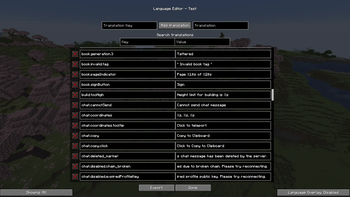
This mod lets you create and edit languages in game with an in-game menu.
To open the language list menu click the Language Editor keybind (default: N)
To create a language open the language editor menu, and click the "Create new language" button.
This will prompt you for the Code, Name, Region, and Description of the language, and whether it's an overlay language.
Code - The identifier for the language, using a format like en_us
Name - The name of the language, for example English
Region - The region of the language, for example United States
Description (optional) - The description of the language (shown when exported to a resource pack), for example: Language for English (United States)
The overlay language option:
After you fill all of them out, click the Create button.
To edit languages, click the edit button for the language you created and want to edit.
To search for translation keys or values, type the strings you want to search for in the search boxes.
To add translations type the translation key and value and then click the add translation button. To remove translations click the X button on the left of keys, the button is enabled when there is a translation added to the key.
Tip: You can click the translations in the result list to automatically fill in the boxes for adding translations.
Selectors let you filter what category or mod of the translations you would want to see, for example: All, Finished, Unfinished, Captured, Minecraft, or any other mod/resource pack specific translations.
To change the selector click the button in the bottom left of the language editing menu.
This selector shows all translation keys which were used (for the next frame) after pressing the "Capture translation keys" keybind (default: K).
For example when pressed on the main menu screen, the "Captured" selector will have the menu.options translation key, then when the keybind is pressed in some other place, it will replace the list with the new list of translation keys found in the next frame.
An overlay will modify all the translations loaded by the game by the translations in the specific language you would want to enable the overlay for, to enable the overlay click the button in the bottom right of the language editing menu. Overlays have an advantage over resource packs that you can auto-reload them, and you don't have to reload all of the resource packs to see the changes.
You can use auto-reload with overlays by directly editing the language files used by this mod, in the game folder in the languages-eplt folder, the file would be named id.json, open it with a text editor and add translation entries to the translations json value. Use auto-reload if you know what you're doing
You can view translation keys that the game uses by clicking M on your keyboard (default keybind).
By default, the game translates all translation keys, but this option allows you to view the translation keys, the options for this keybind are:
[] (arguments for translations), <> (siblings of a text component), and ,The game should update all text where translations are used, so you will be able to see the difference in what each option does, after clicking the keybind a couple times.
To export languages click the export button in the language editor menu, this will prompt you for the resource pack name, after you click the Export button you will have a resource pack with the specified name in your resource pack folder.
To enable a language you exported, first enable the resource pack, and then enable the language in the vanilla language list.
You can use this mod in modpacks.
Project description from Modrinth.
Pick your setup
Choose the version and loader you play, then open the matching release.
Showing the newest 12 of 24 game versions. Older files are in the list below.
Check the dependencies, then try the file in a copied instance before changing a world you care about.
Recent files
ep-language-translator-1.3.2.jar
4 Oct 2026
ep-language-translator-1.3.2.jar
4 Oct 2026
ep-language-translator-1.3.1.jar
7 May 2026
ep-language-translator-1.3.0.jar
8 Feb 2026
ep-language-translator-1.3.0.jar
8 Feb 2026
ep-language-translator-1.3.0.jar
8 Feb 2026
ep-language-translator-1.3.0.jar
3 May 2025
ep-language-translator-1.3.0.jar
3 May 2025
ep-language-translator-1.3.0.jar
3 May 2025
ep-language-translator-1.3.0.jar
3 May 2025
ep-language-translator-1.3.0.jar
3 May 2025
ep-language-translator-1.3.0.jar
3 May 2025
Looking for an older file? The official Modrinth project page is in Resources.
 mod
Functional Storage is an alternative take on the drawer storage solution, with an updated look and additional functionalities!
 mod
A mod that adds dynamic Immersive Titles for every biome or structure
 mod
Jobify adds an immersive job system featuring four unique roles: Miner, Farmer, Alchemist, and Hunter. Each job offers bonuses, specialized tools, and a personalized progression path. A perfect mod for enriching survival gameplay with an RPG touch.