Minecraft version
Back to mods 
Modrinth · Minecraft mod
Last Played Logger
Logs the last date a player was online to a Google spreadsheet.
Choose a version Pick your version below, then grab the matching file.
Quick answer
Which Last Played Logger release should I use?
Latest stable file 1.20.1-2.0.2
Game version 1.20.1
Loader Forge
Last Played Logger 1.20.1-2.0.2 targets 1.20.1 with Forge. Do not install it on the client. It must be installed on the dedicated server. No extra mods listed for this file.
Where it goes
Is Last Played Logger required on the client, server, or both?
Do not install it on the client. It must be installed on the dedicated server.
Client Not supported
Dedicated server Required
Loader for this release Forge
Required install it here Optional supported, not mandatory Not supported do not install here Source doesn’t say do not assume
This file is marked server-only.
What else does Last Played Logger 1.20.1-2.0.2 need?
1.20.1-2.0.2. Change the file and its required mods may change too.
This file does not list any required mods. Do not add a library just because a different file uses it.
This file does not list any required or optional mods.
Before you install it
Add Last Played Logger without breaking your instance.
Built for Last Played Logger 1.20.1-2.0.2. Pick another file and the loader, install side or required mods may change.
- 01
Stick to this file
Use 1.20.1-2.0.2. It targets 1.20.1 with Forge; another release may have different loader, side or dependency requirements.
- 02
Bring the mods it needs
This file does not list any required mods. Do not add a library just because a different file uses it.
- 03
Put it on the correct side
Do not install it on the client. It must be installed on the dedicated server.
- 04
Pick the file you checked
Use the “Get this file” button beside 1.20.1-2.0.2. It opens that exact file at the source.
About this project
What does Last Played Logger add?
Version 3.X.X
For older versions of the mod, check the wiki.
This mod logs the last date a player was online/logged in into a Google spreadsheet.
It's a utility mod to help you moderate your whitelist.
It only works on the server side and won't work on the client side.
You need a server to play with friends? You don't know how to set up one? Just rent an already configured server!

Click on the picture above, select a plan (with recommended at least 6 GB),
use my code agent to get 25% off your first month and enjoy playing with your friends!
Support
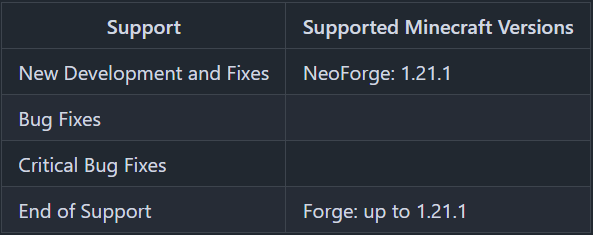
Minecraft versions, for which the mod is not released, are not supported.
You can find a text version here.
Server Config
The config file can be found in the "serverconfig" folder in the "world" folder and is named "last_played_logger-server.toml". The name of the world folder is set for servers in the "server.properties" file.
- active
Shall the mod be active or not? - spreadsheetID
ID of the Spreadsheet. - tab_name
Name of the spreadsheet tab.
Wonder how do you get these data? Read the "How to configure the mod".
How to configure the mod
Set up the Google Cloud project
The "Last Played Logger" needs its own Google Cloud project with the Google Sheets API. Follow the steps of the Google Sheets Java quickstart listed below. You only need these steps, not the sample code.
- Enable the API: Follow the steps under Enable the API to enable the "Google Sheets API".
- Configure the OAuth consent screen: Follow the steps under Configure the OAuth consent screen.
Important: Under "Audience", select External. Google's guide says "Internal", but this only works with a Google Workspace account of an organization, not with a normal Google account. - Create the credentials: Follow the steps under Authorize credentials for a desktop application (Application type "Desktop app").
Create a folder named "last_played_logger" next to the "config" folder and save the downloaded JSON file as "credentials.json" in this folder. - Publish the app: Open the Google Auth Platform > Audience page of your Google Cloud project and click "Publish app", so the publishing status changes from "Testing" to "In production".
You don't have to submit your app for verification, because only you are using it. Google will show a "not verified" warning during the authorization, which you can skip as described below.
Why publishing the app? In the publishing status "Testing" two things happen:
- Only Google accounts listed as test users can authorize the app. All others get "Access blocked: ... has not completed the Google verification process" (Error 403: access_denied) during the first launch.
- Google lets the authorization expire after 7 days. After that, the mod can no longer write to the spreadsheet and you have to authorize it again (see "Authorize the mod again" below).
If you want to keep the status "Testing" anyway, you have to add your Google account as test user: On the Audience page, click "Add users" under "Test users", enter the Google account that owns the spreadsheet and click "Save". Then you have to authorize the mod again every 7 days.
How to set up the spreadsheet
You can copy this Example Spreadsheet to use it with the "Last Played Logger".
For that, you have to click "File" > "Make a copy".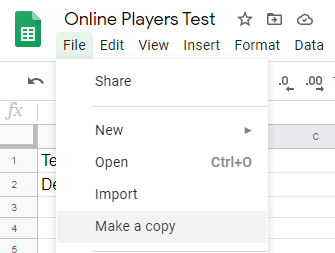
In the copy window, you give it a name and click "OK".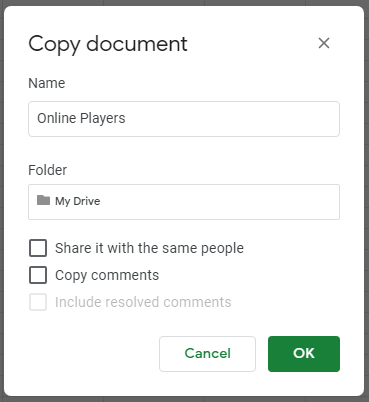
This "Example Spreadsheet" has two tabs.
In the "Online Log" tab, the "Last Played Logger" adds lines for every player joining the server. For players already joint the server, only the date will be updated.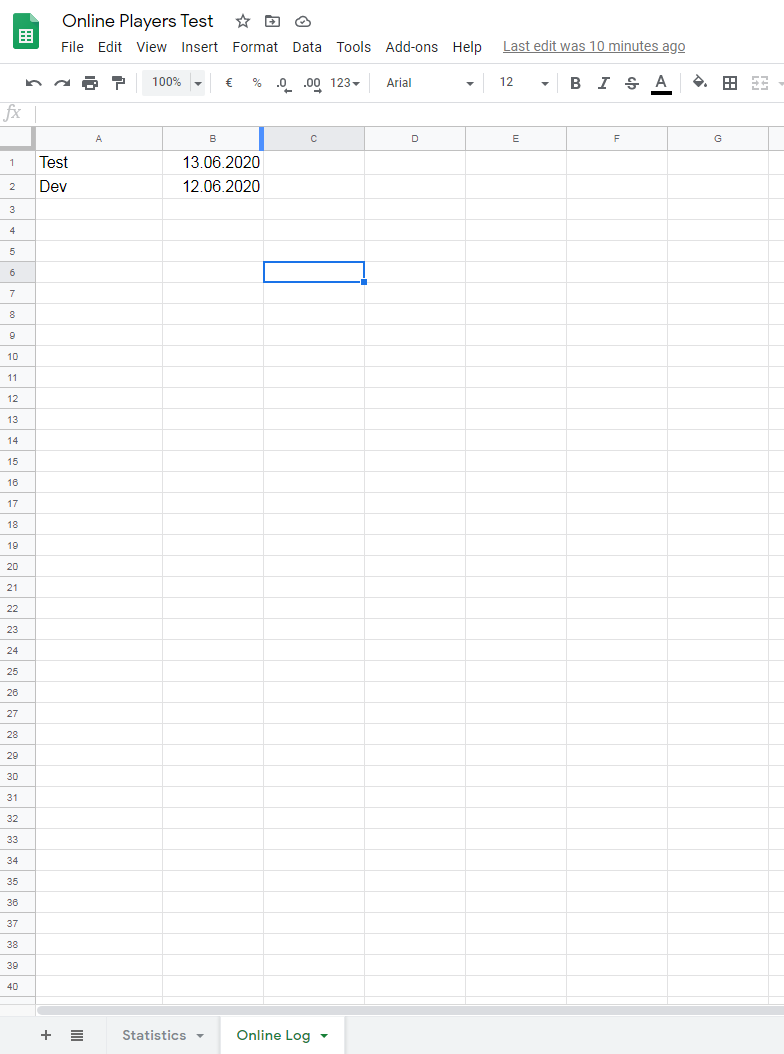
In the "Statistics" tab, you have two lists. The left list shows all players sorted by name and the right list shows all players sorted by the date. The player last online is the first player in this list.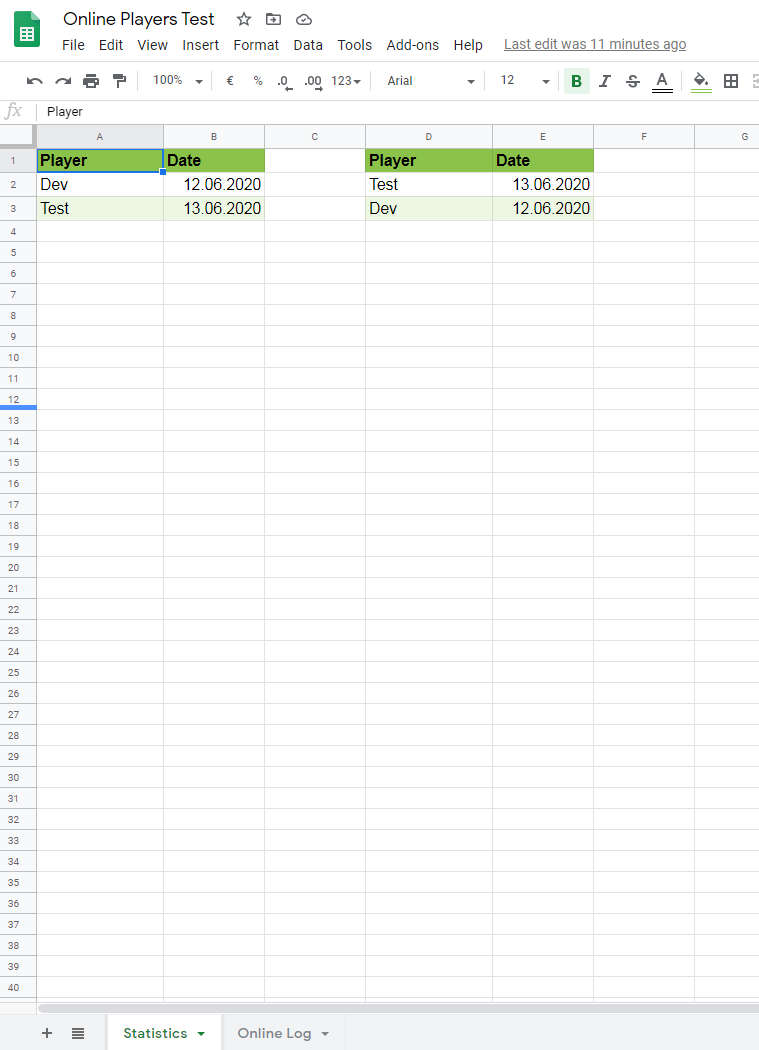
For the mod it's needed, that the spreadsheet is shared. For that you have to click onto the "Share" button.
In the Share window you have to select "Get Link" and on the right side of "Anyone with the link" you have to select "Editor".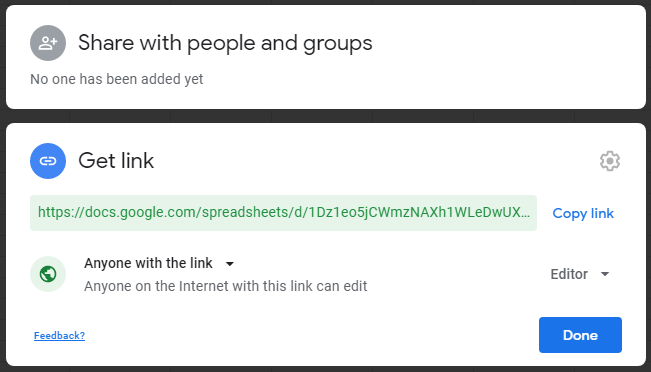
In the config, you now have to set "active" to "true" and set the "tab_name". In this example the "tab_name" has to be "Online Log".
From the URL, you have to extract the spreadsheet ID. In this example, the spreadsheet ID is "1dcoWy1ZOCEzf9wSqpsd731MKr8rBsazUVuUYafF4nzA".
What is to do on the first launch
When you have finished the config and done all previous steps, it gets to the first launch and the authentication of the server/mod.
Important: The first launch of the server has to be on your local desktop pc. During the following steps don't stop the server.
After you launched the server and a player joined, you find in the log a link with the following lines:
Please open the following address in your browser:
https://accounts.google.com/o/oauth2/auth?access\_type=offline&client\_id=...
Attempting to open that address in the default browser now…
Maybe the link is opened by your default browser automatically. If not, copy the link to your browser and open it.
It opens a website where you have to choose the Google account, from the owner of the spreadsheet.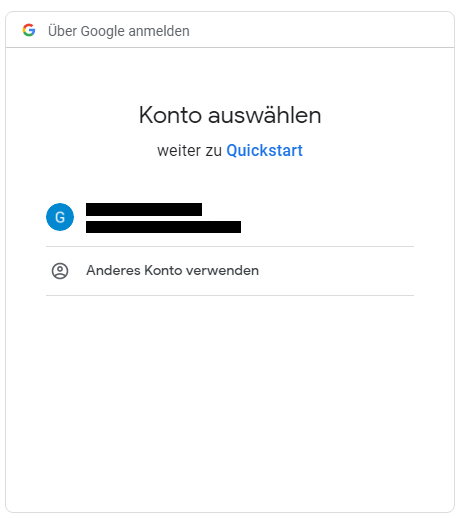
Next, there opens a warning because your project on which the application is running is not verified. You can ignore the warning and click "Advanced".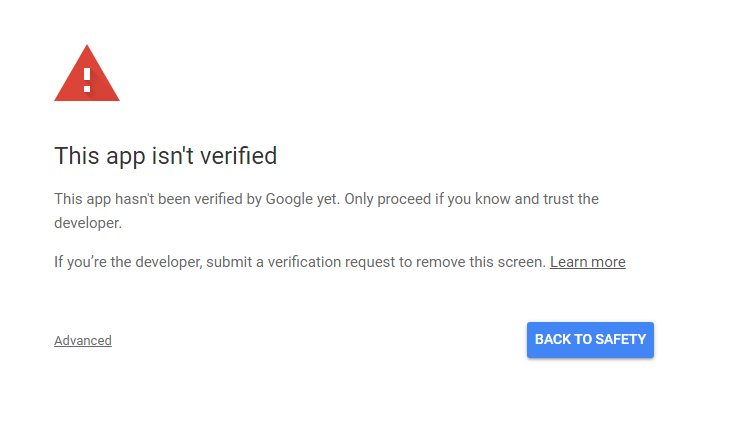
Next, you click on "Go to " (in the screenshot the app is named "Quickstart")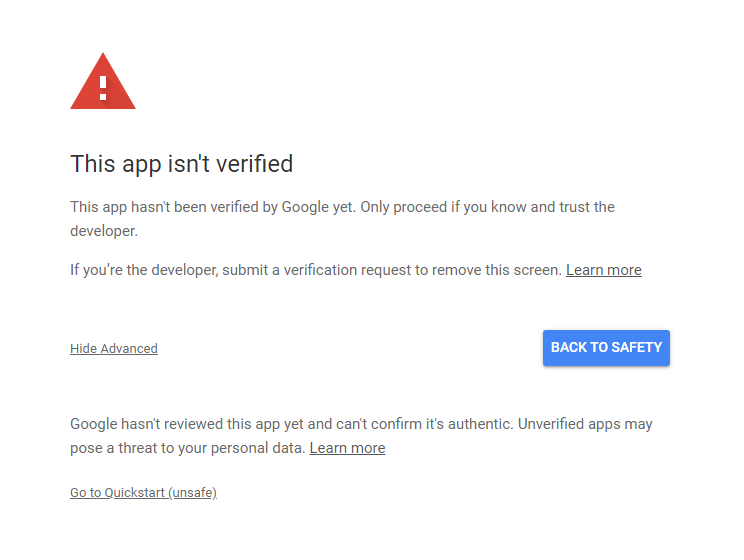
After that, a permission request is showing up, that wants to access your spreadsheets. "Allow" clicking will grant this permission.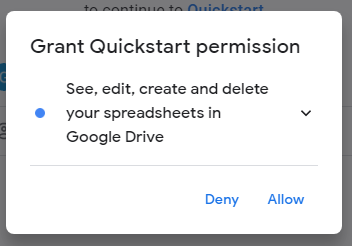
This permission request has to be confirmed.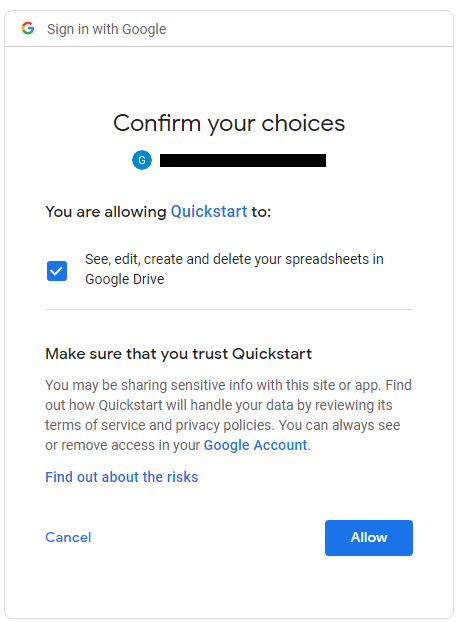
If you grant the permission and confirmed it, the "Last Played Logger" will work and add players to your spreadsheet.
If you want to enlarge the formatted area, here is a tutorial: https://spreadsheetpoint.com/color-alternate-rows-google-sheets/
The authorization is saved in the file "StoredCredential" in the "last_played_logger" folder.
Server without browser
The authorization only works on a computer with a browser, because Google redirects back to the computer, on which the server is running.
If your server runs on a rented or remote server without a browser, do the first launch with the same mod, config and "credentials.json" on your local desktop pc.
After the authorization, copy the "StoredCredential" file from the local "last_played_logger" folder into the "last_played_logger" folder of your server.
Authorize the mod again
If the authorization has expired or was revoked, stop the server, delete the "StoredCredential" file in the "last_played_logger" folder and do the steps of the first launch again.
Thanks for the logo to Muse31.
You can use this mod in non-commercial modpacks without asking.
You can find more mods from me on CurseForge and Modrinth.

Project description from Modrinth.
Pick your setup
Last Played Logger by Minecraft version and loader
Choose the version and loader you play, then open the matching release.
Minecraft version
26.2
1 loader buildMinecraft version
26.1.2
1 loader buildMinecraft version
26.1.1
1 loader buildMinecraft version
26.1
1 loader buildMinecraft version
1.21.11
1 loader buildMinecraft version
1.21.10
1 loader buildMinecraft version
1.21.9
1 loader buildMinecraft version
1.21.8
1 loader buildMinecraft version
1.21.7
1 loader buildMinecraft version
1.21.6
1 loader buildMinecraft version
1.21.5
1 loader buildShowing the newest 12 of 25 game versions. Older files are in the list below.
Check the dependencies, then try the file in a copied instance before changing a world you care about.
Recent files
Last Played Logger versions and loaders
1.20.1-2.0.2
LastPlayedLogger-1.20.1-2.0.2.jar
10 Oct 2026
Client Not supported Server Required Dependencies No extras listed Listed on Release listing
Check the 1.20.1 · Forge setup 1.20.1Forge release
26.1-3.0.1
LastPlayedLogger-26.1-3.0.1.jar
1 Oct 2026
Client Not supported Server Required Dependencies No extras listed Listed on Release listing
Check the 26.3 · NeoForge setup 26.126.1.126.1.226.2 release
1.21.11-3.0.1
LastPlayedLogger-1.21.11-3.0.1.jar
1 Oct 2026
Client Not supported Server Required Dependencies No extras listed Listed on Release listing
Check the 1.21.11 · NeoForge setup 1.21.11NeoForge release
1.21.1-3.0.1
LastPlayedLogger-1.21.1-3.0.1.jar
2 May 2026
Client Not supported Server Required Dependencies No extras listed Listed on Release listing
Check the 1.21.10 · NeoForge setup 1.21.11.21.21.21.31.21.4 release
1.21.1-3.0.0
LastPlayedLogger-1.21.1-3.0.0.jar
11 Dec 2025
Client Not supported Server Required Dependencies No extras listed Listed on Release listing
Check the 1.21.1 · NeoForge setup 1.21.1NeoForge release
1.21.1-2.0.1
LastPlayedLogger-1.21.1-2.0.1.jar
1 Sept 2024
Client Not supported Server Required Dependencies No extras listed Listed on Release listing
Check the 1.21.1 · Forge setup 1.21.1Forge release
1.21-2.0.1
LastPlayedLogger-1.21-2.0.1.jar
30 Aug 2024
Client Not supported Server Required Dependencies No extras listed Listed on Release listing
Check the 1.21 · Forge setup 1.21Forge release
1.20.6-2.0.1
LastPlayedLogger-1.20.6-2.0.1.jar
1 Jun 2024
Client Not supported Server Required Dependencies No extras listed Listed on Release listing
Check the 1.20.6 · Forge setup 1.20.6Forge release
1.20.4-2.0.1
LastPlayedLogger-1.20.4-2.0.1.jar
13 Dec 2023
Client Not supported Server Required Dependencies No extras listed Listed on Release listing
Check the 1.20.4 · Forge setup 1.20.4Forge release
1.20.2-2.0.1
LastPlayedLogger-1.20.2-2.0.1.jar
19 Oct 2023
Client Not supported Server Required Dependencies No extras listed Listed on Release listing
Check the 1.20.2 · Forge setup 1.20.2Forge release
1.20.1-2.0.1
LastPlayedLogger-1.20.1-2.0.1.jar
6 Jul 2023
Client Not supported Server Required Dependencies No extras listed Listed on Release listing
Check the 1.20.1 · Forge setup 1.20.1Forge release
1.20-2.0.1
LastPlayedLogger-1.20-2.0.1.jar
2 Jul 2023
Client Not supported Server Required Dependencies No extras listed Listed on Release listing
Check the 1.20 · Forge setup 1.20Forge release
Looking for an older file? The official Modrinth project page is in Resources.
 mod
mod CurseForge + Modrinth · Minecraft
Rustic Pancakes
A rustic mod adding different types of edible Pancakes you can place in your world
 mod
mod Modrinth · Minecraft
TunnelCraft
Host and share a Minecraft server without port forwarding or a public IP.
 mod
mod Modrinth · Minecraft
Elyplate
Fly with your elytra while having a chestplate equiped with the new Elyplate!