Minecraft version
Back to mods 
Modrinth · Minecraft mod
Projector
Projector Mod is a client side mod that adds a custom picture block that can display images from the internet in your Minecraft world.
Choose a version Pick your version below, then grab the matching file.
Quick answer
Which Projector release should I use?
Latest stable file 1.4.1
Game version 1.20.1, 1.20.2
Loader Fabric
Projector 1.4.1 targets 1.20.1, 1.20.2 with Fabric. It must be installed on the client. Do not install it on the dedicated server. No extra mods listed for this file.
Where it goes
Is Projector required on the client, server, or both?
It must be installed on the client. Do not install it on the dedicated server.
Client Required
Dedicated server Not supported
Loader for this release Fabric
Required install it here Optional supported, not mandatory Not supported do not install here Source doesn’t say do not assume
This file is marked client-only.
What else does Projector 1.4.1 need?
1.4.1. Change the file and its required mods may change too.
This file does not list any required mods. Do not add a library just because a different file uses it.
This file does not list any required or optional mods.
Before you install it
Add Projector without breaking your instance.
Built for Projector 1.4.1. Pick another file and the loader, install side or required mods may change.
- 01
Stick to this file
Use 1.4.1. It targets 1.20.1, 1.20.2 with Fabric; another release may have different loader, side or dependency requirements.
- 02
Bring the mods it needs
This file does not list any required mods. Do not add a library just because a different file uses it.
- 03
Put it on the correct side
It must be installed on the client. Do not install it on the dedicated server.
- 04
Pick the file you checked
Use the “Get this file” button beside 1.4.1. It opens that exact file at the source.
About this project
What does Projector add?
Projector Mod is a client-side mod that adds a custom picture block that can display images from the internet in your Minecraft world.
Projector Mod works both on the client and the server, when installed as a server-side mod, projector will sync the currently displayed images to all clients.
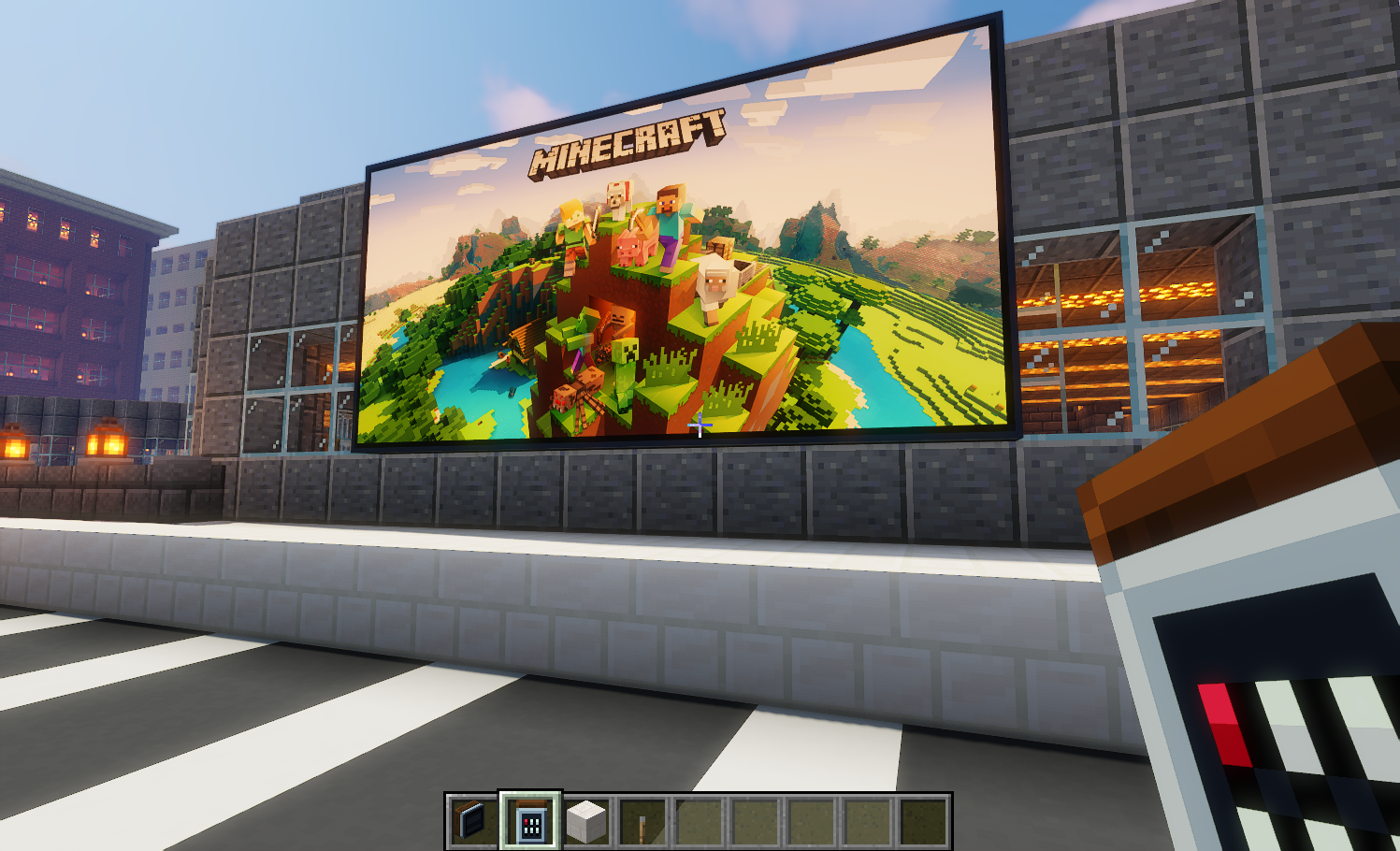
Join our Discord server for support, suggestions, and feature requests.
Usage
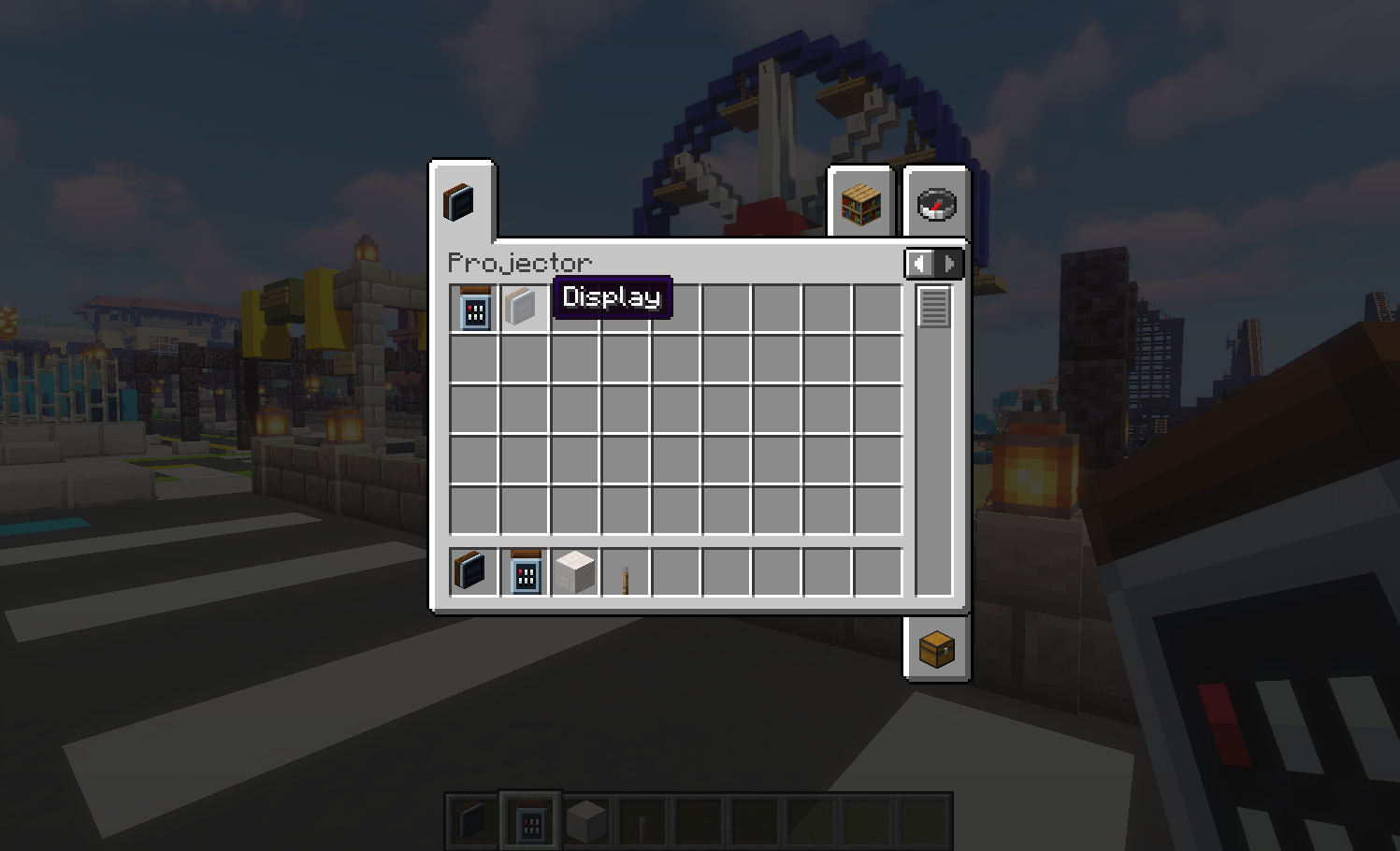
To display a picture, you need to create a picture block, currently, this can be done in creative mode by selecting the Display item from the Projector tab in your inventory.
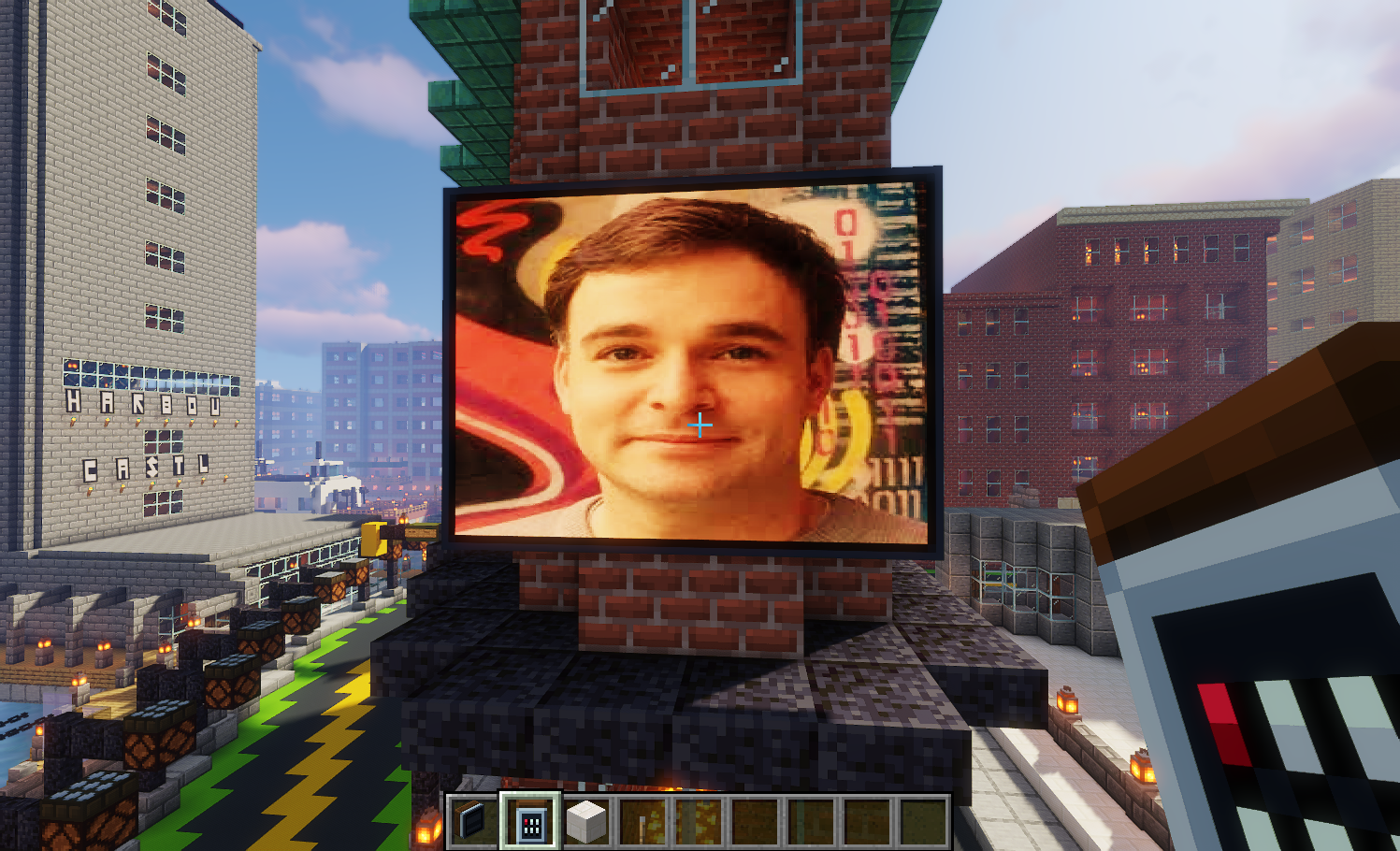
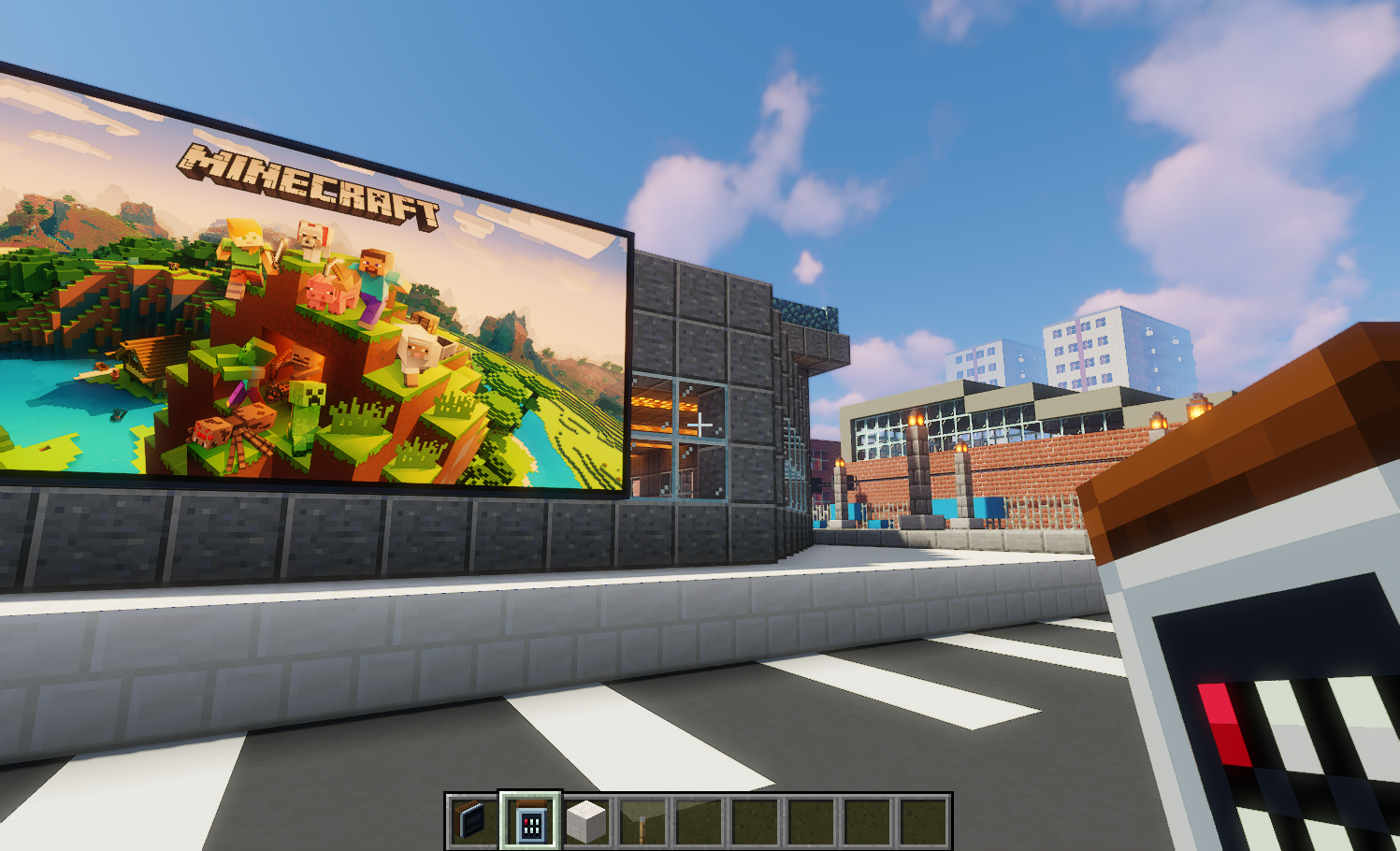
The size of the displayed picture is controlled by placing picture blocks next to each other. The picture will be scaled to fit the size of the connected blocks. As a minimum, you have to have a single block, as shown in the example below.
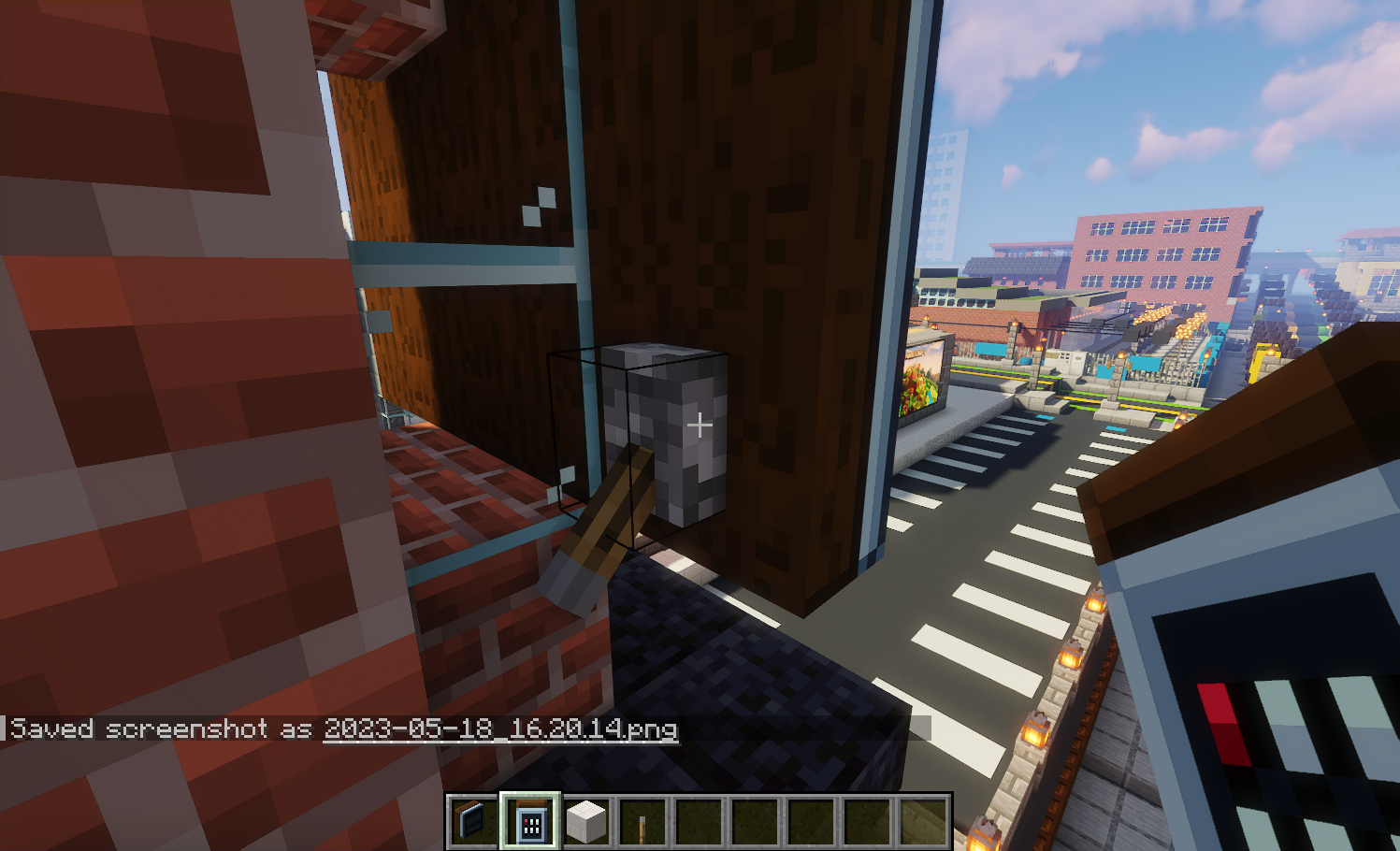
But there is no real limit to the size of picture blocks that you can place.
Redstone power
To display a picture blocks must be redstone powered, at present any signal will do, we plan to add other blocks that integrate with Redstone for example, to change the displayed picture at a later date.
Configuring Displays
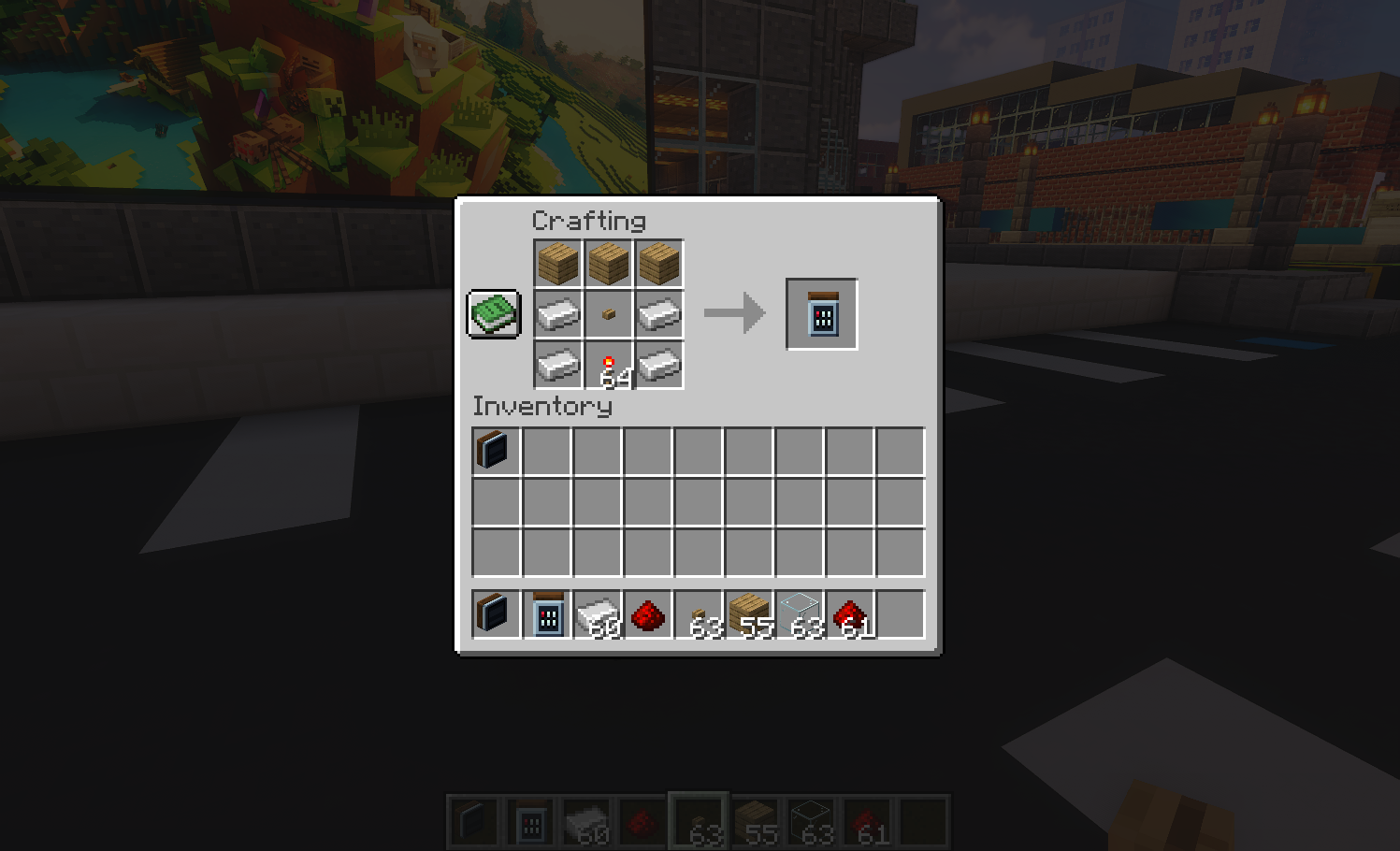
To set an image to be displayed, you need a remote, you can get this from the Projector tab, remotes are linked to a Display.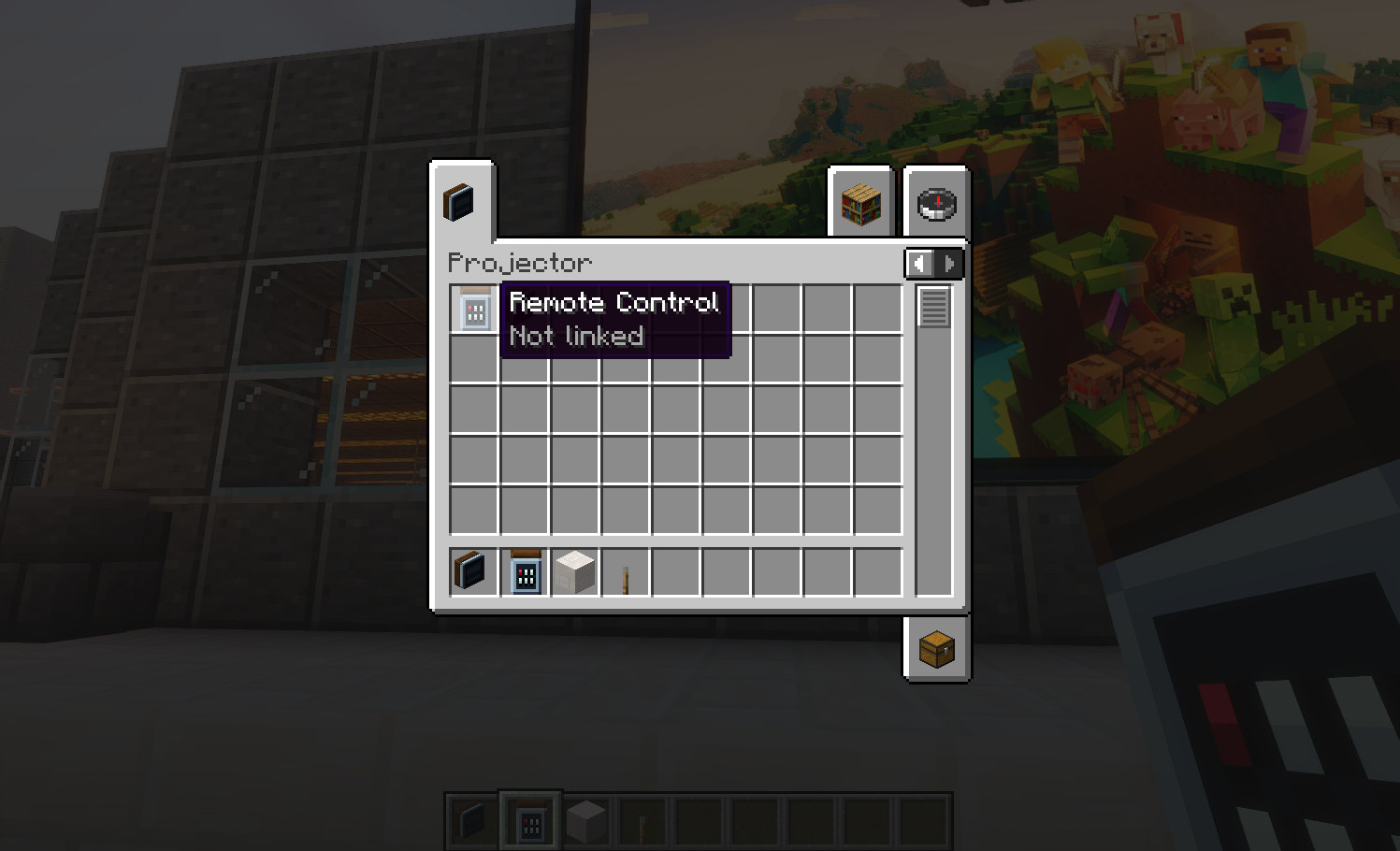
To link a remote and to configure the Display, right-click the bottom left Display block. You will see the configuration menu.
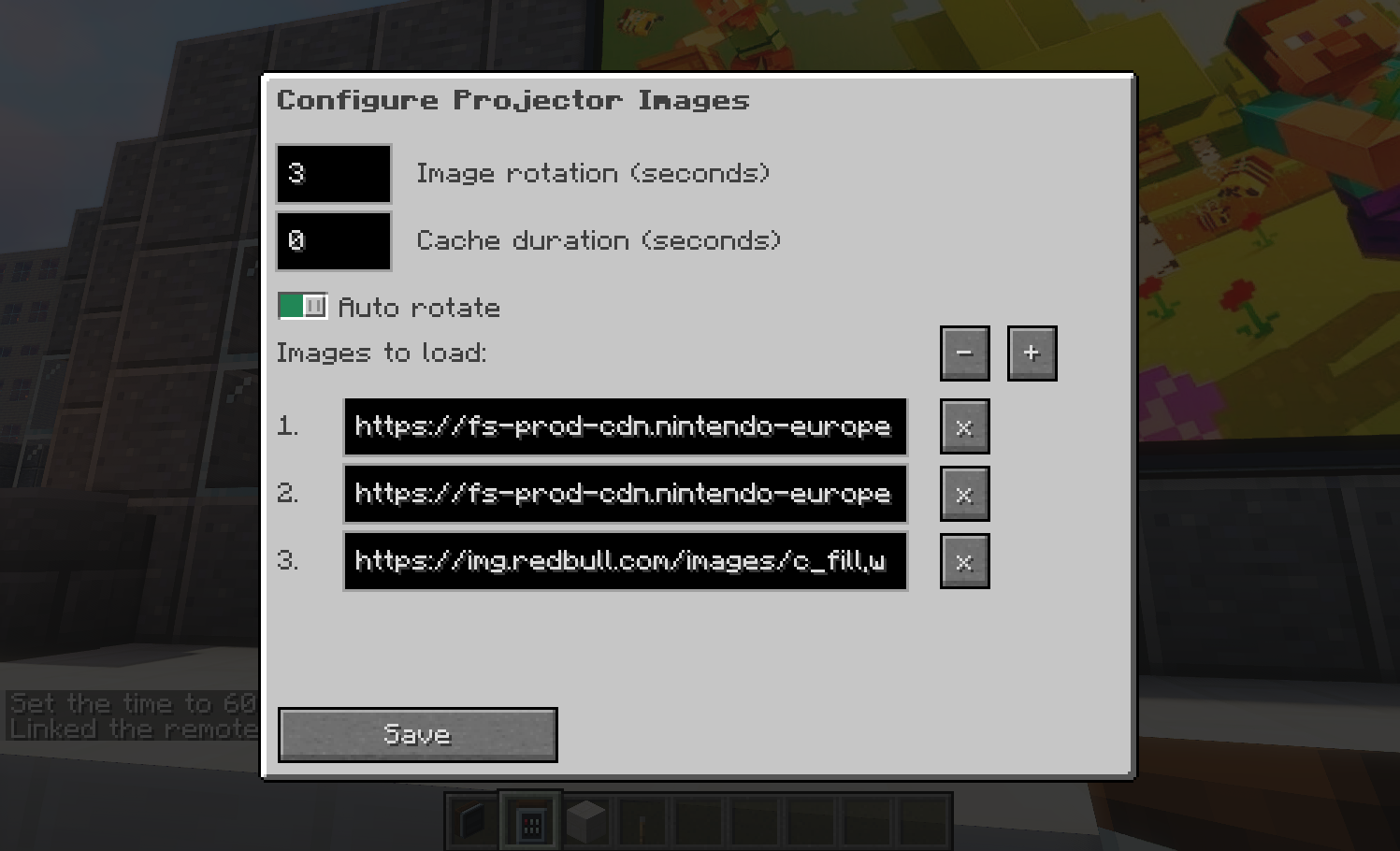
Multiple images can be added to the Display, you can either use the remote to manually cycle through the images, or you
can configure the Image rotation duration and set Auto rotate to automatically cycle through the images.
In the previous example, the images would be changed every 3 seconds.
By default an image is cached indefinitely, this stops Projector from constantly downloading the image from the internet.
In certain circumstances you may not want this, for example, you would like to display an image whose URL
does not change but the image is automatically refreshed. In this instance, you can set the Cache duration to the
duration you would like an image to exist for. When Cache duration expires the image will be re-downloaded from
the internet.
Switching images
To cycle through the images in your Display, you can use the Remote, holding a linked Remote in your hand
and pressing the Right mouse button will change the image to the next one in the list. You do not need to
click on the Display to change images. After all the Remotes use Infra-Redstone.
Templating variables
You can set environment variables on your server that enable you to automatically set a base URL for an image.
For example, if the server has the environment variable PROJECTOR_base set to the value https://mydomain.com.
Then in the image URL you can use the template variable {env.base} and it will automatically be replaced with the
value of the environment variable.
{env.base}/myimage.jpg
Only environment variables starting with PROJECTOR_ are read from the server, no other server
environment variable is sent to the client.
Crafting
To create a Display in survival mode a recipe must be used consisting of 6 x Oak Planks, 1 x Redstone Dust, and 1 x Glass Block.
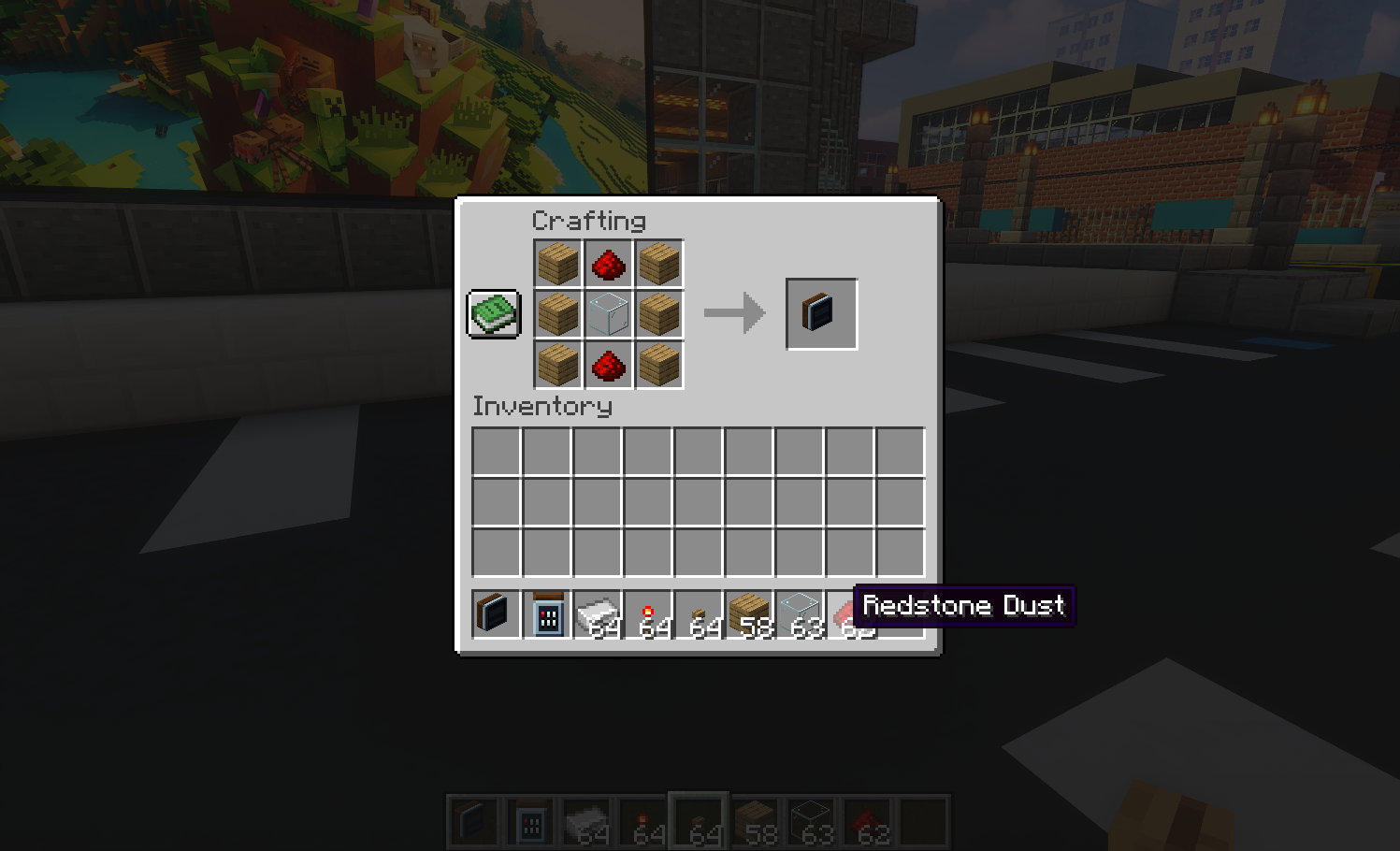
To create a Remote in survival mode a recipe must be used consisting of 3 x Oak Planks, 1 x Oak Button, 4 x Iron Ingots, and 1 x Redstone Torch.
Setup
This mod requires Fabric, the Fabric API, and minecraft 1.17.1 or later.
To use the mod you can download the latest jar from the [releases] section of this repository. Copy this to your Minecraft mods folder. If you are planning to use this mod on a server, you will need to copy the jar to the mods folder of your server.
Shaders
Currently, Projector works with the current release of Iris Shaders for Fabric. All of the screenshots in this readme are rendered using the Iris Shaders for Fabric mod, and Sildurs Extreme Shaders. Other shaders like OptiFabric have not been tested.
License
This mod is available under the CC0 license. Feel free to learn from it and incorporate it into your own projects.
Project description from Modrinth.
Pick your setup
Projector by Minecraft version and loader
Choose the version and loader you play, then open the matching release.
Minecraft version
1.20.1
1 loader buildMinecraft version
1.19.4
1 loader buildMinecraft version
1.18.2
1 loader buildMinecraft version
1.17.1
1 loader buildCheck the dependencies, then try the file in a copied instance before changing a world you care about.
Recent files
Projector versions and loaders
1.4.1
projector-1.4.1.jar
12 Apr 2024
Client Required Server Not supported Dependencies No extras listed Listed on Release listing
Check the 1.20.2 · Fabric setup 1.20.11.20.2Fabric release
1.4.0
projector-1.4.0.jar
25 Aug 2023
Client Required Server Not supported Dependencies No extras listed Listed on Release listing
Check the 1.20.1 · Fabric setup 1.20.1Fabric release
1.2.0
projector-1.1.2.jar
19 May 2023
Client Required Server Not supported Dependencies No extras listed Listed on Release listing
Check the 1.18.2 · Fabric setup 1.18.2Fabric release
1.3.0
projector-1.3.0.jar
18 May 2023
Client Required Server Not supported Dependencies No extras listed Listed on Release listing
Check the 1.19.4 · Fabric setup 1.19.4Fabric release
1.0.1
projector-1.0.1.jar
4 Sept 2021
Client Required Server Not supported Dependencies No extras listed Listed on Release listing
Check the 1.17.1 · Fabric setup 1.17.1Fabric beta
Looking for an older file? The official Modrinth project page is in Resources.
 mod
Modrinth · Minecraft
Canyons_and_Cliffs_and_Biomes
The generation probability of canyons has been adjusted, and their size has been increased, while height limits have been optimized. The maximum height limit is now 1664, and the minimum height limit is -256. The resulting terrain generation will be improv
 mod
Modrinth · Minecraft
AutoPalette
A modern, automated painter for the ArtMap plugin. Automatically prints images pixel-by-pixel.
 mod
Modrinth · Minecraft
Reconnectible Chains
A multiloader fork of Connectible Chains: Connect your fences/walls with a decorative chain!