Create Needed by Create: Redstone Link Tablet 1.10.2
requiredMatching file found Matched file: 6.0.10+mc1.21.1

Modrinth · Minecraft mod
A smart-home tablet for Create's Redstone Links — toggle named apps and multi-link groups from an app-style GUI.
Quick answer
Create: Redstone Link Tablet 1.10.2 targets 1.21.1, 1.21.2, 1.21.3 with NeoForge. Installation on the client is optional. Installation on the dedicated server is optional. All 1 required mods have matching files.
Where it goes
Installation on the client is optional. Installation on the dedicated server is optional.
The source marks this as usable on both the client and server.
1.10.2. Change the file and its required mods may change too.
Install Create first. We found matching files for this game-version and loader setup.
We only count dependency files that match this setup. A file for another loader does not fill the gap.
Before you install it
Built for Create: Redstone Link Tablet 1.10.2. Pick another file and the loader, install side or required mods may change.
Use 1.10.2. It targets 1.21.1, 1.21.2, 1.21.3 with NeoForge; another release may have different loader, side or dependency requirements.
Install Create first. We found matching files for this game-version and loader setup.
Installation on the client is optional. Installation on the dedicated server is optional.
Use the “Get this file” button beside 1.10.2. It opens that exact file at the source.
About this project
PLEASE MAKE SUGGESTIONS I WOULD LOVE TO DEVELOP THIS MOD FURTHER
https://discord.gg/sazf4cgFtK


A smart-home control panel for your Create contraptions.
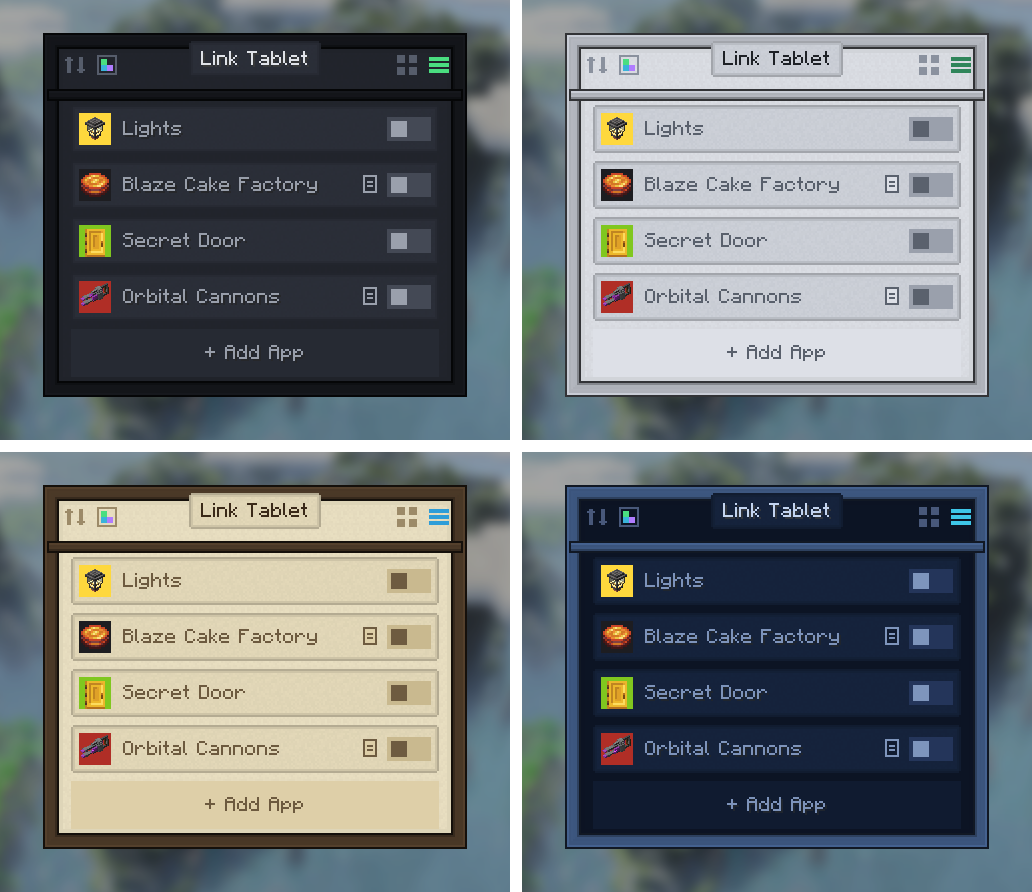
The Link Tablet is a handheld device with a real touchscreen OS that drives
Create's Redstone Links remotely. Lights, doors,
trains, farms, the entire factory — name them, give them an icon, and control them
from one screen, anywhere in link range. It boots to a Home screen of apps —
signals, gauges, a clock, a calculator, with more from the built-in App Store —
mounts on walls where tablets merge into one wall-sized display, and pins a
mini-tablet to your HUD so you can flip switches without ever opening a GUI.
The tablet opens to a Home screen — an app launcher you arrange yourself.
The App Store tile lists everything installed with a description and a
one-click Get/Remove; your Home screen is yours, per tablet. The apps:
Placed tablets show whatever app they're on right on the glass — tap it to open
the app, tap the bezel ring to go Home — and the wall screen follows your
GUI navigation, so the kiosk and the menu always agree.
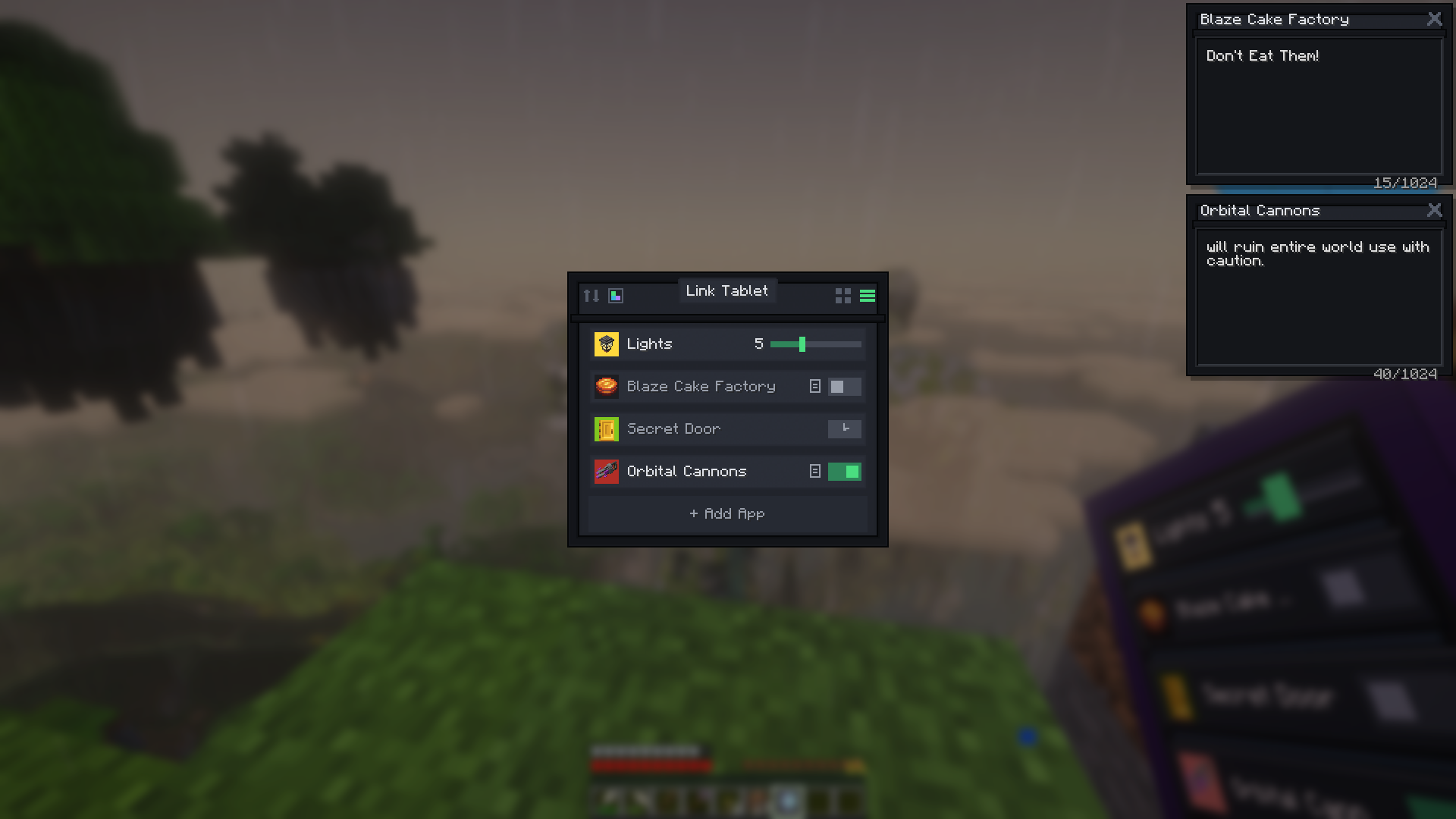
You can see all of them working in the screenshot above — a slider mid-drag, a
timer, and toggles side by side.
Signals tune to Create's item-pair frequencies — anything a Redstone Link or Linked
Controller can trigger, the tablet can too:
📋 Tip — quick-add: right-click any Redstone Link (or anything with a link
frequency, like elevator contacts) while holding the tablet — the editor opens
with that frequency pre-filled and a name suggested. Just hit Save.
Sliders drag live in the GUI, and on a placed tablet you click-and-slide right
on the glass: hold the button on a slider's tile and sweep your crosshair — the
value tracks it exactly. Every slider shows its numeric signal level wherever it
renders, and you can limit one to a min/max range — set a minimum above 0 and
that machine never fully turns off.
Every signal can carry a free-text note, opened from a little glyph on its tile.
Notes are floating windows: drag them by the title bar, open several at once,
and they stay with you — over the tablet, over your inventory and other screens
(fully editable there), and pinned read-only on your HUD while you play. They
politely stay out of settings menus and other screens where they don't belong.
Perfect for "flush the sorter before enabling" warnings or a train schedule —
you can see two of them pinned in the screenshot up top.
The pin button keeps a floating mini-tablet on your screen while you play —
and it's per-app: pin Signals for live switch rows, pin Gauges for a
heads-up dial cluster (a vehicle dashboard while you drive), pin the Clock, pin
a working Calculator mini-pad, or pin the launcher itself as an app dock. The
window is draggable anywhere and remembers its spot and pin across sessions. Press the "Use Pinned Tablet" key
(default B) to free your mouse chat-style and tap toggles, drag sliders, or
hold buttons — mid-mining, mid-flight, no GUI ever opens. It's also clickable
with the normal cursor over your inventory or chat, and a right-click on any
row jumps into the full tablet interface. (There's an "Open Tablet" keybind
too, unbound by default, that opens the tablet from anywhere in your
inventory.)
Pin a placed tablet and it dims when you wander out of edit range; pin a
carried one and it follows the item around your inventory.
The tablet's physical screen isn't a texture — it renders your actual signals,
live, on both the held and the placed tablet. Tiles size themselves to the signal
count (a few signals get big tiles; a full tablet converges on a dense grid),
active signals glow, timers glow for as long as their pulse runs, and each tablet
remembers whether you last used it in grid or list view.
And on a placed tablet, the screen is touchable: tap a signal right on the
glass to toggle it, hold a Hold button, slide a slider — no GUI needed. Tap the
bezel for the full interface.
Sneak + right-click any surface to mount the tablet on a wall, floor, or
ceiling — it becomes a block that transmits from its own position while the
chunk is loaded, and its screen glows whenever a signal is running. Sneak +
right-click with an empty hand picks it back up; everything survives the trip.
Got a Create wrench? Wrench the glass to rotate the screen content 90°, wrench
the edge to spin the tablet — wall tablets physically flip between portrait and
landscape.
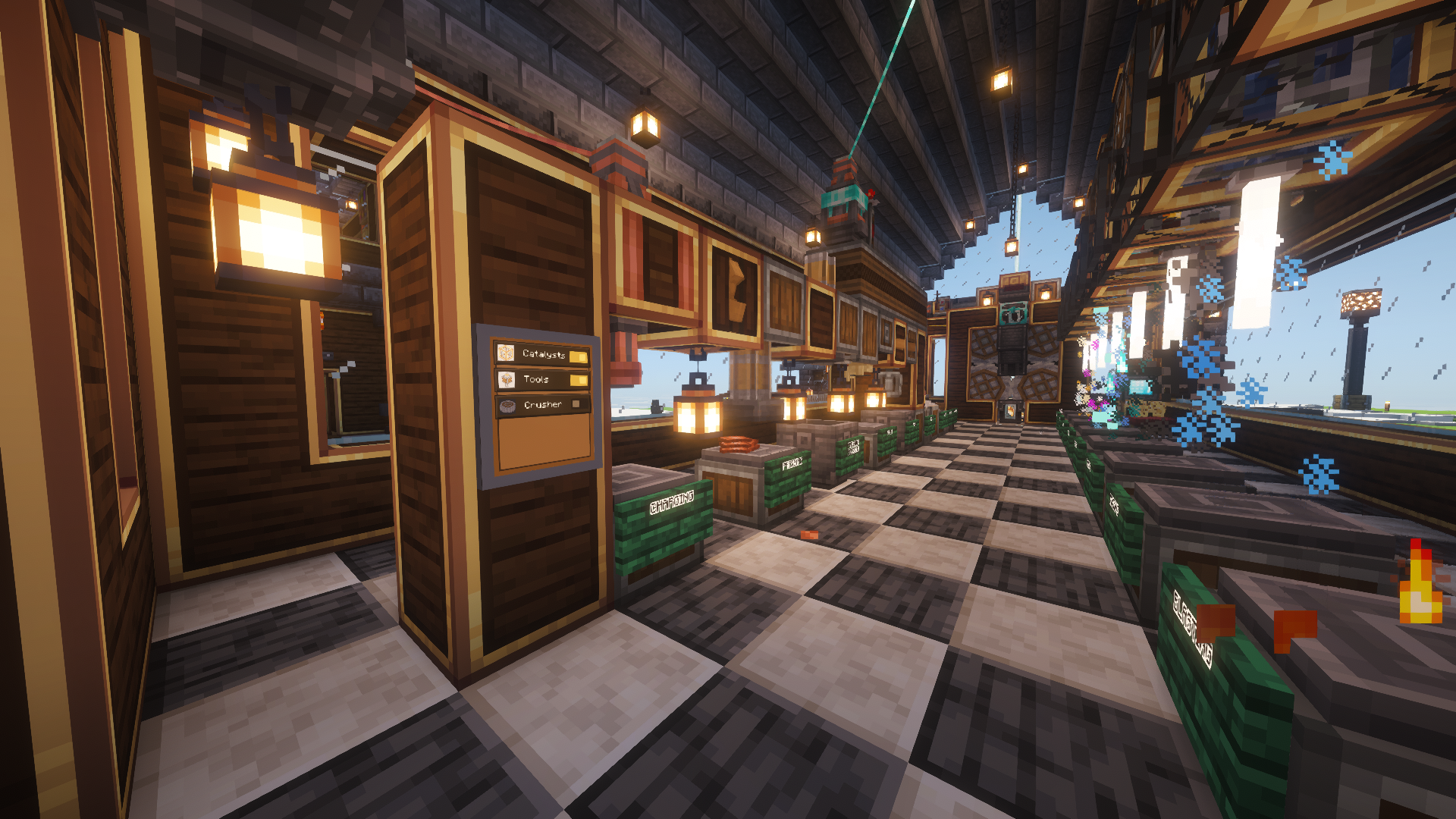
Flat against the wall not doing it for you? Craft a Swivel Mount — an iron
nugget atop two brass sheets — and place the empty stand on any floor, wall, or
ceiling, then click a tablet onto it (or use the mount directly on a tablet
that's already placed). Either way the tablet pops onto a little ball-joint
stand. Wrench the glass and it swings around to aim straight at your eyes,
wherever you're standing — walk to your favorite spot at the control desk, one
click, perfect angle. Wrench the bezel to flip between portrait and landscape,
and sneak-wrench the glass to rotate the screen content.
Stands are furniture: sneak + right-click the tablet and it comes off leaving
the empty stand in place, ready for the next tablet — swap dashboards between
consoles like cartridges. Grab the stand itself to take everything.
The tilted glass stays fully touchable — taps, holds, and click-and-slide all
land exactly where you're looking. Mounted tablets keep to themselves (they
never merge into a wall display), so they're perfect as angled standalone
consoles in front of one.
And here's the party trick: power the mount with redstone and the screen
follows you — it smoothly tracks the nearest player like the enchanting
table's book, gliding as you walk the control room. Cut the power and it
freezes exactly where it's pointing: aim it by standing in the right spot,
lock it with a lever.
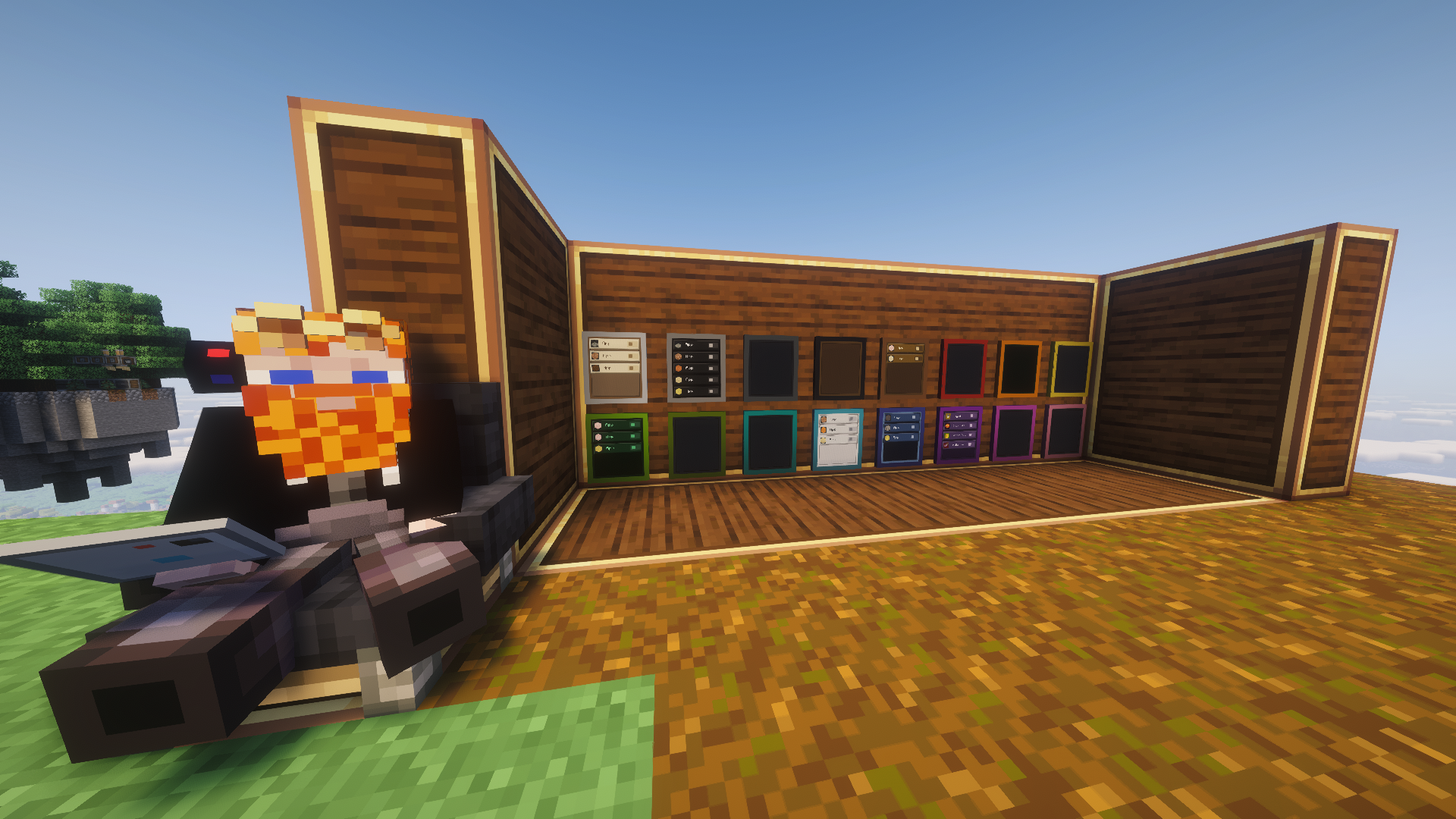
Mount tablets side by side — same wall, floor, or ceiling; new ones
auto-match their neighbor's orientation — and they merge into one big
display, up to 4 wide by 3 tall: a single continuous glass panel with a
case-colored bezel frame and no seams. Your signals spread across the whole
surface at bigger tiles, taps and click-and-slide work anywhere on the
glass, list rows run its full width, the entire wall lights up together —
and every merged tablet raises the signal cap by another 32. Dye the lead
tablet and the whole frame dyes; wrench the glass and the whole screen's
content rotates.
🧮 A 4×3 wall = 12 merged tablets — 384 signals on one screen
Merging is always safe: every tablet keeps its own signals dormant and gets
them back the moment it's split off. And it's always your choice — a
chain-link button in the screen header breaks a merged surface back
into independent tablets, or keeps a single tablet standalone so you can
build a bank of separate dashboards side by side.
The tablet comes off a real assembly line — this is brass-age manufacturing,
not crafting. Shape a Tablet Case from five brass sheets, then send it down
a belt past three Deployers:
The in-progress tablet visibly gains each part as it moves down the line, and
JEI/EMI shows the whole sequence on the tablet's page. (The finished tablet
lives in the vanilla Redstone creative tab too.)
Then:
There's also a Ponder scene — hold W over the tablet item — that walks
through mounting, linking, and the quick-add shortcut.
While a signal is on and the tablet is anywhere in your inventory, you are the
transmitter — range and chunk behavior match Create's handheld Linked
Controller. Mounted tablets transmit from the block instead.
Huge thanks to the Create team — this addon stands on their Redstone Link network and visual language. Go support the original mod!
Banner lettering uses the community Minecraft Ten font art by xllifi (CC-BY 4.0).
Created by FryD42 · MIT licensed — free to use in any modpack.
Project description from Modrinth.
Pick your setup
Choose the version and loader you play, then open the matching release.
Check the dependencies, then try the file in a copied instance before changing a world you care about.
Recent files
linktablet-1.10.2.jar
3 Aug 2026
linktablet-1.10.1.jar
3 Aug 2026
linktablet-1.10.0.jar
28 Jul 2026
linktablet-1.9.1.jar
27 Jul 2026
linktablet-1.9.0.jar
25 Jul 2026
linktablet-1.8.1.jar
22 Jul 2026
linktablet-1.8.0.jar
21 Jul 2026
linktablet-1.7.1.jar
21 Jul 2026
linktablet-1.7.0.jar
21 Jul 2026
linktablet-1.6.0.jar
19 Jul 2026
linktablet-1.5.2.jar
17 Jul 2026
linktablet-1.5.1.jar
17 Jul 2026
Looking for an older file? The official Modrinth project page is in Resources.
 mod
modA Create addon that brings living creatures into the factory. | 一个把活体生物接进工厂里的机械动力附属模组。
 mod
modCrystal PvP tweaks client mod. Your ultimate cpvp assistance. Various tweaks that improve your performance without ruining the cpvp experience.
 mod
modOpenComputers: Rebooted is a port of OpenComputers to 1.21.1, with several new features, including integrated OpenScreens support.