Minecraft version
Back to mods 
Modrinth · Minecraft mod
Universal Config
Sync Minecraft configs across instances and versions
Choose a version Pick your version below, then grab the matching file.
Quick answer
Which Universal Config release should I use?
Latest stable file 1.1.0-mc26.3-forge
Game version 26.3
Loader Forge
Universal Config 1.1.0-mc26.3-forge targets 26.3 with Forge. It must be installed on the client. Do not install it on the dedicated server. No extra mods listed for this file.
Where it goes
Is Universal Config required on the client, server, or both?
It must be installed on the client. Do not install it on the dedicated server.
Client Required
Dedicated server Not supported
Loader for this release Forge
Required install it here Optional supported, not mandatory Not supported do not install here Source doesn’t say do not assume
This file is marked client-only.
What else does Universal Config 1.1.0-mc26.3-forge need?
1.1.0-mc26.3-forge. Change the file and its required mods may change too.
This file does not list any required mods. Do not add a library just because a different file uses it.
This file does not list any required or optional mods.
Before you install it
Add Universal Config without breaking your instance.
Built for Universal Config 1.1.0-mc26.3-forge. Pick another file and the loader, install side or required mods may change.
- 01
Stick to this file
Use 1.1.0-mc26.3-forge. It targets 26.3 with Forge; another release may have different loader, side or dependency requirements.
- 02
Bring the mods it needs
This file does not list any required mods. Do not add a library just because a different file uses it.
- 03
Put it on the correct side
It must be installed on the client. Do not install it on the dedicated server.
- 04
Pick the file you checked
Use the “Get this file” button beside 1.1.0-mc26.3-forge. It opens that exact file at the source.
About this project
What does Universal Config add?
Universal Config
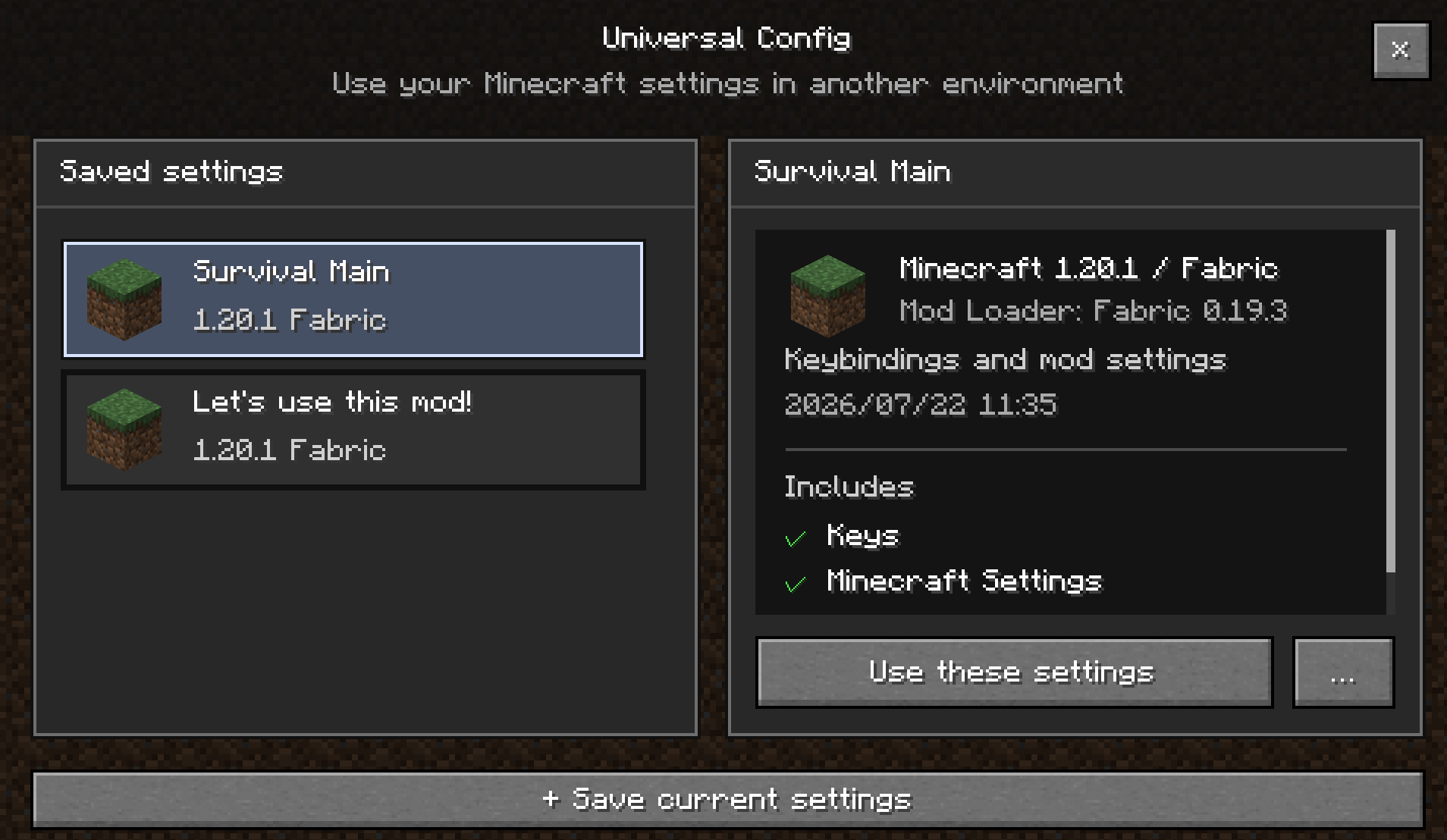
Universal Config is a client-side mod that lets you save your Minecraft settings, keybinds, and mod configuration files as reusable profiles and share them across different instances and Minecraft versions.
You no longer need to reconfigure your keybinds and mod settings every time you create a new instance.
Features
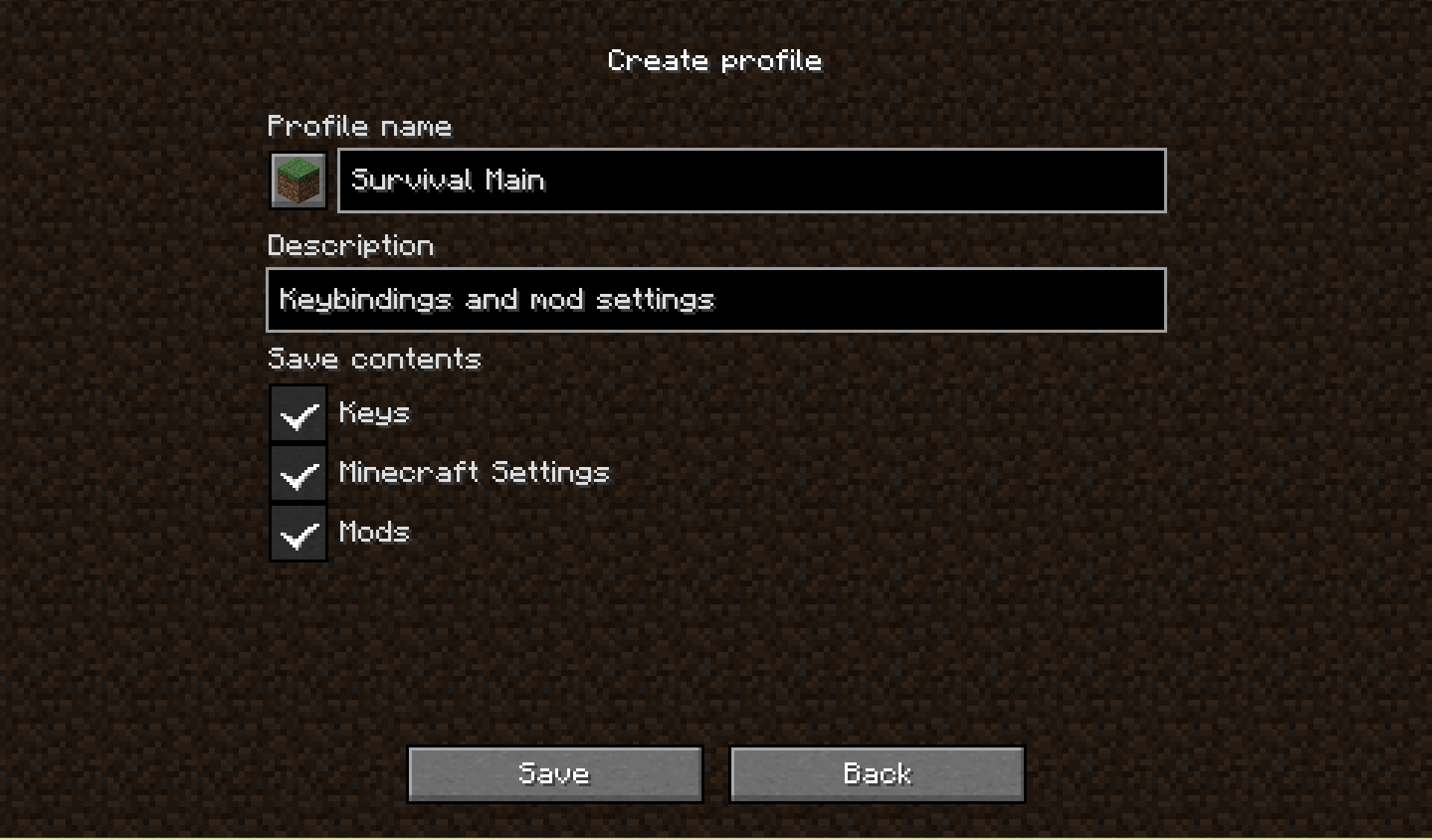
- Create and save multiple profiles
- Save your current settings as a profile
- Store keybinds and other
options.txtsettings - Store mod configuration files from the
configfolder - Browse saved profiles from an in-game interface
- Review profile contents before applying them
- Duplicate, export, and delete profiles
- Set a default profile
- Restore previous settings from a backup
Safe Profile Application
Universal Config does not simply overwrite your entire options.txt file.
Instead, saved settings are merged into your current configuration individually, allowing settings that only exist in the current instance to remain untouched.
Keybinds are also handled separately for better compatibility.
What Is Not Included
Universal Config is not designed to copy an entire Minecraft instance.
The following data is not included in profiles:
- Mods
- Worlds
- Logs
- Crash reports
- Resource packs
- Shader packs
- Screenshots
Universal Config is specifically designed for sharing and reusing Minecraft configurations.
Version Compatibility
Profiles can be used across different Minecraft versions and instances.
However, full compatibility cannot always be guaranteed, as it depends on the mods being used and their configuration formats.
Some settings may not work correctly if the required mod is not installed or if a mod update has changed its configuration format.
Support for additional Minecraft versions and mod loaders will continue to expand over time. Stay tuned!
How to Use
Open Universal Config from the Minecraft title screen.
From the profile screen, you can:
- Save your current settings as a new profile
- Browse existing profiles
- Select a profile saved from another instance
When you select a profile, you can review the following information before applying it:
- The Minecraft version the profile was created with
- Mod loader
- Whether the profile contains keybinds, Minecraft client settings, and/or mod configuration files
- Compatibility warnings
Once confirmed, the selected profile is scheduled to be applied the next time Minecraft starts.
Your current configuration is backed up beforehand, and the profile is merged into your settings before Minecraft loads them.
Default Profile
When a profile is set as the default profile, it will be automatically applied the first time Minecraft is launched.
This allows new instances to start with your preferred configuration without manually applying a profile.
Profile Management
Profiles can be:
- Created
- Duplicated
- Opened in their folder
- Deleted
- Set as the default profile
Profiles are stored in the portable .ucp format and can be moved to another PC or shared with other players.
Profile Storage
By default, shared profiles are stored in the following locations:
Windows
%APPDATA%\.universal-config\
macOS / Linux
~/.universal-config/
You can change the profile storage location from the Universal Config screen, but using the default location is recommended for most users.
Project description from Modrinth.
Pick your setup
Universal Config by Minecraft version and loader
Choose the version and loader you play, then open the matching release.
Minecraft version
26.4-snapshot-3
1 loader buildMinecraft version
26.4-snapshot-2
1 loader buildMinecraft version
26.4-snapshot-1
1 loader buildMinecraft version
26.3
2 loader buildsMinecraft version
26.2
2 loader buildsMinecraft version
26.1.2
2 loader buildsMinecraft version
26.1.1
2 loader buildsMinecraft version
26.1
1 loader buildMinecraft version
1.21.4
2 loader buildsMinecraft version
1.21.1
2 loader buildsMinecraft version
1.20.6
2 loader buildsShowing the newest 12 of 22 game versions. Older files are in the list below.
Check the dependencies, then try the file in a copied instance before changing a world you care about.
Recent files
Universal Config versions and loaders
1.1.0-mc26.4-snapshot-4
universal-config-1.1.0-mc26.4-snapshot-4.jar
13 Oct 2026
Client Required Server Not supported Dependencies 1 required · 1 unchecked Listed on Release listing
Check the 26.4-snapshot-4 · Fabric setup 26.4-snapshot-4Fabric alpha
1.1.0-mc26.4-snapshot-3
universal-config-1.1.0-mc26.4-snapshot-3.jar
7 Oct 2026
Client Required Server Not supported Dependencies 1 required · 1 unchecked Listed on Release listing
Check the 26.4-snapshot-3 · Fabric setup 26.4-snapshot-3Fabric alpha
1.1.0-mc26.4-snapshot-2
universal-config-1.1.0-mc26.4-snapshot-2.jar
29 Sept 2026
Client Required Server Not supported Dependencies 1 required · 1 unchecked Listed on Release listing
Check the 26.4-snapshot-2 · Fabric setup 26.4-snapshot-2Fabric alpha
1.1.0-mc26.4-snapshot-1
universal-config-1.1.0-mc26.4-snapshot-1.jar
24 Sept 2026
Client Required Server Not supported Dependencies 1 required · 1 unchecked Listed on Release listing
Check the 26.4-snapshot-1 · Fabric setup 26.4-snapshot-1Fabric alpha
1.1.0-mc26.3-forge
universal-config-1.1.0-mc26.3-forge.jar
21 Sept 2026
Client Required Server Not supported Dependencies No extras listed Listed on Release listing
Check the 26.3 · Forge setup 26.3Forge release
1.1.0-mc26.3
universal-config-1.1.0-mc26.3.jar
18 Sept 2026
Client Required Server Not supported Dependencies 1 required · 1 unchecked Listed on Release listing
Check the 26.3 · Fabric setup 26.3Fabric release
1.1.0-mc1.18.2
universal-config-1.1.0-mc1.18.2.jar
11 Sept 2026
Client Required Server Not supported Dependencies 1 required · 1 unchecked Listed on Release listing
Check the 1.18.2 · Fabric setup 1.18.2Fabric release
1.1.0-mc1.19.2
universal-config-1.1.0-mc1.19.2.jar
11 Sept 2026
Client Required Server Not supported Dependencies 1 required · 1 unchecked Listed on Release listing
Check the 1.19.2 · Fabric setup 1.19.2Fabric release
1.1.0-mc1.19.4
universal-config-1.1.0-mc1.19.4.jar
11 Sept 2026
Client Required Server Not supported Dependencies 1 required · 1 unchecked Listed on Release listing
Check the 1.19.4 · Fabric setup 1.19.4Fabric release
1.1.0-mc1.20.1
universal-config-1.1.0-mc1.20.1.jar
11 Sept 2026
Client Required Server Not supported Dependencies 1 required · 1 unchecked Listed on Release listing
Check the 1.20.1 · Fabric setup 1.201.20.1Fabric release
1.1.0-mc1.20.4
universal-config-1.1.0-mc1.20.4.jar
11 Sept 2026
Client Required Server Not supported Dependencies 1 required · 1 unchecked Listed on Release listing
Check the 1.20.4 · Fabric setup 1.20.4Fabric release
1.1.0-mc1.20.6
universal-config-1.1.0-mc1.20.6.jar
11 Sept 2026
Client Required Server Not supported Dependencies 1 required · 1 unchecked Listed on Release listing
Check the 1.20.6 · Fabric setup 1.20.6Fabric release
Looking for an older file? The official Modrinth project page is in Resources.
 mod
mod CurseForge + Modrinth · Minecraft
Warium Additions
Adds integrations with other mods (mostly Create) and QOL features to Warium
 mod
mod CurseForge + Modrinth · Minecraft
Nature's Delight
A mod which integrates Nature's Spirit and Farmer's Delight Refabricated.
 mod
mod CurseForge + Modrinth · Minecraft
Nature's Spirit
A minecraft mod which enhances world generation with new biomes, blocks, and items