Fabric API Needed by Resource Tree 1.2.2+26.1
requiredMatching file found Matched file: 0.155.3+26.1.2

Modrinth · Minecraft mod
Organize your resource packs into folders — drag & drop, navigate, color-code, rename, delete, create folders, search, sort, and manage each pack in-game with ease.
Quick answer
Resource Tree 1.2.2+26.1 targets 26.1, 26.1.1, 26.1.2 with Fabric. It must be installed on the client. Do not install it on the dedicated server. All 1 required mods have matching files.
Where it goes
It must be installed on the client. Do not install it on the dedicated server.
This file is marked client-only.
1.2.2+26.1. Change the file and its required mods may change too.
Install Fabric API first. We found matching files for this game-version and loader setup. 1 comes through another mod in the chain.
1 extra mod was pulled in by another dependency. Indented rows show who needs each one. We only count dependency files that match this setup. A file for another loader does not fill the gap.
Before you install it
Built for Resource Tree 1.2.2+26.1. Pick another file and the loader, install side or required mods may change.
Use 1.2.2+26.1. It targets 26.1, 26.1.1, 26.1.2 with Fabric; another release may have different loader, side or dependency requirements.
Install Fabric API first. We found matching files for this game-version and loader setup. 1 comes through another mod in the chain.
It must be installed on the client. Do not install it on the dedicated server.
Use the “Get this file” button beside 1.2.2+26.1. It opens that exact file at the source.
About this project
Resource Tree adds folder navigation to Minecraft's resource pack screen, so you can organize your packs into subfolders instead of scrolling through one massive list.

resourcepacks directory automatically appear in the resource pack screen<Folder> indicating how many packs are directly inside
+ button next to the ≡ button to create a new folder in the current directory
▫️NEW▫️⇅ button next to the search bar to open the sort menu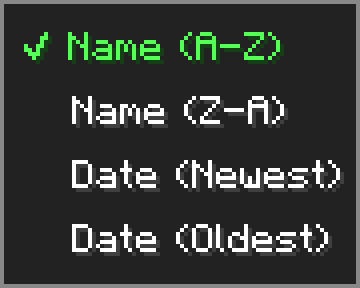
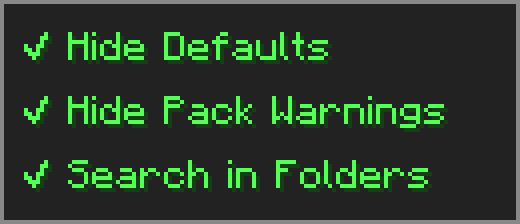
▫️NEW▫️Click the ≡ button next to "Open Pack Folder" to open the options menu.
⚠️ Essential — dragging packs from Available to Selected may behave unexpectedly — use the arrow button or shift+click instead.
➕ Resourcify — works great for browsing and installing packs directly in-game.
Project description from Modrinth.
Pick your setup
Choose the version and loader you play, then open the matching release.
Check the dependencies, then try the file in a copied instance before changing a world you care about.
Recent files
resource-tree-1.2.2+26.1.jar
6 May 2026
resource-tree-1.2.1+26.1.jar
6 Apr 2026
resource-tree-1.2+26.1.jar
6 Apr 2026
resource-tree-1.2+1.21.11.jar
5 Apr 2026
resource-tree-1.1.jar
29 Mar 2026
resource-tree-1.0.jar
9 Mar 2026
Looking for an older file? The official Modrinth project page is in Resources.
 mod
Adds functioning record players that can play 7" singles and 12" LPs containing music within the game.
 mod
Anyone is free to use this content to create and distribute videos. どなたでも自由に動画化・配信にご利用いただけます本MODは、実況者であるなぎすたんす様の敵味方クラフトシリーズにインスパイアされて制作いたしました※なぎすたんす様ご本人より、お名前の掲載およびインスパイア表記の許可をいただいております
 mod
Displays a list of materials and the chests in which they are located