Cloth Config API (Fabric/Forge/NeoForge) Needed by Chat Tools v2.4.3.1+26.2+neoforge
requiredMatching file found Matched file: [NeoForge 26.2] v26.2.155

CurseForge · Minecraft mod
Timestamp, translators, notifier, macros, chat bubbles, chat filter; everything you need is here!
Quick answer
Chat Tools v2.4.3.1+26.2+neoforge targets 26.2 with NeoForge. The project page does not say whether this file belongs on the client, dedicated server, or both. All 1 required mods have matching files.
Where it goes
The project page does not say whether this file belongs on the client, dedicated server, or both.
The source does not explicitly classify this release as client-only or server-only.
v2.4.3.1+26.2+neoforge on 26.2. Every mod below is checked against that same setup.
Install Cloth Config API (Fabric/Forge/NeoForge) first. We found matching files for this game-version and loader setup.
We only count dependency files that match this setup. A file for another loader does not fill the gap.
Before you install it
Built for Chat Tools v2.4.3.1+26.2+neoforge on 26.2. Pick another file and the loader, install side or required mods may change.
Use v2.4.3.1+26.2+neoforge. It targets 26.2 with NeoForge; another release may have different loader, side or dependency requirements.
Install Cloth Config API (Fabric/Forge/NeoForge) first. We found matching files for this game-version and loader setup.
The project page does not say whether this file belongs on the client, dedicated server, or both.
Use the “Get this file” button beside v2.4.3.1+26.2+neoforge. It opens that exact file at the source.
About this project
Feel free to make a PR on Github.
Chat Tools is a highly customizable Minecraft client mod that supports various features, allowing them to interoperate through commands and more.
matches() method for matching.find() method./chattools on - Enable the mod./chattools off - Disable the mod./chattools opengui - Open the configuration page./chattools download - Download addons./chattools regex_checker <pattern> [<test_content>] - Without test content: check if the pattern is a valid regex. With test content: validate the pattern and test if it matches the content./chattools send_to_client text <text_JSON_component> - Send specific text to the client chat bar./chattools send_to_client actionbar <text_JSON_component> - Display specific text on the client actionbar./chattools config openfile - Open the configuration file (editing requires a game restart to apply changes)./chattools config get <key> - Retrieve the value of a specific configuration key for the current session./chattools config set <key> <value> [<save>] - Set the value of a specific configuration key. If save is set to true, the changes will also be saved to the file./chattools config toggle <key> [<save>] - Toggle the state of a boolean-type configuration key. If save is set to true, the changes will also be saved to the file.For elaborate descriptions and examples, please see >>FAQ<<.
These are the core settings for Chat Tools:

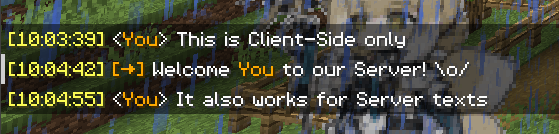
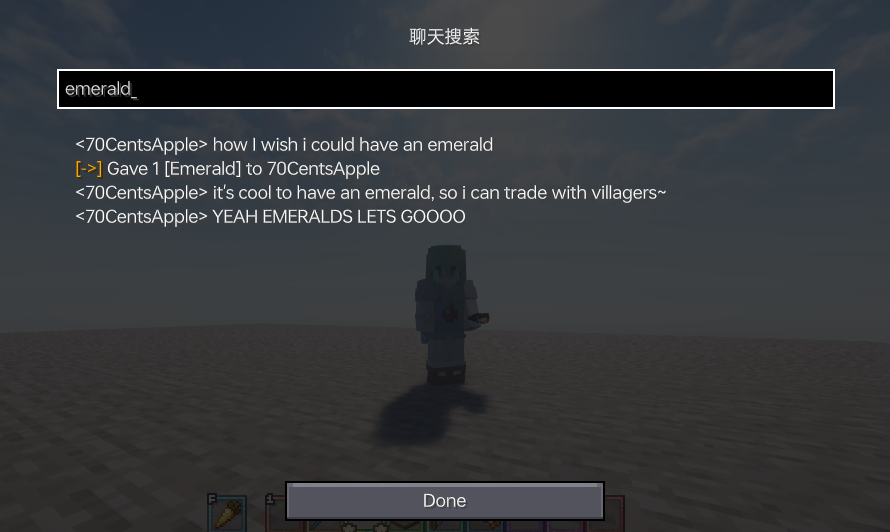

Various chat alert features:

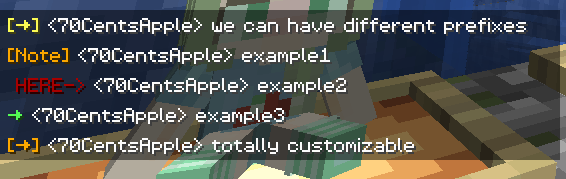
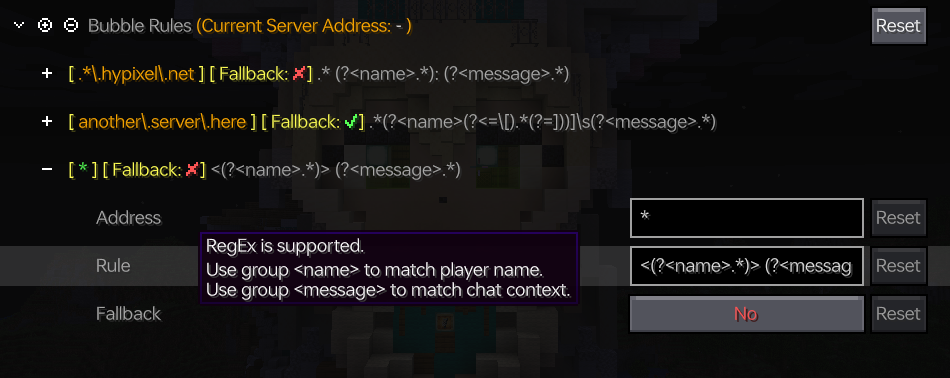
Customize your messages using specified patterns. Apply different rules for different servers. See Bubble Rules.
&e{text} makes your message gold on servers supporting the color prefix '&'.\ &e{text} ~(ovo)~ adds a personalized suffix.\ My coordinates are: {pos} replaces {pos} with your current coordinates.all when selling items to the Chest Shop; \ Commands starting with special characters. \ The default RegEx pattern ^\d+$|^[.#%$/].*|\ball\b covers most cases.\ You can modify or add more as needed.Use hotkeys for frequently used commands:
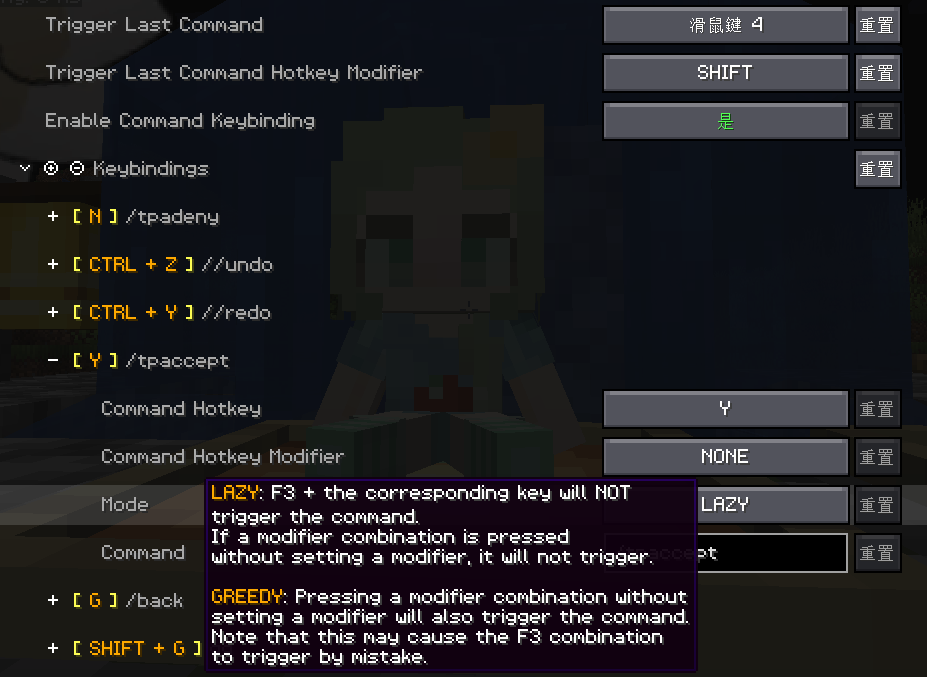

> Warning: Before using this feature on a server, please check with other players and admins first!
Project description from CurseForge.
Pick your setup
Choose the version and loader you play, then open the matching release.
Showing the newest 12 of 39 game versions. Older files are in the list below.
Check the dependencies, then try the file in a copied instance before changing a world you care about.
Recent files
chattools-v2.4.3.1-lite+26.2-neoforge.jar
8 Jul 2026
chattools-v2.4.3.1+26.2-neoforge.jar
8 Jul 2026
chattools-v2.4.3.1-lite+26.2-fabric.jar
8 Jul 2026
chattools-v2.4.3.1+26.2-fabric.jar
8 Jul 2026
chattools-v2.4.3-lite+26.2-neoforge.jar
18 Jun 2026
chattools-v2.4.3+26.2-neoforge.jar
18 Jun 2026
chattools-v2.4.3-lite+26.2-fabric.jar
18 Jun 2026
chattools-v2.4.3+26.2-fabric.jar
18 Jun 2026
Looking for an older file? The official CurseForge project page is in Resources.
 mod
modRight Click a Shelf and it lower's its items to the bottom.
 mod
modHides Hypixel lobby join messages.
 mod
modHide any toast, selectively disable toast sounds, and take full control over Minecraft's notifications with an extensive and highly configurable client-side mod.