Minecraft version
Back to mods 
Modrinth · Minecraft mod
Sound Culling
Dynamically limits and dampens overlapping sounds to reduce audio clutter and improve performance in sound-heavy areas.
Choose a version Pick your version below, then grab the matching file.
Quick answer
Which Sound Culling release should I use?
Latest stable file 2.1.0
Game version 1.21.1
Loader NeoForge
Sound Culling 2.1.0 targets 1.21.1 with NeoForge. It must be installed on the client. Do not install it on the dedicated server. No extra mods listed for this file.
Where it goes
Is Sound Culling required on the client, server, or both?
It must be installed on the client. Do not install it on the dedicated server.
Client Required
Dedicated server Not supported
Loader for this release NeoForge
Required install it here Optional supported, not mandatory Not supported do not install here Source doesn’t say do not assume
This file is marked client-only.
What else does Sound Culling 2.1.0 need?
2.1.0. Change the file and its required mods may change too.
This file does not list any required mods. Do not add a library just because a different file uses it.
This file does not list any required or optional mods.
Before you install it
Add Sound Culling without breaking your instance.
Built for Sound Culling 2.1.0. Pick another file and the loader, install side or required mods may change.
- 01
Stick to this file
Use 2.1.0. It targets 1.21.1 with NeoForge; another release may have different loader, side or dependency requirements.
- 02
Bring the mods it needs
This file does not list any required mods. Do not add a library just because a different file uses it.
- 03
Put it on the correct side
It must be installed on the client. Do not install it on the dedicated server.
- 04
Pick the file you checked
Use the “Get this file” button beside 2.1.0. It opens that exact file at the source.
About this project
What does Sound Culling add?
Sound Culling
Sound Culling is a client-side Minecraft mod that reduces repetitive sounds in
busy areas such as farms, spawner rooms and machinery. It can lower a sound's
volume or prevent it from starting when nearby sound activity exceeds the
configured limits.
The mod tracks recent sound events by location and source. Each decision can
consider repetition, regional activity, sound category, distance, direction and
the current event rate. A single noisy source has a limited contribution to the
shared regional count, while repeated sounds from that source are still detected.
Sound Culling only changes client audio. It does not alter entities, blocks,
gameplay or server behaviour, and it does not need to be installed on the server.
Features
- Rejects excessive sounds before they start an audio channel.
- Dampens sounds when full rejection is unnecessary.
- Adjusts limits as the overall sound event rate rises.
- Tracks nearby cells to avoid sharp changes at region boundaries.
- Limits the influence of one source on the regional sound budget.
- Re-evaluates looping and tickable sounds with gradual volume changes.
- Gives player feedback sounds additional protection during ordinary culling.
- Supports exact sound IDs, wildcard patterns and full mod namespaces.
- Shows recent sounds, event counts and session statistics in-game.
- Includes Balanced, Performance, Aggressive and Custom presets.
- Allows playback to continue when sound evaluation encounters a compatible
runtime error.
Music and relative sounds, including interface audio, are excluded. Sounds that
Minecraft already considers outside their audible range are not added to the
tracker.
Configuration
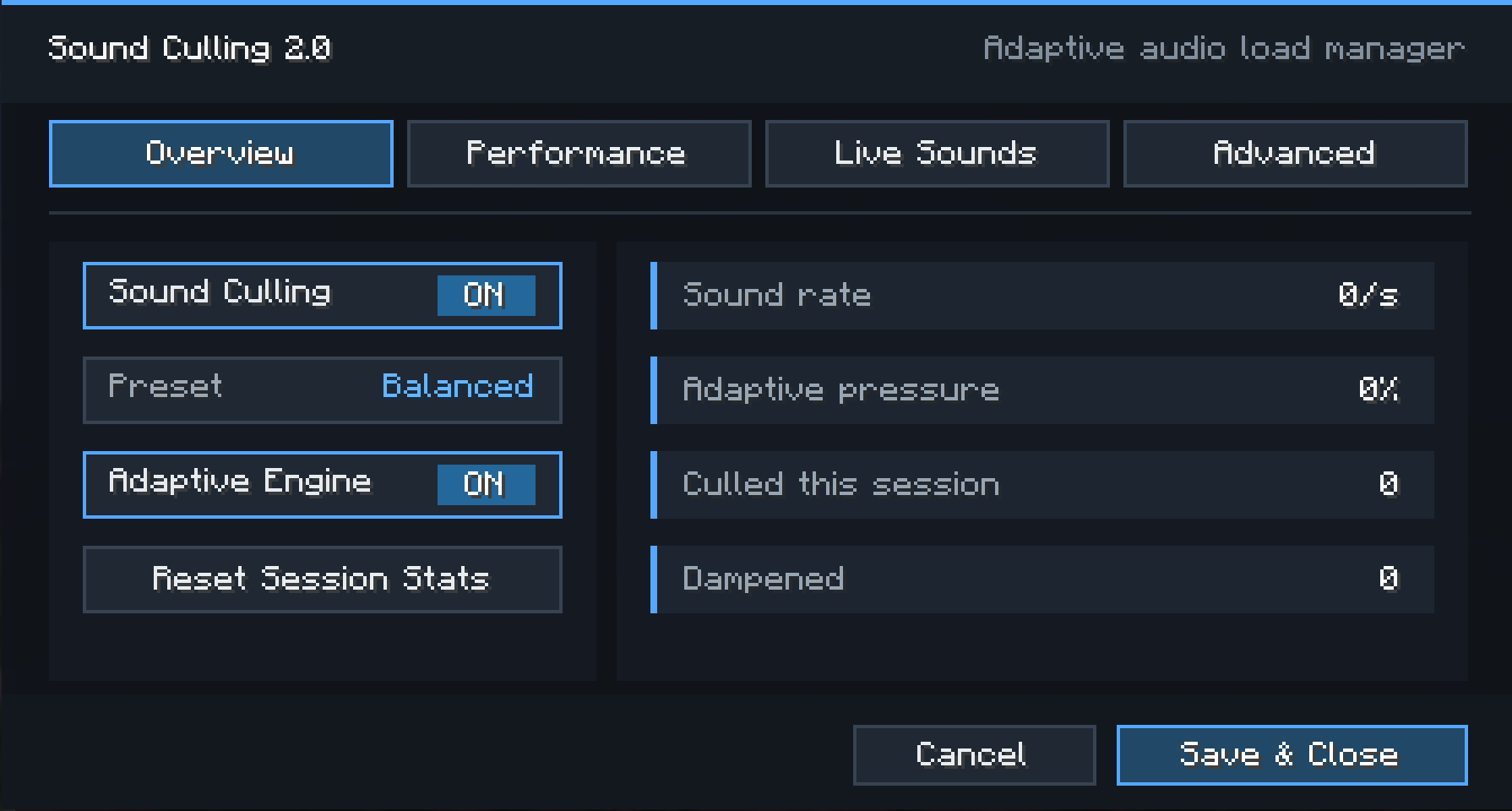
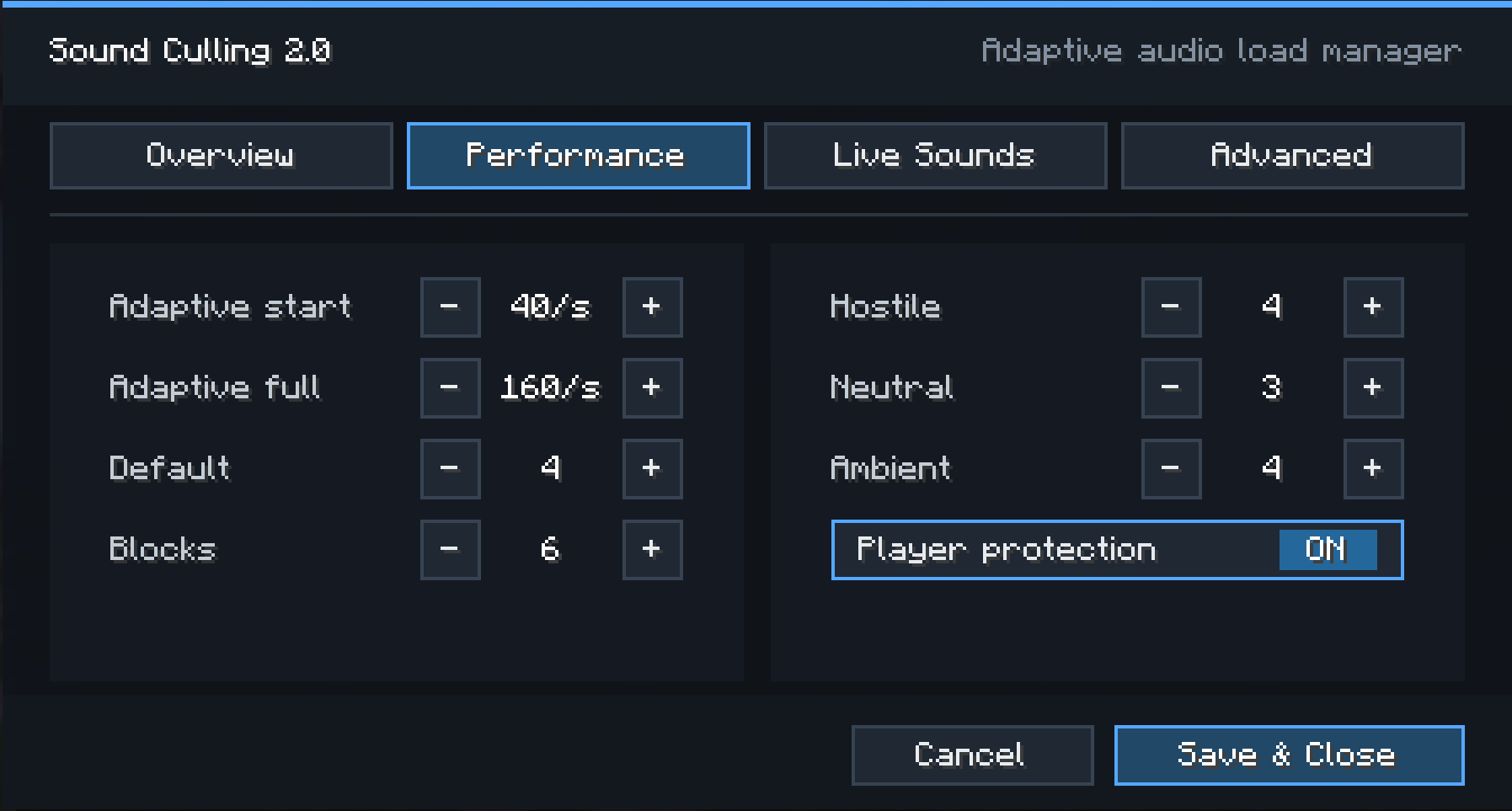
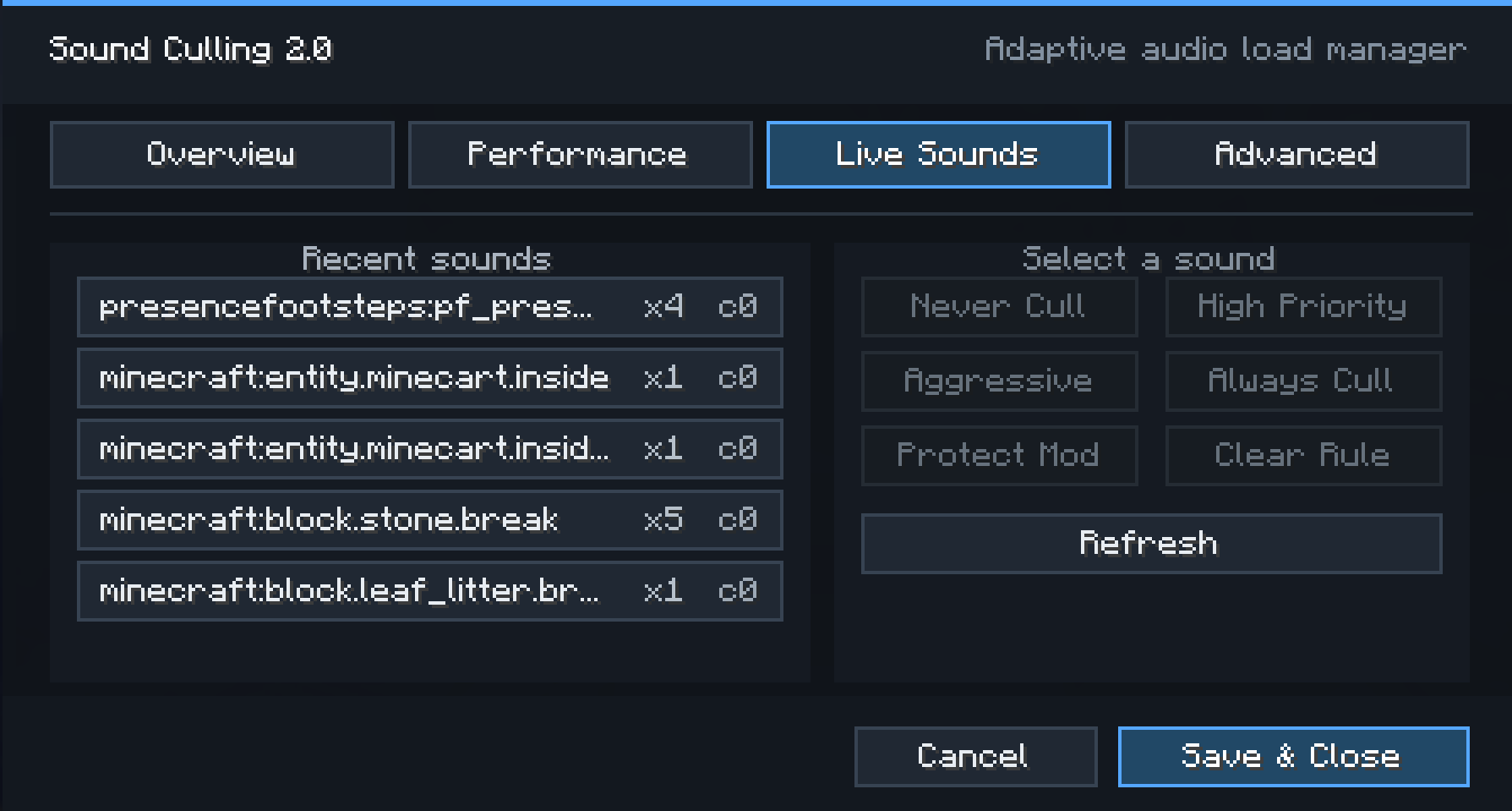
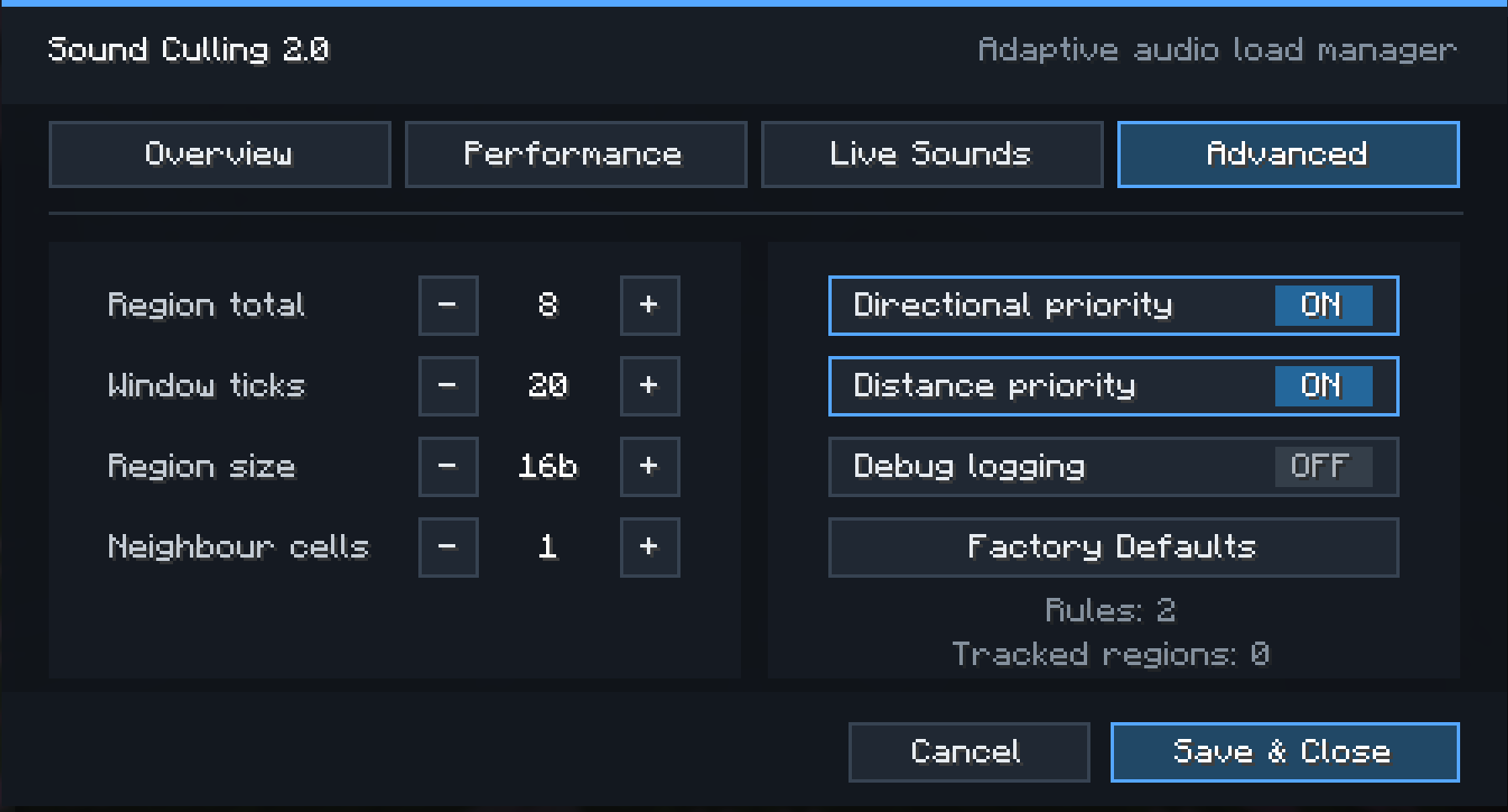
Install Mod Menu to open the four-page settings screen:
- Overview contains the main toggle, presets and session statistics.
- Performance contains adaptive thresholds and category limits.
- Live Sounds lists recent sound IDs and provides rule actions.
- Advanced contains spatial tracking, priority and logging options.
The screen does not pause a single-player world, so sound statistics continue to
update while it is open. Use Save & Close to apply changes. Cancel
discards pending settings edits.
Settings are stored in:
config/soundculling.json
Older configuration files are migrated where possible. Invalid numeric values
are restricted to supported ranges. If the file cannot be loaded, the mod uses
and saves its default settings.
Presets
| Preset | Purpose |
|---|---|
| Balanced | A starting point for ordinary play. |
| Performance | Lower limits and earlier adaptive pressure for busy areas. |
| Aggressive | Tighter limits for sustained sound spam. |
| Custom | Used after individual limits are changed. |
Presets adjust category limits, the regional limit and adaptive thresholds.
They do not remove custom sound rules.
Sound rules
Rules can protect a sound, raise or lower its priority, or prevent it from
starting. Select a sound on the Live Sounds page to create a rule without editing
the JSON file. Protect Mod creates a namespace-wide protection rule.
Available rule actions:
| Action | Effect |
|---|---|
NEVER_CULL |
Excludes the matching sound from Sound Culling decisions. |
CRITICAL |
Applies the highest priority multiplier. |
HIGH |
Raises priority under load. |
NORMAL |
Uses the normal priority calculation. |
AGGRESSIVE |
Lowers priority. |
ALWAYS_CULL |
Rejects new starts and fades tracked loops toward zero. |
Patterns are case-insensitive and support * as a wildcard:
minecraft:block.piston.*
bettercombat:*
presencefootsteps:*
When several rules match, the last matching rule takes precedence. Exact IDs in
the legacy whitelistedSounds list take precedence over rules, includingALWAYS_CULL.
Commands
Sound Culling provides client-side commands that do not require server operator
permissions:
/soundculling
/soundculling toggle
/soundculling preset balanced
/soundculling preset performance
/soundculling preset aggressive
/soundculling limit <1-50>
/soundculling total <1-100>
/soundculling reset
The base command shows the current preset, event rate, adaptive pressure and
session counts. Setting commands apply and save immediately. The reset command
clears session statistics and recent sound history; it does not clear rolling
activity used by current culling decisions.
Installation
- Install Fabric Loader and Fabric API for your Minecraft version.
- Download the Sound Culling file listed for that Minecraft version.
- Place the JAR in the instance's
modsfolder. - Install Mod Menu if you want access to the settings screen from the Mods menu.
Minecraft version groups use separate builds, even when their JAR names are
similar. Check the supported version shown on the individual download file.
Sound Culling 2.0 is available for Fabric. Older files for Fabric, Forge and
NeoForge may use the earlier engine and may not include the Live Sounds page,
adaptive pressure, wildcard rules or persistent loop management.
Modpacks
Sound Culling may be included in modpacks. It is client-side and distributed
under the MIT License. A pack can use presets and rules to tune behaviour for its
sound-producing mods. If a mod uses an unusual playback path, test its one-shot
and looping sounds before publishing the pack configuration.
Reporting problems
Report issues at GitHub and
include:
- Minecraft, loader, Fabric API and Sound Culling versions.
- The downloaded file name.
- Steps to reproduce the problem.
- Other mods that change sound playback.
logs/latest.logand the crash report, if one exists.
For missing audio, also include the sound ID if known, any matching rules and
whether the sound is a one-shot or a persistent loop.
Sound Culling is licensed under the MIT License.
Project description from Modrinth.
Pick your setup
Sound Culling by Minecraft version and loader
Choose the version and loader you play, then open the matching release.
Minecraft version
26.2
3 loader buildsMinecraft version
26.1.2
3 loader buildsMinecraft version
26.1.1
3 loader buildsMinecraft version
26.1
3 loader buildsMinecraft version
1.21.11
3 loader buildsMinecraft version
1.21.10
2 loader buildsMinecraft version
1.21.9
2 loader buildsMinecraft version
1.21.8
2 loader buildsMinecraft version
1.21.7
2 loader buildsMinecraft version
1.21.6
2 loader buildsMinecraft version
1.21.5
3 loader buildsShowing the newest 12 of 22 game versions. Older files are in the list below.
Check the dependencies, then try the file in a copied instance before changing a world you care about.
Recent files
Sound Culling versions and loaders
2.1.0
soundculling-2.1.0.jar
11 Oct 2026
Client Required Server Not supported Dependencies No extras listed Listed on Release listing
Check the 1.21.1 · NeoForge setup 1.21.1NeoForge release
2.1.0
soundculling-2.1.0.jar
9 Oct 2026
Client Required Server Not supported Dependencies 1 required · 1 unchecked Listed on Release listing
Check the 26.3 · Fabric setup 26.3Fabric release
2.1.0
soundculling-2.1.0.jar
9 Oct 2026
Client Required Server Not supported Dependencies No extras listed Listed on Release listing
Check the 26.2 · Fabric setup 26.2Fabric release
2.0.1
soundculling-2.0.1.jar
16 Sept 2026
Client Required Server Not supported Dependencies 1 required · 1 unchecked Listed on Release listing
Check the 26.3 · Fabric setup 26.3Fabric release
2.0.1
soundculling-2.0.1.jar
11 Sept 2026
Client Required Server Not supported Dependencies No extras listed Listed on Release listing
Check the 26.2 · Fabric setup 26.2Fabric release
2.0.0
soundculling-2.0.0-fabric-1.21.11.jar
29 Aug 2026
Client Required Server Not supported Dependencies 1 required · 1 unchecked Listed on Release listing
Check the 1.21.11 · Fabric setup 1.21.11Fabric release
2.0.0
soundculling-2.0.0-fabric-1.21.6-1.21.10.jar
29 Aug 2026
Client Required Server Not supported Dependencies No extras listed Listed on Release listing
Check the 1.21.10 · Fabric setup 1.21.61.21.71.21.81.21.9 release
2.0.0
soundculling-2.0.0-fabric-1.21-1.21.5.jar
29 Aug 2026
Client Required Server Not supported Dependencies 1 required · 1 unchecked Listed on Release listing
Check the 1.21.5 · Fabric setup 1.211.21.11.21.21.21.3 release
2.0.0
soundculling-2.0.0.jar
28 Aug 2026
Client Required Server Not supported Dependencies No extras listed Listed on Release listing
Check the 26.2 · Fabric setup 26.2Fabric release
2.0.0
soundculling-2.0.0.jar
27 Aug 2026
Client Required Server Not supported Dependencies 1 required · 1 unchecked Listed on Release listing
Check the 26.1.2 · Fabric setup 26.126.1.126.1.2Fabric release
1.0.1
soundculling-1.0.1.jar
12 Aug 2026
Client Required Server Not supported Dependencies No extras listed Listed on Release listing
Check the 1.20.4 · Forge setup 1.20.11.20.21.20.31.20.4 release
1.0.2
soundculling-1.0.2.jar
18 Jul 2026
Client Required Server Not supported Dependencies No extras listed Listed on Release listing
Check the 26.2 · Fabric setup 26.2Fabric release
Looking for an older file? The official Modrinth project page is in Resources.
 mod
mod CurseForge + Modrinth · Minecraft
CrankShaft
A port of Flywheel+Vanillin to 26.2
 mod
mod CurseForge + Modrinth · Minecraft
Polymer
Library for creating better server side content!
 mod
mod GitHub · Minecraft
modpacks-ch-github-test
Disposable public fixture for testing the Modpacks.ch GitHub catalogue flow