Fabric API Needed by DevTools 1.0.1.4
requiredMatching file found Matched file: [1.16.2] Fabric API 0.20.1 build 401

Modrinth · Minecraft mod
A utility mod, that enables you to select different parts of your world and see information about them and debug them.
Quick answer
DevTools 1.0.1.4 targets 1.16.5, 1.16.4, 1.16.3 with Fabric. It must be installed on the client. Do not install it on the dedicated server. All 1 required mods have matching files.
Where it goes
It must be installed on the client. Do not install it on the dedicated server.
This file is marked client-only.
1.0.1.4 on 1.16.2 Fabric. Every mod below is checked against that same setup.
Install Fabric API first. We found matching files for this game-version and loader setup.
We only count dependency files that match this setup. A file for another loader does not fill the gap.
Before you install it
Built for DevTools 1.0.1.4 on 1.16.2 Fabric. Pick another file and the loader, install side or required mods may change.
Use 1.0.1.4. It targets 1.16.5, 1.16.4, 1.16.3 with Fabric; another release may have different loader, side or dependency requirements.
Install Fabric API first. We found matching files for this game-version and loader setup.
It must be installed on the client. Do not install it on the dedicated server.
Use the “Get this file” button beside 1.0.1.4. It opens that exact file at the source.
About this project

DevTools is a client-side Fabric mod for Minecraft 1.14.4 through 26.3 that adds a powerful Inspect mode to your game. By freezing your movement and unlocking your cursor, you can point at blocks, fluids, dropped items, and entities to read rich, debug-style data directly on your screen.
It features customizable layouts, deep NBT-style data dumps, a registry browser (blocks, biomes, structures and entities), side-by-side Compare mode, biome coverage estimates, and clipboard copying.
| Requirement | Version / Constraint | Notes |
|---|---|---|
| Minecraft | 1.14.4 – 26.3 |
Available for 1.14.4, 1.15.2, 1.16.5, 1.17.1/1.18.x, 1.19.4, 1.20.4, 1.21.5, 26.1, 26.2 and 26.3. |
| Mod Loader | Fabric Loader >=0.14.21 |
Newer minimums apply on newer versions (1.20: 0.15.11, 1.21: 0.19.2, 26.1: 0.18.6, 26.2: 0.19.3, 26.3: 0.20.1). Client-side only. Safe to leave in your mods folder when joining servers. |
| Fabric API | Required — match your game version | The mod uses the keybinding, lifecycle, networking and rendering modules, so it will not load without Fabric API. |
| Release | 1.0.1.4 |
Same release for every supported Minecraft version. |
| Quilt | QFAPI |
Supported on Quilt Loader in the 1.18.2 – 1.20.1 range. |
mods folder.When you turn Inspect mode on, the game adjusts your interactions so you can focus on the environment data.
| Feature | Behaviour |
|---|---|
| Movement | You stay completely still. Movement is suppressed so you do not accidentally walk away from your inspection point. |
| Mouse Freedom | Your cursor is unlocked. Vanilla left-click does not punch blocks or attack; it is used exclusively for selecting targets. |
| Smart Raycasting | The mod picks targets based on camera + cursor. You can target blocks, flowing fluids, item entities on the ground, XP orbs, and mobs. |
| World Outlines | A thin outline shows what you are hovering over. A thicker, brighter outline shows what you have selected. |
| Scrolling | Use your mouse wheel over the info panel, search results, detail window or compare list to scroll through long text. |
| Registry Search | Search blocks, biomes, structures and entities at once; results are grouped by category and open in the detail window. |
| Detail Window | The ↗ Expand window button opens a large window with the complete dump and its own attribute filter. |
| Compare Mode | With a target selected, press Ctrl+C to open a comparison browser and pick a second block to compare against. |
All keys can be remapped under Controls -> DevTools. The info panel always displays the actual names of the keys you have currently bound.
| Action | Default Key | Description |
|---|---|---|
| Toggle Inspect | F6 |
Turns Inspect mode on and off. |
| Select Target | Left Mouse |
Locks the HUD onto the hovered block/entity. Click the same target again to deselect. |
| More Info | M |
Toggles the detailed NBT/data dump. |
| Free Player | Hold L-Alt |
Restores movement and camera while keeping Inspect on. |
| Copy Value | Ctrl + Click |
Click any line in the HUD to copy its value to your clipboard. |
| Copy Popup | Ctrl + Shift + Click |
Opens a cursor popup with Copy Key, Copy Value and Copy Line. |
| Compare Mode | Ctrl + C |
With a selection, opens the compare browser. |
If you hold Left Alt, you temporarily get your movement and camera controls back. Raycast updates are frozen, so the outlines stay fixed to your last targets, and the HUD becomes transparent so you can see the world.
Opening any fullscreen menu (for example the Pause or Inventory screen) suspends and freezes raycasting and its updates, so you won't mess up your selection.
The HUD is designed to provide immediate summary data, with the option to expand into detailed categories.
M opens a categorized text dump. Default category order: Source, Item Form, State Properties, Block Data, BlockEntity, Environment, Type, Identity, State, Living, Equipment, Effects, Mob, Raw NBT.Estimated coverage line (see below).true / false lines are coloured distinctly for quick scanning.The search box covers four categories:
| Category | Results shown | Limit | Icon |
|---|---|---|---|
| Blocks | Every matching block that has an item form | unlimited | Block item icon |
| Biomes | Matching biomes | 5 | Generated biome sprite |
| Structures | Matching structures | 5 | Structure icon |
| Entities | Matching entity types | unlimited | Spawn egg icon |
Results are grouped under collapsible category headers with a match count. Matching is case-insensitive against both the registry ID and the display name; _, / and spaces count as word boundaries, multi-word queries require every word to match, and also one typo is tolerated for words of four or more characters (acient -> ancient). Click an entry to open its detail window. The detail window's own search field filters the displayed attributes; the compare window has a separate block search.
| Versions | How it is computed |
|---|---|
| 1.19+ | Exact share of the vanilla multi-noise overworld climate preset. |
| 1.14 – 1.18 | World generation is layer-based, so the mod samples an independent copy of the overworld biome source across the whole world in the background. A measuring… percentage is shown until the result is ready. |
| Multiplayer | n/a — the client has no access to the server's biome source. |
The result is specific to the current world seed.
Options -> DevTools… opens the settings menu. The button is placed under the FOV slider, in the middle.
| Button | Opens |
|---|---|
| HUD | Submenu for Colours and Preferences |
| Keybinds | Vanilla Key Bindings screen |
| Layout | Panel corner positioning and category ordering |
devtools.properties)Location: .minecraft/config/devtools.properties
| Key | Type | Purpose |
|---|---|---|
tutorialSeen |
true / false |
Tutorial already shown / skipped forever |
hud.color.<name> |
8 hex digits AARRGGBB |
HUD colour overrides (see table below) |
pref.<key> |
true / false |
Per-line / per-section HUD preference |
layout.position |
TOP_LEFT, TOP_RIGHT, BOTTOM_LEFT, BOTTOM_RIGHT |
Inspector panel corner |
layout.categoryOrder |
Comma-separated names | Custom More info category order |
Each line has a colour square, a hex code field, a copy button, and a reset button. Clicking the square opens a colour picker with Hue, Saturation, and Brightness sliders.
hud.color.*)| Config suffix | UI label | Role |
|---|---|---|
bg |
Background | Panel fill |
borderTop |
Border (top) | Top accent line |
headerBg |
Header background | Header band |
header |
Header label | “HOVERING” / “SELECTED” text |
category |
Category label | Section titles in dumps |
key |
Property key | Text before : |
value |
Property value | Text after : |
dim |
Dim text | Hints / secondary lines |
scrollbar |
Scrollbar track | Scroll gutter |
scrollThumb |
Scrollbar thumb | Scroll handle |
boolTrue |
True value | Boolean badge / styling |
boolFalse |
False value | Boolean badge / styling |
(Note: Item rarity colours are strictly tied to vanilla and are not configurable here).
You can toggle exactly which lines show up. The top row, All Preferences, sets every other box on or off together.
| Key | Label |
|---|---|
pref.showIcon |
Show icon |
pref.showId |
Show identifier |
| Key | Label |
|---|---|
pref.block.source |
Source mod |
pref.block.destroyTime |
destroyTime |
pref.block.resistance |
resistance |
pref.block.lightEmit |
lightEmit |
pref.block.lightDamp |
lightDamp |
pref.block.friction |
friction |
pref.block.speedFactor |
speedFactor |
pref.block.jumpFactor |
jumpFactor |
pref.block.isSolid |
isSolid |
pref.block.isAir |
isAir |
pref.block.liquid |
liquid |
pref.block.blocksMotion |
blocksMotion |
pref.block.canOcclude |
canOcclude |
pref.block.redstone |
redstone |
pref.block.randomTick |
randomTick |
pref.block.ignitedByLava |
ignitedByLava |
pref.block.stateProps |
State properties |
pref.block.blockEntity |
Block entity NBT |
pref.block.environment |
Environment (biome/light) |
| Key | Label |
|---|---|
pref.entity.source |
Source mod |
pref.entity.category |
category |
pref.entity.dimensions |
dimensions |
pref.entity.fireImmune |
fireImmune |
pref.entity.uuid |
UUID |
pref.entity.customName |
customName |
pref.entity.tags |
tags |
pref.entity.onGround |
onGround |
pref.entity.invulnerable |
invulnerable |
pref.entity.silent |
silent |
pref.entity.glowing |
glowing |
pref.entity.noGravity |
noGravity |
pref.entity.frozen |
frozen |
pref.entity.inWater |
inWater |
pref.entity.onFire |
onFire |
pref.entity.HP |
HP |
pref.entity.armor |
armor |
pref.entity.isBaby |
isBaby |
pref.entity.effects |
Active effects |
pref.entity.equipment |
Equipment |
pref.entity.noAI |
noAI |
pref.entity.persistent |
persistent |
pref.entity.leftHanded |
leftHanded |
pref.entity.target |
target |
pref.entity.owner |
owner |
pref.entity.rawNbt |
Raw NBT |
| Control | Cycles through |
|---|---|
| Window position | Top Left -> Top Right -> Bottom Left -> Bottom Right |
| Ordering | Default, then “ First” for each known category. |
Remember to press Save on the Colours, Preferences, and Layout screens to keep your changes.
Older clients do not expose every data point. Instead of dropping lines, the mod shows a dim (unavailable on …) note:
| Data point | First available |
|---|---|
speedFactor, jumpFactor, suffocating, requiresTool per block |
1.15+ |
| Biome tags | 1.16+ |
| Datapack structure codec, jigsaw details, per-structure tags | 1.16+ / 1.17+ |
| Beehive block entity dump | 1.15+ |
| Ambient and music biome sounds | 1.16+ |
| Multi-noise climate parameters, raw biome JSON | 1.16+ |
| Biome fog, particles and colour overrides | 1.15+ |
| Exact biome coverage from the climate preset | 1.19+ |
Data that exists only server-side (tick cost, block update history, per-chunk batch statistics) is shown as requires server debug, because a client-only mod cannot read it.
DevTools is released under the MIT License.
Project description from Modrinth.
Pick your setup
Choose the version and loader you play, then open the matching release.
Showing the newest 12 of 48 game versions. Older files are in the list below.
Check the dependencies, then try the file in a copied instance before changing a world you care about.
Recent files
devtools-1.0.1.jar
4 Nov 2026
Looking for an older file? The official Modrinth project page is in Resources.
 mod
Adds the waterlogged property to redstone components: dust, torches, repeaters, comparators, levers, buttons and pressure plates.
 mod
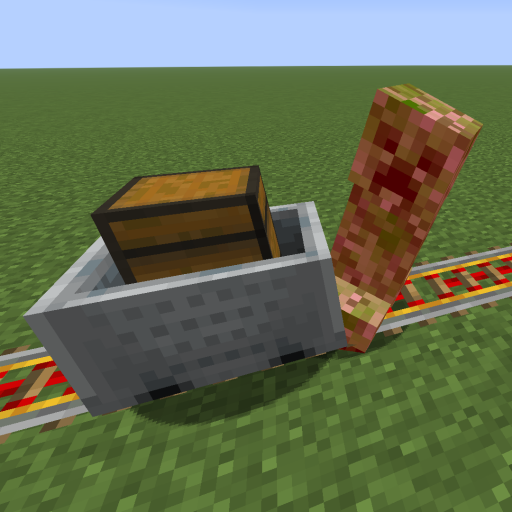
This mod increases damage to moving minecarts; the faster they move, the higher the damage, with virtually no damage limit!
 mod
Don’t mess with the server Play Minecraft with your friends in 2 clicks via P2P