Hytale version
Back to mods 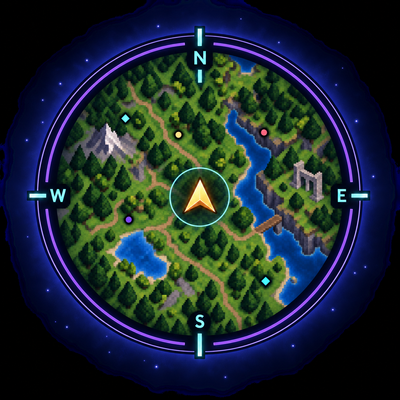
CurseForge · Hytale mod
DapperMap
A lightweight, sophisticated and fully configurable Hytale minimap.
Choose a version Pick your version below, then grab the matching file.
Quick answer
Which DapperMap release should I use?
Latest stable file DapperMap-3.0.1.jar
Game version 0.6
Mod system Built-in Hytale mod system
DapperMap-3.0.1.jar targets 0.6. Do not install it as a separate client mod. Enable it on the world host—the local server in singleplayer or the dedicated server in multiplayer. No required dependencies listed for this file.
Where it goes
Where should DapperMap be installed in Hytale?
Do not install it as a separate client mod. Enable it on the world host—the local server in singleplayer or the dedicated server in multiplayer.
Separate client mod Not supported
World host / dedicated server Required
Mod system for this release Built-in Hytale mod system
Required install it here Optional supported, not mandatory Not supported do not install here Source doesn’t say do not assume
Put Hytale mods on the world host or dedicated server. Singleplayer runs a local server too; Hytale does not use separate client mods.
What else does DapperMap-3.0.1.jar need?
DapperMap-3.0.1.jar. Change the file and its required mods may change too.
This file does not list any required mods. Do not add a library just because a different file uses it.
This file does not list any required or optional project dependencies. Check the creator notes before changing an existing world.
Before you install it
Add DapperMap without breaking your instance.
Built for DapperMap-3.0.1.jar. Pick another file and the loader, install side or required mods may change.
- 01
Stick to this file
Use DapperMap-3.0.1.jar. It targets 0.6; another release may target a different game build or dependency set.
- 02
Bring the mods it needs
This file does not list any required mods. Do not add a library just because a different file uses it.
- 03
Enable it on the world host
Do not install it as a separate client mod. Enable it on the world host—the local server in singleplayer or the dedicated server in multiplayer.
- 04
Pick the file you checked
Use the “Get this file” button beside DapperMap-3.0.1.jar. It opens that exact file at the source.
About this project
What does DapperMap add?
DapperMap
A lightweight, sophisticated and fully configurable Hytale minimap.
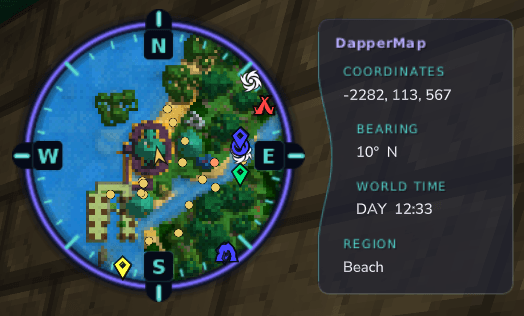
DapperMap adds a live minimap to the Hytale HUD. It combines nearby terrain, a directional player locator, configurable markers and useful world information in one compact display. Players can tailor the minimap display through an in-game settings interface or commands, while server administrators can control the defaults and decide which options players may change.
Highlights
- Live terrain minimap generated from Hytale world-map data
- Circular and square map styles
- North-up or player-facing rotation
- Adjustable zoom, map size, interface scale and texture resolution
- Freely positionable HUD with a movable information panel
- Player, creature, death and world-map markers
- Optional BetterMap waypoint integration
- Coordinates, bearing, world time and biome readouts
- Fully configurable colours for the frame, text and marker categories
- Per-player settings with persistent storage
- Server-defined defaults for new and uncustomised players
- Permission-aware settings: blocked controls are disabled and greyed out
- Separate player and administrator command branches
Integrations
Dappermap supports integration with the following mods:
- BetterMap - DapperMap will display markers generated by BetterMap.
- LuckPerms - The DapperMap permission structure supports configuration by LuckPerms.
Using DapperMap
The minimap can be controlled in two ways:
- Run
/dappermap settingsto use the in-game settings interface. - Use the individual
/dappermapcommands for direct changes.
Commands can also be written as /minimap, /mm or /dm.
Running any base DaperMap command ( e.g. /dappermap) without any subcommand toggles the minimap on and off.
Features
Live terrain map
DapperMap renders the terrain around the player using Hytale's native world-map information. The map pans as the player moves and refreshes the terrain when the surrounding map data changes.
Players can configure:
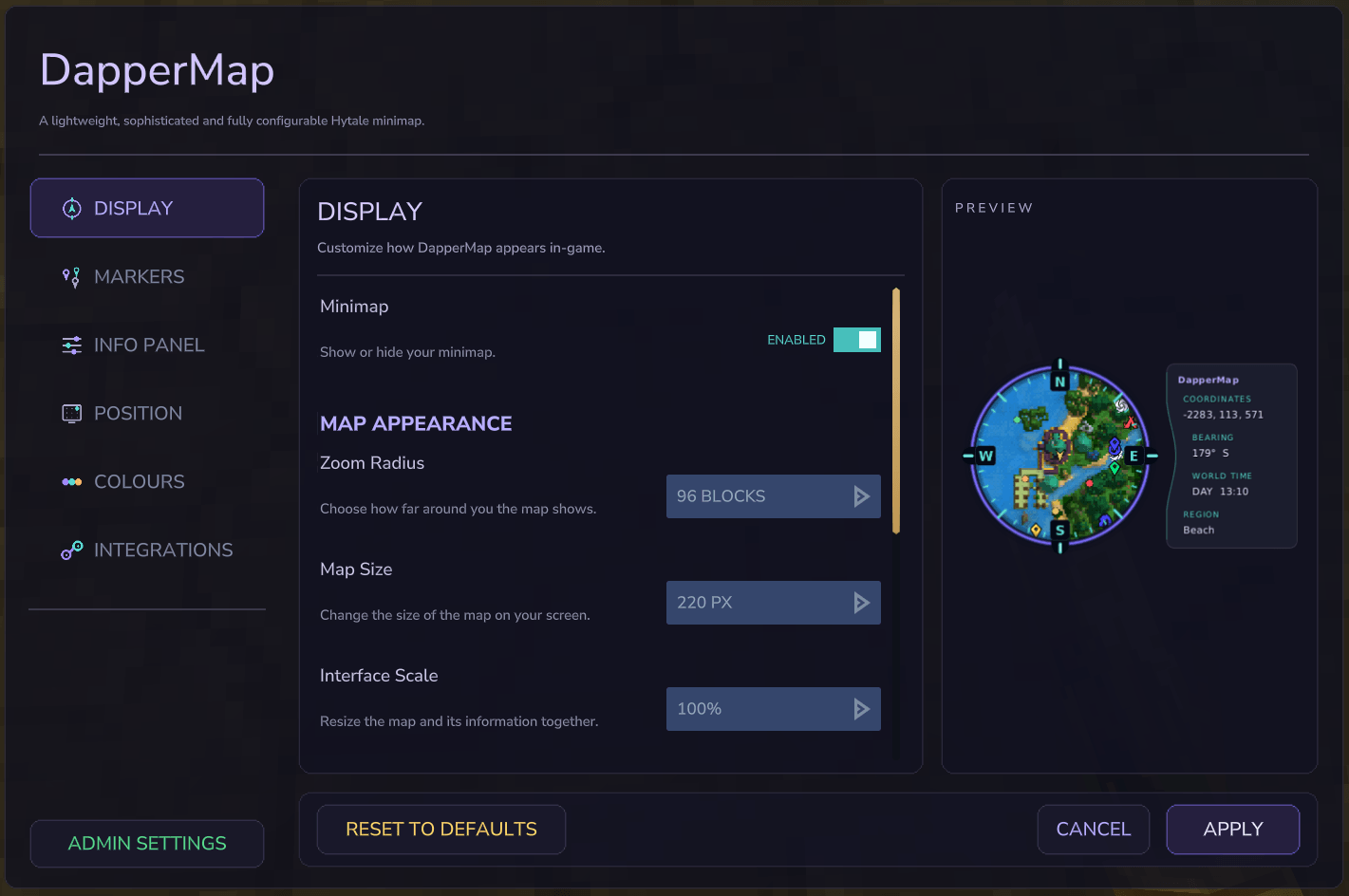
- Zoom radius: Controls how many blocks around the player are visible, from 16 to 256 blocks.
- Map size: Changes the on-screen map size from 120 to 360 pixels.
- Texture resolution: Changes the internal rendered texture resolution from 256 to 1024 pixels. Higher values produce more detail but require more processing and network delivery.
- Interface scale: Scales the complete map and information display from 75% to 160% without changing the world area being shown.
- Map shape: Selects a circular or square minimap.
Rotation and compass
DapperMap supports two orientation modes:
- North up: North remains at the top while the player locator rotates.
- Player facing: The map rotates with the player's view so the forward direction remains at the top.
The optional compass readout shows the player's current bearing and facing direction.
Update speed
Four update-speed profiles are available:
| Profile | Map panning | Markers | Terrain checks | Terrain refresh |
|---|---|---|---|---|
| Very Fast | 40 ms | 50 ms | 150 ms | 300 ms |
| Fast | 75 ms | 100 ms | 300 ms | 600 ms |
| Normal | 150 ms | 250 ms | 750 ms | 1,200 ms |
| Slow | 300 ms | 500 ms | 1,500 ms | 2,500 ms |
Faster profiles make movement and markers feel more responsive, but can take a toll on server performance if being used by many players. Slower profiles reduce how often the server checks and redraws minimap content.
HUD positioning and information panel
The complete minimap can be positioned horizontally and vertically anywhere from 0% to 100% of the available screen area. The settings page provides quick placement controls as well as fine adjustment sliders.
The information panel can appear above, below, left or right of the map. Its text can be aligned left, centre or right.
Individual information rows can be enabled or disabled:
- Coordinates: Current world coordinates
- Bearing: Compass bearing and facing direction
- World time: Current Hytale world time in 12-hour or 24-hour format
- Region: Current biome or region name
Player and creature markers
DapperMap can show nearby players and creatures as colour-coded markers. Creature markers distinguish between:
- Creatures actively attacking the player
- Other hostile creatures
- Neutral or retreating creatures
- Friendly creatures
The number of visible creature markers is selectable as 16 (default), 32 or 64. Player and integration markers do not use this creature limit.
Creature height detection can hide entities that are too far above or below the player. The vertical range is configurable from 4 to 256 blocks.
Death marker
When enabled, DapperMap records and displays the player's most recent death location. This makes it easier to navigate back without repeatedly opening the full world map.
Hytale world-map markers
DapperMap can display supported markers from Hytale's native world map, including personal markers, shared markers, points of interest, spawn and respawn locations. Markers designed for edge tracking remain visible around the edge of the minimap when their location is outside the current view.
BetterMap integration
If BetterMap is installed and detected, DapperMap can display that player's BetterMap waypoints and waypoint icons. The integration can be enabled or disabled independently for each player or in the administrator defaults.
The master integration, waypoint-marker and cave-terrain switches are separate. Cave terrain additionally requires BetterMap cave mode to be active for the player.
BetterMap is optional. DapperMap remains fully functional without it.
Colour editor
The in-game colour editor provides a live preview and lets players customise:
- Map edge and compass ticks
- Panel border, heading and label colours
- DapperMap title and information text
- Player locator and other player markers
- Death marker
- Attacking, hostile, neutral and friendly creature markers
Colours may also be changed through commands using hexadecimal #RRGGBB values or decimal RGB channels.
In-game settings interface
The settings interface is divided into Display, Markers, Interface, Position and Colours sections. Changes can be previewed before they are applied.
If a player lacks permission for a setting, that control is disabled and displays Permission denied. Permission checks are also repeated on the server when changes are applied, so a hidden or forged UI event cannot alter a blocked setting.
Player settings and administrator defaults
New players inherit the current administrator set defaults. Simply joining does not create a personal settings file, so players who have never customised DapperMap continue to receive future administrator-default changes.
Once a player changes and applies a setting, DapperMap saves a personal override for that player. Using Reset to Defaults in the settings page removes that override and resumes inheritance from the current administrator defaults.
Administrator defaults are stored separately from player preferences and can be managed through the admin settings page or the /dappermap admin command branch.
Commands
The primary command is /dappermap.
Aliases: /minimap, /mm, /dm
All DapperMap commands require a live player context because they operate on a player's HUD or open an in-game page. Administrator commands are therefore run in-game by an authorised player rather than from the dedicated server console.
General commands
| Command | Description |
|---|---|
/dappermap |
Toggle the minimap |
/dappermap settings |
Open the player settings page |
/dappermap colours |
Open the colour editor |
/dappermap on |
Show the minimap |
/dappermap off |
Hide the minimap |
/dappermap help |
List command syntax and accepted values |
/dappermap status |
Show the current settings |
/dappermap reset |
Reset the player's values to the bootstrap mod defaults |
Display and placement commands
| Command | Description |
|---|---|
/dappermap zoom close|medium|far|<16..256> |
Set the visible map radius; presets are 48, 96 and 160 blocks |
/dappermap size <120..360> |
Set the logical on-screen map size |
/dappermap scale <75..160> |
Scale the complete minimap interface |
/dappermap resolution <256..1024> |
Set the rendered map texture resolution |
/dappermap speed very-fast|fast|normal|slow |
Select an update-speed profile |
/dappermap shape circle|square |
Select the map shape |
/dappermap rotation north|player |
Select north-up or player-facing rotation |
/dappermap position <x 0..100> <y 0..100> |
Position the complete HUD |
/dappermap info on|off |
Show or hide the complete information panel |
/dappermap panel below|above|left|right |
Position the information panel relative to the map |
/dappermap panel-alignment left|centre|right |
Align information-panel text (center is also accepted) |
Marker and information commands
| Command | Description |
|---|---|
/dappermap markers players|entities|death|worldmap on|off |
Enable or disable a marker category |
/dappermap creature-limit 16|32|64 |
Set the maximum visible creature markers |
/dappermap height on|off |
Enable or disable creature height filtering |
/dappermap height-range <4..256> |
Set the allowed creature distance above and below the player |
/dappermap coordinates on|off |
Show or hide coordinates |
/dappermap compass on|off |
Show or hide Bearing (bearing alias) |
/dappermap clock on|off|12|24 |
Control World Time and Clock Format (world-time alias) |
/dappermap biome on|off |
Show or hide Region (region alias) |
/dappermap integration native on|off |
Control Hytale world-map markers |
/dappermap integration bettermap enable|disable |
Control the BetterMap master integration |
/dappermap integration bettermap markers on|off |
Control BetterMap waypoint markers |
/dappermap integration bettermap caves on|off |
Control cave terrain; BetterMap cave mode must already be active |
Colour commands
| Command | Description |
|---|---|
/dappermap colours list |
List available colour targets and their current values |
/dappermap colour <target> <#RRGGBB> |
Set a colour using hexadecimal RGB |
/dappermap colour <target> <R G B> |
Set a colour using decimal RGB channels from 0 to 255 |
/dappermap colour reset <target> |
Reset one colour target |
/dappermap colour reset all |
Reset the complete palette |
Administrator commands
The administrator branch uses the same settings and values as the player branch, but changes the defaults inherited by new and uncustomised players.
/dappermap admin settings
/dappermap admin status
/dappermap admin help
/dappermap admin reset
/dappermap admin <setting> <value>
Examples:
/dappermap admin zoom far
/dappermap admin shape circle
/dappermap admin markers entities off
/dappermap admin clock 24
/dappermap admin panel-alignment centre
/dappermap admin creature-limit 32
/dappermap admin integration bettermap enable
/dappermap admin settings opens the administrator version of the settings interface. Administrator mode is governed only by the admin permission and does not require each player-setting permission.
Permissions
DapperMap keeps player permissions and administrator access in separate branches:
scyphoz.dappermap.command.<setting>
scyphoz.dappermap.admin
This separation means that granting every player command with scyphoz.dappermap.command.* never grants access to administrator settings.
Default permission behaviour
The GrantPlayerSettingsByDefault value in dappermap_minimap.json controls how player permissions are registered.
Player settings enabled by default
"GrantPlayerSettingsByDefault": true
This is the default mode. Every player command and setting permission is granted through Hytale's default player group. Server administrators can selectively block features by explicitly denying their permission nodes through Hytale's permission system or a compatible provider such as LuckPerms.
An explicit denial also disables and greys out the corresponding setting in the in-game interface.
Explicit grants required
"GrantPlayerSettingsByDefault": false
In this mode, DapperMap registers the permission nodes without granting them to the default player group. Players receive only the commands and settings that the administrator explicitly grants.
After changing GrantPlayerSettingsByDefault, restart the server so DapperMap can register its permissions using the new policy.
For access to the graphical settings page, grant:
scyphoz.dappermap.command.settings
Then grant the permissions for the controls that the player may use. To allow every player-facing command and setting at once, grant:
scyphoz.dappermap.command.*
To allow only the bare /dappermap toggle, grant:
scyphoz.dappermap.command.toggle
Player permission reference
| Permission | Controls |
|---|---|
scyphoz.dappermap.command.toggle |
Bare /dappermap toggle and the Enabled control in the settings page |
scyphoz.dappermap.command.settings |
Opening the settings page |
scyphoz.dappermap.command.colours |
Colour editor and colour commands |
scyphoz.dappermap.command.on |
/dappermap on |
scyphoz.dappermap.command.off |
/dappermap off |
scyphoz.dappermap.command.status |
/dappermap status |
scyphoz.dappermap.command.reset |
Resetting player settings |
scyphoz.dappermap.command.zoom |
Zoom radius |
scyphoz.dappermap.command.size |
Map size |
scyphoz.dappermap.command.scale |
Interface scale |
scyphoz.dappermap.command.resolution |
Texture resolution |
scyphoz.dappermap.command.speed |
Update speed |
scyphoz.dappermap.command.shape |
Circle or square map shape |
scyphoz.dappermap.command.rotation |
North-up or player-facing rotation |
scyphoz.dappermap.command.position |
HUD position controls |
scyphoz.dappermap.command.panel |
Information-panel visibility, position and panel-alignment |
scyphoz.dappermap.command.markers |
Player, creature, death and Hytale world-map marker controls plus creature-limit |
scyphoz.dappermap.command.height |
Creature height detection |
scyphoz.dappermap.command.height-range |
Creature vertical range |
scyphoz.dappermap.command.coordinates |
Coordinate readout |
scyphoz.dappermap.command.clock |
World clock and 12/24-hour format |
scyphoz.dappermap.command.compass |
Compass readout |
scyphoz.dappermap.command.biome |
Biome readout |
scyphoz.dappermap.command.integration |
Native and BetterMap master/marker/cave integration controls |
scyphoz.dappermap.command.* |
Every player-facing DapperMap command and setting |
help uses scyphoz.dappermap.command.help. New direct commands intentionally reuse the permissions of their matching UI controls: panel-alignment uses panel, and creature-limit uses markers. Info Panel visibility uses scyphoz.dappermap.command.info.
Command aliases use the permission assigned to their canonical command. For example, coords uses the coordinates permission and update uses the speed permission.
Administrator permission
Administrator access is controlled by one separate permission:
scyphoz.dappermap.admin
This permission allows an in-game player to:
- Open
/dappermap admin settings - View and change all server-default settings
- Use every
/dappermap admin <setting>subcommand - Reset administrator defaults to the mod defaults
The admin permission is granted to Hytale's operator group by default. If another permission provider is installed, the same node can be granted or denied through that provider.
Granting scyphoz.dappermap.command.* does not grant scyphoz.dappermap.admin.
Bootstrap configuration
The main dappermap_minimap.json file contains the initial mod-level defaults:
| Setting | Default | Description |
|---|---|---|
EnabledByDefault |
true |
Whether the minimap starts enabled before administrator or player overrides are applied |
DefaultRadiusBlocks |
96 |
Initial zoom radius |
ShowCoordinates |
true |
Initial coordinate-readout state |
GrantPlayerSettingsByDefault |
true |
Whether player permissions are granted through Hytale's default player group |
The administrator settings page provides the full set of operational defaults. These are stored independently from the bootstrap configuration.
Project description from CurseForge.
Pick your setup
DapperMap releases for each Hytale build.
Choose the version and loader you play, then open the matching release.
Check the dependencies, then try the file in a copied instance before changing a world you care about.
Recent files
DapperMap releases and Hytale builds
DapperMap-3.0.1.jar
3 Oct 2026
Client Not supported Server Required Dependencies No extras listed Listed on Project page
Check the 0.6 setup 0.6 release
DapperMap-3.0.0.jar
1 Oct 2026
Client Not supported Server Required Dependencies No extras listed Listed on Project page
Check the 0.6 setup 0.6 release
DapperMap-2.1.5.jar
28 Sept 2026
Client Not supported Server Required Dependencies No extras listed Listed on Project page
Check the 0.6 setup 0.6 release
DapperMap-2.1.4.jar
27 Sept 2026
Client Not supported Server Required Dependencies No extras listed Listed on Project page
Check the 0.6 setup 0.6 release
Looking for an older file? The official CurseForge project page is in Resources.
 mod
mod CurseForge · Hytale
NoDurability
Tools, weapons and armor never lose durability, modded items included. /nodurability turns it back on for any of the three and repairs everything you carry. Server-side, applied once when items load, nothing runs per tick.
 mod
mod CurseForge · Hytale
God Mode Menu
Infinite health, stamina, oxygen, mana and signature energy, flight, walk speed and jump sliders, keep inventory on death and mobs that ignore you, all from an in-game menu (/godmode). Saved with your character. Server-side.
 mod
mod CurseForge · Hytale
JEI (With Inventory)
Minecraft JEI, but in Hytale. An item and recipe viewer, search by mod with autocomplete using @. Left click for recipe, Right click for Usages. Shift left click settings button for Cheat Mode (/give Item, useful for creative mode), can bookmark items.