✨ Features ✨
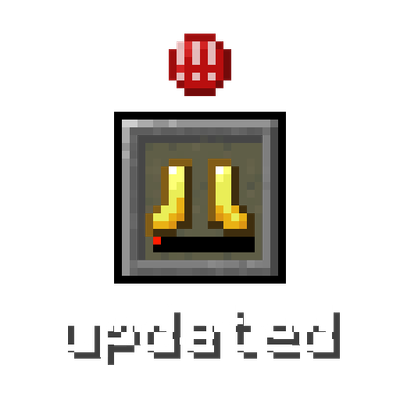
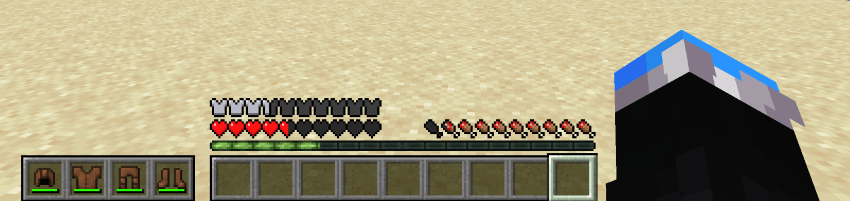
A widget that displays your equipped armor
Low-durability warning icon appears before a piece breaks
Optional durability display
Four anchor positions
Multiple styles
Toggle on and off with a keybind
Fully configurable in game (Cloth Config)
Client-side only, works on any server
❓ FAQ ❓
Is this client-side?
Yes, install it on your client and it works on any server.
Do I need Cloth Config?
No, it just gives you the in game config screen. You can edit the JSON config directly.
Does it work on both Fabric and NeoForge?
Yes.
Can I add this to my modpack?
Yes.
⚙️ Configuration ⚙️
You can configure the mod using Mod Menu on Fabric and the mod list on NeoForge, or by editing the JSON file in the config folder. Powered by Cloth Config.
"enabled"
- Master switch for this mod.
- Type: boolean
- Default value:
true
"anchor"
- Place that the HUD widget is attached to.
- Type: enum
- Possible values:
"TOP_CENTER" — widget is placed at the top in the middle."TOP" — widget is placed at the upper corner on the preferred side."BOTTOM" — widget is placed at the bottom corner on the preferred side."HOTBAR" — widget is placed to the side of your hotbar.
- Default value:
"HOTBAR"
"side"
- Side on which the widget is shown. If the widget is anchored at the top in the middle, this setting does nothing.
- Type: enum
- Possible values:
"LEFT", "RIGHT"
- Default value:
"LEFT"
"offsetX"
- Offsets the widget on the horizontal axis. Positive numbers move it away from the anchor point, negative numbers move it toward the anchor point.
- Type: integer
- Default value:
0
"offsetY"
- Offsets the widget on the vertical axis, otherwise the same as the X offset.
- Type: integer
- Default value:
0
"vertical"
- If the widget should display vertically. Only applies to the
"TOP" and "BOTTOM" anchors (it is ignored for "TOP_CENTER" and "HOTBAR").
- Type: boolean
- Default value:
false
"style"
- Defines how the widget slots are drawn. Try different styles and choose the one you prefer.
- Type: enum
- Possible values:
"HOTBAR" — classic hotbar background."ROUNDED_CORNERS" — hotbar background with rounded outer corners."ROUNDED" — each slot fully rounded."NONE" — no background.
- Default value:
"HOTBAR"
"durabilityDisplay"
- Controls how each item's remaining durability is shown.
- Type: enum
- Possible values:
"BAR" — shows the vanilla durability bar only."NUMERIC" — shows the remaining durability as a number."PERCENTAGE" — shows the remaining durability as a percentage.
- Default value:
"BAR"
"widgetShown"
- Defines when the slots of the HUD widget are shown.
- Type: enum
- Possible values:
"ALWAYS" — slots are always shown."IF_ANY_PRESENT" — all slots are shown if at least one armor slot is not empty."NOT_EMPTY" — only non-empty slots are shown.
- Default value:
"NOT_EMPTY"
"offhandSlotBehavior"
- Defines how the widget reacts to the offhand slot and attack indicator. Does nothing unless the widget is anchored at the hotbar.
- Type: enum
- Possible values:
"ALWAYS_IGNORE" — widget never moves to make space for the offhand slot or attack indicator."ADHERE" — widget moves away when the offhand slot is shown or the attack indicator is at the hotbar."ALWAYS_LEAVE_SPACE" — widget always leaves space for the offhand slot even if it is not shown.
- Default value:
"ADHERE"
"pushBossbars"
- If the widget is in the top middle, bossbars will be pushed down by the widget.
- Type: boolean
- Default value:
true
"pushStatusEffectIcons"
- If the widget is in the top-right corner, status effect icons will be pushed down by the widget.
- Type: boolean
- Default value:
true
"pushSubtitles"
- If the widget is in the bottom-right corner, subtitles will be pushed up by the widget.
- Type: boolean
- Default value:
true
"reversed"
- Reverses the order of the armor items in the slots of the widget.
- Type: boolean
- Default value:
false
"iconsShown"
- Shows special icons in empty slots.
- Type: boolean
- Default value:
true
"warningShown"
- If enabled, a small warning appears at the slot of an item with low durability.
- Type: boolean
- Default value:
true
"minDurabilityValue"
- If the remaining durability of a displayed item is equal to or lower than this value, a warning is shown.
- Type: integer
- Default value:
10
"minDurabilityPercentage"
- If the remaining durability of a displayed item is equal to or below this percentage, a warning is shown.
- Type: integer (0–100)
- Default value:
5
"warningBobIntensity"
- Defines how quickly the warning icon moves up and down when shown. Lower numbers mean quicker motion. Set to
0 to disable the bobbing.
- Type: integer
- Default value:
3
🐛 Bugs & Support 🐛
Report issues on the GitHub issue tracker. Please include your modloader version, Minecraft version, and a latest.log.
❤️ Credits ❤️
Originally by BerdinskiyBear, forked by uku, made multiloader by AnAwesomGuy. Licensed MIT.
Project description from CurseForge.