Minecraft version
Back to mods 
CurseForge · Minecraft mod
Polished UI
Modernize Minecraft 1.8.9 with fluid UI animations, custom backgrounds, enhanced chat, a movable scoreboard, Free Look, combat tweaks, inventory protection, smooth swapping, and practical quality of life tools, all while preserving the vanilla feel.
Choose a version Pick your version below, then grab the matching file.
Quick answer
Which Polished UI release should I use?
Latest stable file PolishedUI-4.2-1.8.9.jar
Game version 1.8.9
Loader Forge
Polished UI PolishedUI-4.2-1.8.9.jar targets 1.8.9 with Forge. The project page does not say whether this file belongs on the client, dedicated server, or both. No extra mods listed for this file.
Where it goes
Is Polished UI required on the client, server, or both?
The project page does not say whether this file belongs on the client, dedicated server, or both.
Client Source doesn’t say
Dedicated server Source doesn’t say
Loader for this release Forge
Required install it here Optional supported, not mandatory Not supported do not install here Source doesn’t say do not assume
The source does not explicitly classify this release as client-only or server-only.
What else does Polished UI PolishedUI-4.2-1.8.9.jar need?
PolishedUI-4.2-1.8.9.jar. Change the file and its required mods may change too.
This file does not list any required mods. Do not add a library just because a different file uses it.
This file does not list any required or optional mods.
Before you install it
Add Polished UI without breaking your instance.
Built for Polished UI PolishedUI-4.2-1.8.9.jar. Pick another file and the loader, install side or required mods may change.
- 01
Stick to this file
Use PolishedUI-4.2-1.8.9.jar. It targets 1.8.9 with Forge; another release may have different loader, side or dependency requirements.
- 02
Bring the mods it needs
This file does not list any required mods. Do not add a library just because a different file uses it.
- 03
Put it on the correct side
The project page does not say whether this file belongs on the client, dedicated server, or both.
- 04
Pick the file you checked
Use the “Get this file” button beside PolishedUI-4.2-1.8.9.jar. It opens that exact file at the source.
About this project
What does Polished UI add?
Polished UI
Polished UI is a client-side Forge mod for Minecraft 1.8.9 focused on making the classic interface feel cleaner, smoother, and more personal without changing the core gameplay experience.
Its features are organized through a unified in-game menu with profiles, favorites, search, and automatically saved settings, allowing every player to create an interface that suits their style.
Modules
Menu Slide
Adds smooth opening animations to supported Minecraft interfaces. Choose between vertical, horizontal, and centered Zoom In effects, with configurable duration and scale.
Background
Customize the color and opacity of interface backgrounds, the multiplayer player list, and the Polished UI menu itself, or make them fully transparent.
Gradient
Applies a customizable two-color gradient behind supported interfaces. Supports vertical, horizontal, and diagonal directions with independent color and opacity controls.
Blur
Adds an adjustable blur behind menus, with separate options for the Polished UI menu, inventories, the pause menu, chat, the player list, and the scoreboard. Compatible with shaderpacks.
FullBright
Provides adjustable brightness beyond Minecraft’s normal lighting limits while safely restoring the player’s original brightness when disabled.
FOV Changer
Allows independent FOV values for normal movement, sprinting, flying, potion effects, and bow usage. Minecraft’s original FOV setting is preserved when the module is disabled.
Smooth Swapping
Smoothly animates items moving between inventory slots. Includes adjustable speed, customizable animation curves, independent presets, and a real-time preview.
Enhanced Chat
Modernizes Minecraft chat with smooth opening and typing animations, customizable history and input-bar colors, transparency controls, and optional preservation of unfinished messages.
Chat Heads
Displays each player’s Minecraft skin head beside their chat messages for faster identification and a more expressive chat experience.
Game Assist
Provides useful client-side gameplay tools such as Fireball Alert, which detects nearby fireballs and displays configurable directional warnings and counters.
Combat Tweaks
Includes ghost liquid correction, improved input handling, customizable fire-overlay positioning and opacity, an option to hide your own potion particles in first person, and optional Hit Delay Fix and Mouse Delay Fix for more reliable hits.
Damage Tint
Lets you customize the color and opacity of the damage overlay shown when the player takes damage.
Slot Lock
Protects inventory and hotbar slots from accidental moving, swapping, or dropping. Includes persistent manual locks, temporary combat protection, a quick-toggle key, customizable lock icons, and optional triple-press confirmation to drop, move, or swap items without unlocking their slots.
DropStack
Adds a configurable shortcut for instantly dropping an entire item stack from the selected hotbar slot or the inventory slot under the cursor. It can optionally bypass Slot Lock protection.
UI Dynamics
Adds responsive inventory effects including hovered item scaling, carried-item movement, matching-stack feedback, smooth hotbar selection, and additional interface animations.
HurtCam
Adjust the intensity of the camera shake when taking damage, or disable it completely.
Free Look
Look around in 360° without turning your player. Choose between third-person, front, and first-person views, hold or toggle the key, and optionally enable smooth camera movement and a custom FOV.
Scoreboard
Move, resize, and restyle the sidebar scoreboard. Hide it or its red numbers, add a text shadow or a border, and customize the background, header, and border colors. A built-in position editor lets you drag and scale it directly on screen.
Profiles and Configuration
- Create multiple configuration profiles.
- Quickly switch between different setups.
- Mark modules as favorites.
- Search for modules directly from the main interface.
- Settings are automatically saved between sessions.
Compatibility
- Minecraft 1.8.9
- Minecraft Forge
- Client-side only - no server installation is required.
- Designed with compatibility in mind for OptiFine.
- Works in singleplayer and on multiplayer servers.
Languages
Available in English, Spanish (Spain), and Spanish (Mexico). Other Minecraft language settings use English as the fallback.
Installation
- Install Minecraft Forge for Minecraft 1.8.9.
- Place the Polished UI
.jarfile inside your.minecraft/modsfolder. - Launch Minecraft using the Forge profile.
- Press
Kto open the Polished UI configuration menu.
The menu keybind can be changed from Minecraft’s Controls menu. Module-specific shortcuts can be configured directly from their respective settings pages.
License and Redistribution
Polished UI is distributed under a custom All Rights Reserved license.
Re-uploading, mirroring, redistributing, selling, or publishing modified versions of this mod is not permitted without prior written permission from the author.
CurseForge modpacks may reference Polished UI through its official CurseForge project page, but the mod's .jar file may not be bundled, re-uploaded, or hosted elsewhere.
Always download Polished UI from its official CurseForge project page.
Project description from CurseForge.
Pick your setup
Polished UI by Minecraft version and loader
Choose the version and loader you play, then open the matching release.
Check the dependencies, then try the file in a copied instance before changing a world you care about.
Recent files
Polished UI versions and loaders
PolishedUI-4.2-1.8.9.jar
3 Oct 2026
Client Source doesn’t say Server Source doesn’t say Dependencies No extras listed Listed on Release listing
Check the 1.8.9 · Forge setup Forge1.8.9 release
PolishedUI-4.0-1.8.9.jar
20 Sept 2026
Client Source doesn’t say Server Source doesn’t say Dependencies No extras listed Listed on Release listing
Check the 1.8.9 · Forge setup Forge1.8.9 release
PolishedUI-3.9-1.8.9.jar
9 Sept 2026
Client Source doesn’t say Server Source doesn’t say Dependencies No extras listed Listed on Release listing
Check the 1.8.9 · Forge setup Forge1.8.9 release
PolishedUI-3.8-1.8.9.jar
5 Sept 2026
Client Source doesn’t say Server Source doesn’t say Dependencies No extras listed Listed on Release listing
Check the 1.8.9 · Forge setup Forge1.8.9 release
PolishedUI-3.5-1.8.9.jar
30 Aug 2026
Client Source doesn’t say Server Source doesn’t say Dependencies No extras listed Listed on Release listing
Check the 1.8.9 · Forge setup Forge1.8.9 release
PolishedUI-3.0-1.8.9.jar
28 Aug 2026
Client Source doesn’t say Server Source doesn’t say Dependencies No extras listed Listed on Release listing
Check the 1.8.9 · Forge setup Forge1.8.9 release
Looking for an older file? The official CurseForge project page is in Resources.
 mod
mod CurseForge · Minecraft
halfmasa
halfmasa is a client-side Minecraft Fabric utility mod for Xaero and MaLiLib users, providing save and waypoint binding, creative tools, input and UI improvements, and JEI/REI recipe lookup history.
 mod
mod CurseForge · Minecraft
EarthView
3D terrain, three camera views and an Ore-style interface for Xaero's World Map.
 mod
mod CurseForge · Minecraft
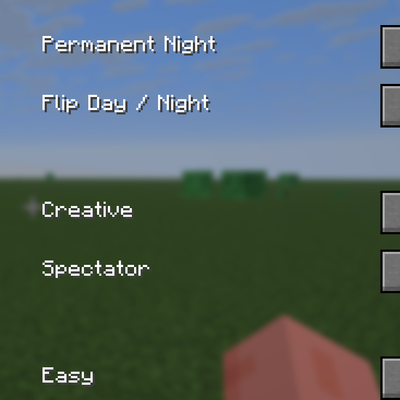
GOD AUTHORITY · WORLD CONTROL
A command-free Fabric 1.21.11 world-control panel for instantly managing time, game mode, difficulty, weather, and special testing utilities from an in-game GUI.