Saturn (Lib) Needed by Starting Point Buy spb-1.0-beta.1.jar
requiredMatching file found Matched file: saturn-1.3.1.jar
CurseForge · Minecraft mod
Data-driven points buy system before gaming
Quick answer
Starting Point Buy spb-1.0-beta.1.jar targets 26.1.2 with NeoForge. The project page does not say whether this file belongs on the client, dedicated server, or both. All 1 required mods have matching files.
Where it goes
The project page does not say whether this file belongs on the client, dedicated server, or both.
The source does not explicitly classify this release as client-only or server-only.
spb-1.0-beta.1.jar. Change the file and its required mods may change too.
Install Saturn (Lib) first. We found matching files for this game-version and loader setup. 11 come through another mod in the chain.
11 extra mods were pulled in by other dependencies. Indented rows show who needs each one. We only count dependency files that match this setup. A file for another loader does not fill the gap.
Before you install it
Built for Starting Point Buy spb-1.0-beta.1.jar. Pick another file and the loader, install side or required mods may change.
Use spb-1.0-beta.1.jar. It targets 26.1.2 with NeoForge; another release may have different loader, side or dependency requirements.
Install Saturn (Lib) first. We found matching files for this game-version and loader setup. 11 come through another mod in the chain.
The project page does not say whether this file belongs on the client, dedicated server, or both.
Use the “Get this file” button beside spb-1.0-beta.1.jar. It opens that exact file at the source.
About this project
Build your starting character before the adventure begins. Spend a limited pool of points on professions, talents and attributes, or take drawbacks to gain more room for other choices.
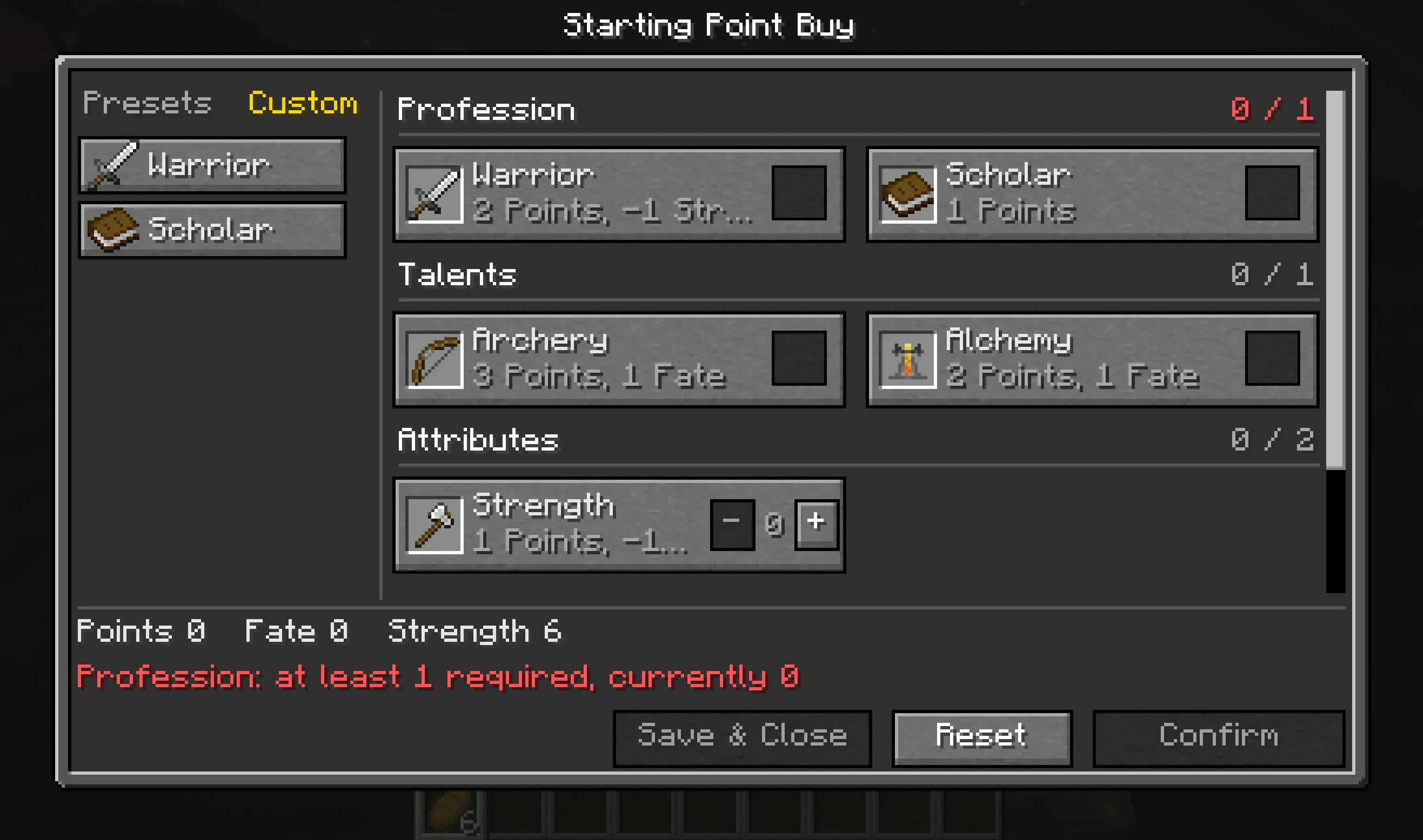
The main mod does not include professions, talents or starting plans. Follow your modpack's installation instructions, or add a compatible data pack when installing it yourself. Without a plan, no selection screen opens automatically.
Applying a preset replaces your entire current selection. You can then adjust it freely; the screen shows Custom when your choices no longer match a preset.
The numbers on a card are its price: positive numbers are costs, and negative numbers are refunds. Their signs are the opposite of the actual resource changes caused by selecting the option.
| Price shown on the card | Actual resource change | Usually mean |
|---|---|---|
1 Points |
Lose 1 point | Benefit |
-2 Points |
Gain 2 points | Shortcoming |
1 Fate, -2 Points |
Lose 1 fate and gain 2 points | Exchange |
An unselected card shows the price per copy. A selected card shows the total price for its current quantity. Costs appear before refunds. Hover over a card to see the full prices, per-copy and total values, description and selection limits.
The bottom bar shows the resource balances for your current choices. Each plan defines its own completion rules: you may need to spend every point, keep a reserve, or bring a resource within a particular range. Follow the requirements shown on screen.
− / quantity / + for repeatable options.A change may leave an existing selection above its new limit. The screen keeps the selection and explains the problem, so you can reduce its quantity or remove it before confirming. Selected options that become hidden or unavailable appear under Selections that need attention so you can remove them.
| Action | Control |
|---|---|
| Select or remove an option | Click its card or checkbox |
| Adjust a repeatable option | Click + / − |
| Read descriptions and limits | Hover over a card |
| Preview a quantity change | Hover over an available + / − button |
| Apply a preset | Click it, or press number keys 1–9 on the main keyboard |
| Move option focus | Arrow keys |
| Toggle the focused option | Enter / Space |
| Scroll the options | Page Up / Page Down |
| Confirm your start | Click Confirm, or press Ctrl + Enter |
The mouse wheel scrolls only the area under the pointer. Presets and options scroll independently.
See the documentation for details.
Check that your modpack includes a starting plan and how that plan is opened. Completed plans do not automatically grant another start. Installing only this mod, without a plan data pack, does not provide any choices.
Read the messages at the bottom and hover over the affected cards. Besides resource balances, a plan may require a profession, a minimum quantity or other conditions. Check for selections above their limits after switching professions.
Click Refresh without closing the screen. Refreshing uses your current actual resources; it does not refill your points to their original values.
Share the message with your server administrator. The mod stops the affected reward process for administrator review.
If your modpack allows manual opening, use the commands below. Your modpack or server provides the <plan_id>; omit the angle brackets when typing it. You can also press Tab to see suggestions.
| Command | Purpose |
|---|---|
/starting_point_buy open <plan_id> |
Open the specified plan, or resume its current draft |
/starting_point_buy status |
View your current allocation status |
/starting_point_buy refresh |
Refresh an uncommitted draft using current resources |
Project description from CurseForge.
Pick your setup
Choose the version and loader you play, then open the matching release.
Check the dependencies, then try the file in a copied instance before changing a world you care about.
Recent files
11 Nov 2026
Looking for an older file? The official CurseForge project page is in Resources.
 mod
a core mod
 mod
Replace the enchanting system with a rune system. Find runes in the world and apply them to items
 mod
Checks installed mods for available updates