NotEnoughItems Unofficial 1.7.10 Needed by Omni Ocular OmniOcular compatible with java8, 17-20
requiredMatching file found Matched file: NotEnoughItems-2.8.114-GTNH.jar
CurseForge · Minecraft mod
Display extra information on Waila based on target NBT data
Quick answer
Omni Ocular OmniOcular compatible with java8, 17-20 targets 1.7.10 with Forge. The project page does not say whether this file belongs on the client, dedicated server, or both. 1 required mod needs a matching file.
Where it goes
The project page does not say whether this file belongs on the client, dedicated server, or both.
The source does not explicitly classify this release as client-only or server-only.
OmniOcular compatible with java8, 17-20. Change the file and its required mods may change too.
Install NotEnoughItems Unofficial 1.7.10, Waila, CodeChickenCore Unofficial 1.7.10 first, but 1 required mod has no matching file for this setup. Do not mix loader builds to force a match. 1 comes through another mod in the chain.
1 extra mod was pulled in by another dependency. Indented rows show who needs each one. We only count dependency files that match this setup. A file for another loader does not fill the gap.
Before you install it
Built for Omni Ocular OmniOcular compatible with java8, 17-20. Pick another file and the loader, install side or required mods may change.
Use OmniOcular compatible with java8, 17-20. It targets 1.7.10 with Forge; another release may have different loader, side or dependency requirements.
Install NotEnoughItems Unofficial 1.7.10, Waila, CodeChickenCore Unofficial 1.7.10 first, but 1 required mod has no matching file for this setup. Do not mix loader builds to force a match. 1 comes through another mod in the chain.
The project page does not say whether this file belongs on the client, dedicated server, or both.
Use the “Get this file” button beside OmniOcular compatible with java8, 17-20. It opens that exact file at the source.
About this project
Read changelog for instruction if you are going to use this mod with Java19
Detailed document: https://blog.exz.me/omni-ocular/
Currently WIP
Omni Ocular is a mod to show player defined specific NBT info on Waila HUD. Useful for extreme number fans and mod testers.
Omni Ocular is the successor of WailaNBT, with major code rewrite and much more feature.
Not Enough Items and Waila and Omni Ocular must to be installed on both client side and server side. Download and copy jar file into mods folder.
In-Game NBTEdit (Download 1.7.10 version here) is highly recommended to look up NBT data structure, in order to customize what will show up.
Just install Omni Ocular and enjoy. No other works needed.

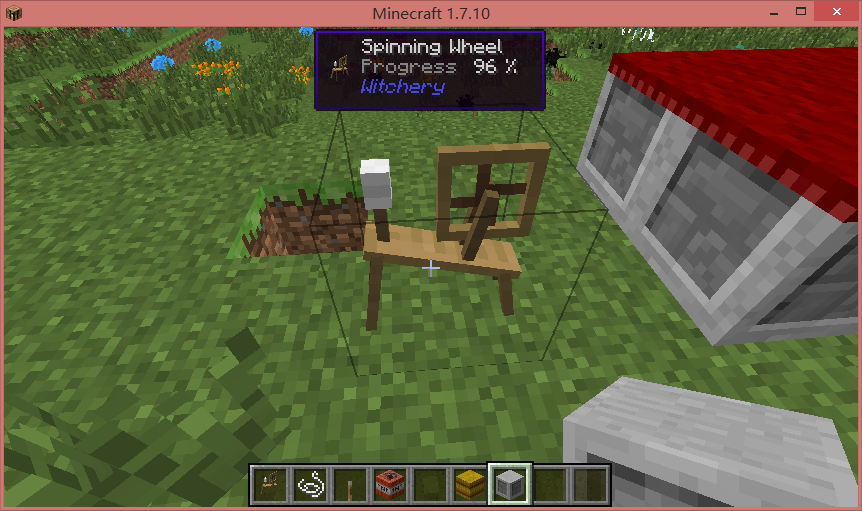
Omni Ocular use XML format file as its config files. You may open minecraft/config/OmniOcular folder to see pre-configured files.
“/oor” (stand for Omni Ocular Reload config): It will reload all XML config files under minecraft/config/OmniOcular folder. If used on server side, it will reload server side config files and send new config to all online players. Player name will be logged when run this command. Can only be used by OP if in multiplayer.
“/ooe” (stand for Omni Ocular Entity name): It will show the registry name of the entity you are pointing at.
“/oon” (stand for Omni Ocular Name): It will show the registry name of the item you are holding.
Config files are in XML file format with JavaScript in it. Files must follow XML and JavaScript standard to work.
It is recommended to name the file after Mod ID of the mod this file focusing on.
Please look up pre-configs to see it in action. A demo config is shown below.
<!--Author: EpixZhang-->
<!--Date: 2015/1/1-->
<!--Version: 1.0-->
<oo>
  <init>
    function tick2second(n){return n/20}
  </init>
  <tileentity id="Furnace">
    <line displayname="Burn Time">
      return tick2second(nbt['BurnTime'])
    </line>
  </tileentity>
  <entity id="Sheep">
    <line displayname="Until next love">
      tick2second(nbt['InLove'])
    </line>
  </entity>
  <tooltip id="minecraft:skull">
    <line displayname="OwnerName">
       return nbt['SkullOwner']
    </line>
  </tooltip>
</oo>
<!--Author: EpixZhang-->
<!--Date: 2015/1/1-->
<!--Version: 1.0-->
This part is not required but recommended. It records useful information. Currently version is the target mod version. Might be required in future for auto update.
All effective node must be in base tag “<oo></oo>”.
To show info of a TE (tile entity), use this tag in following format.
<tileentity id="Furnace"></tileentity>
The “id” attribute defines which TE this node will work on. Above node will working on the TE which id is “Furnace”.
It uses Regular Expression format to match the TE’s id. e.g. id=”Powered.*” will match all TE which id starts with “Powered”. Escape character (backslash”\”) must be used if there are special characters in id. e.g. id=”BC|Engine” but not id=”BC|Engine” will work on a TE which id is “BC|Engine”.
To show info of an Entity, use this tag in following format.
<entity id="Sheep"></entity>
The “id” attribute defines which Entity this node will work on. Above node will working on the Entity which id is “Sheep”.
It uses Regular Expression too.
To show info on mouse hover an item, use this tag in following format.
<tooltip id="minecraft:skull"></tooltip>
The “id” attribute defines which Item this node will work on. Above node will working on the Item which id is “minecraft:skull”.
It uses Regular Expression too.
To do initialization actions, such as common used functions, use this tag in following format.
<init></init>
Script in this tag will be run when config loaded.
To display info in line, use this tag in following format.
<line displayname="Foo">
    script bar
</line>
“script bar” here is supposed to be content of a function. That is to say, function(){script bar} should be a valid JavaScript function. Return value of this function will be displayed. “return” can be omitted if there are one only one expression. e.g. write “Epix” in script bar is equal to “return ‘Epix'”.
Default style is display name value in white and return value in gray with a tab between them. Minecraft color code can be used in return value but not in display name.
<line displayname="Foo">
    "bar"
</line>
will bring you this.
Display name can be omitted or set to “” (empty string), then only returned value will be shown. And that’s the way to color whole line.
If Display name is a key of localization, it will be automatically localized. Use it if possible for localization. Keys can be looked up in localization lang file which usually located in mod .jar file assets/ModID/lang. (jar files can be open as a zip file by using 7-zip, etc.) It is highly recommended to use keys inside the mod which the config file is focusing on, or the dependent mods, or Waila/Omni Ocular’s lang file. If none of above contains the wished keys. Please report to me and/or make contribute to Omni Ocular lang source file (at GitHub).
“n” can be used to split one return value to multiple lines.
If “null”/”__ERROR__”/”undefined”/”NaN” is returned, this line will be directly ignored and won’t be display in HUD. This is the way to hide lines under certain condition.
Notice: If JavaScript code in line node and init node contain XML special characters(“&”, “<“, “>”), there is no need to write escaped form(“&”, “<”, “>”). Omni Ocular will escape them.
Formatting code (http://minecraft.gamepedia.com/Formatting_codes) and waila special chars can be used, but a more convenient way is provided.
All codes are pre-defined in upper case without quote mark.
e.g. Default style. Result of following code is exactly same as the previous picture.
<line displayname="">
    return "Foo" + TAB + ALIGNRIGHT + WHITE + "bar"
</line>
All special characters:
BLACK, DBLUE, DGREEN, DAQUA, DRED, DPURPLE, GOLD, GRAY, DGRAY, BLUE, GREEN, AQUA, RED, LPURPLE, YELLOW, WHITE, OBF, BOLD, STRIKE, UNDER, ITALIC, RESETSame as http://minecraft.gamepedia.com/Formatting_codes
TABA tab character.
ALIGNRIGHT, ALIGNCENTERAlign text to right or center
HEART, HHEART, EHEARTFull heart, half heart, empty heart
translate(string): get localized text of string. Use it if possible for localization.
name(object): get the display name of the object. Changed name by anvil etc. can be shown correctly. “object” must be an NBT Compound tag. e.g. To get the name of first object in a vanilla chest:
return name(nbt['Items'][0])
fluidName(string): get localized fluid name of the string. Recommended.
holding(): get the id of the item that player is holding.
armor(int): get the id of the armor that player wears. int=0: boot, int=1: leggings, int=2: chest plate, int=3: helmet.
isInHotbar(string): judge whether player have an item which id is string in hot bar.
isInInv(string): judge whether player have an item which id is string in inventory(including hot bar).
Taking a live example. Assuming a furnace below.
Point at the furnace and run “/nbtedit” command to open NBTEdit GUI.
NBT data shown above will be transformed into a JSON variable named “nbt”.
nbt={
  "BurnTime":15567,
  "CookTime":134,
  "x":-288,
  "y":63,
  "z":155,
  "id":"Furnace",
  "Items":[
    {
      "Count":50,
      "Slot":0,
      "Damage":0,
      "id":4
    }
  ]
}
This variable is persist and synced when player pointing at a tile entity. It can be called in <line></line> node.
For example, if you want to display “CookTime” in HUD, you may write this in config files.
<oo>
  <tileentity id="Furnace">
    <line displayname="Cook Time">
      return nbt['CookTime']
    </line>
  </tileentity>
</oo>
Note that id=”Furnace” can be acquired by the NBTEdit GUI. You can always use NBTEdit GUI to get the id of a tile entity. As for entities such as a sheep or item tooltip, use “/ooe” and “/oon” command mentioned above.
What does “CookTime” stand for? Oh that is what you have to GUESS.
Files only with extension name “.xml” in minecraft/config/OmniOcular/ will be loaded as config. Sub folders will be ignored.
Pre-config files will be released automatically according to installed mod IDs when game start. However, existed file will not be overwritten. If you want to disable some of feature of pre-config files, delete the content of config files instead of deleting the file. If you updated Omni Ocular and want to update pre-config files, you have to delete old files.
Config files will be loaded as same as client side. However, pre-config files will not be released. That is to say, you must prepare/modify files first in client side single player, and copy them to server side to make it work.
All client side configs will be override by server side in multiplayer. Which means all client side config files will be ignored and server side configs is using by all client. No need to worry player stealing protect NBT data (password maybe) by custom client config. “/oor” command will make all client reload new server side configs too.
Support for items dropped on ground.
Allow hide part of info according to config, maybe key press.
You can:
Use this mod in your modpack
Post screenshots or videos of this mod
Edit this mod and make pull requests on GitHub
Post a link here to inform me that you include it in a modpack, etc.
Do everything you want as long as you don't break rules below
You must:
Keep credit info(Author name, link to this post, etc.) if redistribute in any form (modpacks, repost in another website, etc.)
You cannot:
Tell others that you made Omni Ocular
Project description from CurseForge.
Pick your setup
Choose the version and loader you play, then open the matching release.
Check the dependencies, then try the file in a copied instance before changing a world you care about.
Recent files
OmniOcular-1.7.10-1.0-java8,17-20.jar
5 Apr 2023
4 Mar 2017
Looking for an older file? The official CurseForge project page is in Resources.
 mod
modA general purpose mod that adds new blocks and items for the Student Research Cabal.
 mod
modSwaps which player is in control of the body after a set amount of time.
 mod
modA user expandable material library with workstations and stylable blocks to use them in.