hytale-discord-link-20260120-all.jar
19 Jan 2026
Client Not supported Server Required Dependencies No extras listed Listed on Project page
Check the setup 
CurseForge · Hytale mod
A discord link mod keeping bare essentials as features to fullfill your discord to hytale needs
Quick answer
Essential Discord Link hytale-discord-link-20260120-all.jar targets Hytale. Do not install it as a separate client mod. Enable it on the world host—the local server in singleplayer or the dedicated server in multiplayer. No required dependencies listed for this file.
Where it goes
Do not install it as a separate client mod. Enable it on the world host—the local server in singleplayer or the dedicated server in multiplayer.
Put Hytale mods on the world host or dedicated server. Singleplayer runs a local server too; Hytale does not use separate client mods.
hytale-discord-link-20260120-all.jar. Change the file and its required mods may change too.
This file does not list any required mods. Do not add a library just because a different file uses it.
This file does not list any required or optional project dependencies. Check the creator notes before changing an existing world.
Before you install it
Built for Essential Discord Link hytale-discord-link-20260120-all.jar. Pick another file and the loader, install side or required mods may change.
Use hytale-discord-link-20260120-all.jar. It targets Hytale; another release may target a different game build or dependency set.
This file does not list any required mods. Do not add a library just because a different file uses it.
Do not install it as a separate client mod. Enable it on the world host—the local server in singleplayer or the dedicated server in multiplayer.
Use the “Get this file” button beside hytale-discord-link-20260120-all.jar. It opens that exact file at the source.
About this project
A module that brings a simple, lightweight, easy-to-use, and bloat-free bridge between Discord and Hytale, heavily inspired and based on EssentialsX Discord which was made for Minecraft.
Features you'd want from a Discord bridge such as:
- Initial Setup
- Configuring authentication
- How to compile
Before starting your server, there are a few steps you have to take. First, you must create a new Discord bot at discord.com/developers/applications.
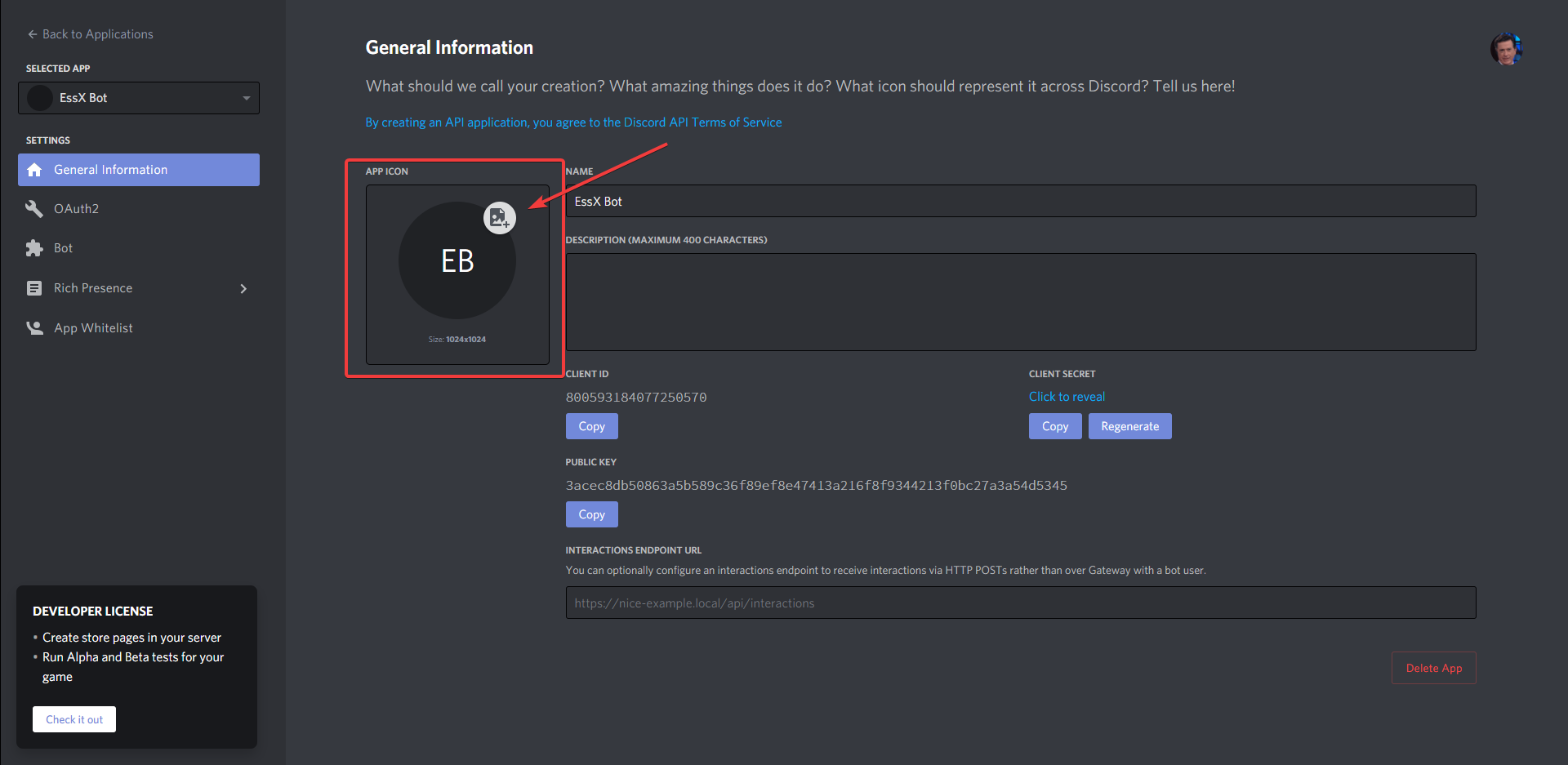
Once on that page, click on "New Application" button on the top right, give your bot a name, and then click "Create".
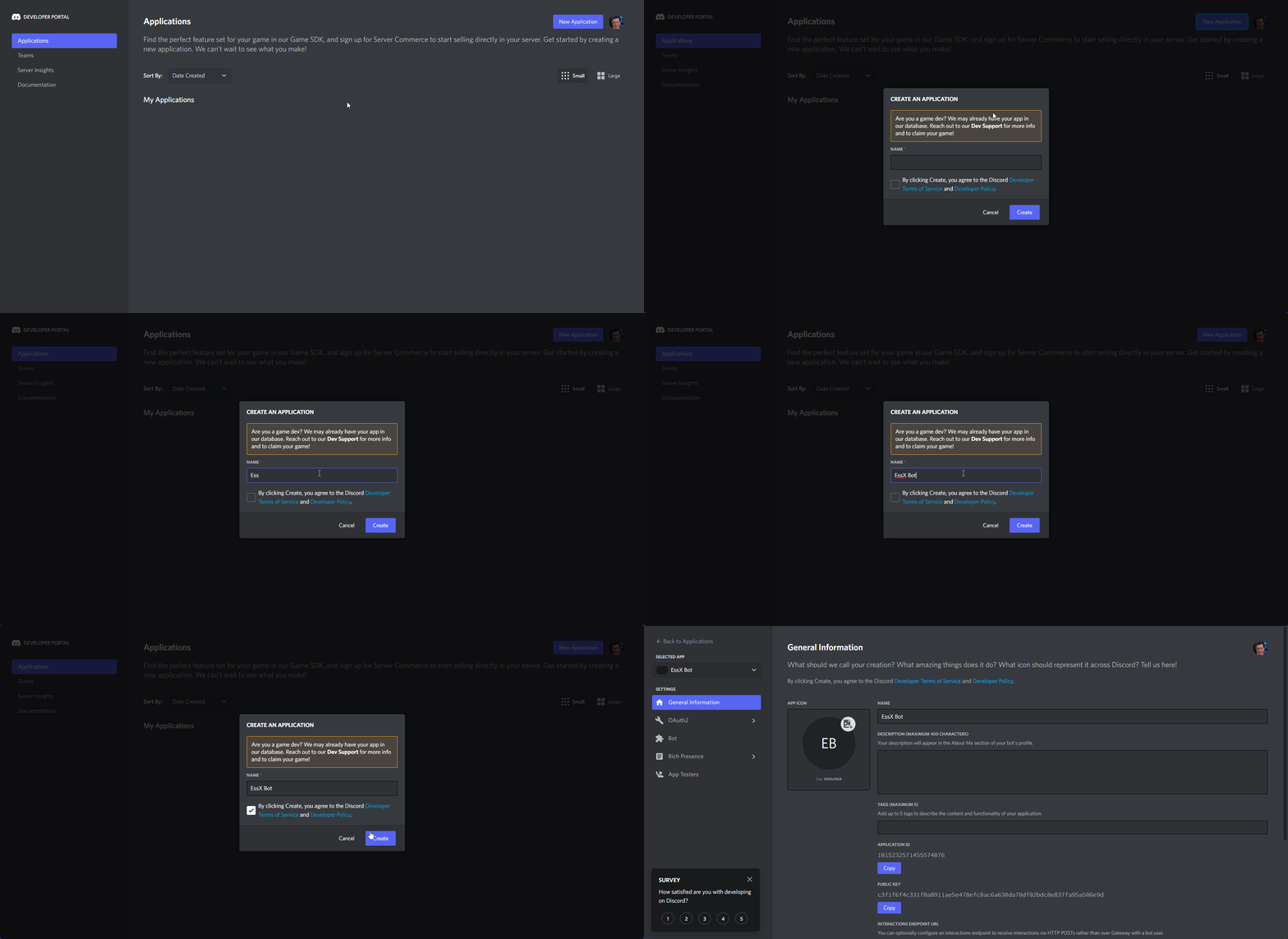
New Application-> Give Application a Name ->Create
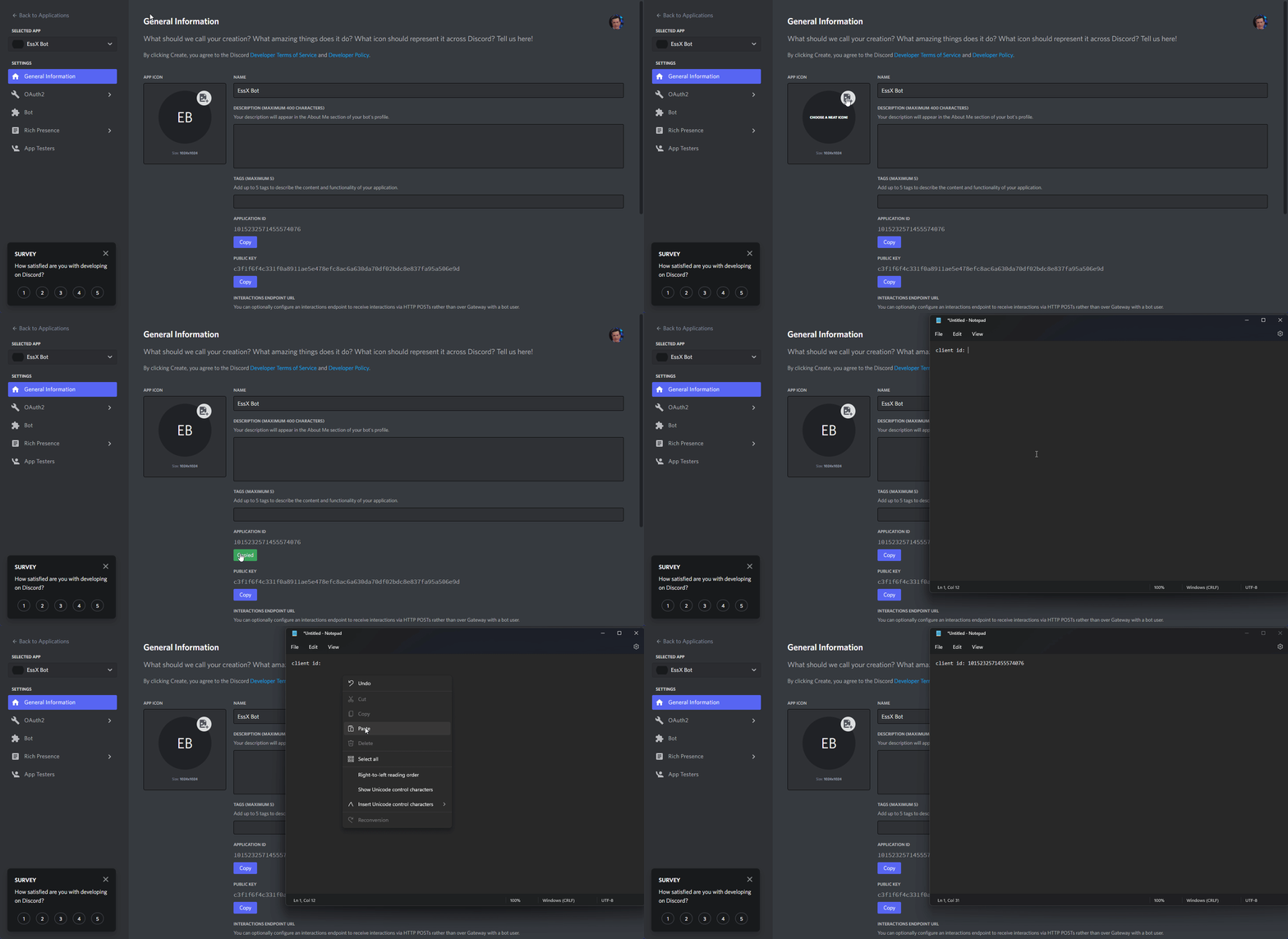
Copy-> Paste into Notepad for later step
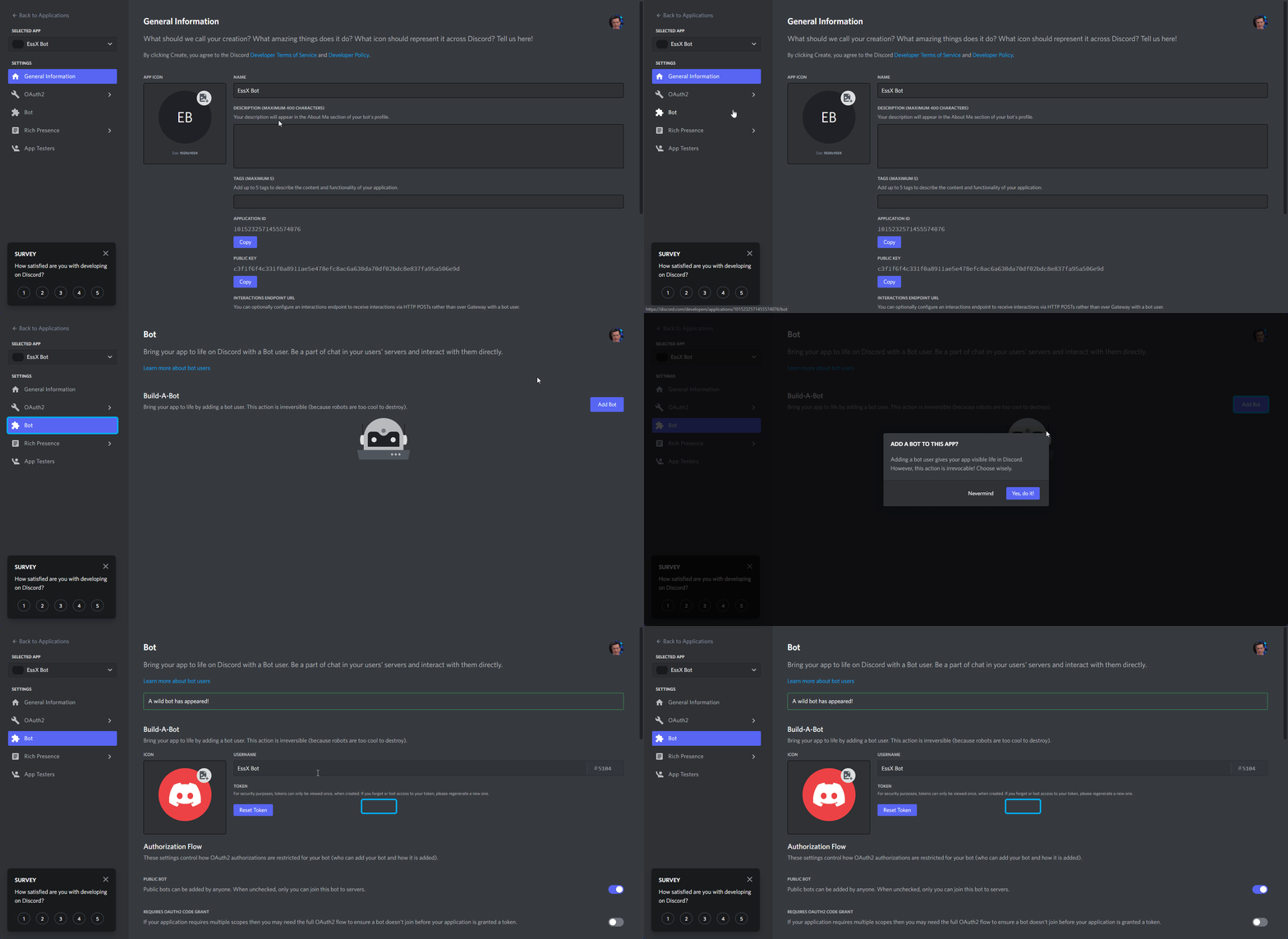
Bot->Add Bot->Yes, do it!
Uncheck
Public Bot-> CheckPresence Intent-> CheckServer Members Intent-> CheckMessage Content Intent-> Save Changes`
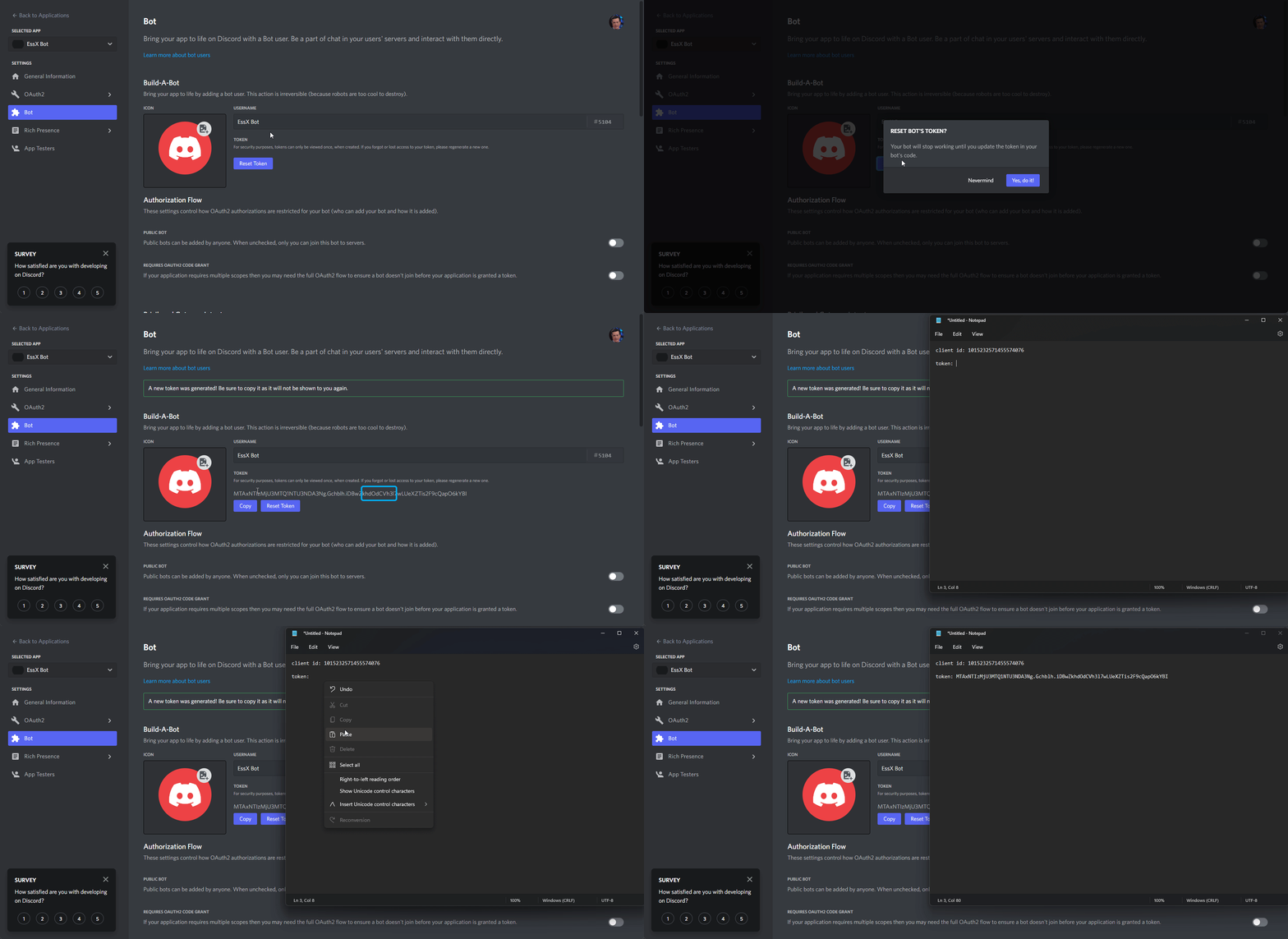
Reset Token->Yes, do it!->Copy-> Paste into Notepad for later step
Next up is adding your bot to your Discord server.
Once on the Discord authorization website, select the server from the "Select a server" dropdown that you want to add the bot to. Then click the "Authorize" button. You may be prompted to confirm you are not a bot, proceed with that like you would any other captcha.
Select Server ->
Authorize
For the next few steps, you're going to need to do some stuff in Discord, so start up your Discord desktop/web client.
Once in your Discord client, you'll need to enable Developer Mode. Do this by going into the Settings, then go to the "Advanced" tab and check on the "Developer Mode" at the bottom of the page. Once you've checked "Developer Mode" on, click the X at the top right to exit Settings.
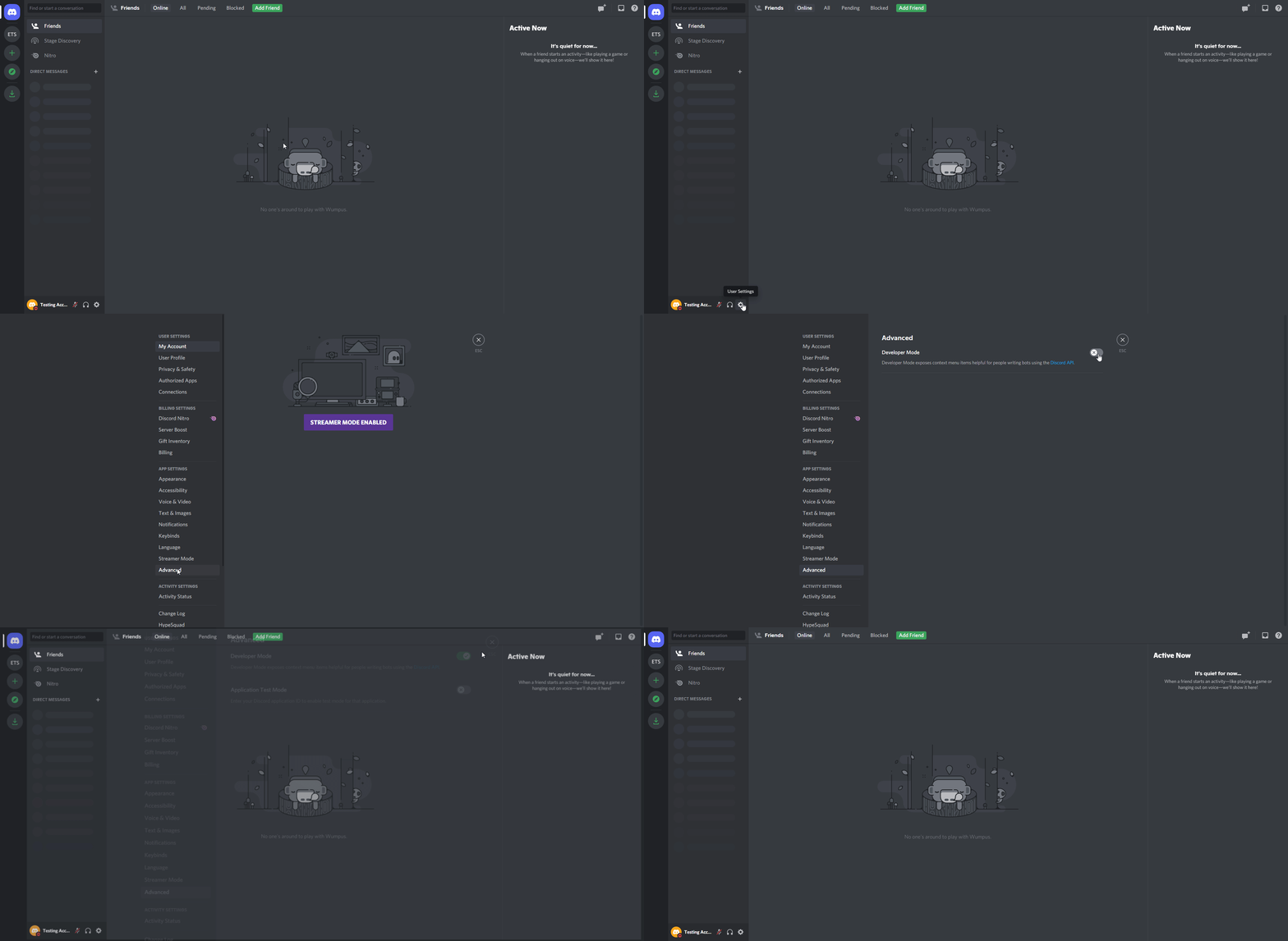
User Settings->Advanced-> CheckDeveloper Mode-> Exit Settings
Right click server ->
Copy ID-> Paste into Notepad for later step
Right-click your 'primary' channel ->
Copy ID-> Paste into Notepad for later step
You've successfully copied all the necessary IDs needed for a basic setup. Next up is generating the default config for the plugin, so you can start setting it up! Do this by putting the JAR (you can download it here if you do not already have one) in your mods folder, starting your server, and then stopping it as soon as it finishes starting up.
Now you can start to configure the plugin with all the stuff you copied from earlier. Open the config mods/anirudhgupta109_HytaleDiscordLink/config.yml. When you open the config, the first thing to configure is your bot's token. Replace YOUR_BOT_TOKEN in the config with the token you copied earlier from step 6.
Next is the guild ID. Replace the zeros for the guild value in the config with the guild ID you copied from step 13.
Finally, you'll need to paste thechannel ID you copied from step 14 and paste it in the channels section and once you've done that save the config file!
Congratulations, you've completed the initial setup guide! When you start up your server, you should notice that chat and other messages start showing up in the channel you requested they be. Now that you completed the initial, go back up to the Table Of Contents to see what other cool things you can do!
The plugin also allows a server owner an optional feature where only members of the discord channel can join and play on the server via the auth-enabled option in config.yml.
This can be further expanded to have strict-auth as an option, requiring a link code every session join (useful for offline play or when you have players joining and leaving your Discord Server often).
Obtain the HytaleServer.jar file following the guide HERE and place in libs/
Run the build using:
./gradlew clean build shadowJar
The output JAR will be found in build/libs/hytale-discord-link-<VERSION>-all.jar PROFIT!
Discord role -> Hytale group sync
Execution of console commands via discord
List commands and webhook integration
Project description from CurseForge.
Recent files
19 Jan 2026
19 Jan 2026
Looking for an older file? The official CurseForge project page is in Resources.
 mod
modThe Skylight Zone: Gimme Da' Loot is a Drop-List Addon for (Drops/Lootbags). - It Adds 3 New 'Lootbags' that have the chance to reward the player with Gemstones & Fragment Drops from The Skylight Gemstones Mod to NPCs and Containers.
 mod
modSmart, command-controlled lamps with trigger blocks, day/night automation, and full claim protection.
 mod
modLink, name, share and manage your teleporters your way. No config files. No complexity. Just warp.