Create Needed by Create: Redstone Link Tablet linktablet-1.11.1.jar
requiredMatching file found Matched file: Create 6.0.10 for mc1.21.1
CurseForge · Minecraft mod
A smart-home control panel for your Create contraptions. The Link Tablet is a handheld device with an app-style GUI that toggles Create's Redstone Links on and off remotely .
Quick answer
Create: Redstone Link Tablet linktablet-1.11.1.jar targets 1.21.1 with NeoForge. The project page does not say whether this file belongs on the client, dedicated server, or both. All 1 required mods have matching files.
Where it goes
The project page does not say whether this file belongs on the client, dedicated server, or both.
The source does not explicitly classify this release as client-only or server-only.
linktablet-1.11.1.jar. Change the file and its required mods may change too.
Install Create first. We found matching files for this game-version and loader setup.
We only count dependency files that match this setup. A file for another loader does not fill the gap.
Before you install it
Built for Create: Redstone Link Tablet linktablet-1.11.1.jar. Pick another file and the loader, install side or required mods may change.
Use linktablet-1.11.1.jar. It targets 1.21.1 with NeoForge; another release may have different loader, side or dependency requirements.
Install Create first. We found matching files for this game-version and loader setup.
The project page does not say whether this file belongs on the client, dedicated server, or both.
Use the “Get this file” button beside linktablet-1.11.1.jar. It opens that exact file at the source.
About this project



A smart-home control panel for your Create contraptions.
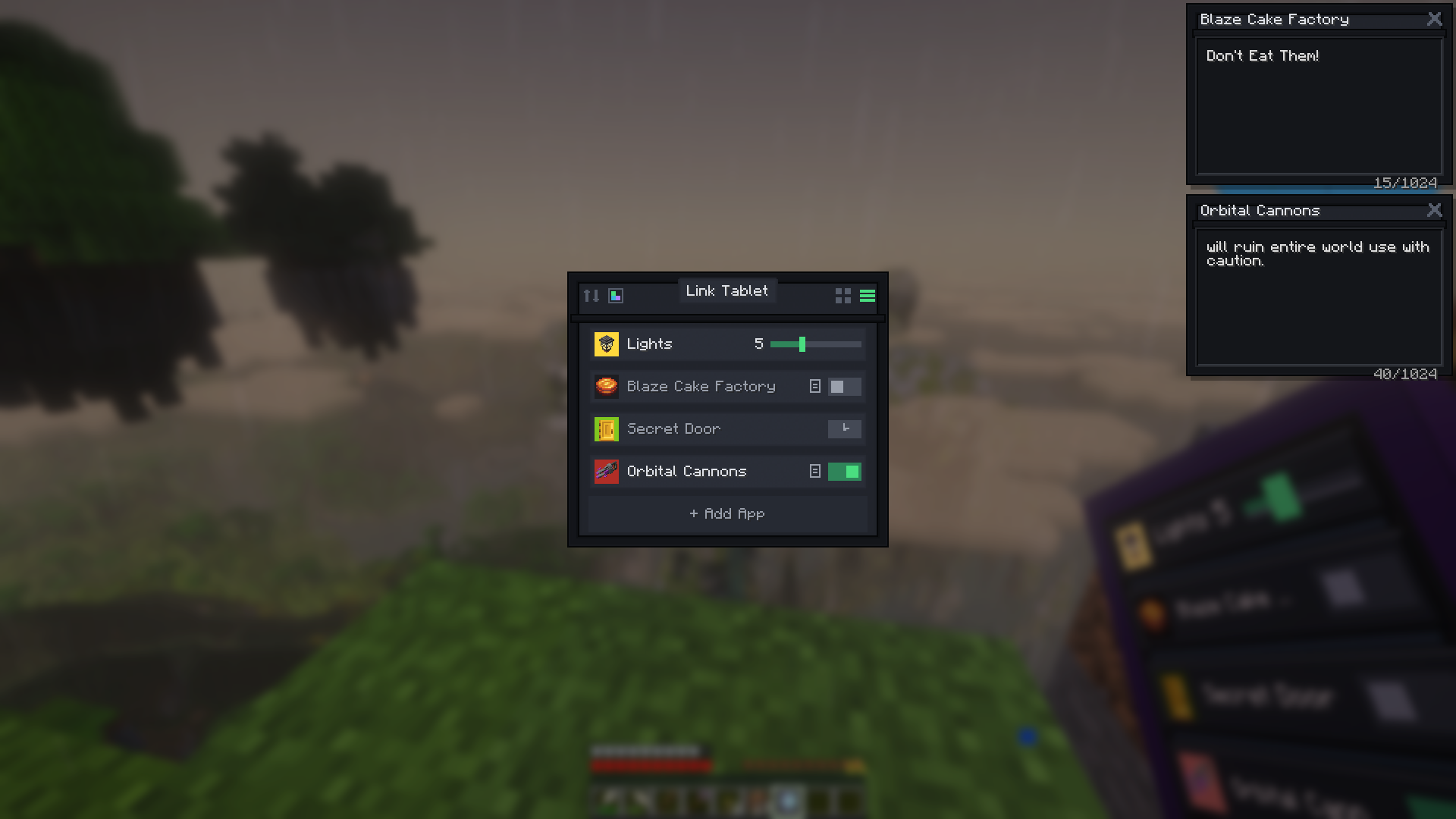
The Link Tablet is a handheld touchscreen that drives Create's Redstone Links remotely. Name your lights, doors, trains, and machines, give them icons, and flip them from one screen anywhere in link range. It boots to a Home screen of apps — signals, gauges, a clock, a live network monitor, even Twitch chat and a paint canvas — mounts on walls where tablets merge into one big display, and pins a mini-tablet to your HUD.
The tablet opens to a Home screen you arrange yourself; the built-in App Store (searchable) installs and removes apps per tablet:
Placed tablets show their app right on the glass — tap to open it, tap the bezel to go Home — and the wall follows your GUI navigation.
Signals tune to Create's item-pair frequencies — anything a Redstone Link can trigger, the tablet can too:
📋 Tip — quick-add: right-click any Redstone Link while holding the tablet — the editor opens with that frequency pre-filled. Just hit Save.
The Monitor app lists every channel your tablet touches — plus any you probe (up to 8) — with live power and every member transmitting or listening: Redstone Links, placed tablets, even "a tablet in someone's inventory". When a receiver is mysteriously pinned at 15, the Monitor points at the spare tablet in your pocket. Out-of-range members wear a badge; wall tablets make it a status board, and the overlay pin puts it on your HUD.
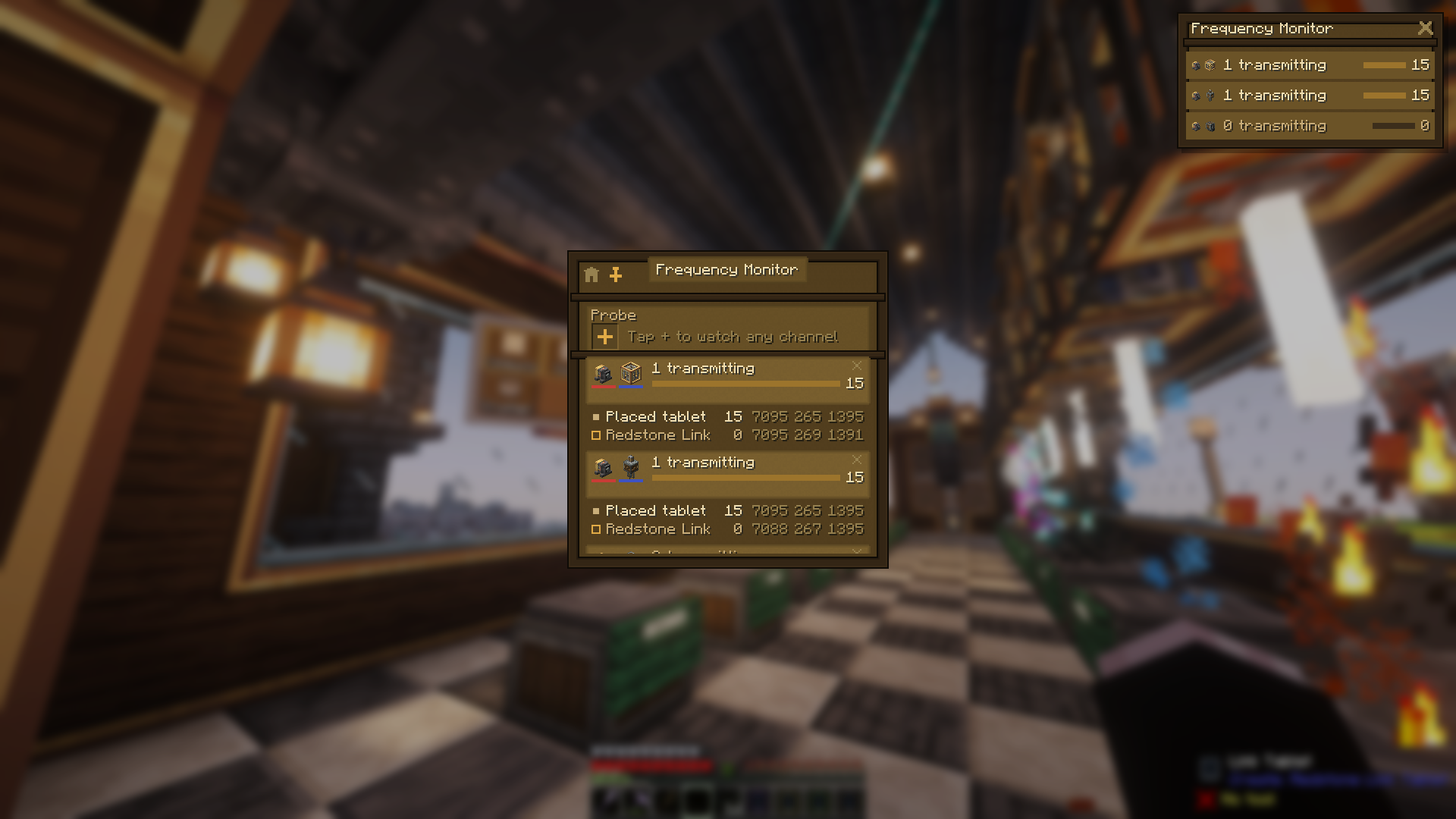
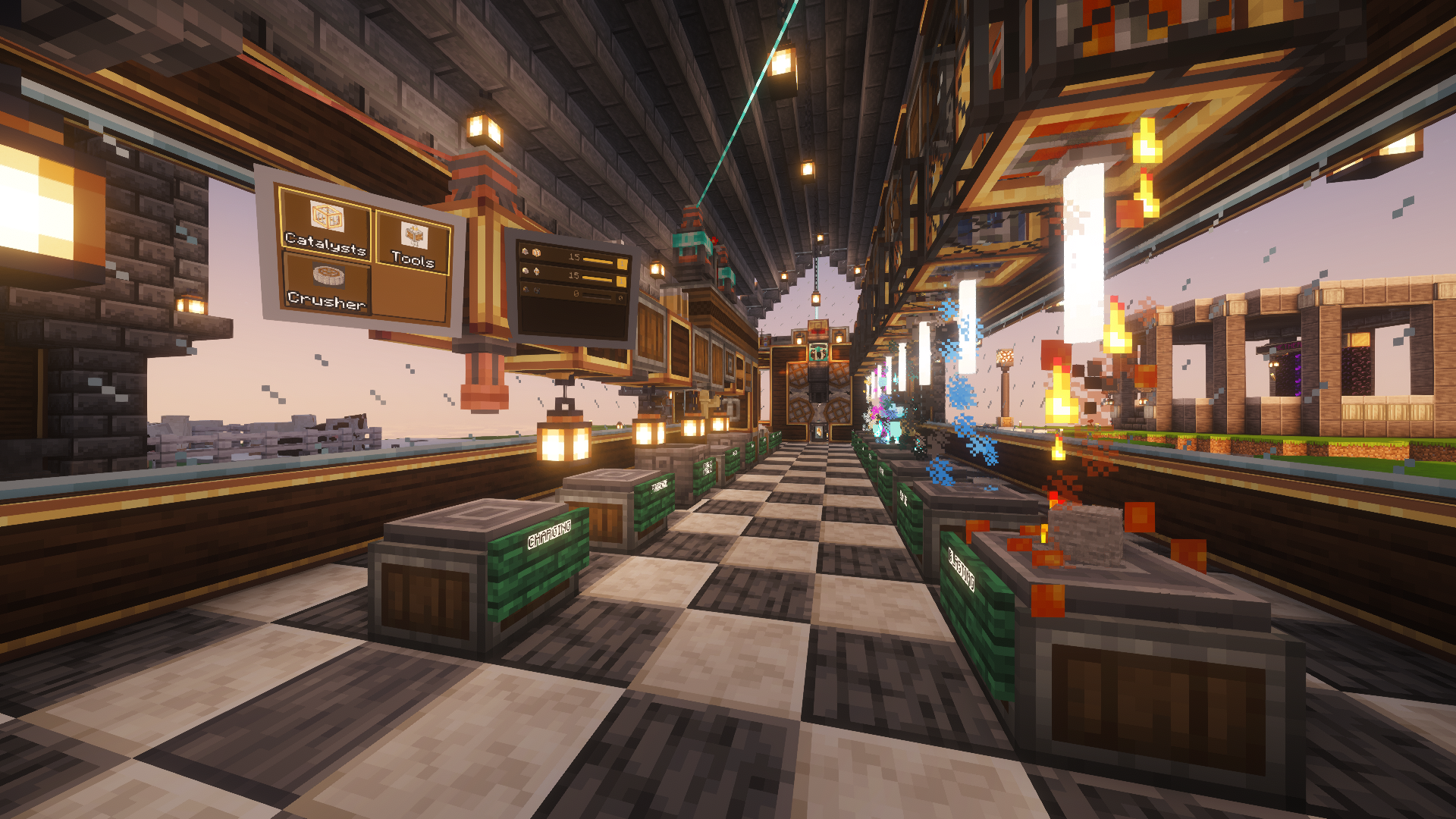
Sliders drag live in the GUI, and on a placed tablet you click-and-slide right on the glass. Every slider shows its numeric level, and an optional min/max range means a machine never fully turns off.
Every signal can carry a note in a floating window: drag it anywhere, keep several open, and they follow you — over the tablet, over your inventory, even pinned read-only on your HUD. Perfect for "flush the sorter before enabling" warnings — two of them are pinned in the screenshot up top.
The pin button keeps a floating mini-tablet on your screen while you play — per app: live switch rows, a heads-up gauge cluster, the clock, a working mini calculator, or the launcher as an app dock. Press the "Use Pinned Tablet" key (default B) to free your mouse chat-style and tap toggles, drag sliders, or hold buttons mid-mining — no GUI ever opens. Right-click any row to jump into the full interface; the window remembers its spot across sessions.
The physical screen isn't a texture — it renders your actual signals live, held or placed. Tiles size themselves to the signal count, active signals glow, and on a placed tablet the glass is touchable: tap to toggle, hold a Hold button, slide a slider — no GUI needed. Tap the bezel for the full interface.
Sneak + right-click any surface to mount the tablet on a wall, floor, or ceiling — it transmits from its own position and its screen glows while a signal runs. Sneak + right-click with an empty hand picks it back up; everything survives the trip. A Create wrench rotates the screen content (glass) or physically flips the tablet between portrait and landscape (edge).
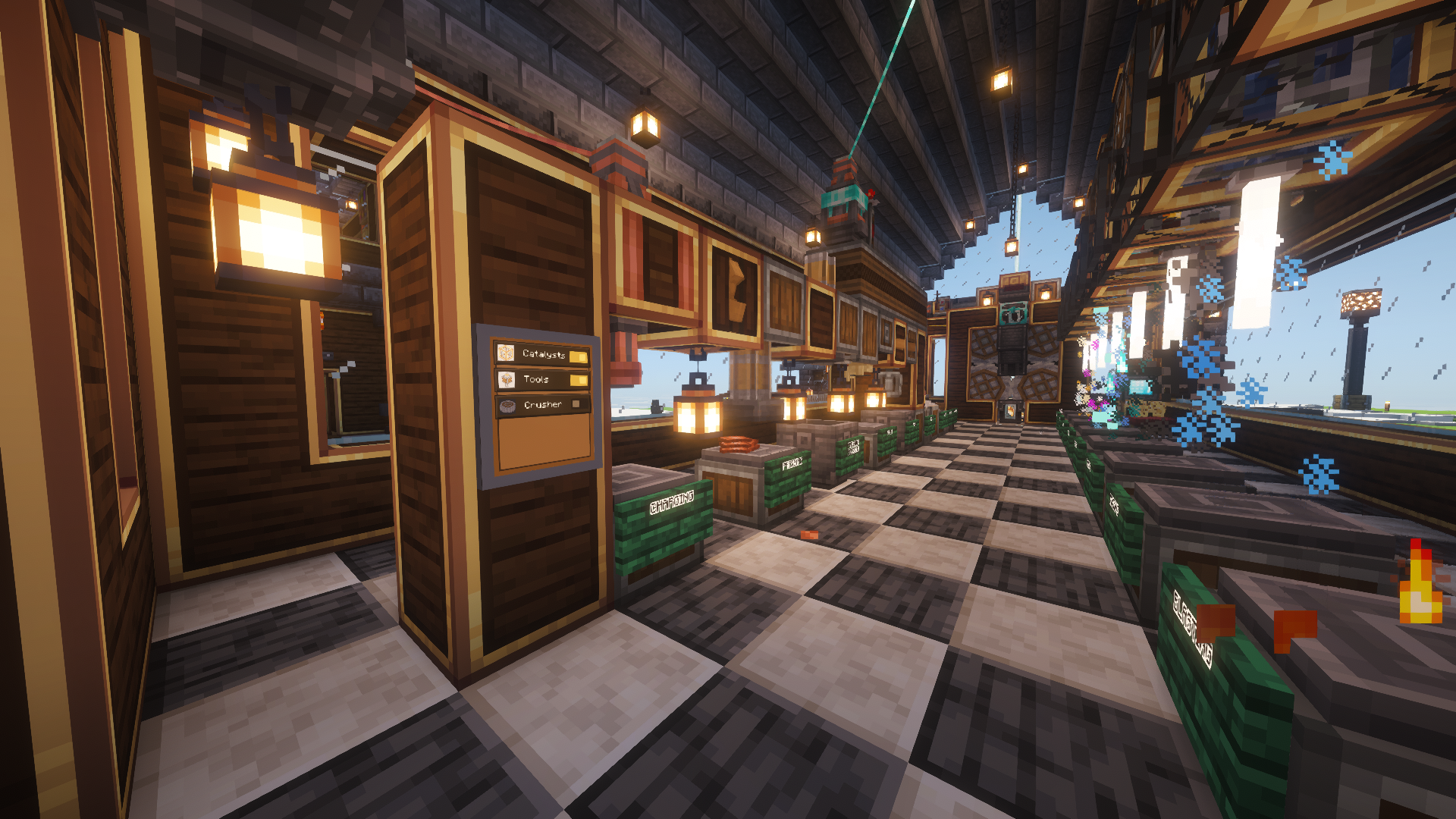
Craft a Swivel Mount — an iron nugget atop two brass sheets — place the stand on any surface, and click a tablet onto its ball joint. Wrench the glass and it swings around to aim straight at your eyes, wherever you're standing — one click, perfect angle. Wrench the bezel for landscape; sneak + right-click swaps tablets and leaves the stand as furniture. The tilted glass stays fully touchable.
And the party trick: power the mount with redstone and the screen follows you, gliding after the nearest player like the enchanting table's book. Cut the power and it freezes exactly where it points — aim by standing in the right spot, lock with a lever.
Mount tablets side by side and they merge into one big display, up to 4 wide by 3 tall: a single continuous glass panel, no seams. Signals spread across the whole surface at bigger tiles, taps and click-and-slide work anywhere on the glass — and every merged tablet raises the signal cap by another 32. Dye the lead tablet and the whole frame dyes.
🧮 A 4×3 wall = 12 merged tablets — 384 signals on one screen
Merging is always safe — every tablet keeps its own signals and gets them back the moment it's split off — and always your choice: a chain-link button keeps a tablet standalone or breaks a wall back apart.
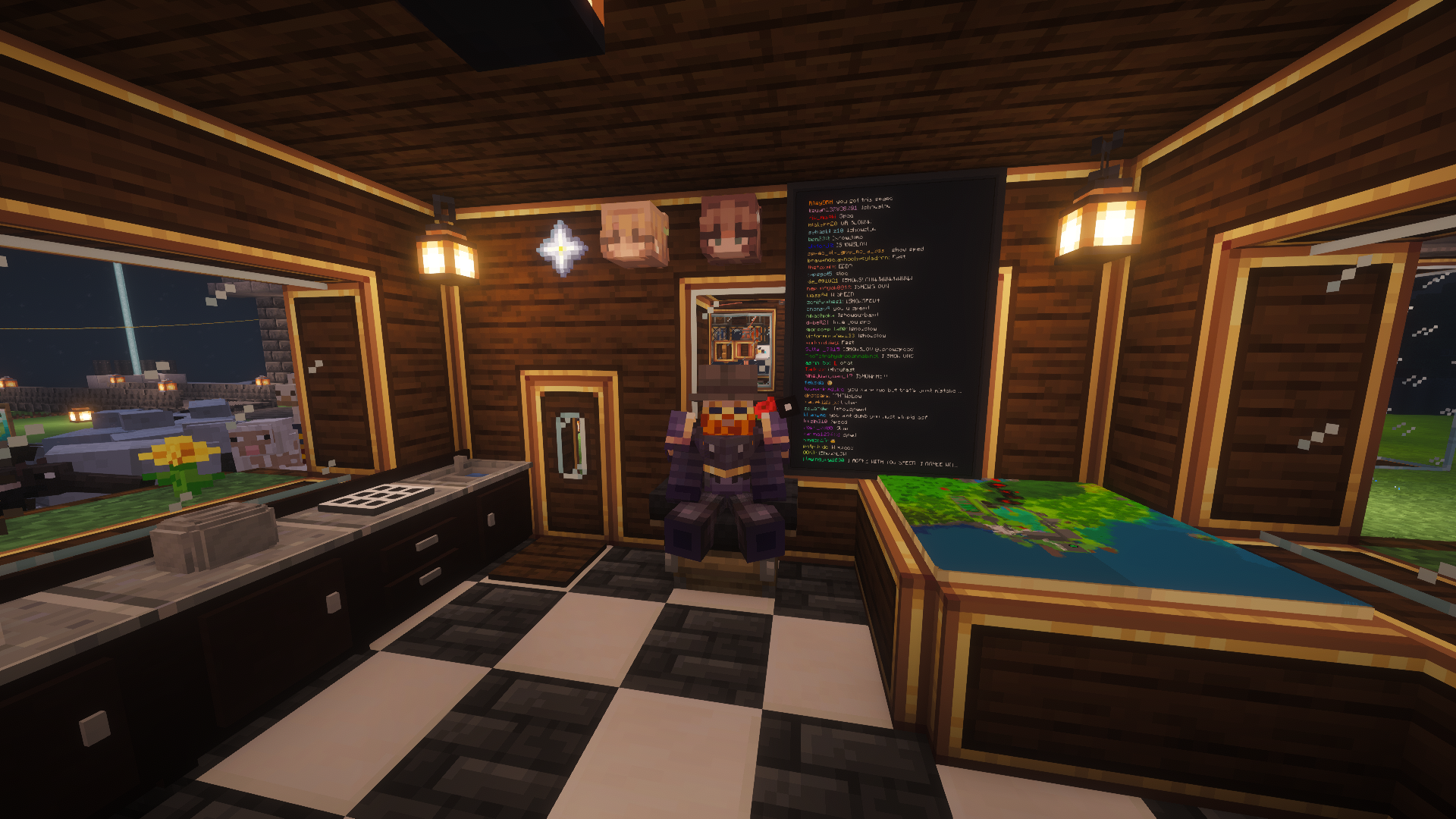
Type a channel name and its live chat flows onto your held tablet, your HUD, or a placed chat wall every viewer sees — merged walls give it the big-screen treatment. No account, no login, nothing stored: an anonymous, strictly read-only view of public chat, connected only while chat is actually on a screen somewhere.
And it's real chat: emotes render as actual images — Twitch's own plus 7TV, BetterTTV, and FrankerFaceZ, animated ones animating (a header toggle switches back to plain text). Keep Twitch as your last-used app and the tablet in your hand becomes a pocket chat screen, even in third person.
Shared-server note: chat is live, unfiltered internet, and anyone who can open a placed tablet's GUI can change its channel — same trust rules as its signals.
A pixel canvas that lives on the tablet: doodle, place it, and the picture shows right on the glass. Merged walls become murals — paint across the seams while viewers watch your strokes land live, split the wall and each tablet keeps its slice, merge back and the mural reassembles. Break it, chest it, gift it — the art travels with the tablet.
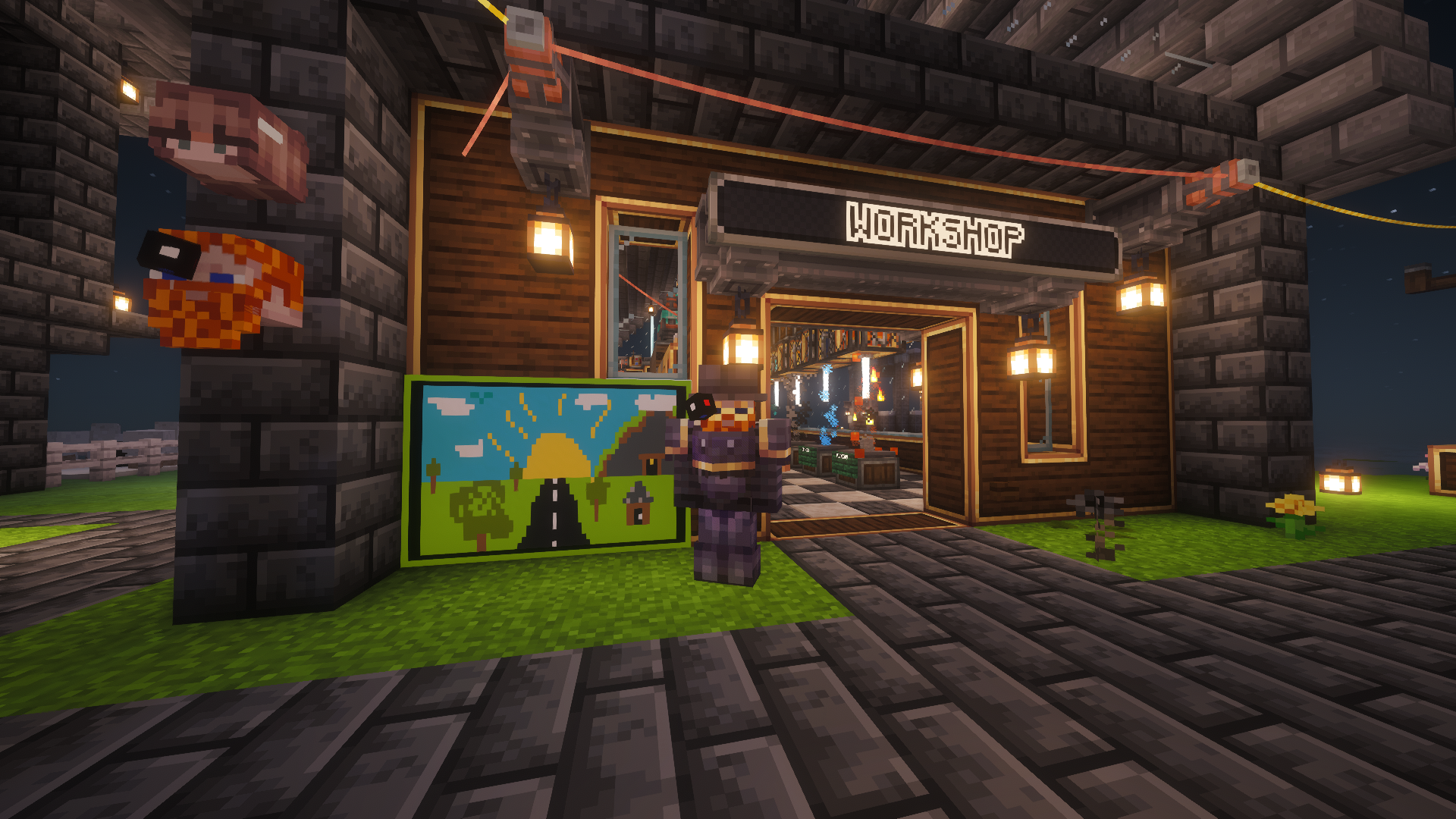
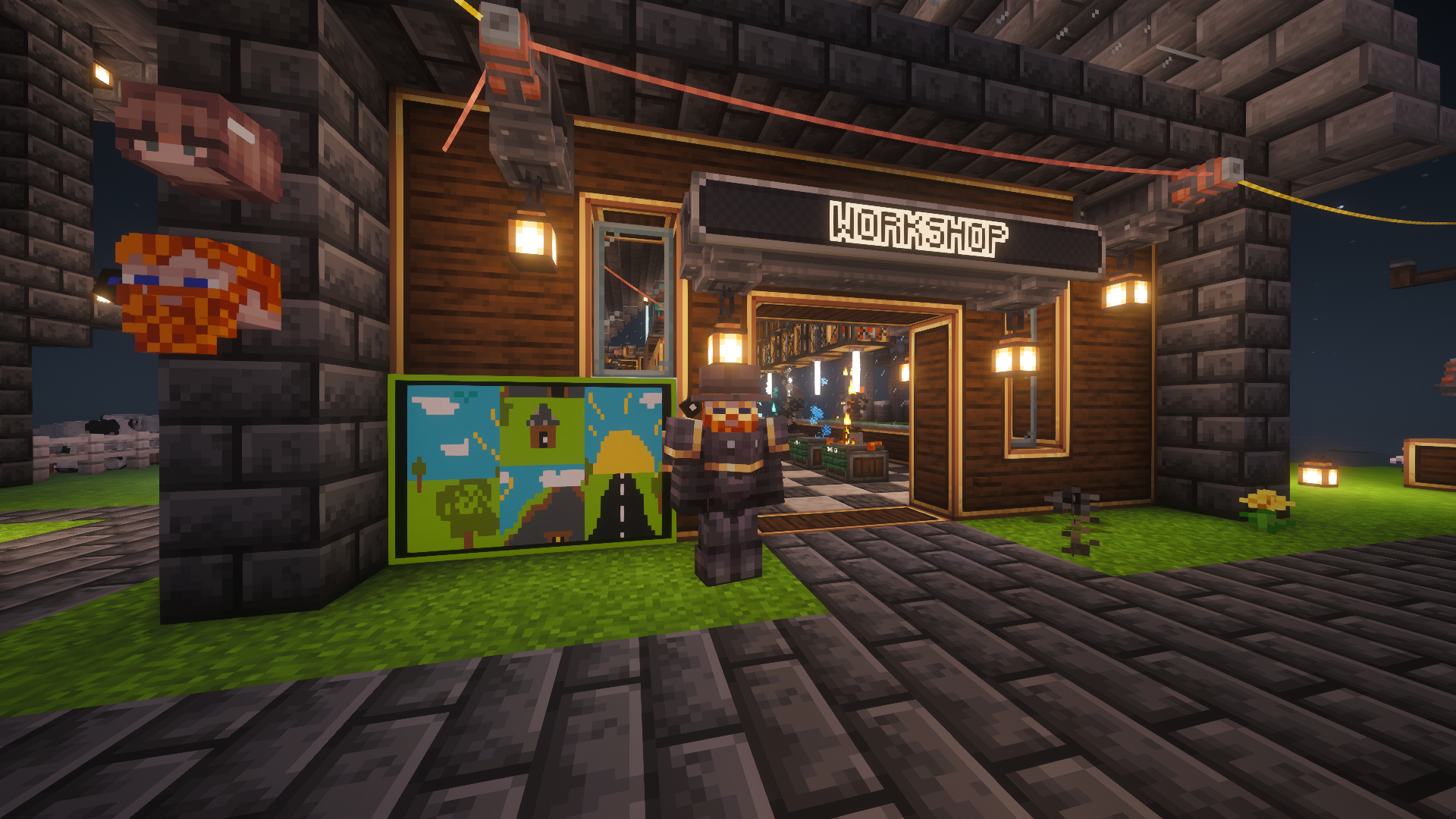
Every tablet keeps its slice — rearrange the wall, remix the painting.
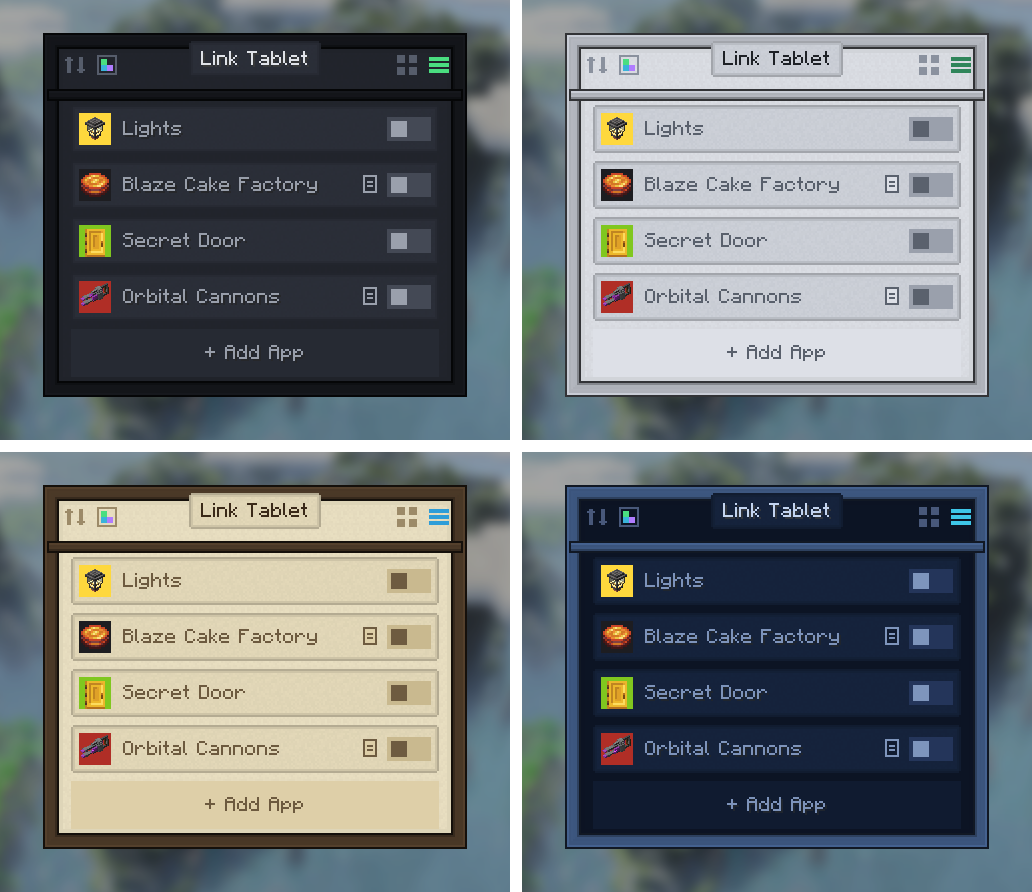
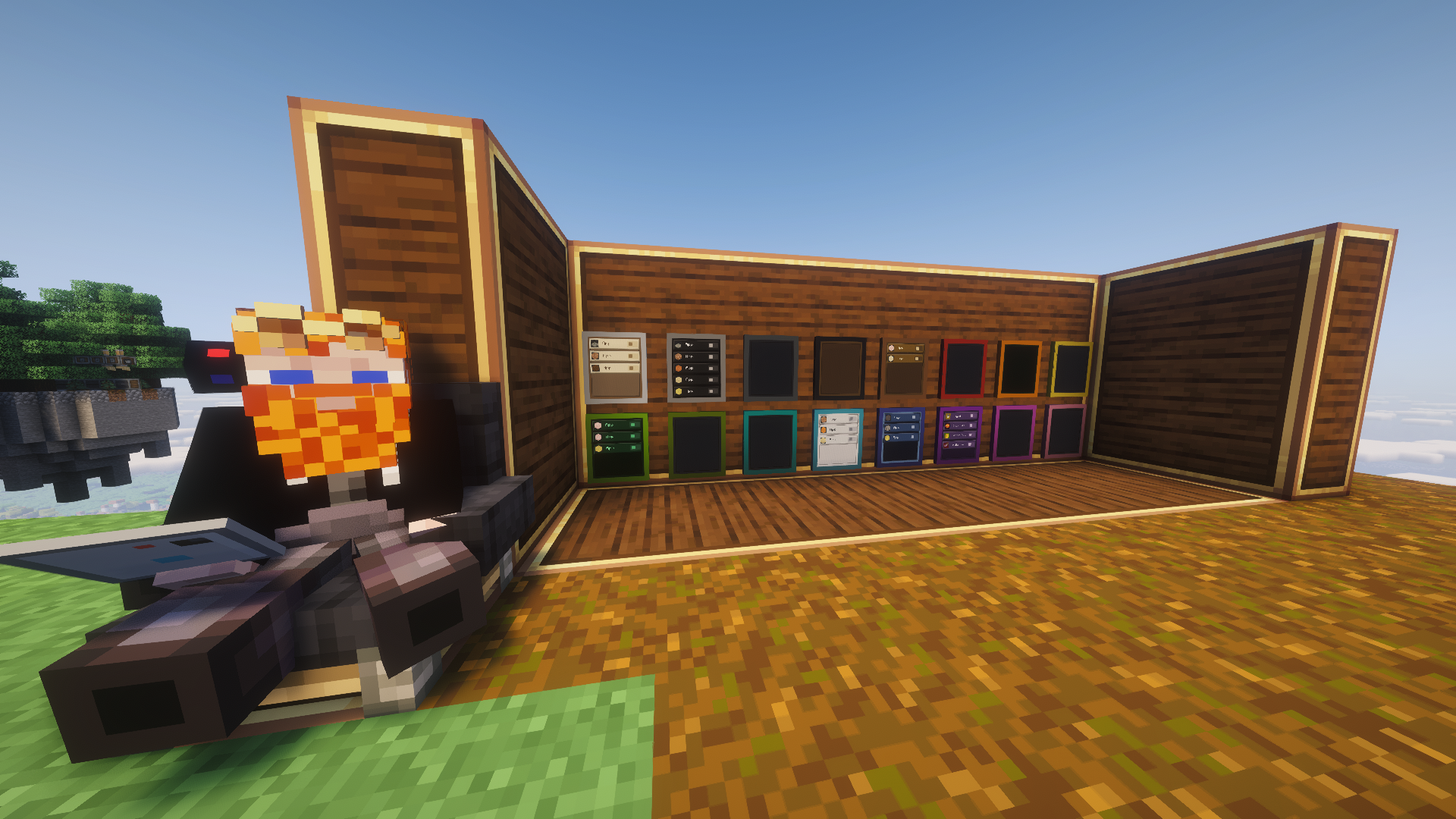
The tablet comes off a real assembly line — brass-age manufacturing, not crafting. Shape a Tablet Case from five brass sheets, then send it down a belt past three Deployers: the Link Logic Board (the radio), the Clockwork Cell (the power), and the Quartz Display (the screen). The in-progress tablet visibly gains each part, and JEI/EMI shows the whole sequence.
Then:
There's a Ponder scene too — hold W over the tablet item. A tablet anywhere in your inventory transmits like Create's handheld Linked Controller; placed tablets transmit from the block.
Huge thanks to the Create team — this addon stands on their Redstone Link network and visual language. Go support the original mod!
Banner lettering uses the community Minecraft Ten font art by xllifi (CC-BY 4.0).
Enjoying the tablet? You can drop a tip ☕ — thank you!
Created by FryD42 · MIT licensed — free to use in any modpack.
Project description from CurseForge.
Pick your setup
Choose the version and loader you play, then open the matching release.
Check the dependencies, then try the file in a copied instance before changing a world you care about.
Recent files
10 Aug 2026
10 Aug 2026
3 Aug 2026
3 Aug 2026
28 Jul 2026
27 Jul 2026
25 Jul 2026
22 Jul 2026
21 Jul 2026
21 Jul 2026
21 Jul 2026
19 Jul 2026
Looking for an older file? The official CurseForge project page is in Resources.